
People & payroll · 5 steps
Run payroll and view payslips
Preview the month's salaries from your salary structures and attendance, save a draft run, then approve it, mark it paid and open each payslip.
Before you start: Every employee you pay needs a salary structure. Mark the month's attendance first — absent and half days reduce pay. Pay is also prorated by date of joining and exit date.
1Open Payroll Runs
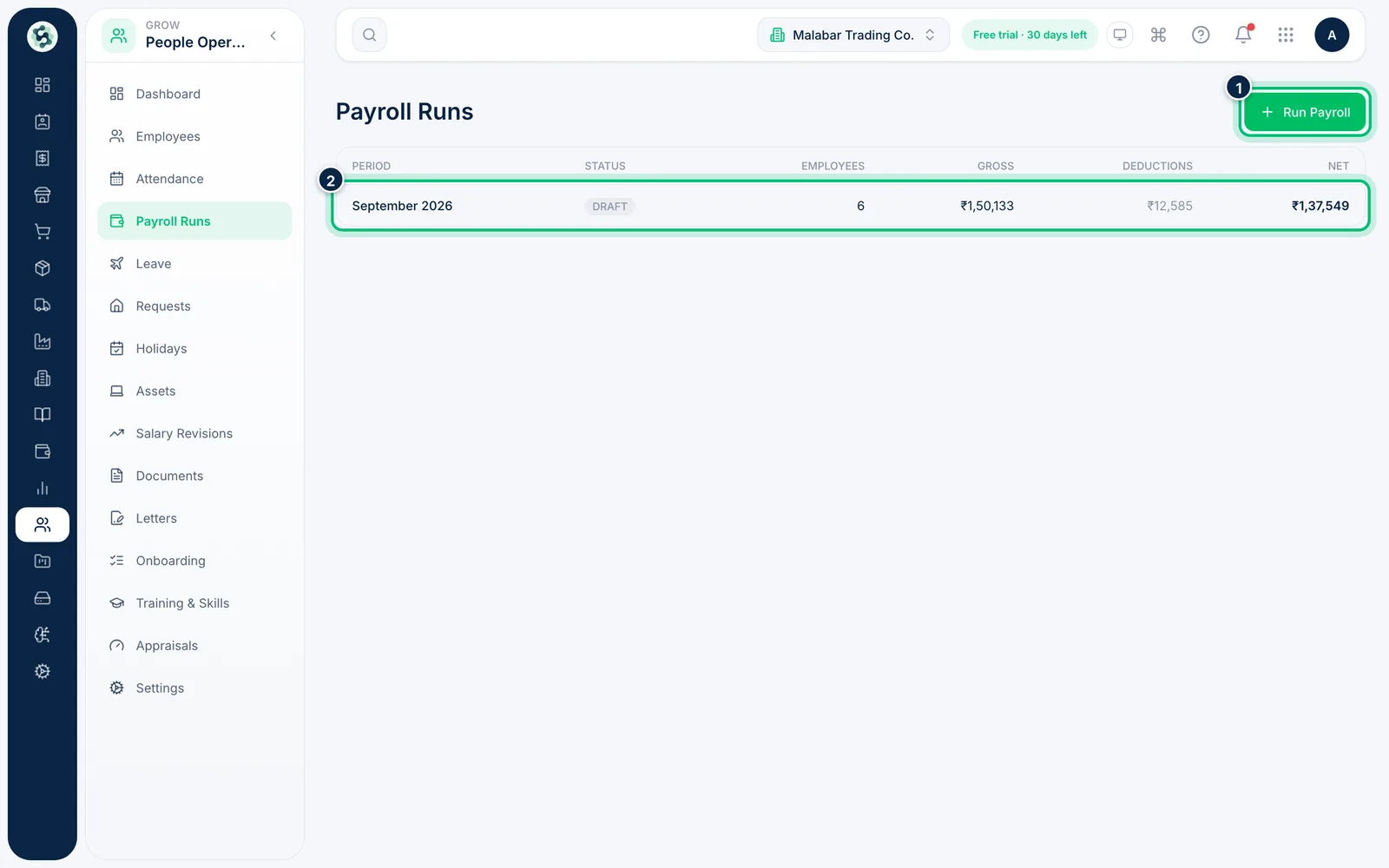
Go to People Operations → Payroll Runs. Each run shows its period, status (DRAFT, APPROVED or PAID), the number of employees and the gross, deductions and net totals. Choose Run Payroll to start a new month.
2Pick the pay period and preview
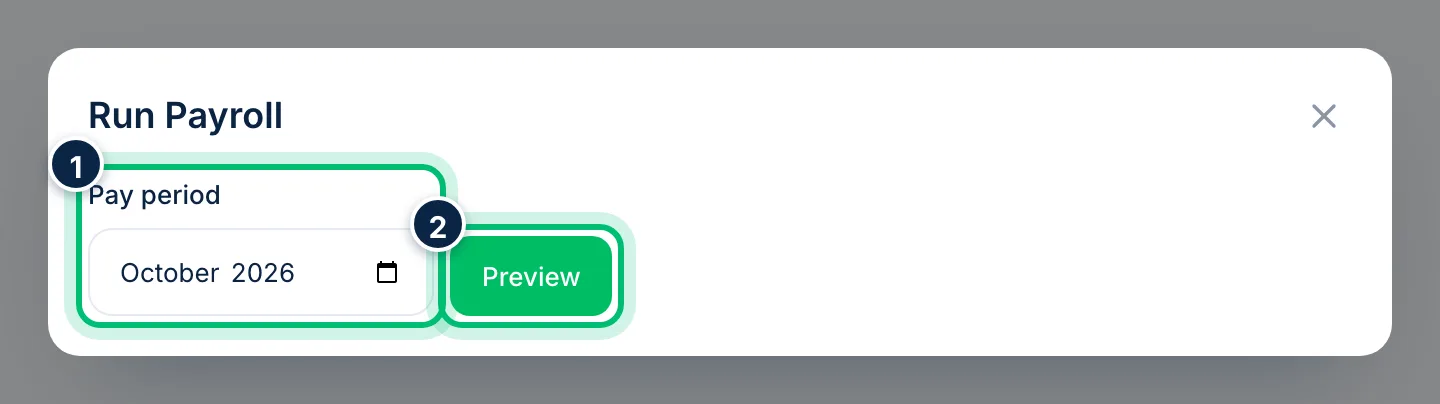
Choose the Pay period month and select Preview. Nothing is saved yet — Scalar360 just works out every active employee's payslip.
3Check the figures and create a draft run
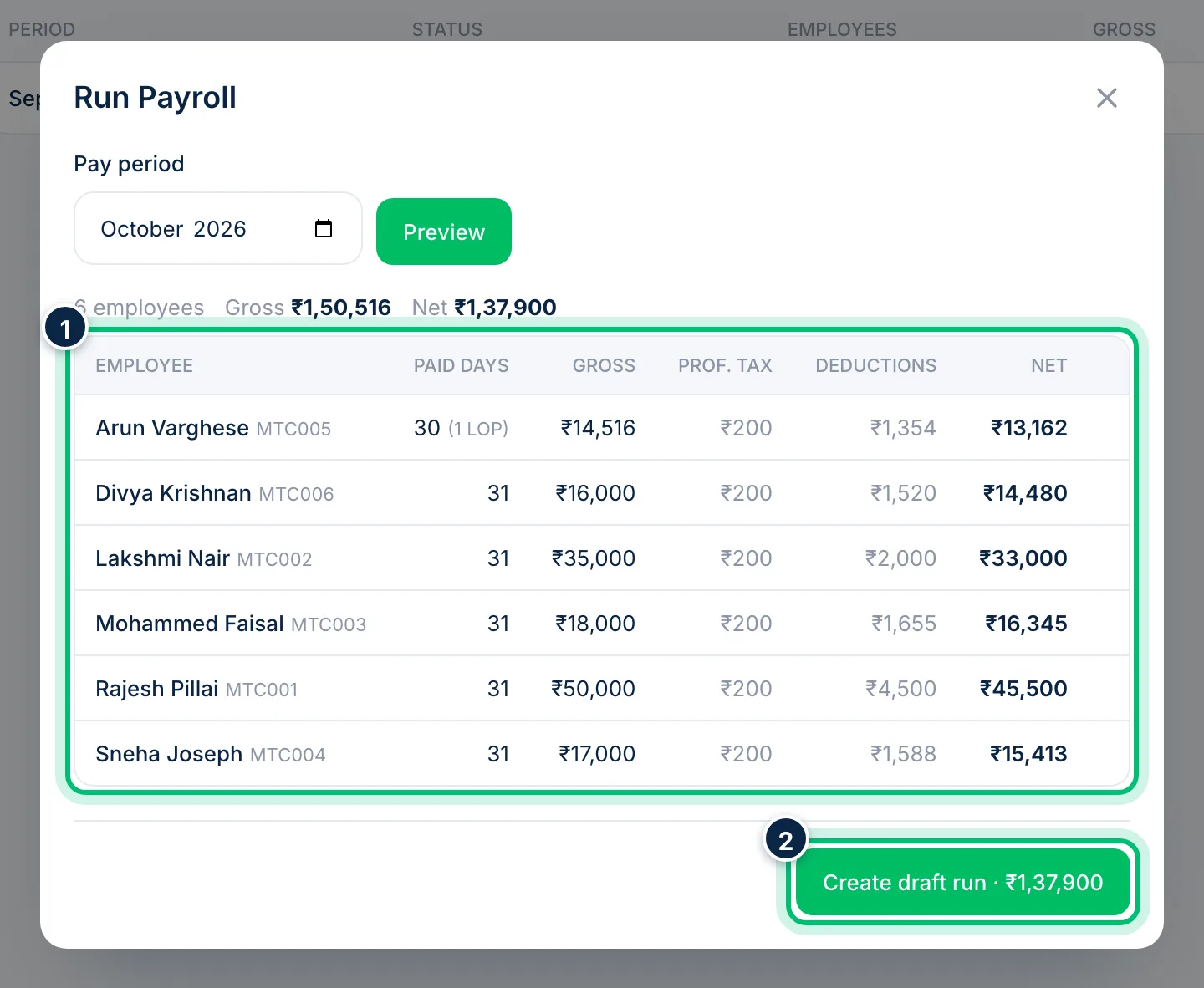
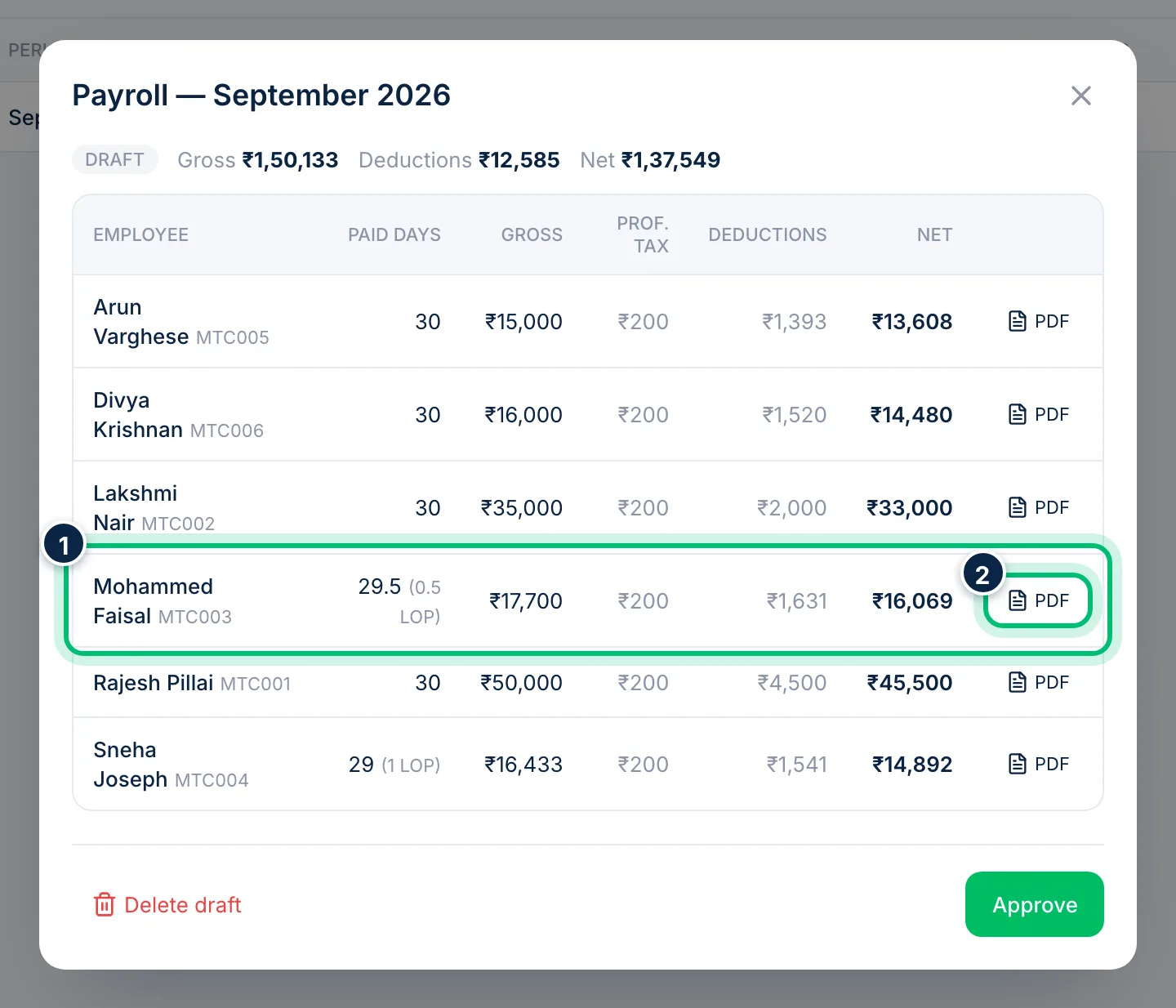
The preview lists each employee's paid days, gross, Professional Tax, deductions and net pay. When any payslip includes approved expense claims marked for payroll, a Reimb. column appears too, and net pay is gross minus deductions plus reimbursements. Reimbursements are non-taxable and sit outside PF, ESI, Professional Tax and TDS. Any loss-of-pay days show beside the paid days, for example 30 (1 LOP). Earnings are prorated by paid days, which count only the days the employee was on the rolls that month. PF is taken on Basic up to the PF wage ceiling, ESI only when gross is within the ESI ceiling, plus Professional Tax and any fixed TDS. Choose Create draft run to save it.
4Approve the run, then mark it paid
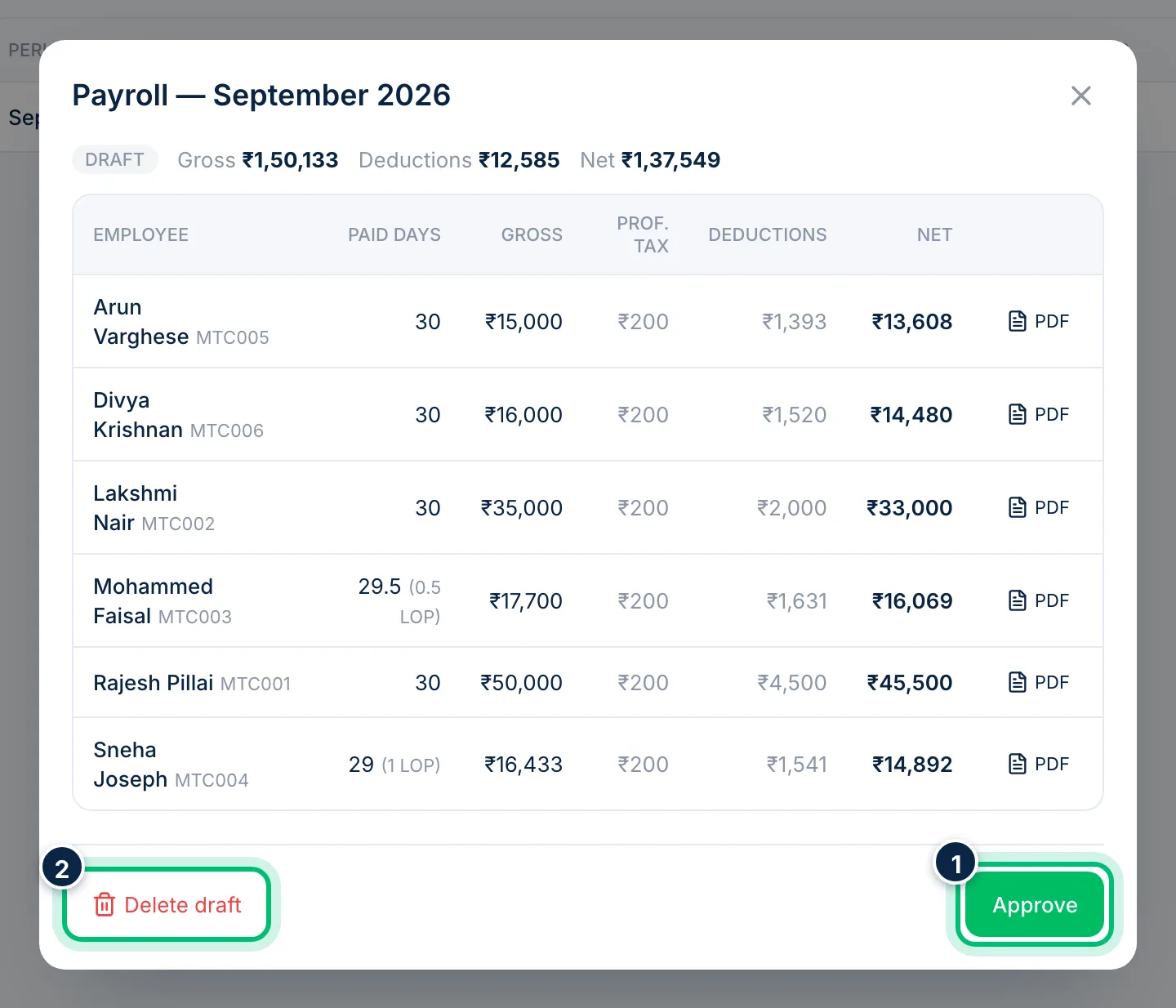
Click a run in the list to open it. Check the totals and choose Approve. Once salaries are credited, open it again and choose Mark paid. Marking the run paid also marks its expense claims Reimbursed. You can still use Delete draft while a run is a draft; that releases its claims for a later run.
5Open a payslip
In a saved run, choose PDF next to an employee to open their payslip. It shows the earnings, deductions, paid days, bank account, PAN and UAN.
Related guides
Still stuck? Contact our support team — or start a free trial to try this in your own company.