
Super Intelligence (AI & API) · 4 steps
Find your way around Super Intelligence
See your connected apps and the server address, browse what AI apps can do in your account, and find answers on the Help page.
Before you start: Super Intelligence is included for every user. What a connected app can do always follows your role.
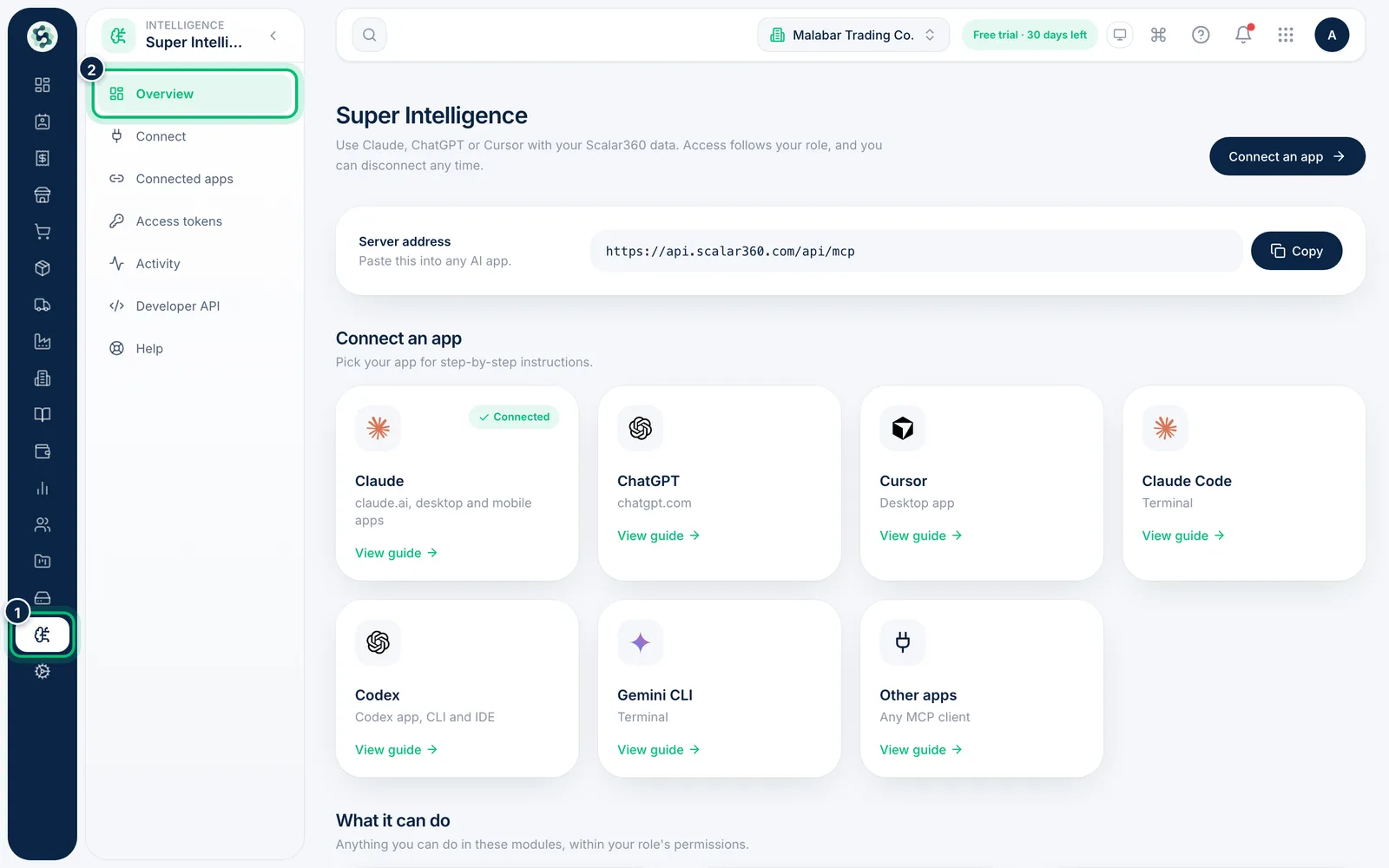
1Open Super Intelligence
In the left menu choose Super Intelligence. The Overview tab shows the server address and the apps you can connect. See what is connected under Connected apps and what those apps did under Activity.
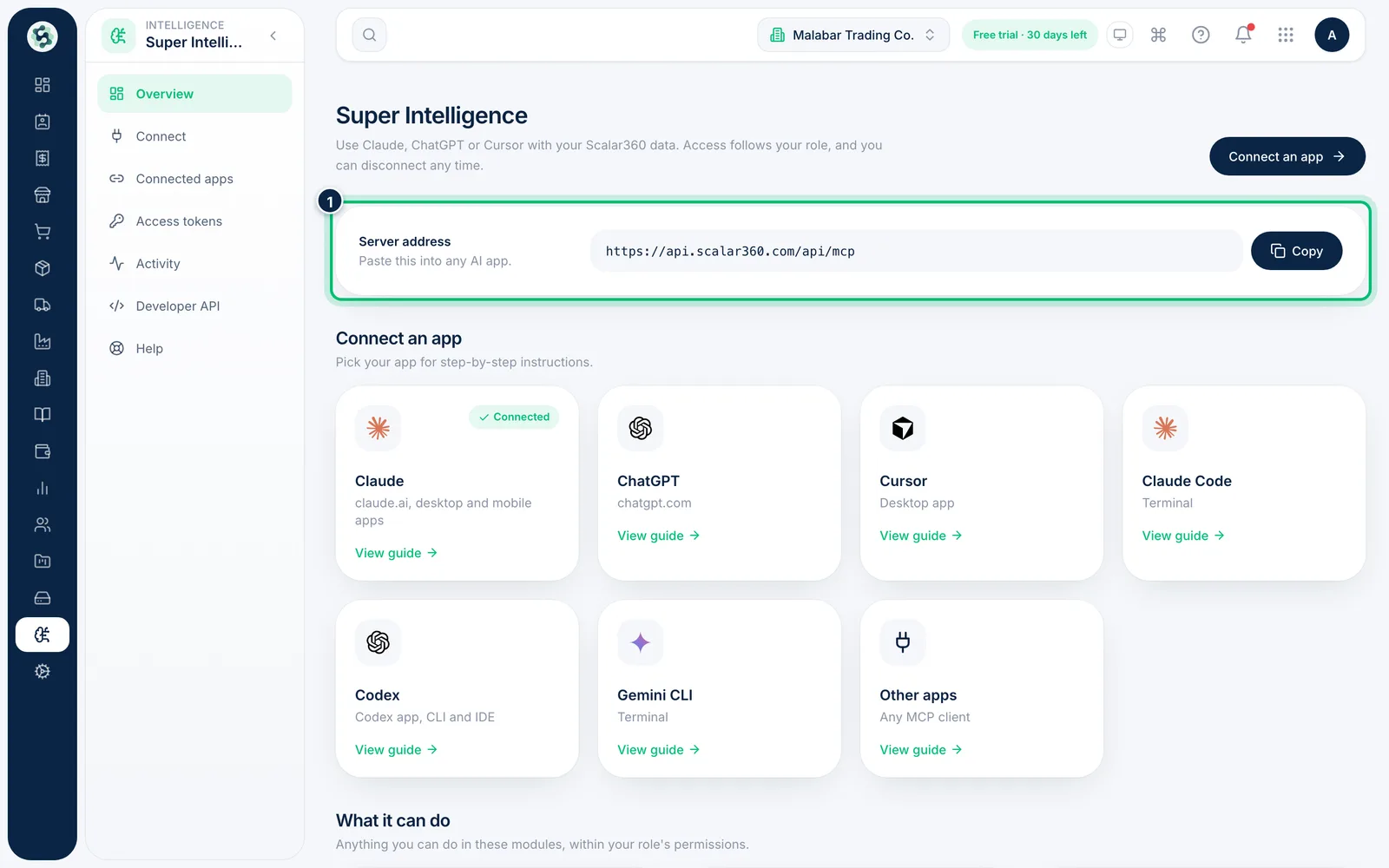
2Copy the server address
The Server address is what every AI app needs to reach Scalar360. Choose Copy to put it on your clipboard, then paste it into the AI app's connection screen.
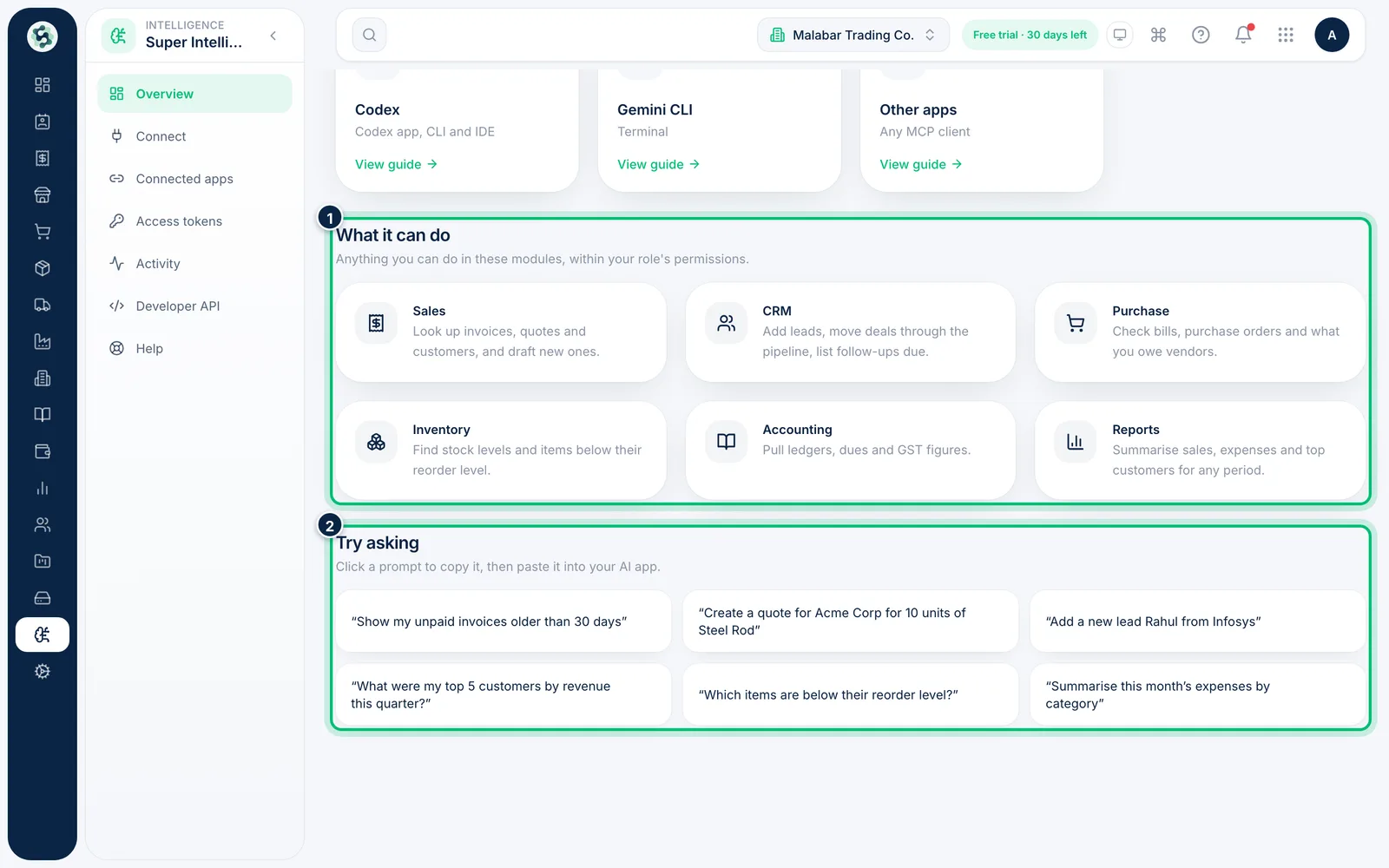
3See what AI apps can do
Under What it can do, each tile names a module — Sales, CRM, Purchase, Inventory, Accounting and Reports — with examples. Under Try asking, click a prompt to copy it, then paste it into your AI app.
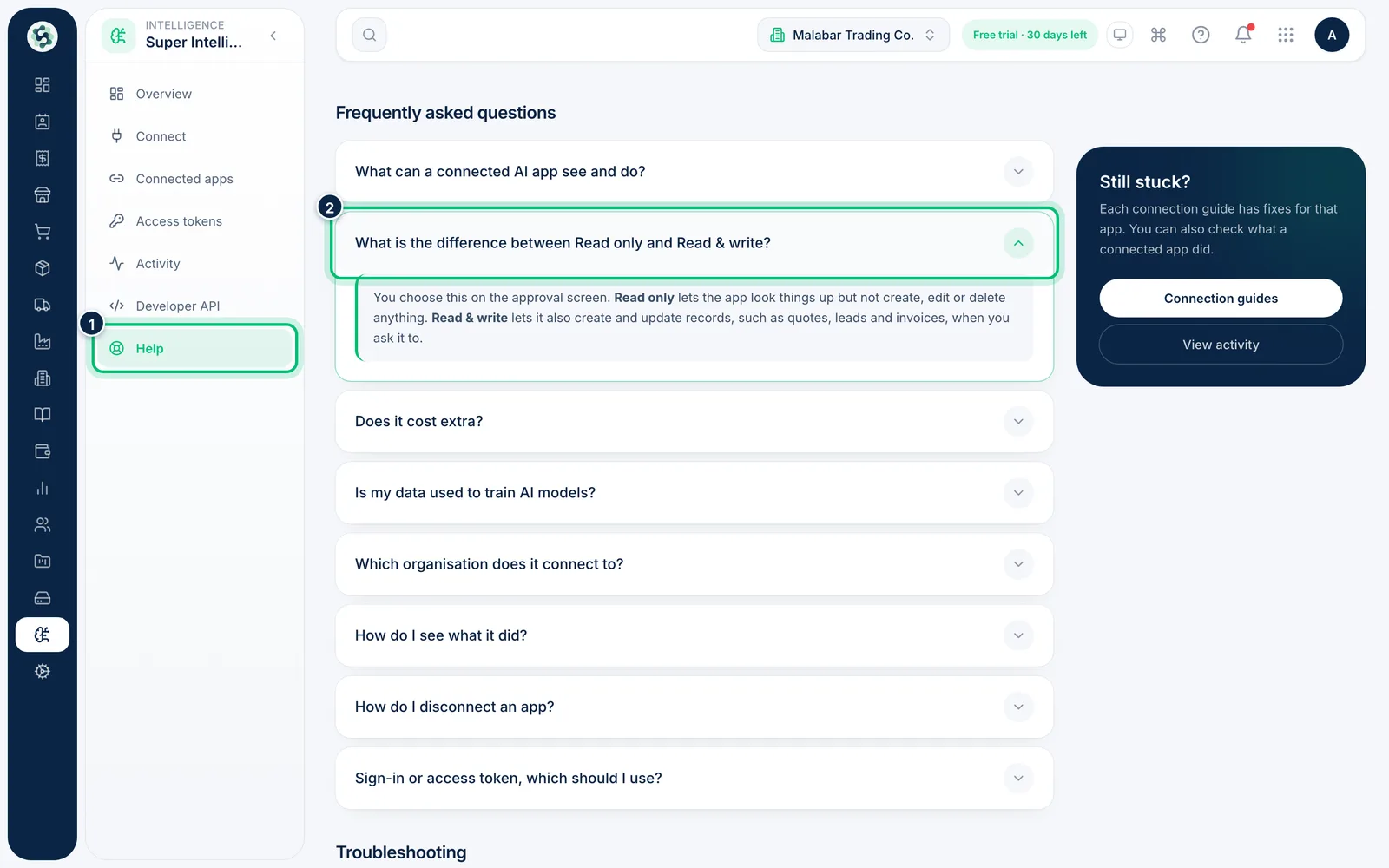
4Read the Help page
Open the Help tab for Frequently asked questions and Troubleshooting. Click a question to expand its answer — for example what a connected app can see, or why an approval page says it couldn't verify the request.
Related guides
Still stuck? Contact our support team — or start a free trial to try this in your own company.