
Supply chain · 4 steps
Read the Supply Chain dashboard
See what is waiting to ship, what is on its way and what needs attention, all on one page.
Before you start: The dashboard fills in as you issue invoices and create shipments. Stock transfers, adjustments and reorder are covered in the Inventory guides.
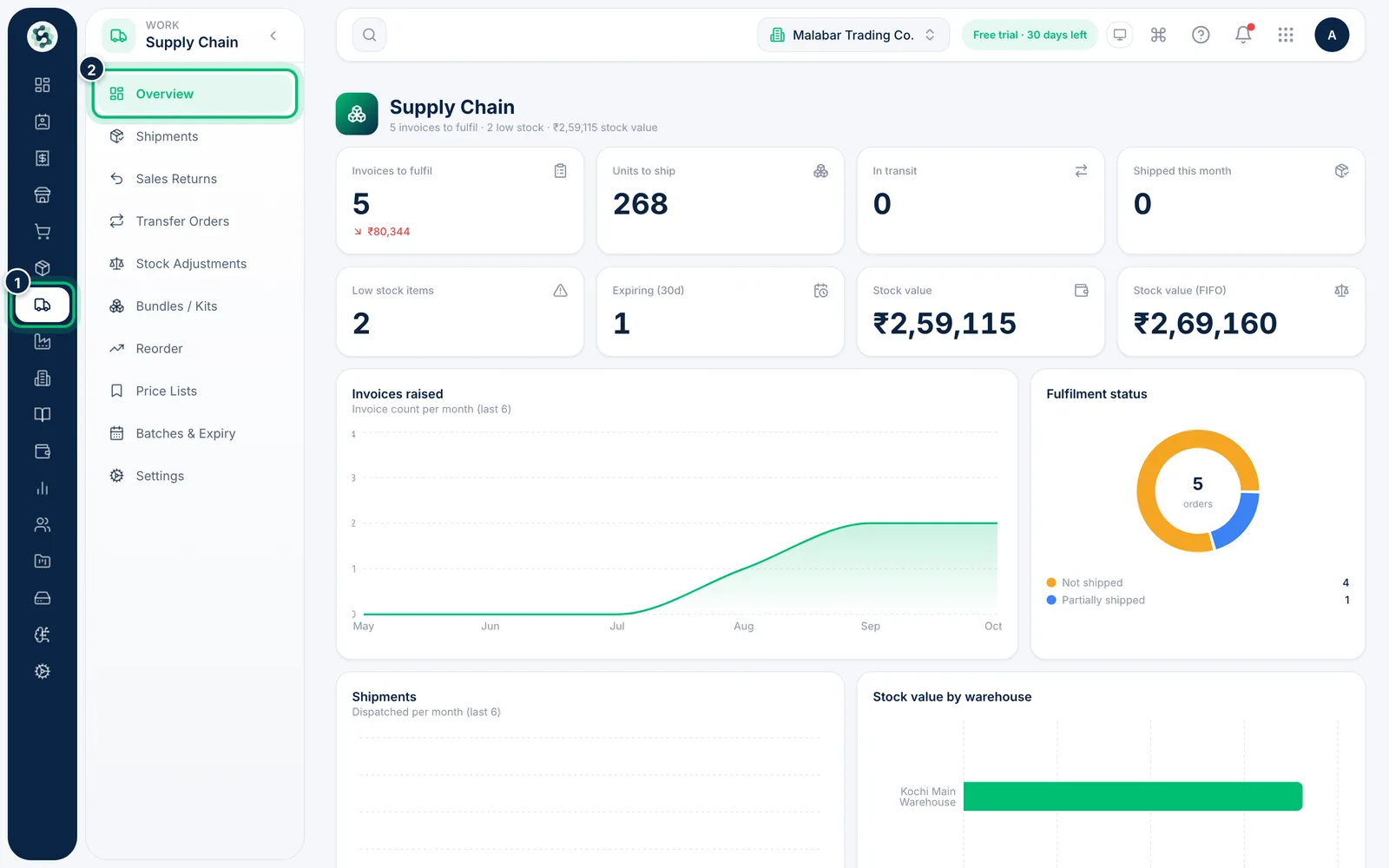
1Open Supply Chain
Choose Supply Chain in the left rail. The menu lists Overview, Shipments, Sales Returns, Bundles / Kits, Price Lists, Batches & Expiry and Settings, along with Transfer Orders, Stock Adjustments and Reorder.
2Check the fulfilment numbers
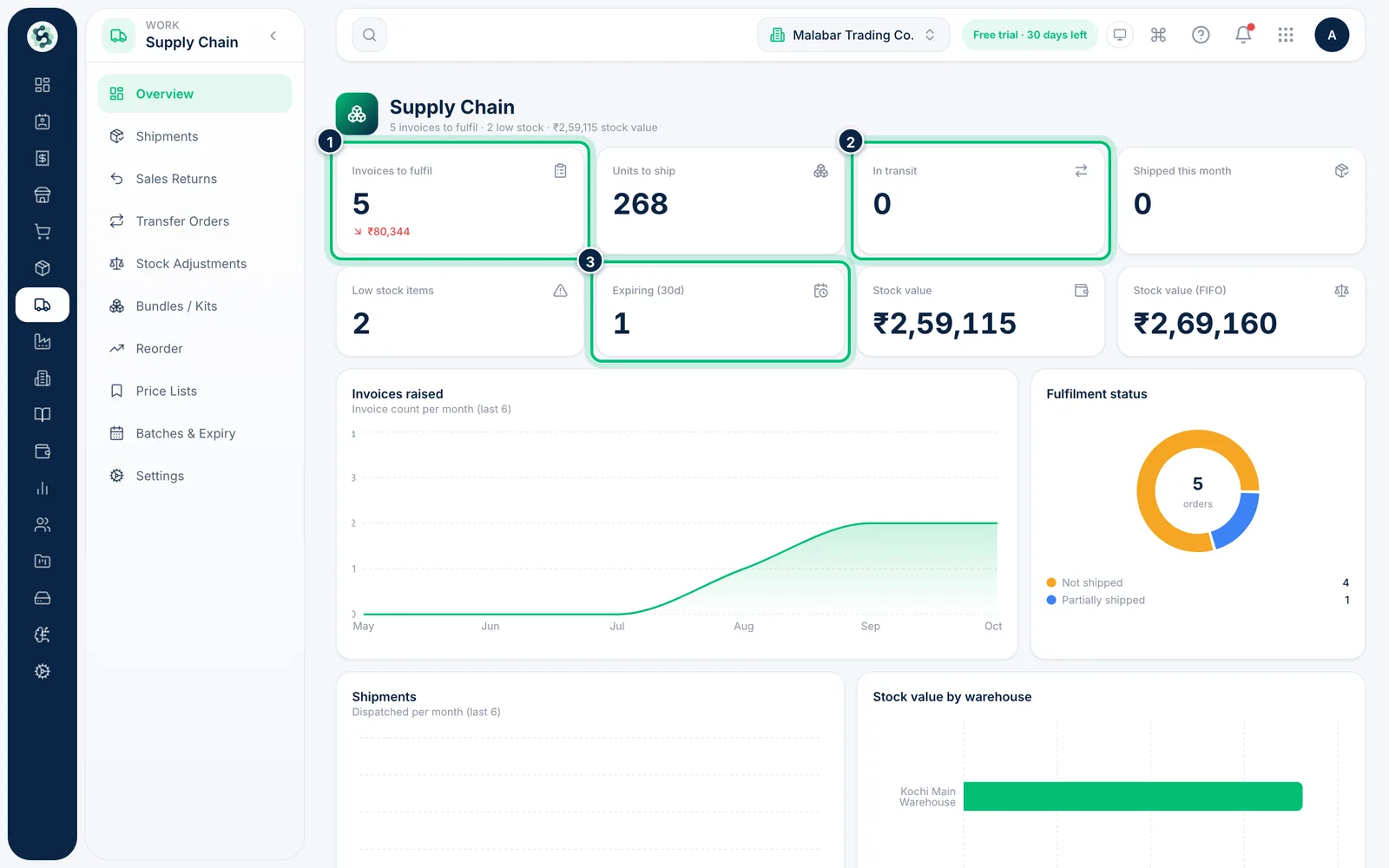
The cards show Invoices to fulfil, Units to ship, In transit and Shipped this month. Below them, Low stock items, Expiring (30d), Stock value and Stock value (FIFO) show what needs care.
3Follow the trends and the status split
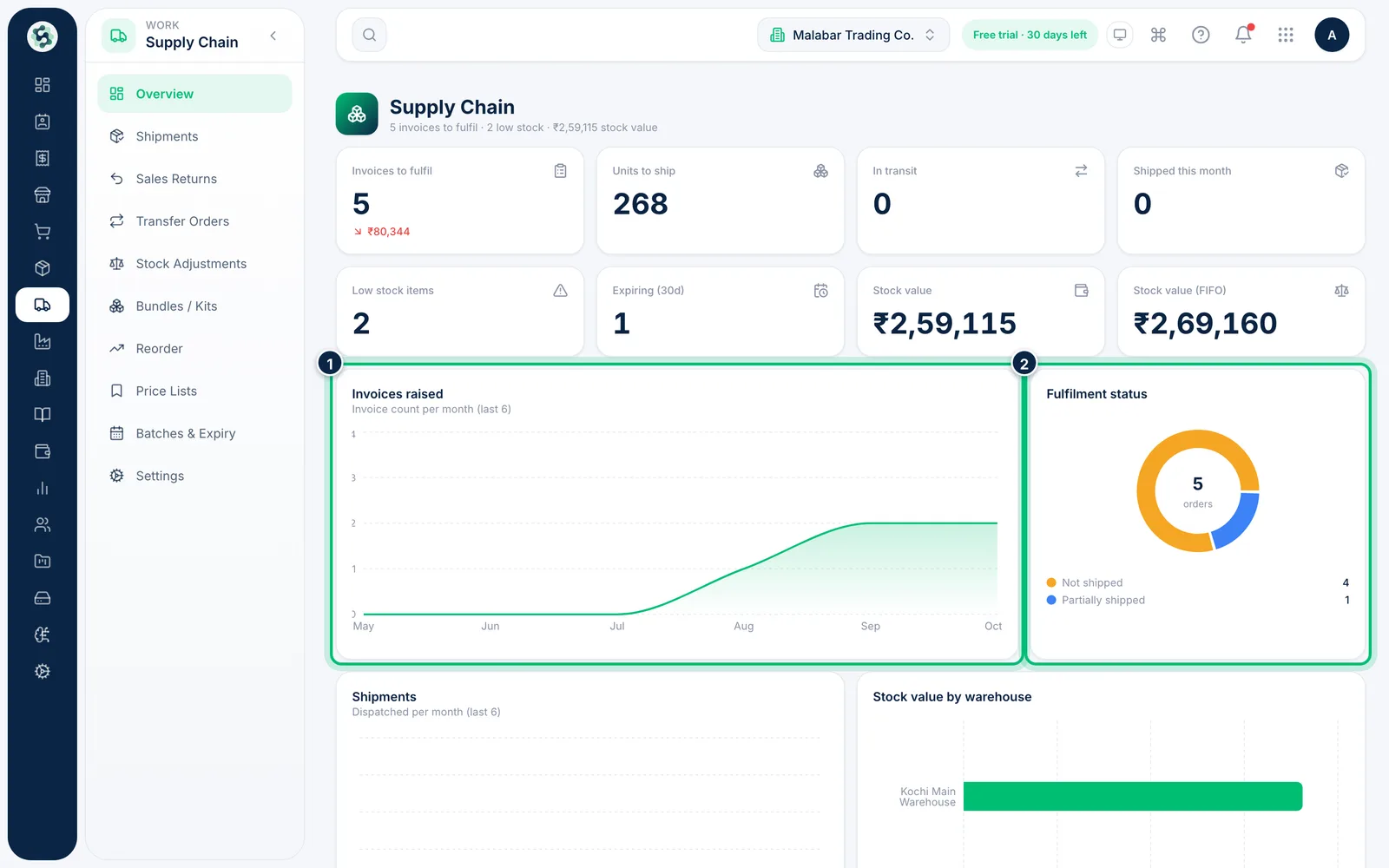
Invoices raised charts the last six months. Fulfilment status splits your invoices into not shipped, partially shipped and fully shipped, and Shipments shows how many you dispatched each month.
4Jump to the work waiting for you
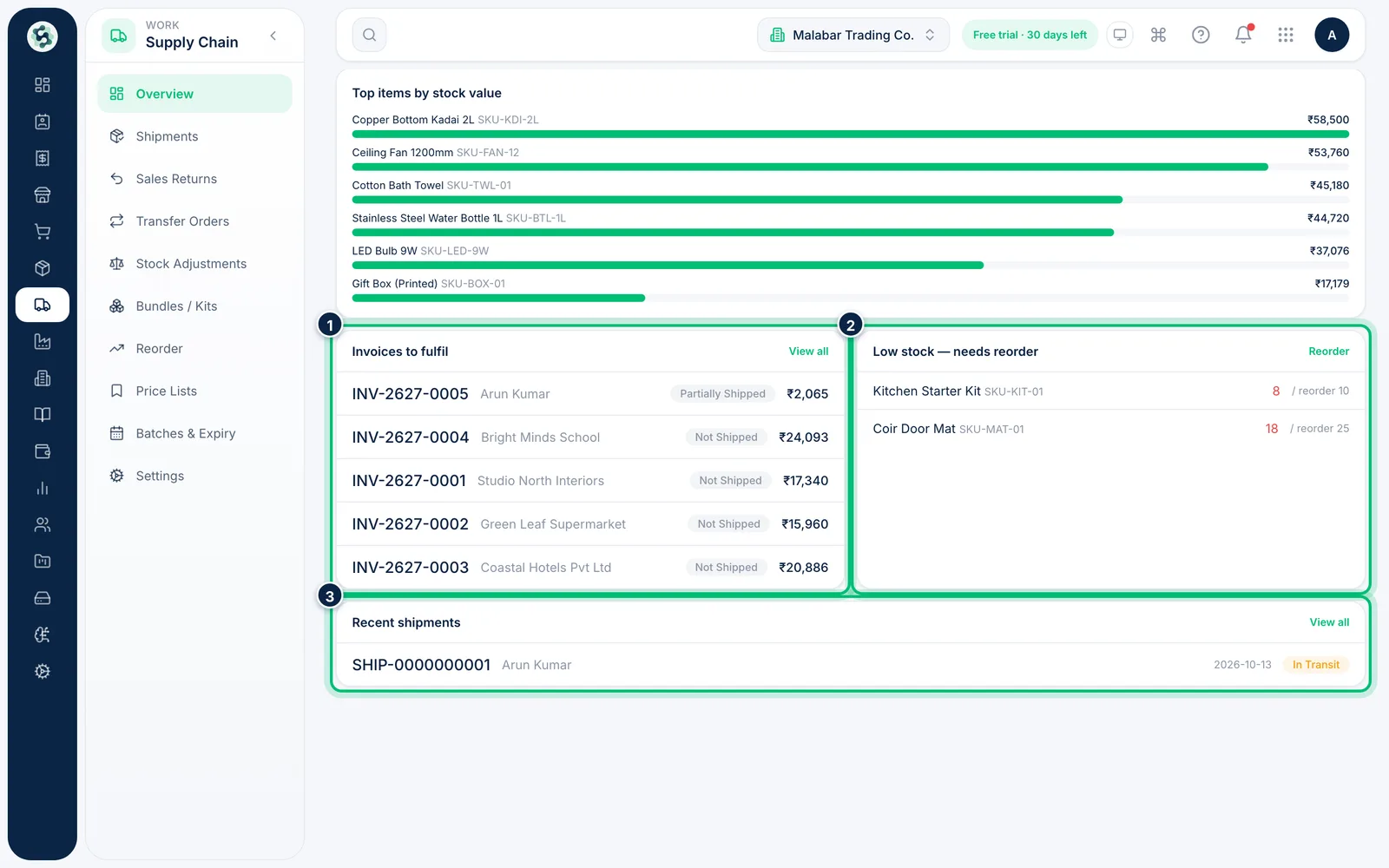
Invoices to fulfil lists invoices that still have goods to ship, and Low stock — needs reorder has a Reorder link. Recent shipments lists the latest dispatches, with View all to open Shipments.
Related guides
Still stuck? Contact our support team — or start a free trial to try this in your own company.