
Reports · 4 steps
See sales by customer and item
Find out who your best customers are, which items sell most and which invoices you raised in a period.
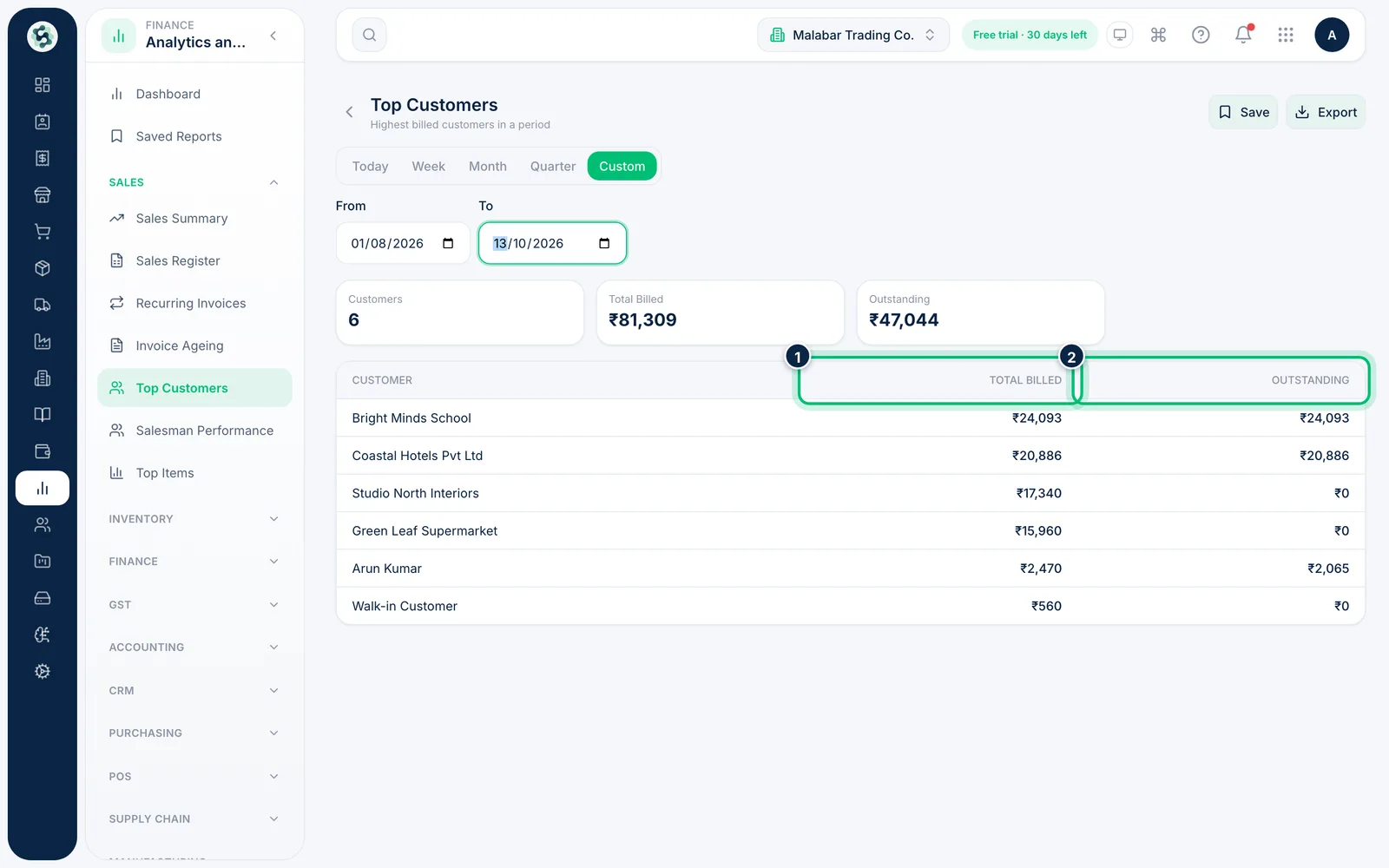
1Rank your customers
Open Top Customers. It lists customers by Total Billed in the period, with what each still has Outstanding — useful before you chase payments or offer a discount.
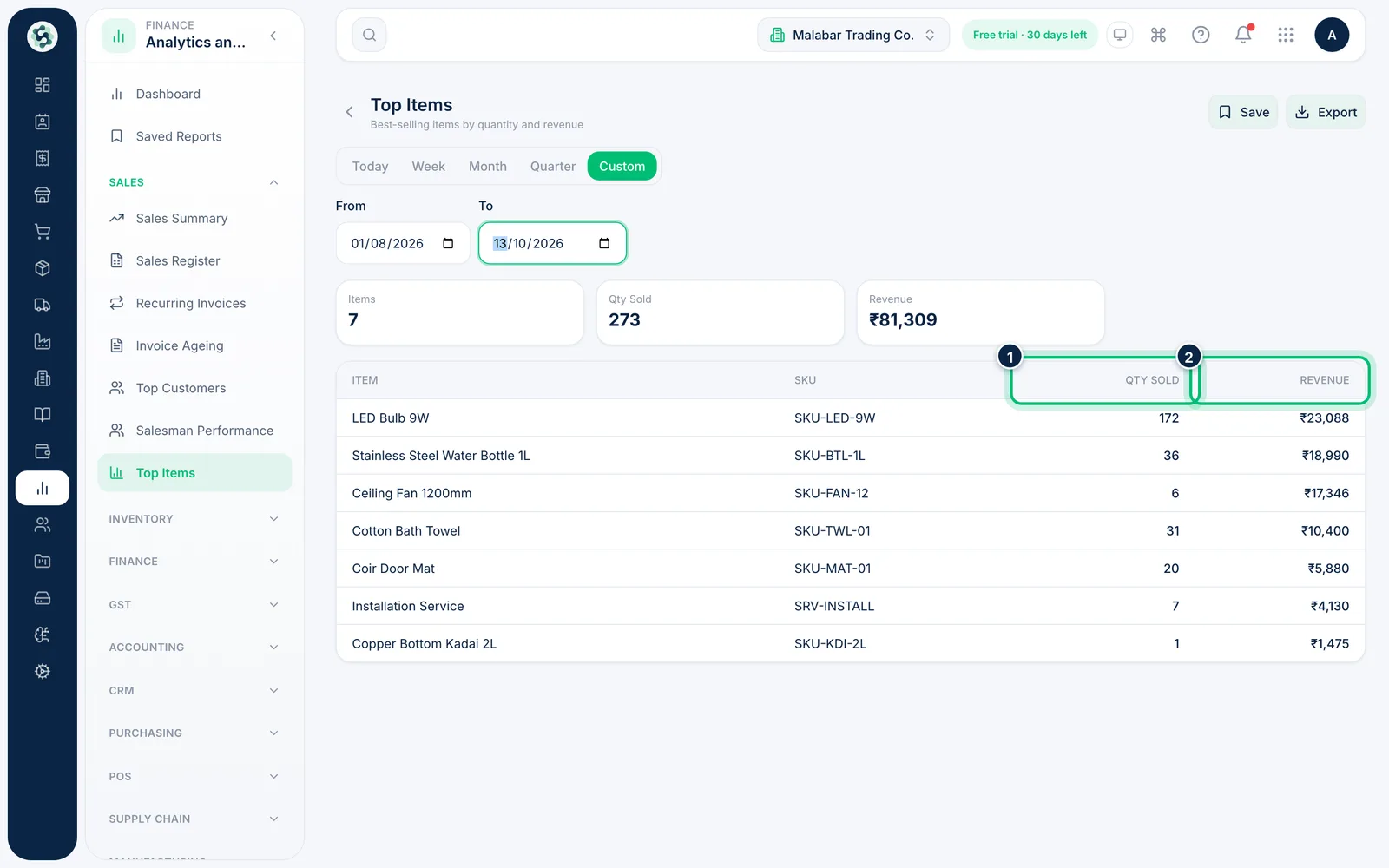
2Find your best-selling items
Open Top Items to see each item with its SKU, Qty Sold and Revenue for the period.
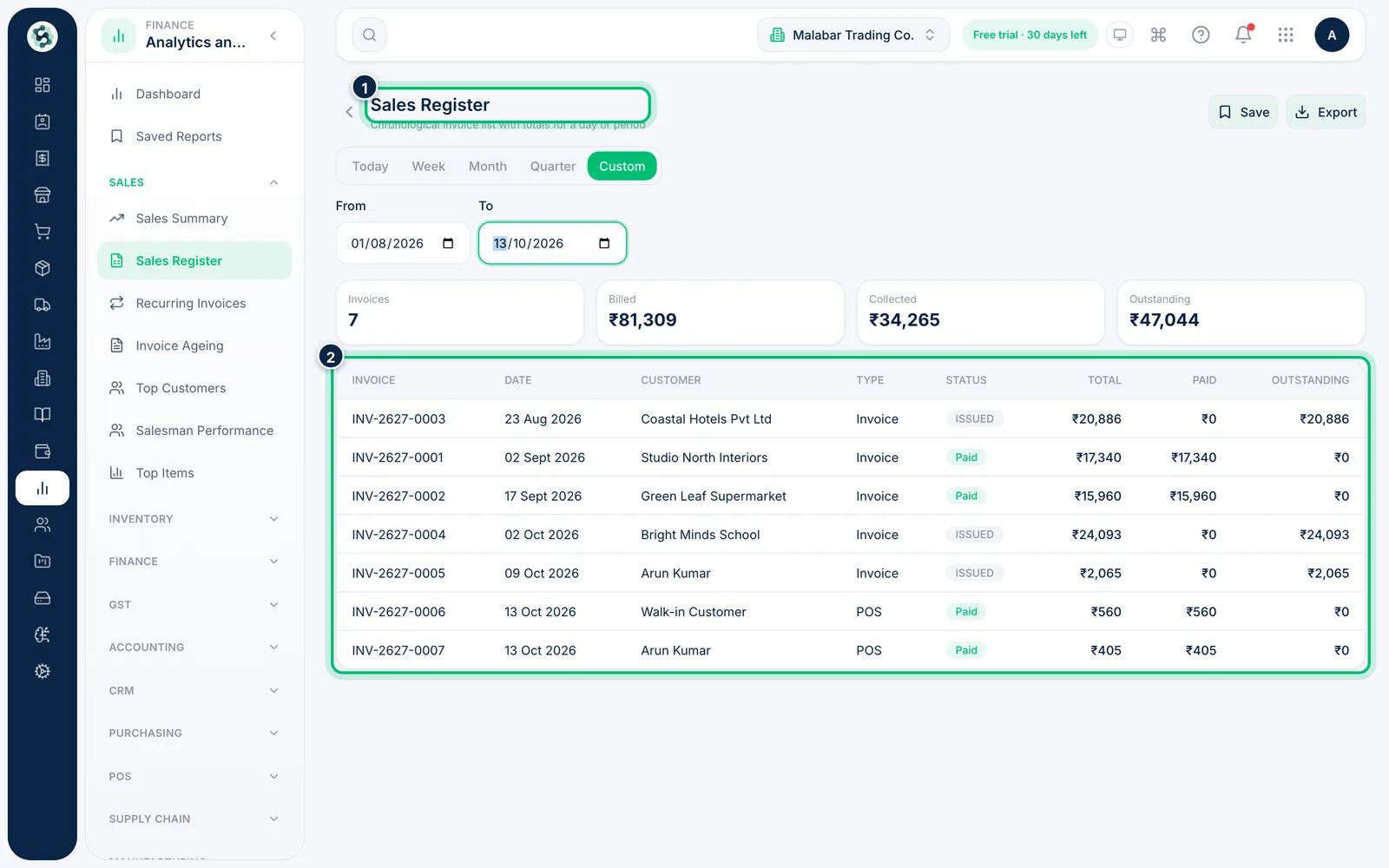
3List every invoice in the period
Open Sales Register for a day-by-day list of invoices with their totals — handy for end-of-day checks or matching against the bank.
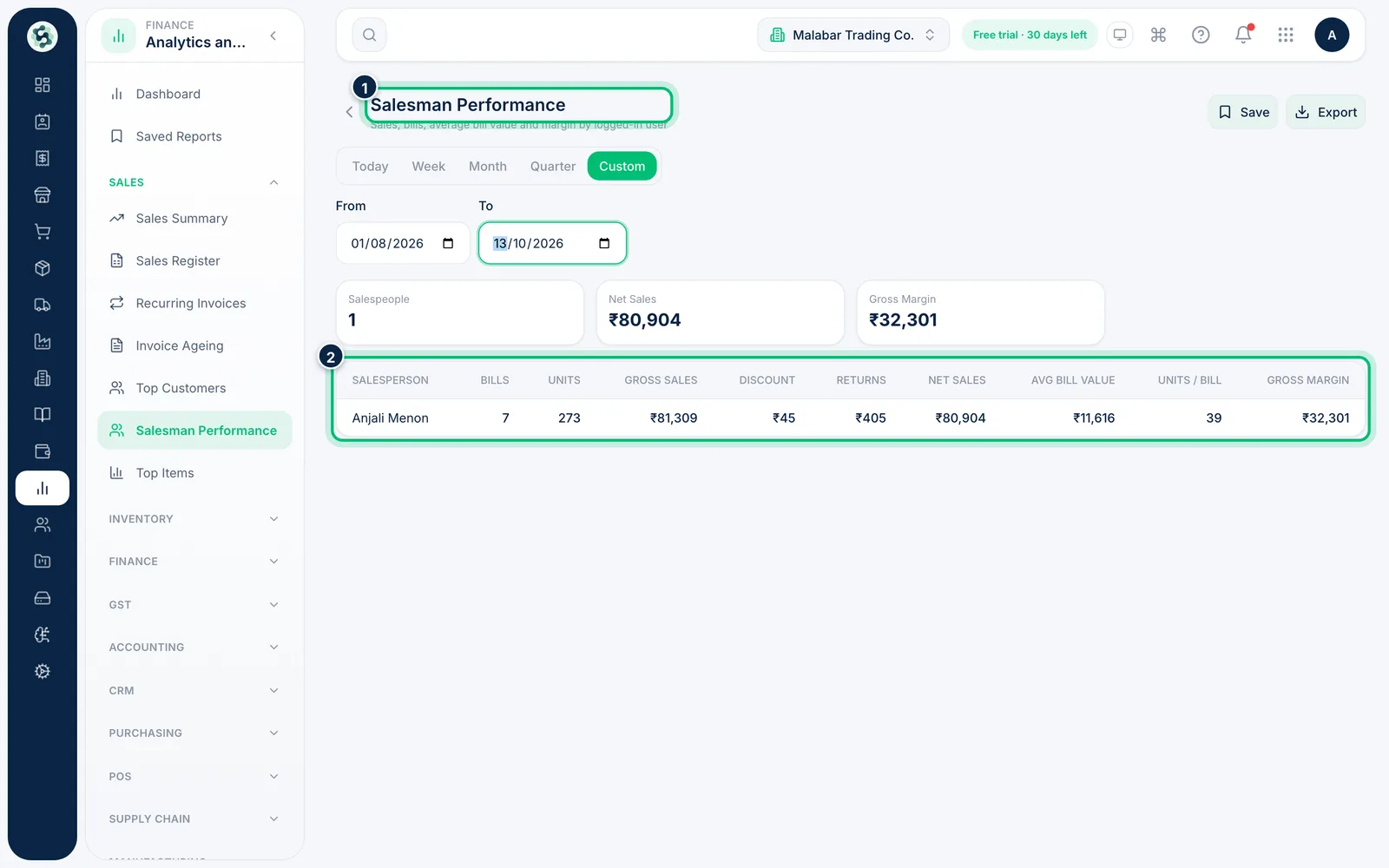
4Compare your salespeople
Open Salesman Performance from the Sales group and choose a Custom period that has sales in it, such as 1 August to 13 October 2026. Each salesperson appears with their bills, net sales and gross margin (taxable value minus cost of goods).
Related guides
Still stuck? Contact our support team — or start a free trial to try this in your own company.