
Projects · 4 steps
Work on the board and list
Move tasks through the stages on the board, switch to a sortable list, filter the work and shape the stages to fit how your team works.
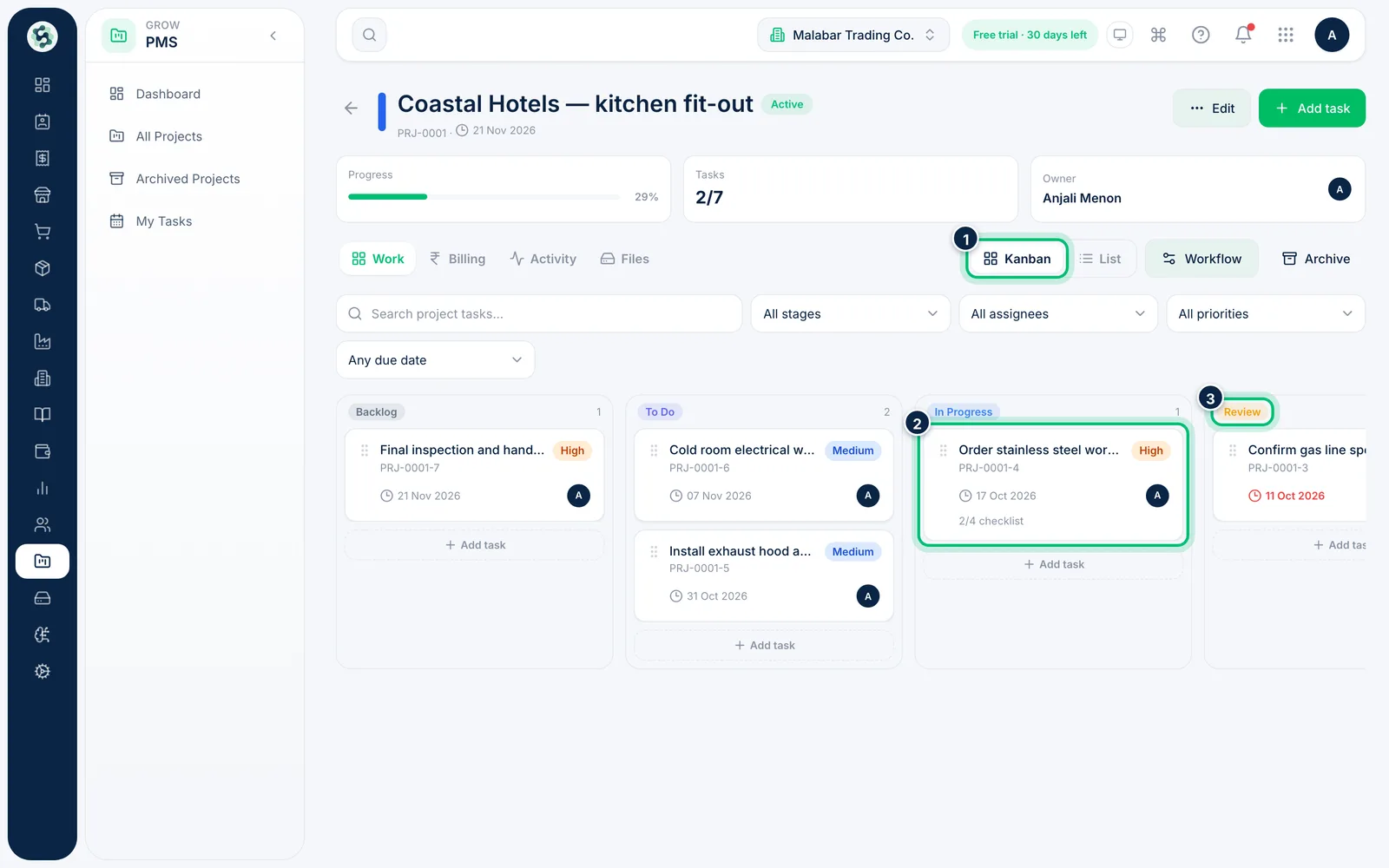
1Move tasks across the board
Open a project and choose Tasks, then the Board view — with one column per stage and a count of tasks in each. Drag a card into another column to change its stage; you'll see Task moved when it's saved.
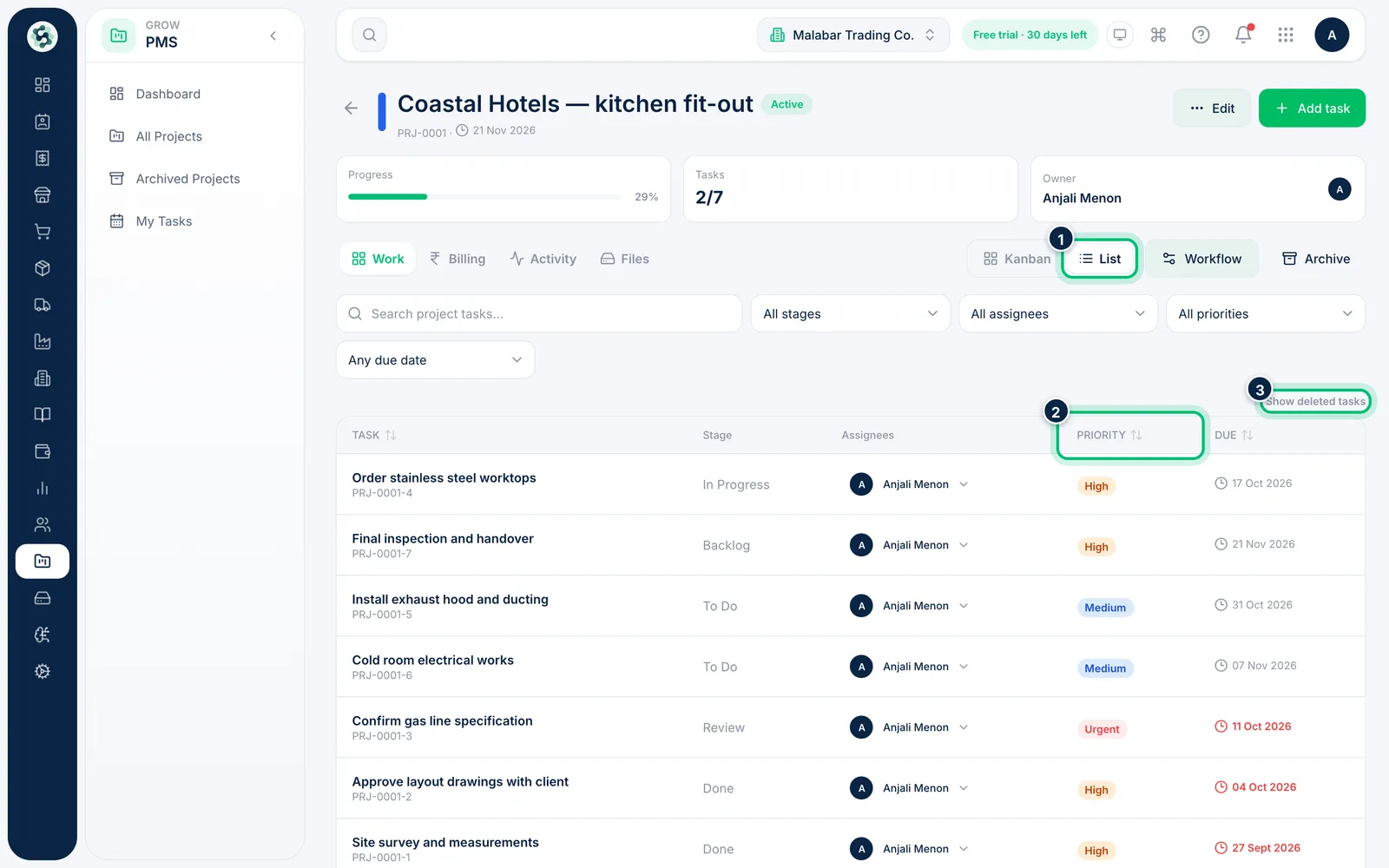
2Switch to the list
Choose List to see every task in a table with its stage, assignees, priority and due date. Click a column heading such as Priority to sort, and use Show deleted tasks to find and restore a deleted task.
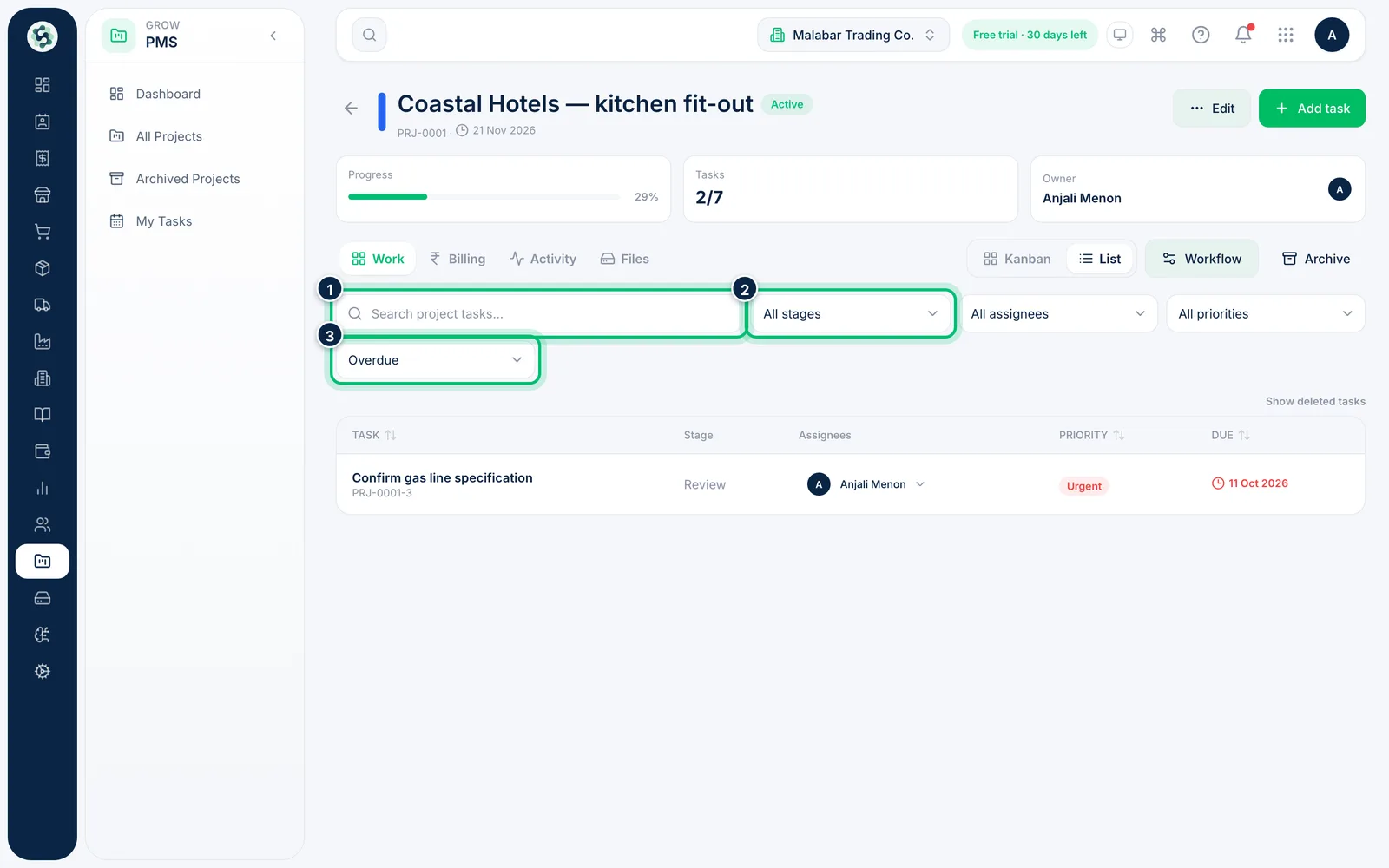
3Filter the tasks
Search by title, or narrow the tasks by stage, assignee, priority or due date. Choose Overdue under Any due date to see only the work that's late.
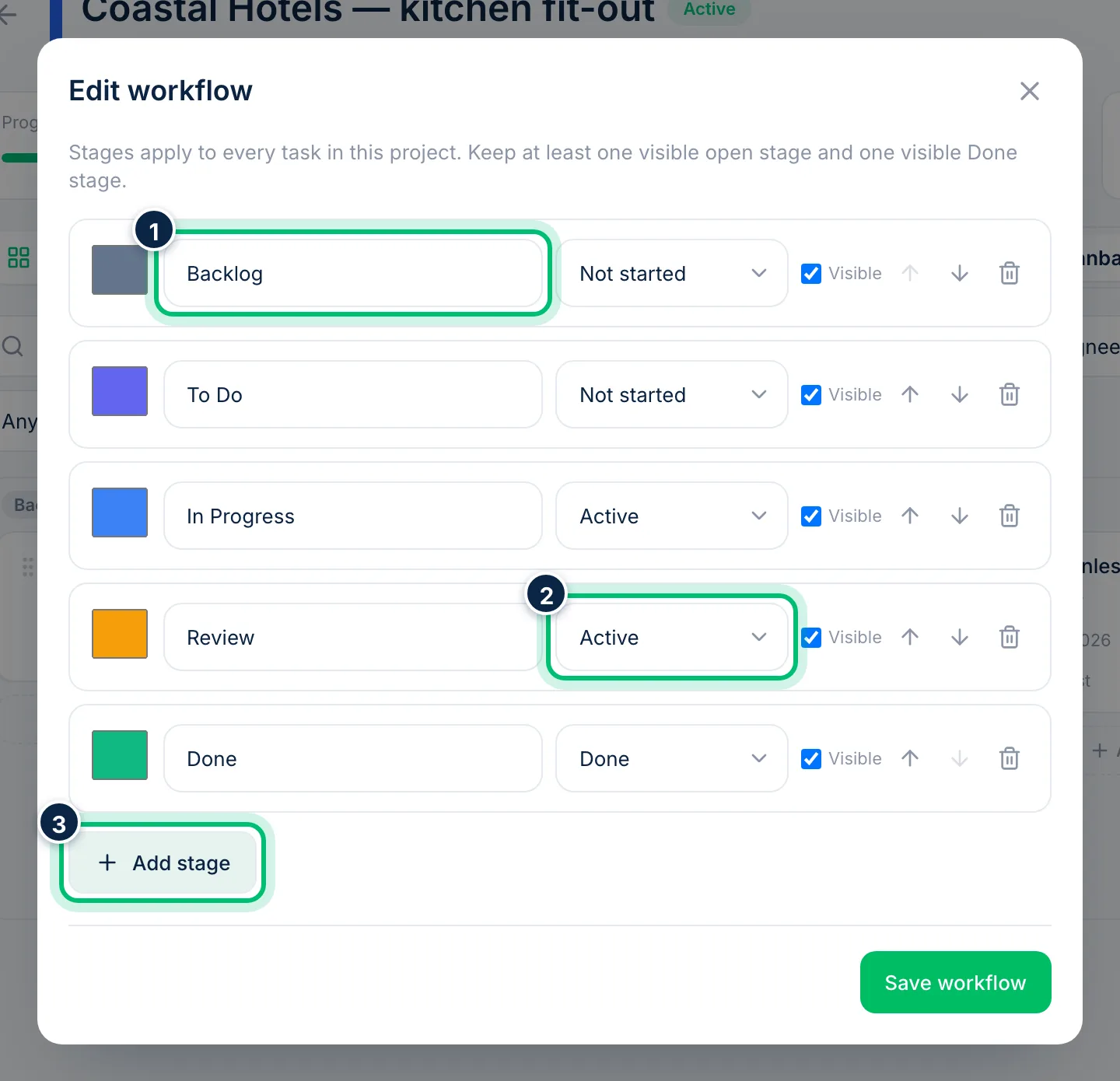
4Change the stages
Choose Settings → Workflow, then Edit workflow to change this project's stages. Rename a stage, set whether it counts as Not started, Active or Done, reorder it with the arrows or add one with Add stage, then choose Save workflow.
Related guides
Still stuck? Contact our support team — or start a free trial to try this in your own company.