
Manufacturing · 5 steps
Set up workstations and run the shop floor
Define the stations where work happens, then move job cards across stages and record quality checks as work progresses.
Before you start: Job cards appear on the shop floor when you create a work order from a BOM that has routing operations. You can also add them by hand.
1Review your workstations
Open Manufacturing → Workstations. Capacity load compares the minutes queued on open job cards with each station's daily capacity; anything over a day is highlighted. The list below shows each station.
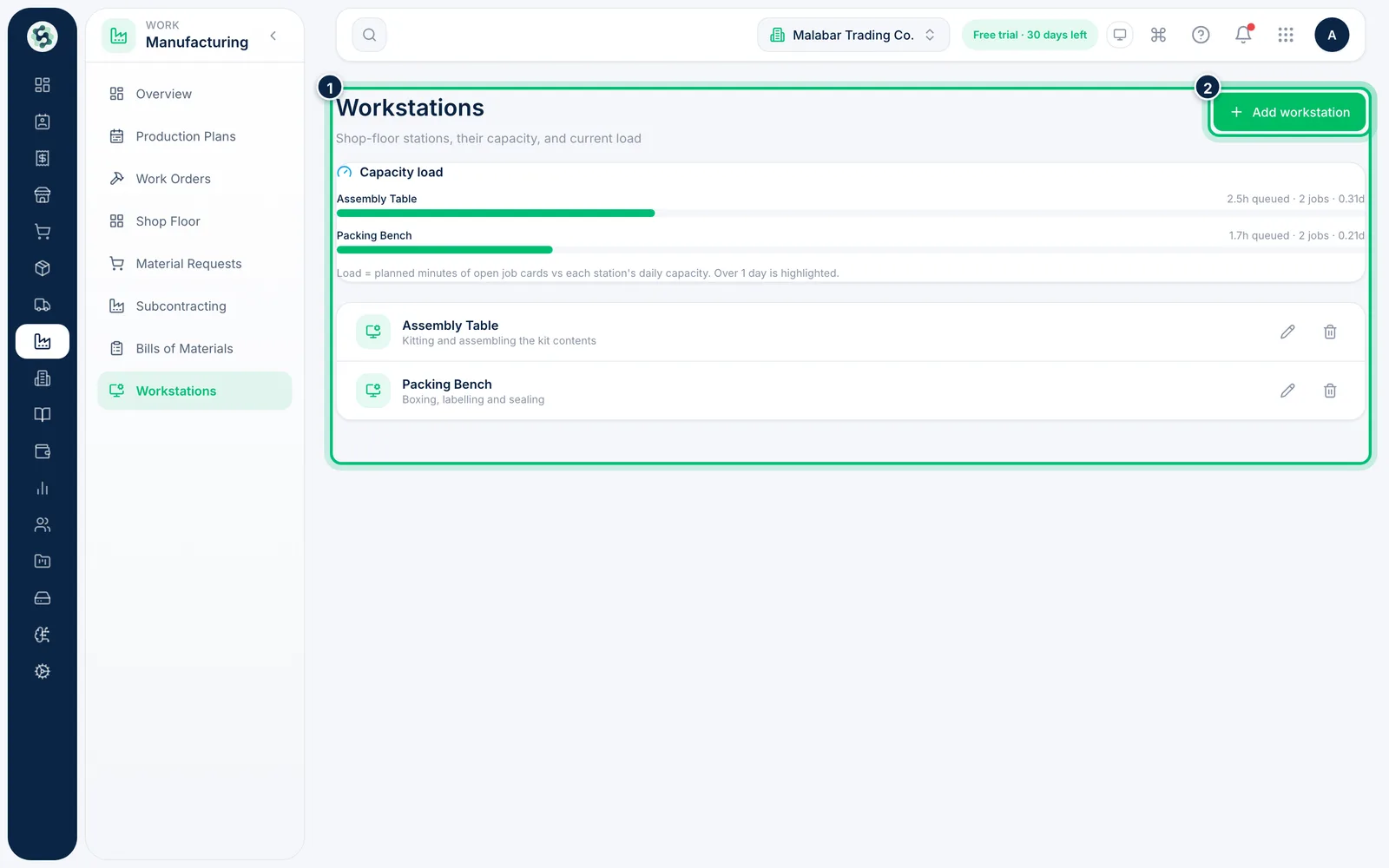
2Add a workstation
Choose Add workstation. Enter a Name, an optional Description and the Daily capacity (minutes) the station can work. Leave Active ticked, then choose Save.
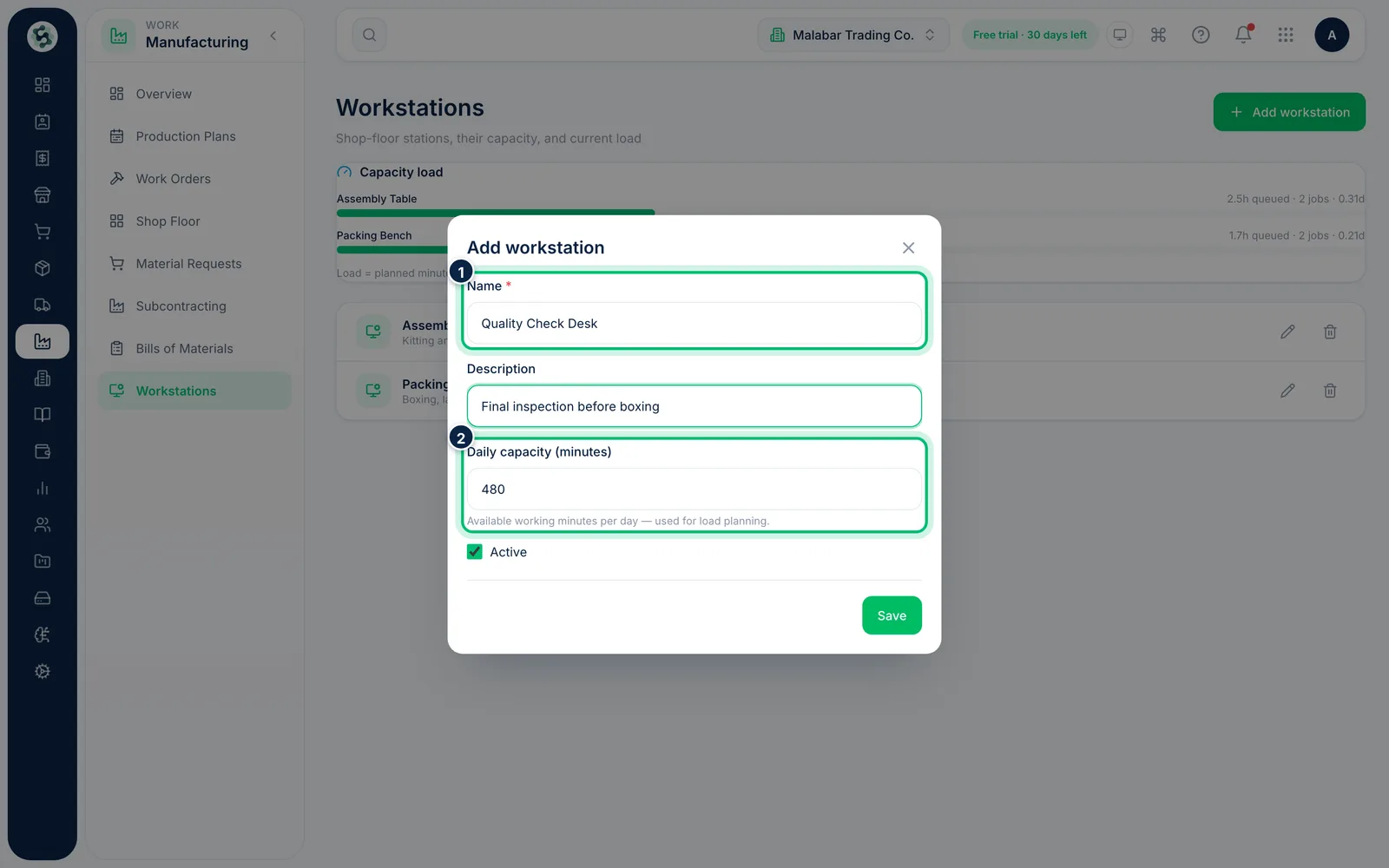
3Follow the job cards on the board
Open Manufacturing → Shop Floor. Job cards sit in columns from Open through Work In Progress to Completed. Drag a card to the next column as the work moves on, or click it to open its work order.
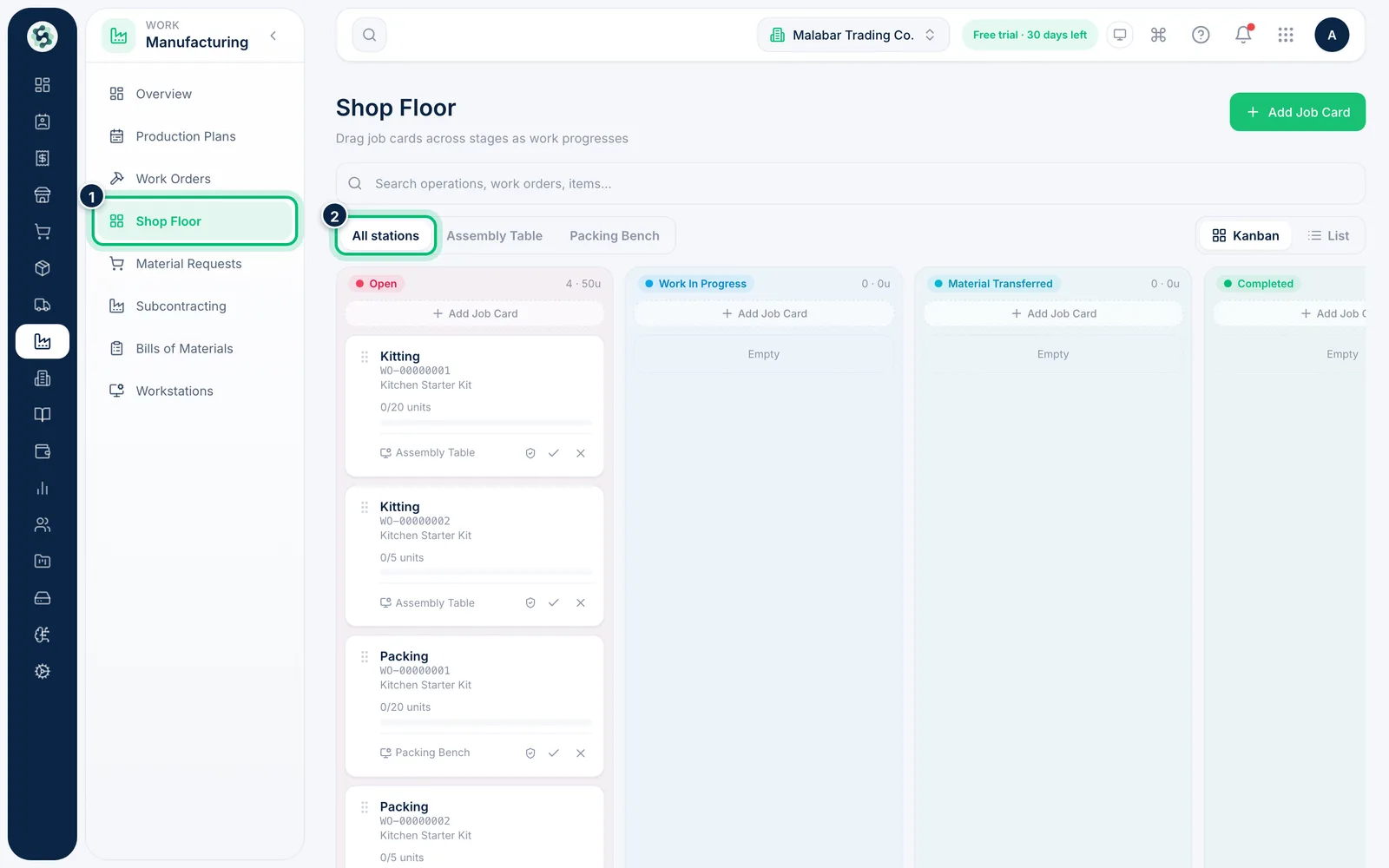
4Filter by station or switch to a list
Use the station buttons to see one workstation's cards, or search by operation, work order or item. The view toggle switches between the board and a table with Progress, QC and Stage columns.
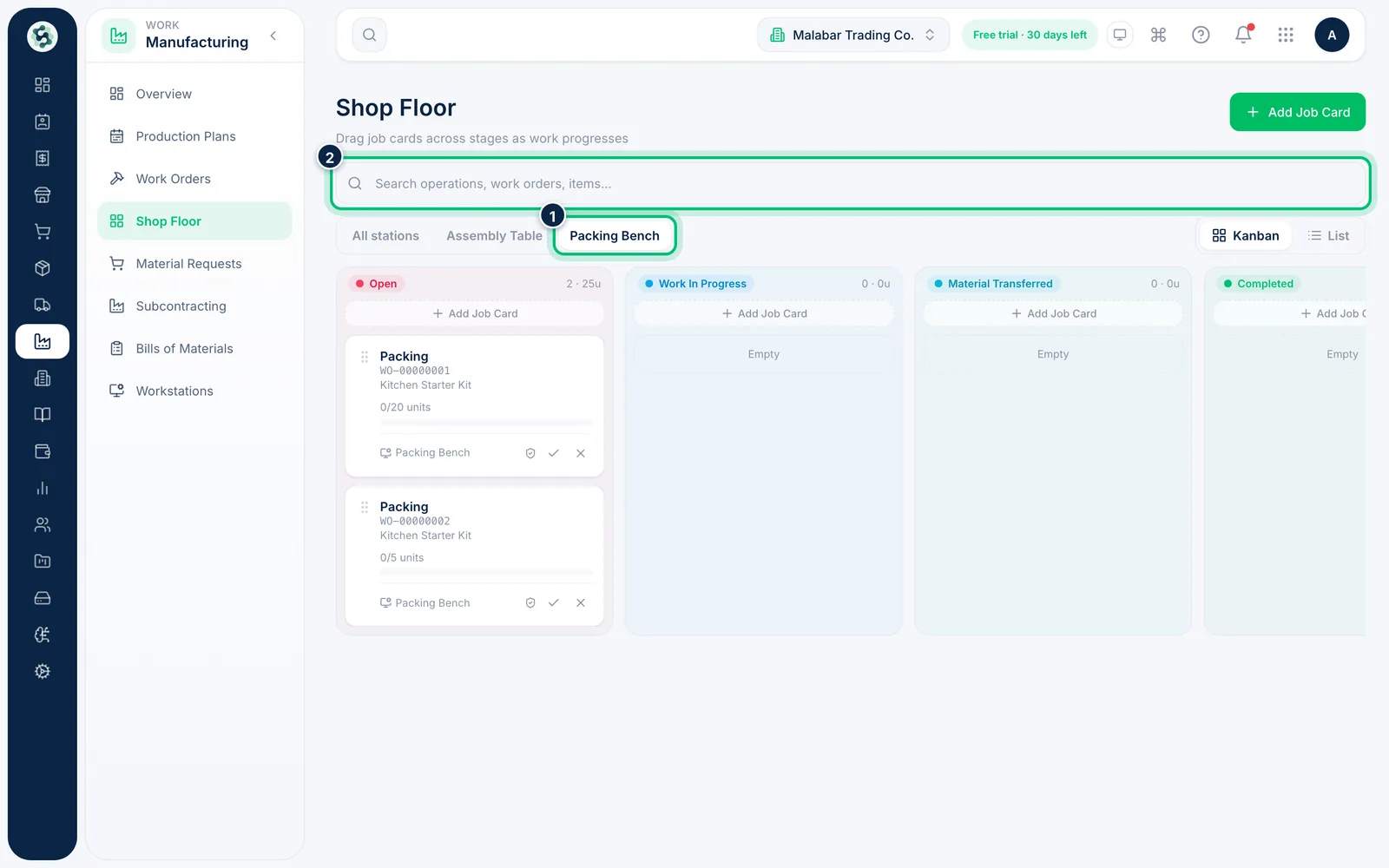
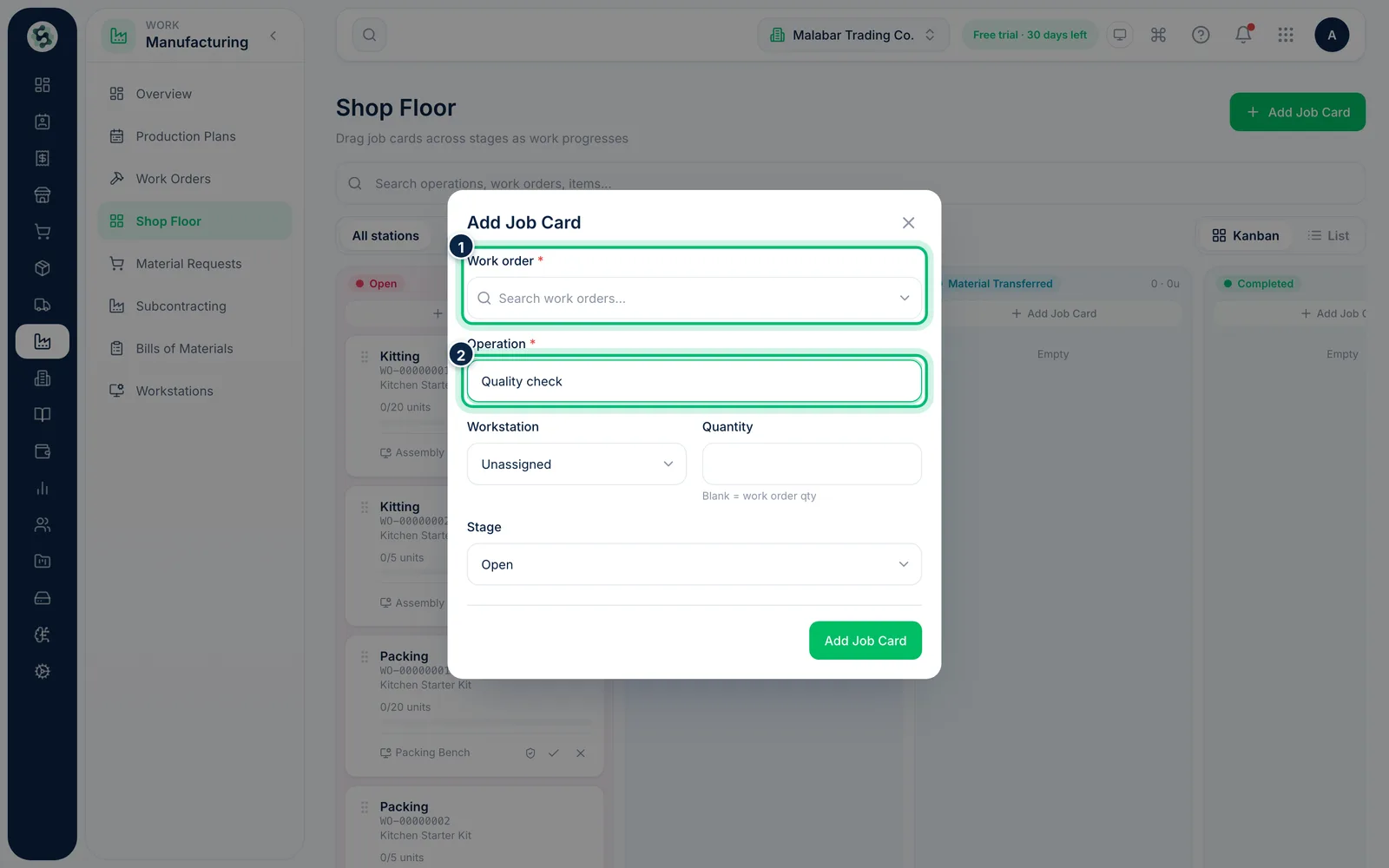
5Add a job card
Choose Add Job Card to add an operation to a work order by hand. Pick the Work order, enter the Operation, and optionally set the Workstation, Quantity and starting Stage.
Related guides
Still stuck? Contact our support team — or start a free trial to try this in your own company.