
Accounting & GST · 5 steps
Prepare GSTR-1 and GSTR-3B
Review your outward supplies and tax liability for a month, download the files you need for filing, and lock the period once you've filed.
Before you start: Scalar360 prepares the figures and files to download — you still file the return yourself on the GST portal.
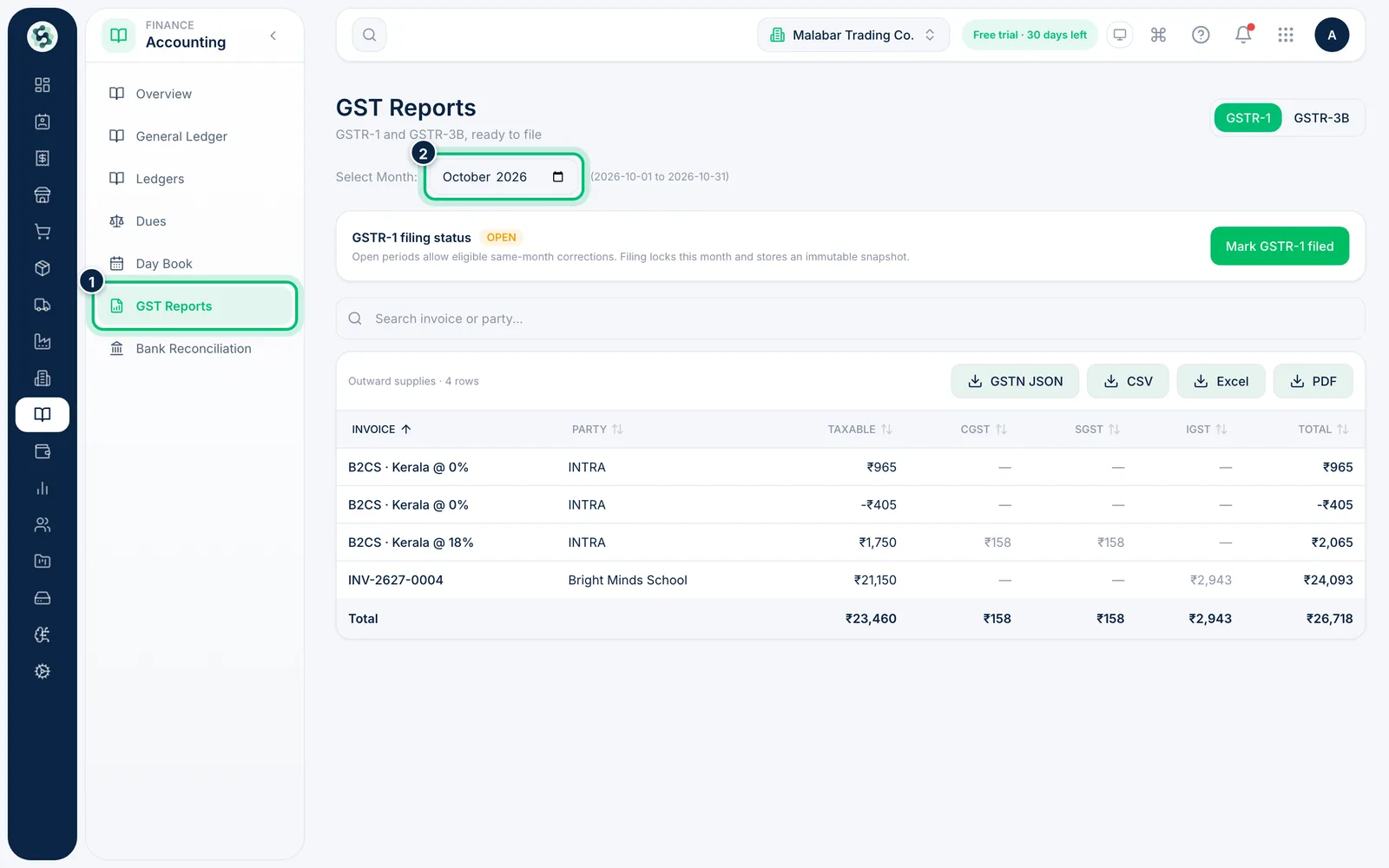
1Open GST Reports and pick the month
In the left menu open Accounting → GST Reports. The GSTR-1 tab opens on the current month — use Select Month to change it.
2Review outward supplies
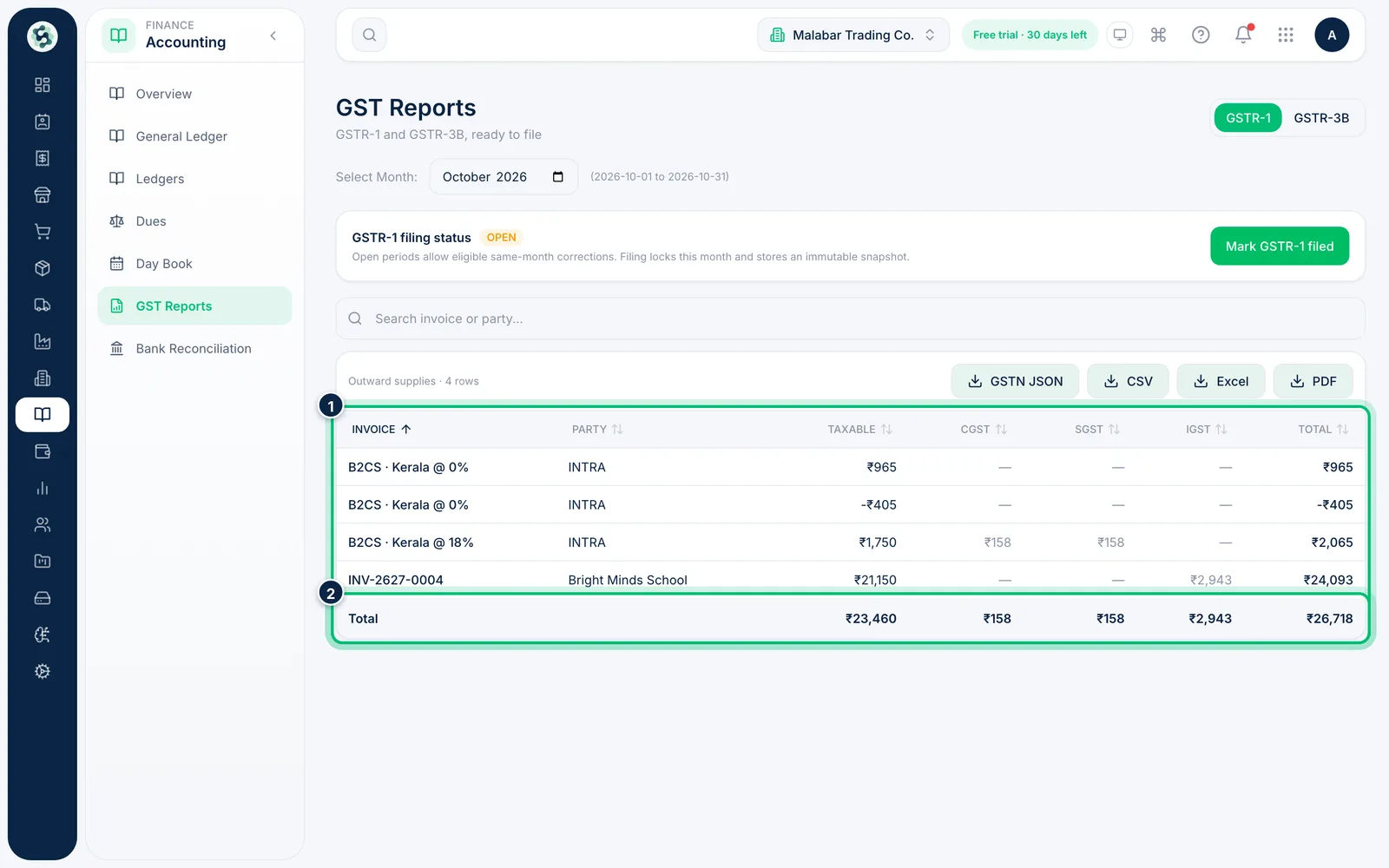
Each row is a B2B invoice, or a B2C summary by place of supply and rate (such as B2CS · Kerala @ 18%). Intra-state sales show CGST and SGST; inter-state sales show IGST. The Total row adds them up.
3Download the GSTR-1 files
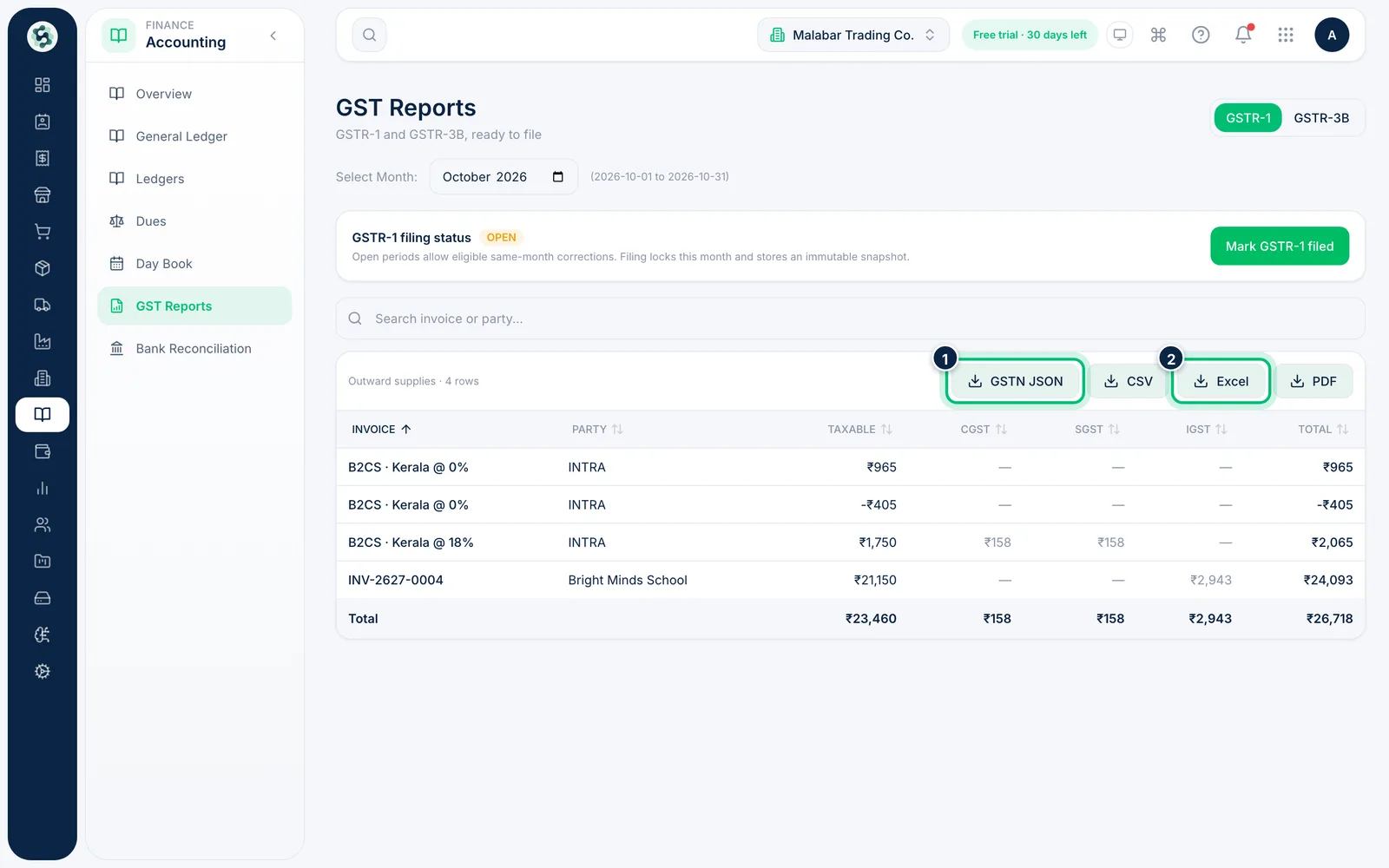
Choose GSTN JSON for the file in the GSTN format, ready to upload through the GST offline utility. CSV, Excel and PDF give you the same list for review. If anything couldn't be represented in the JSON, a note lists what to finish on the portal.
4Check your GSTR-3B summary
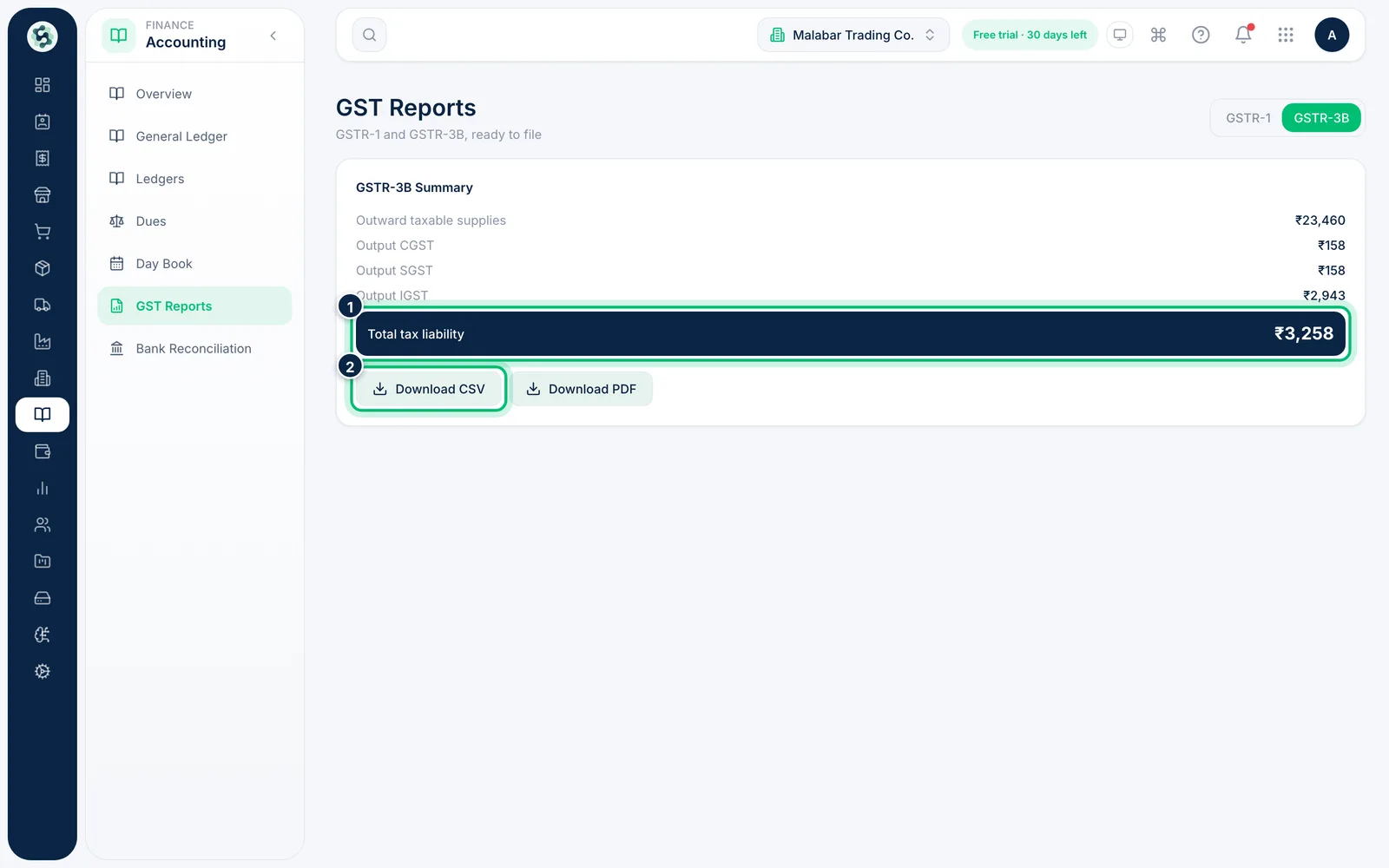
Switch to GSTR-3B to see Outward taxable supplies, the output CGST, SGST and IGST, and the Total tax liability for the month. Use Download CSV or Download PDF to keep a copy.
5Mark GSTR-1 as filed
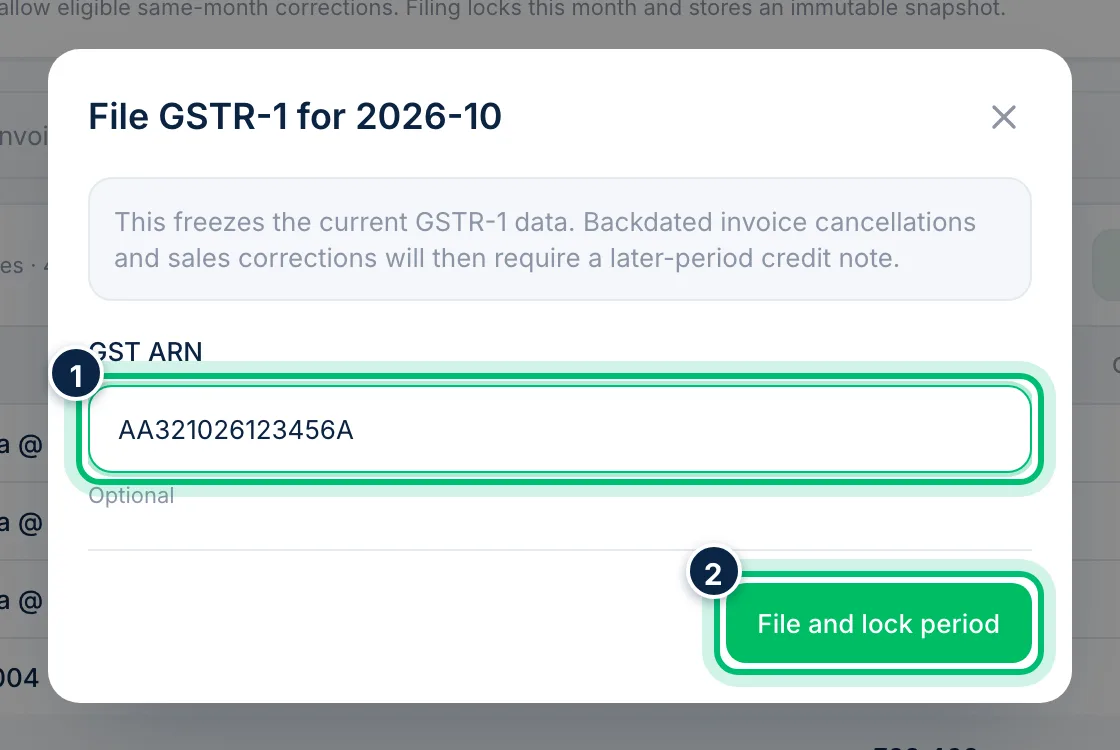
After filing on the portal, choose Mark GSTR-1 filed, add the GST ARN if you have it, and choose File and lock period. This freezes the month's GSTR-1 data; later corrections then need a credit note in a later period.
Related guides
Still stuck? Contact our support team — or start a free trial to try this in your own company.