
Sales & invoicing · 4 steps
Add a customer
Save a customer's GSTIN, state and contact details once, so every quote and invoice for them fills in automatically.
1Open Customers
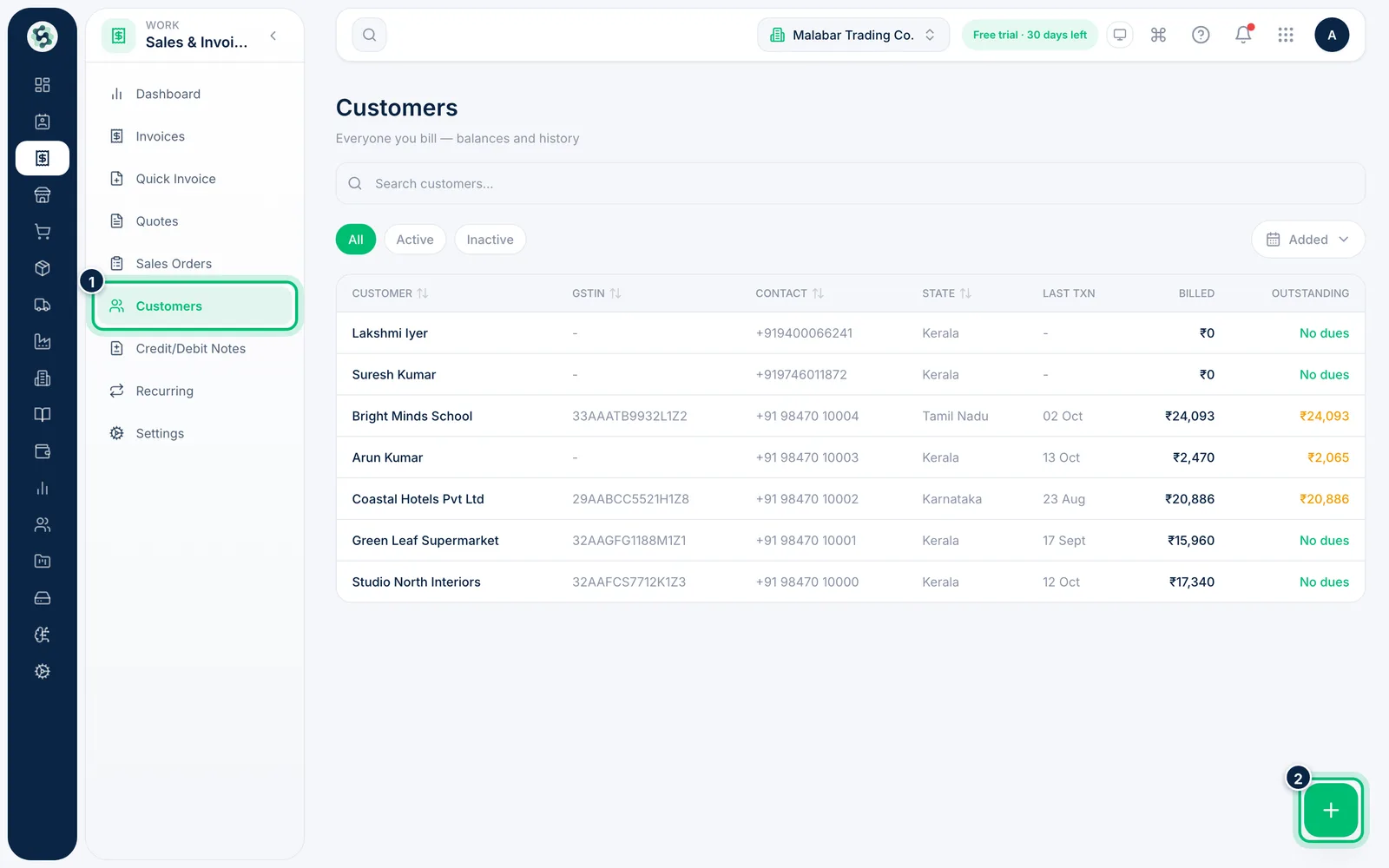
In the left menu open Sales & Invoicing → Customers. The list shows each customer's GSTIN, state, how much you've billed them and what's Outstanding. Choose the + button at the bottom right to add one.
2Fill in the customer's details
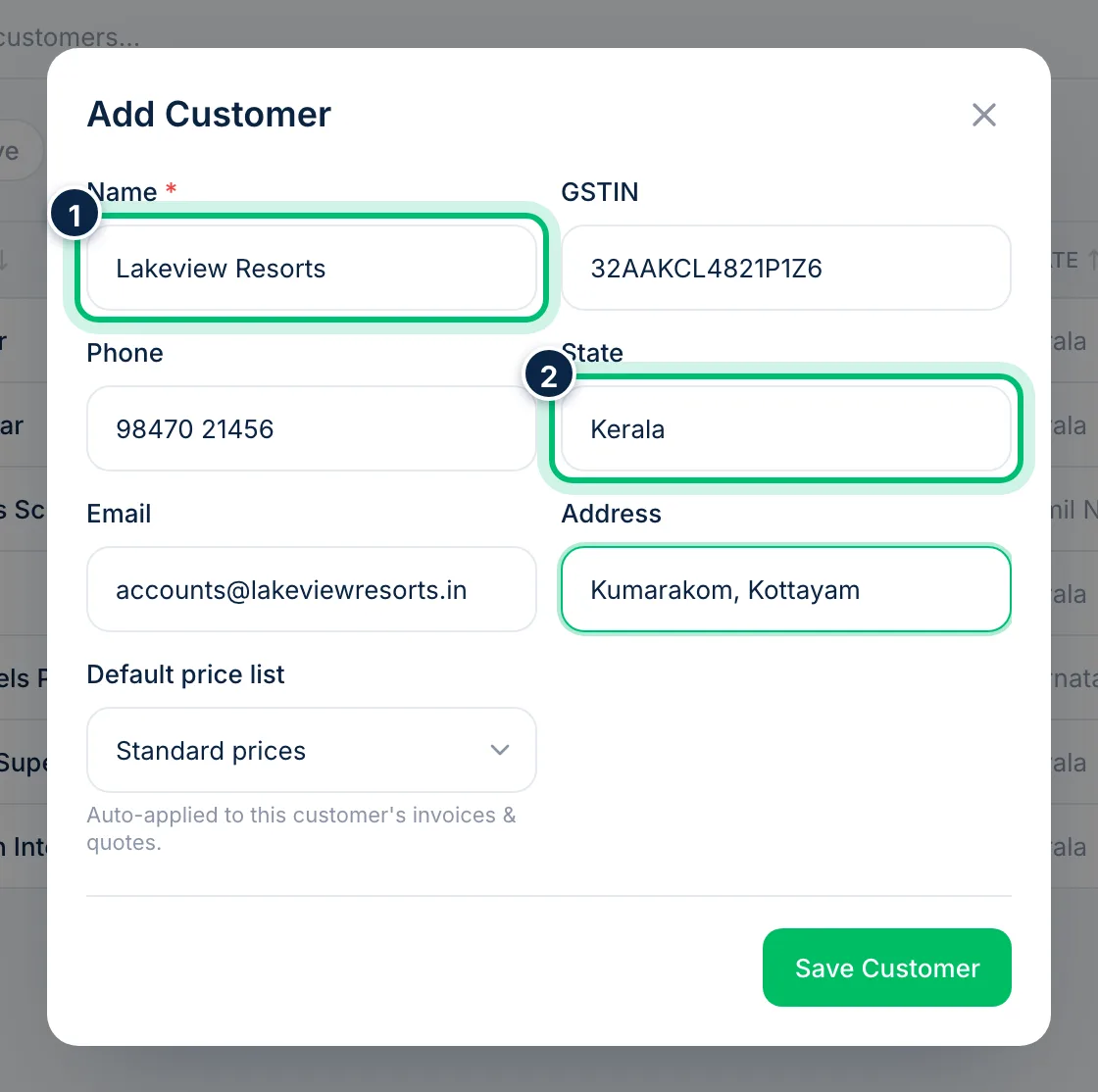
Only Name is required. Add the GSTIN for a registered business and set the State — it decides whether invoices charge CGST + SGST or IGST. Phone, Email and Address are printed on invoices and used when you email them.
3Save the customer
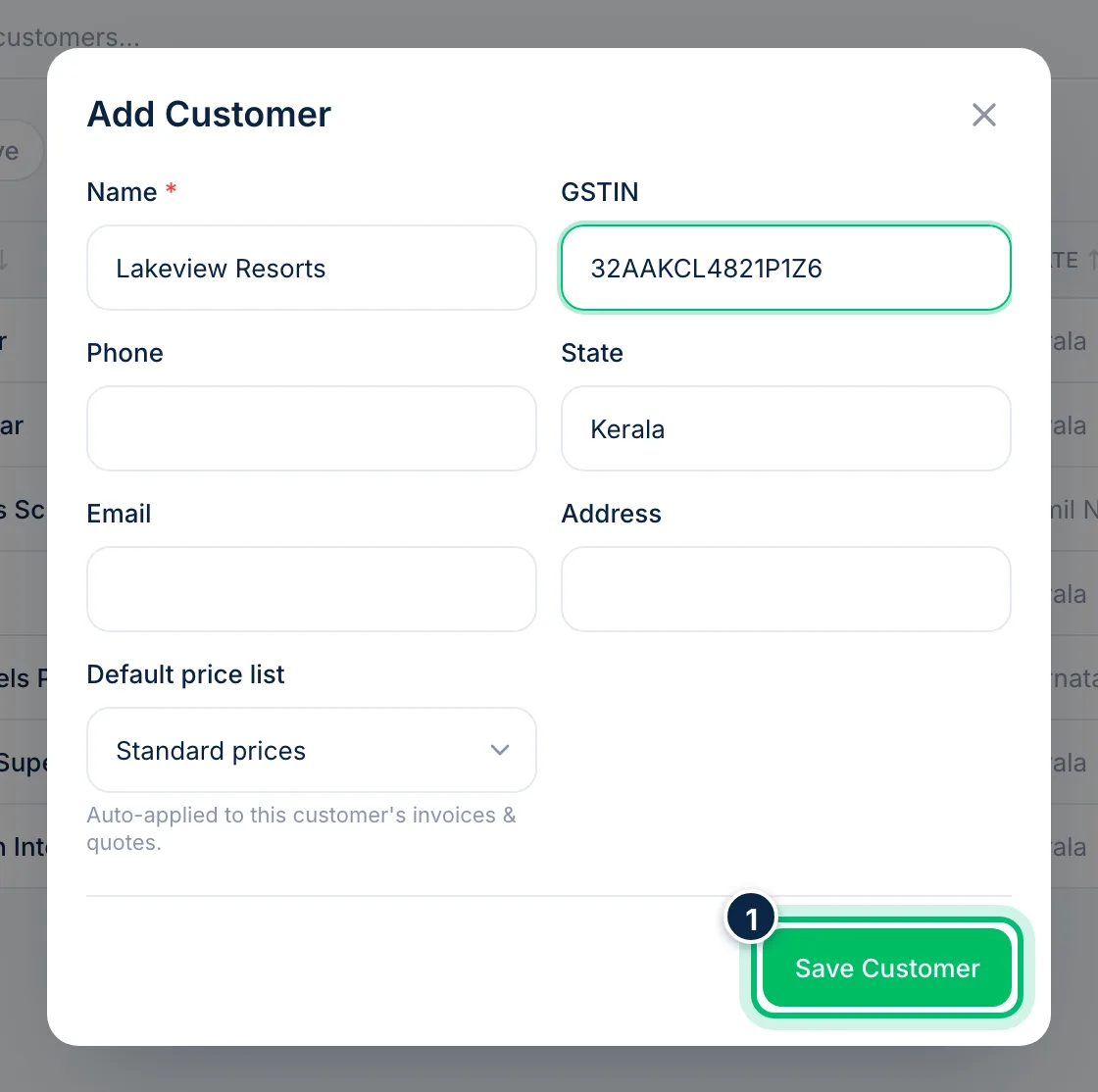
Choose Save Customer. The customer appears in the list straight away and in the Select customer search on invoices, quotes and sales orders.
4Open a customer to see their history
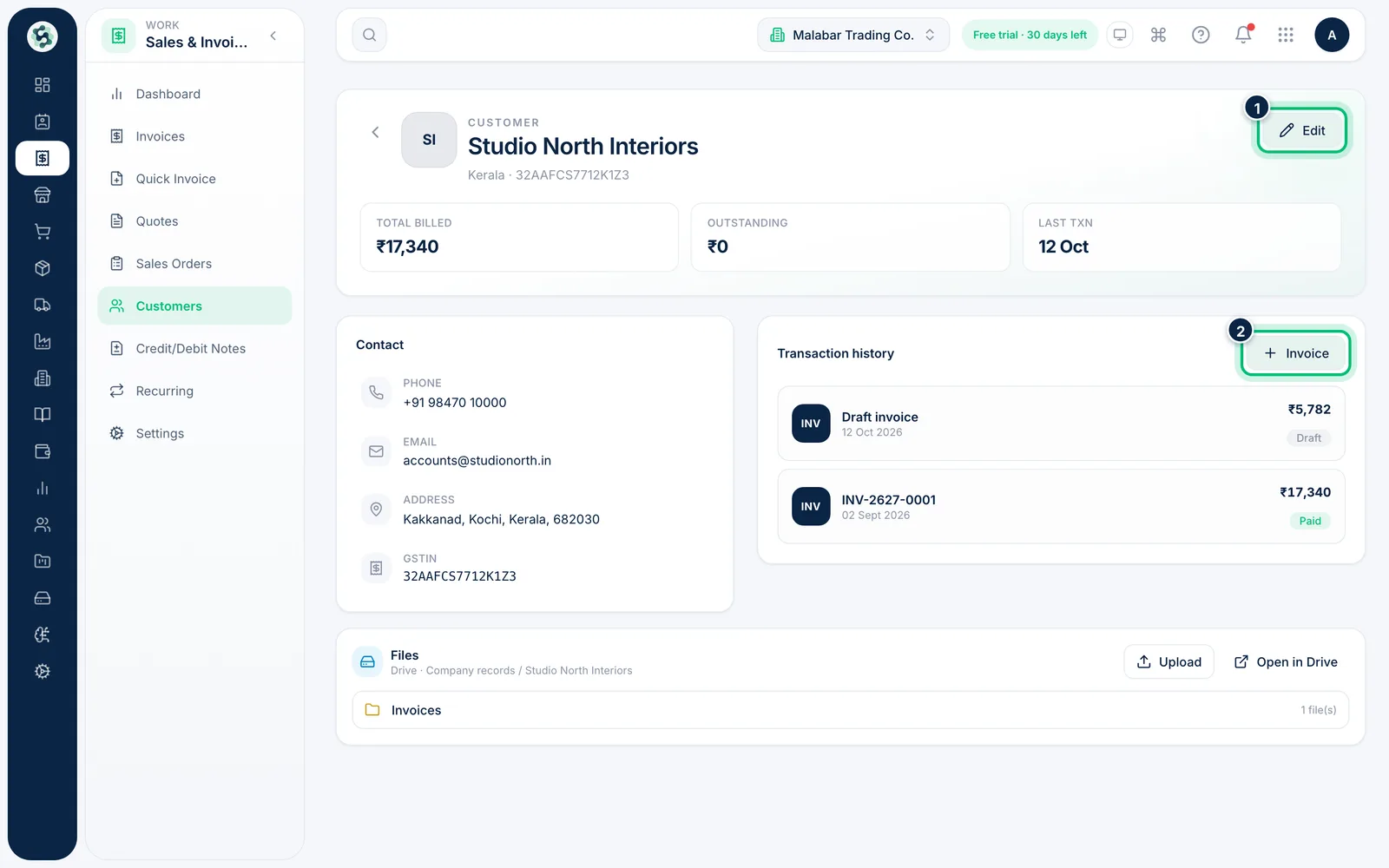
Click a customer in the list to see Total billed, Outstanding and their full Transaction history. Use Edit to update their details, or Invoice to start a new invoice with the customer already chosen.
Related guides
Still stuck? Contact our support team — or start a free trial to try this in your own company.