
Scalar360 Mail · 4 steps
Set up mail on your phone or Outlook
Find the server settings for your mailbox and follow the step-by-step guides for Outlook, iPhone and Android.
Before you start: You need your mailbox password, or an app password.
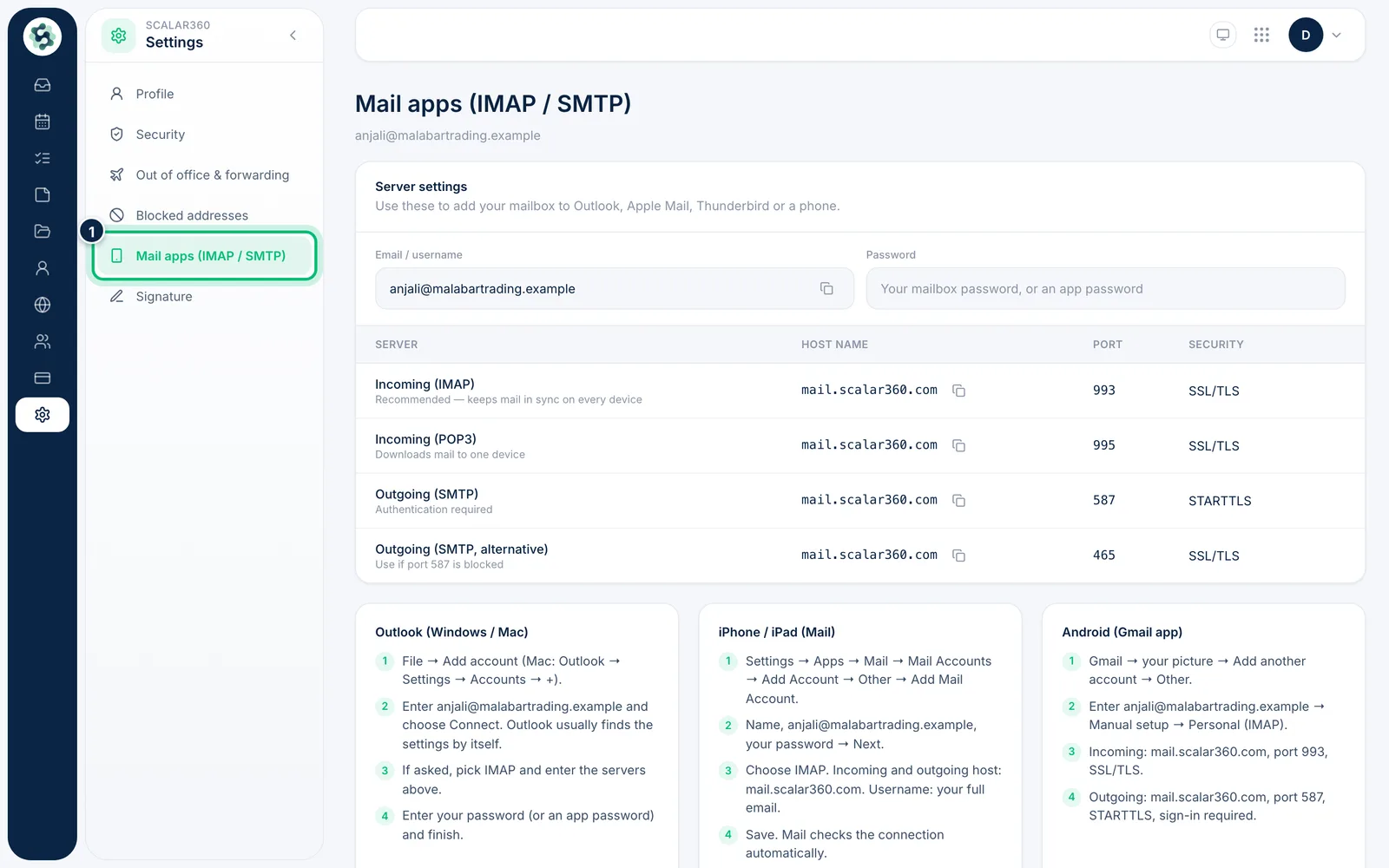
1Open Mail apps settings
Choose Settings, then Mail apps (IMAP / SMTP). The page shows your username and the servers to use.
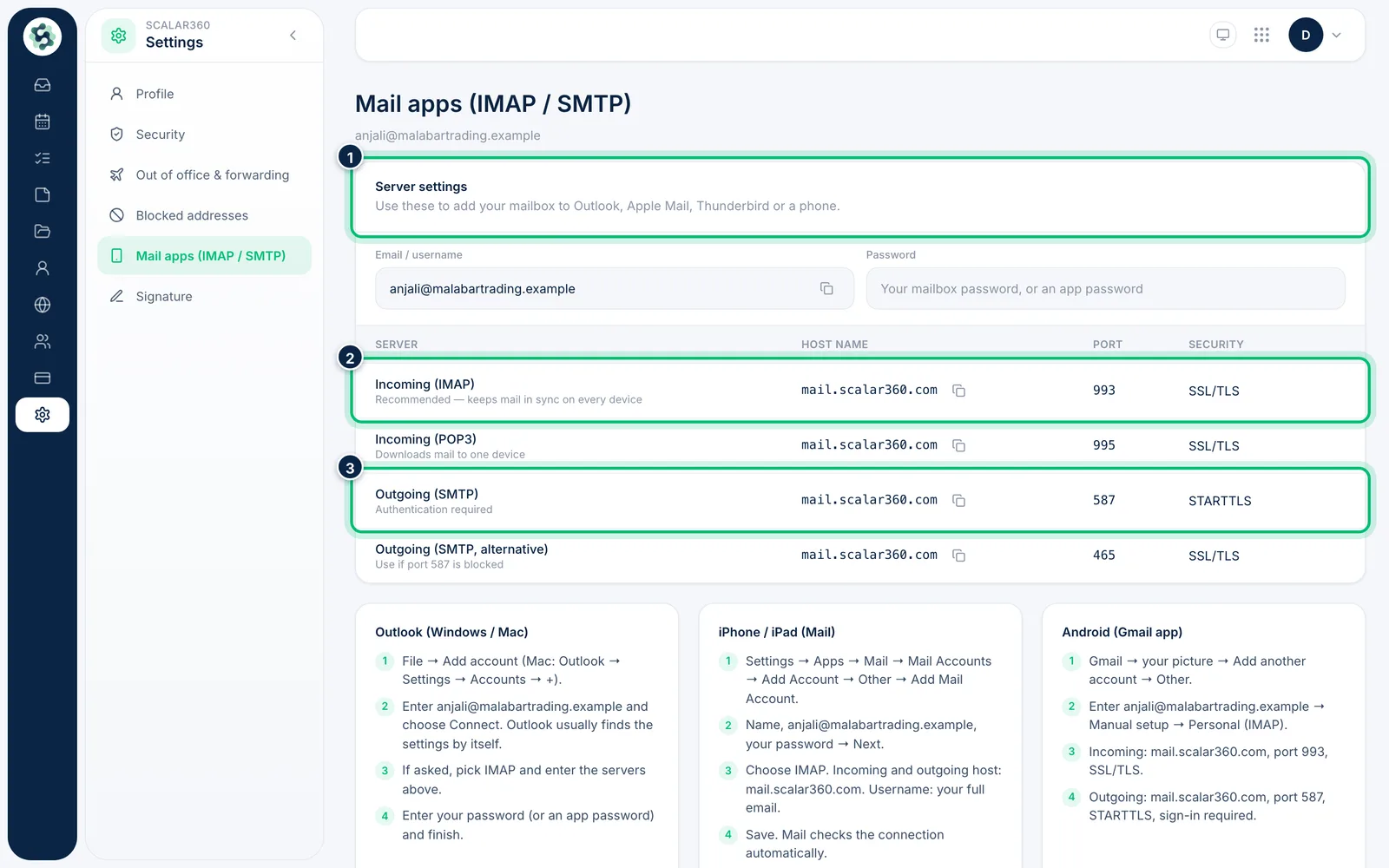
2Copy the server settings
Use Incoming (IMAP) for mail that stays in sync on every device, and Outgoing (SMTP) for sending. Each row gives the Host name, Port and Security, with a copy button.
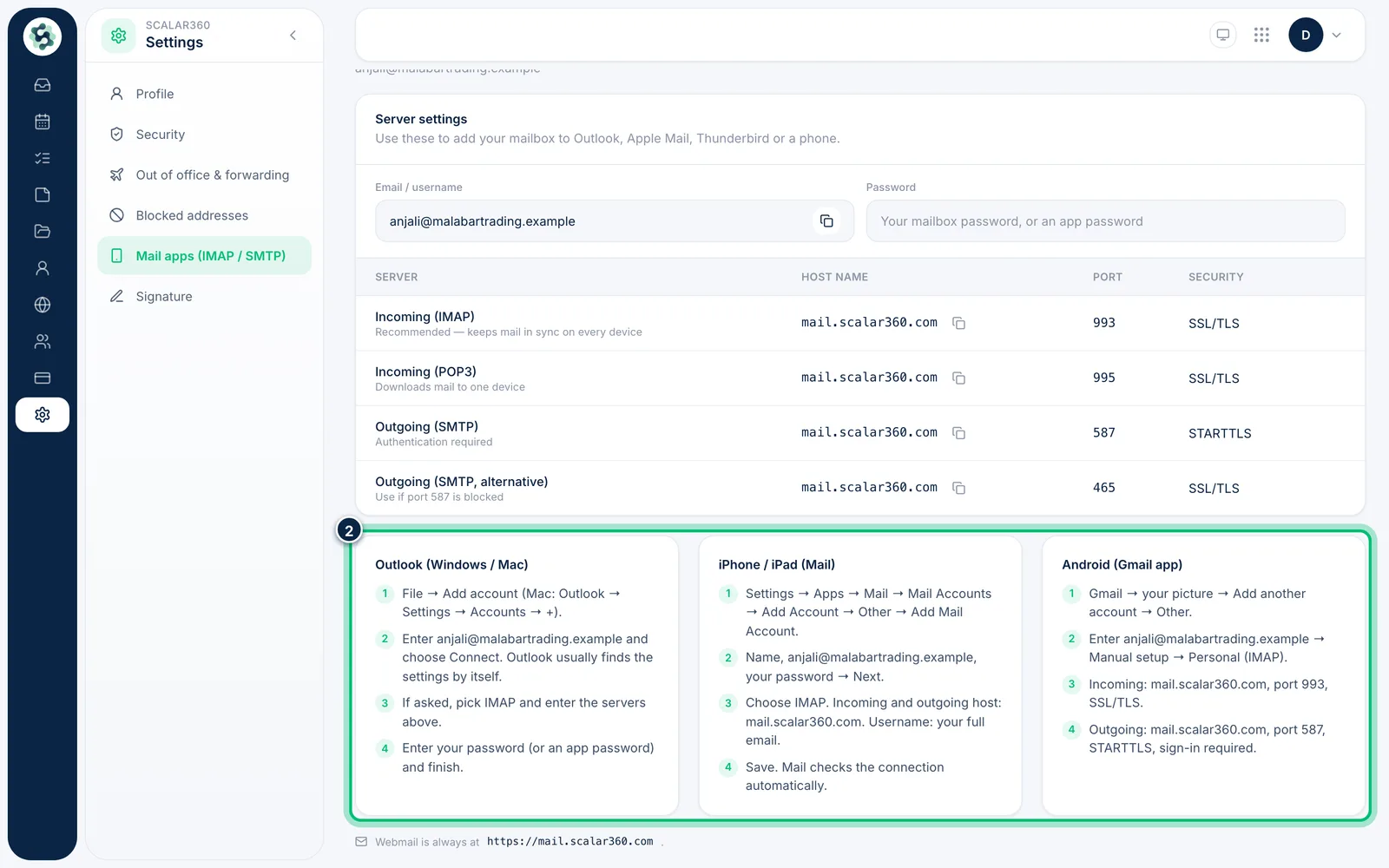
3Follow your app's guide
Below the table, the guides for Outlook (Windows / Mac), iPhone / iPad (Mail) and Android (Gmail app) list the exact steps with your address filled in.
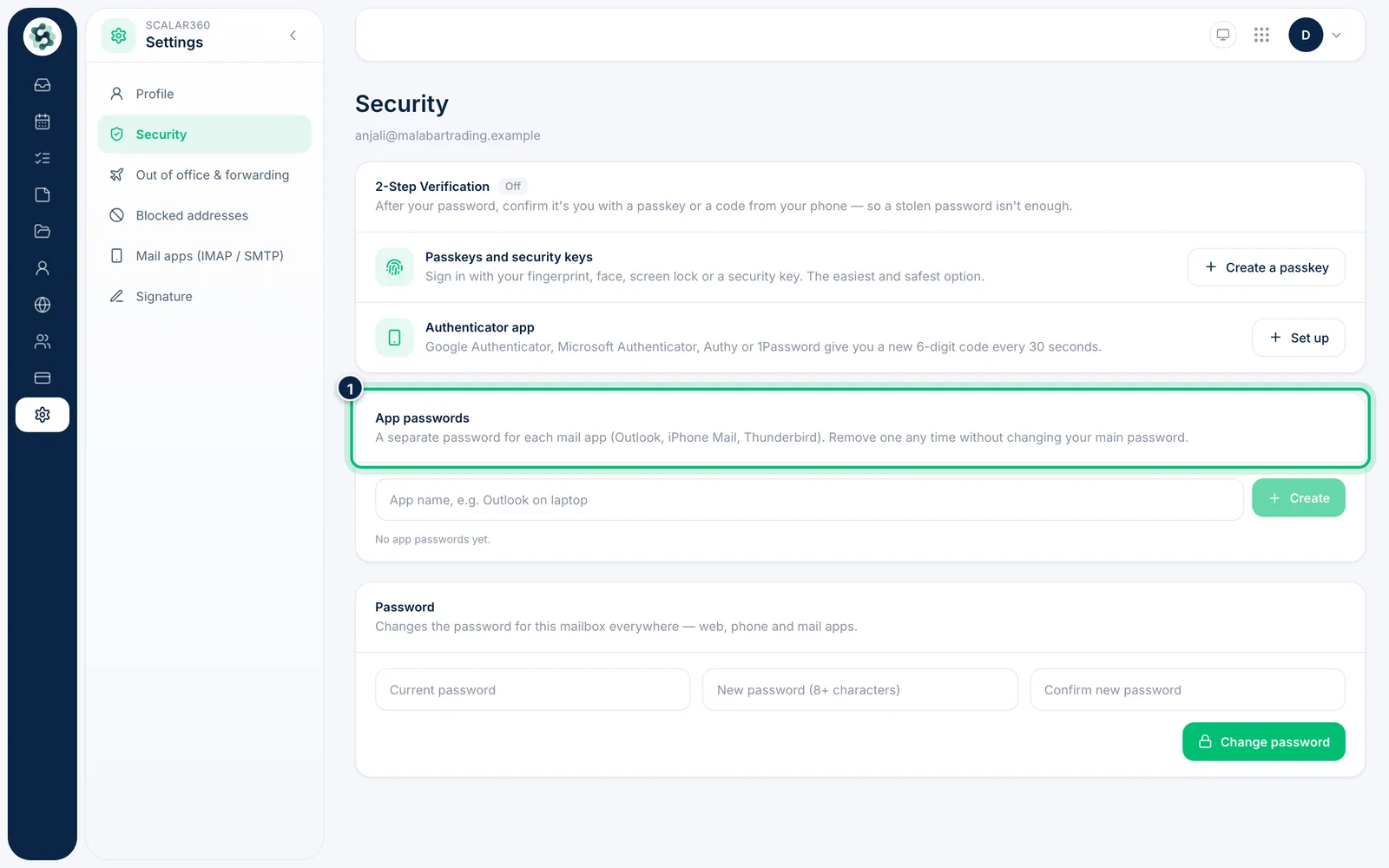
4Create an app password
In Security, App passwords gives each mail app its own password. You can remove one later without changing your main password.
Related guides
Still stuck? Contact our support team — or start a free trial to try this in your own company.