
Inventory · 4 steps
Set up warehouses
Add each place you keep stock — a godown, a shop or a branch — and see what's stored in each one.
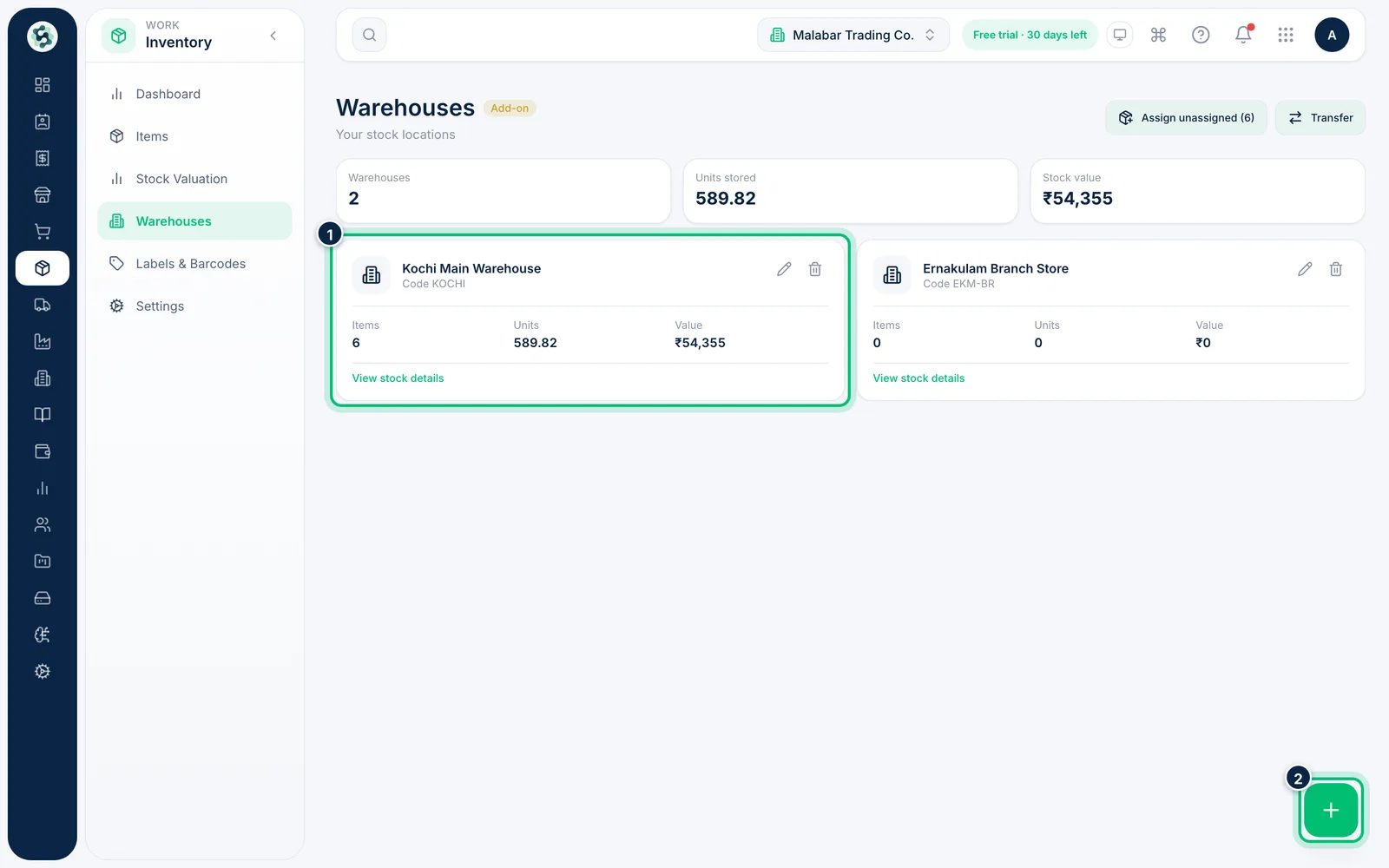
1Open Warehouses
Go to Inventory → Warehouses. Each card shows the warehouse's items, units and stock value. Choose the + button to add a warehouse.
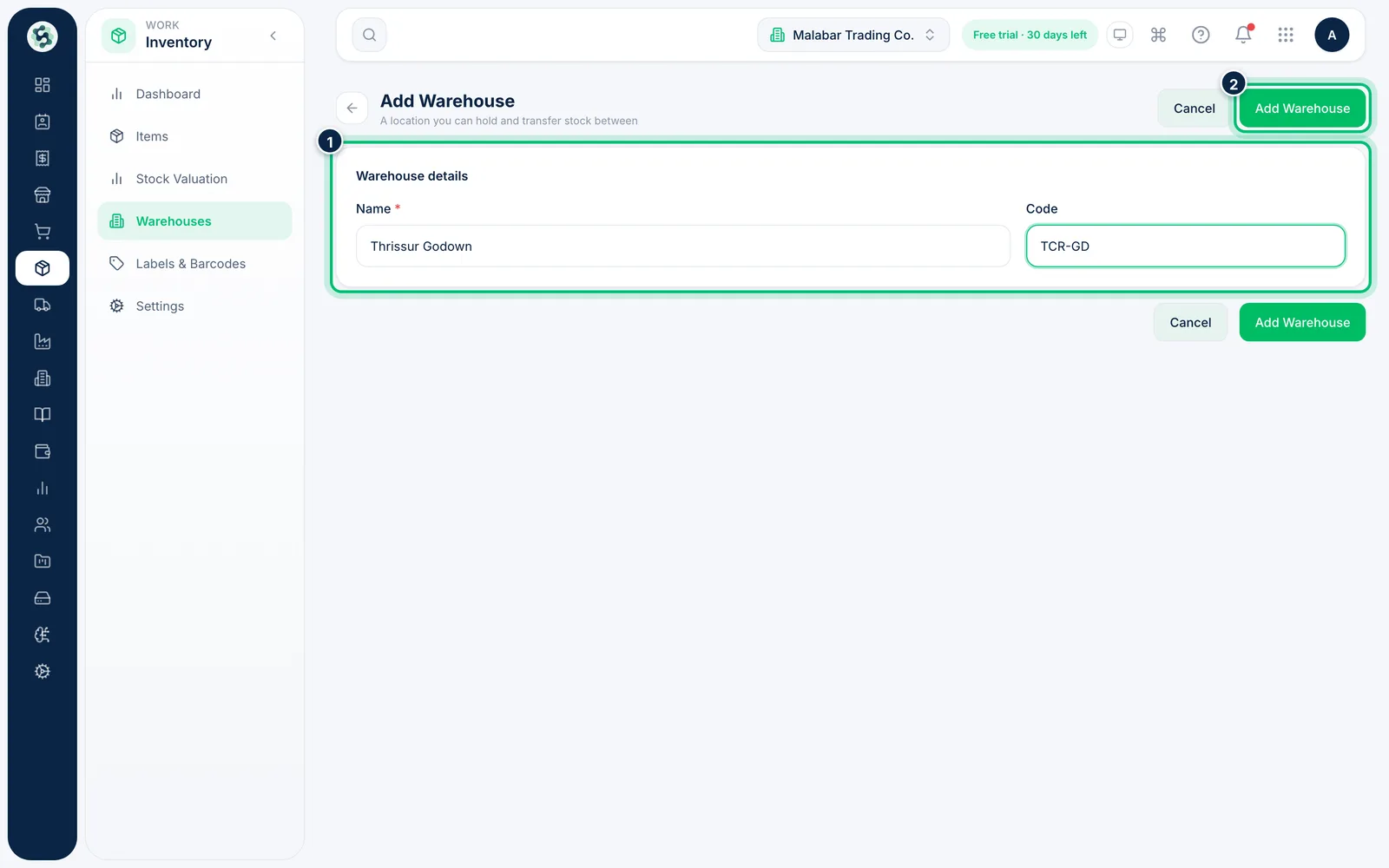
2Name the warehouse
Enter a Name and an optional short Code, then choose Add Warehouse.
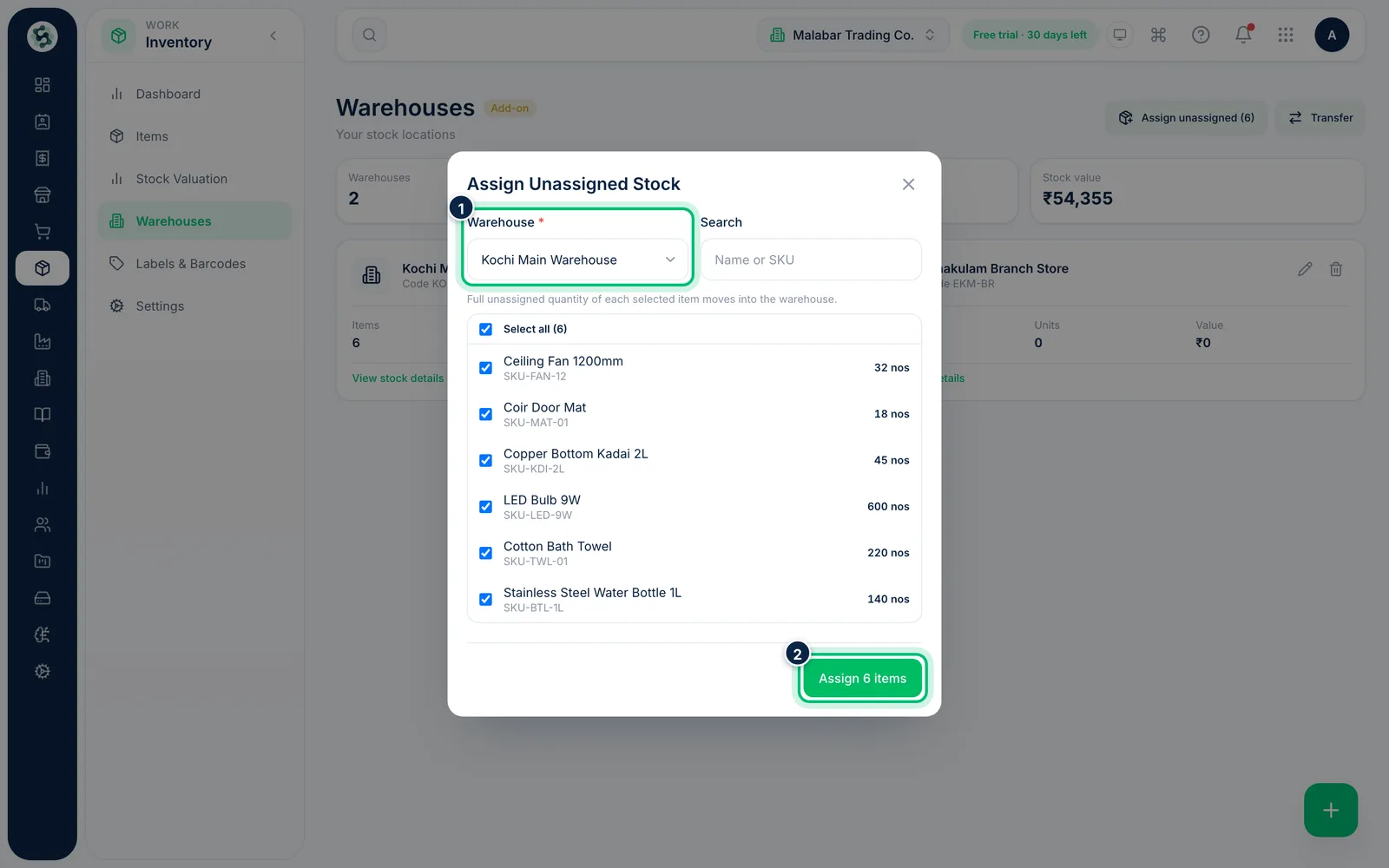
3Put existing stock into a warehouse
If you had stock before you set up warehouses, choose Assign unassigned. Pick the Warehouse, tick the items and choose Assign … items — the full unassigned quantity of each item moves in.
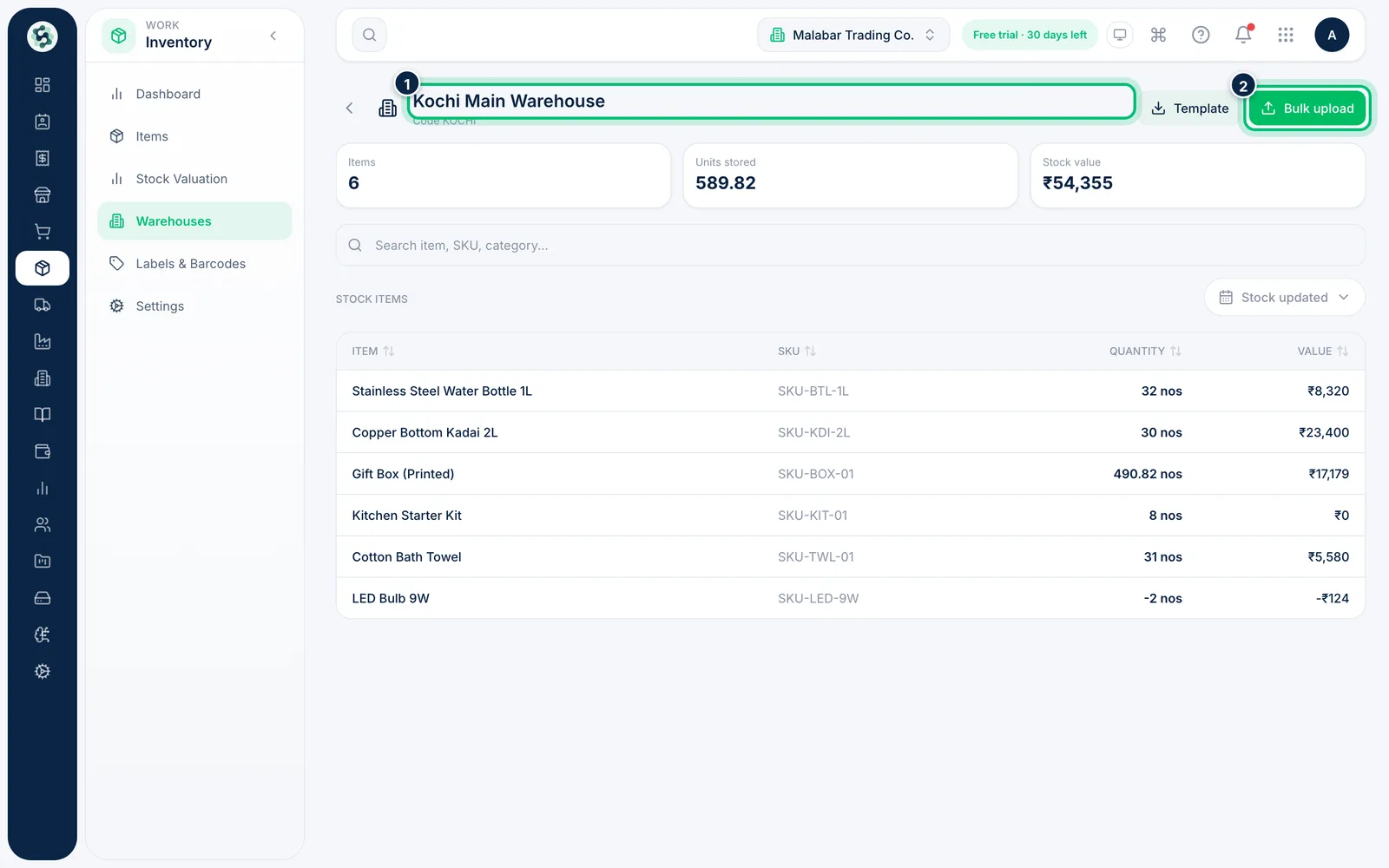
4See what a warehouse holds
Click a warehouse card to open its stock: every item, its SKU, quantity and value. Use Bulk upload to load quantities into this warehouse from a file.
Related guides
Transfer stock between warehousesMove goods from one warehouse to another with a transfer order that tracks them while they're in transit.Import items in bulkBring in your whole catalogue from a CSV or Excel file, with opening quantities, instead of adding items one by one.Set up units, categories and stock preferencesManage the units you count in, the categories you group items by, extra item fields and when invoices reduce stock.
Still stuck? Contact our support team — or start a free trial to try this in your own company.