
Settings & administration · 4 steps
Sidebar layout and colour
Switch between the classic and unified sidebar, change its colour and show or hide the quick actions button.
Before you start: These options apply to your own account and take effect as soon as you choose them.
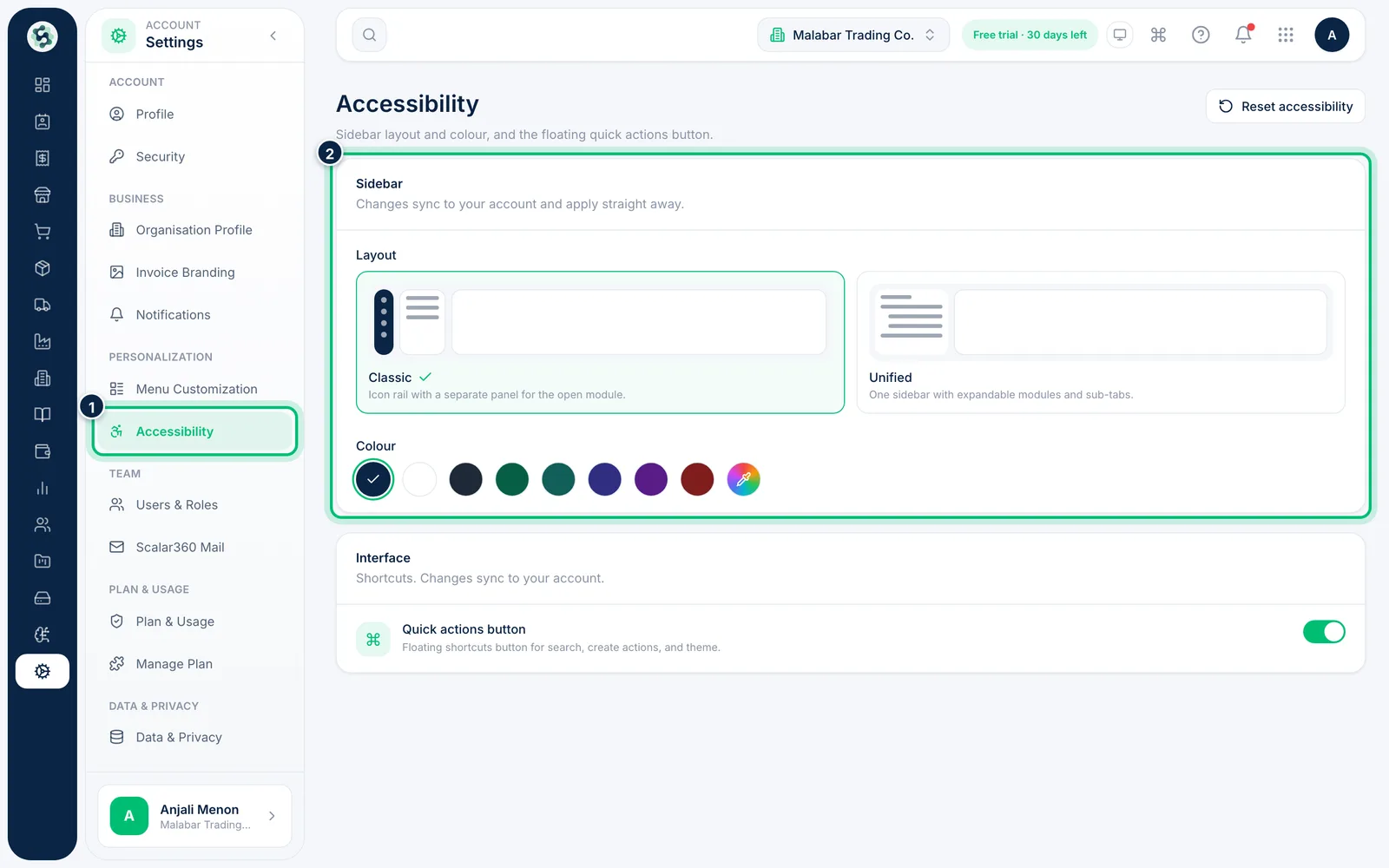
1Open Accessibility
Go to Settings → Accessibility. The Sidebar section controls how the navigation looks.
2Choose a layout
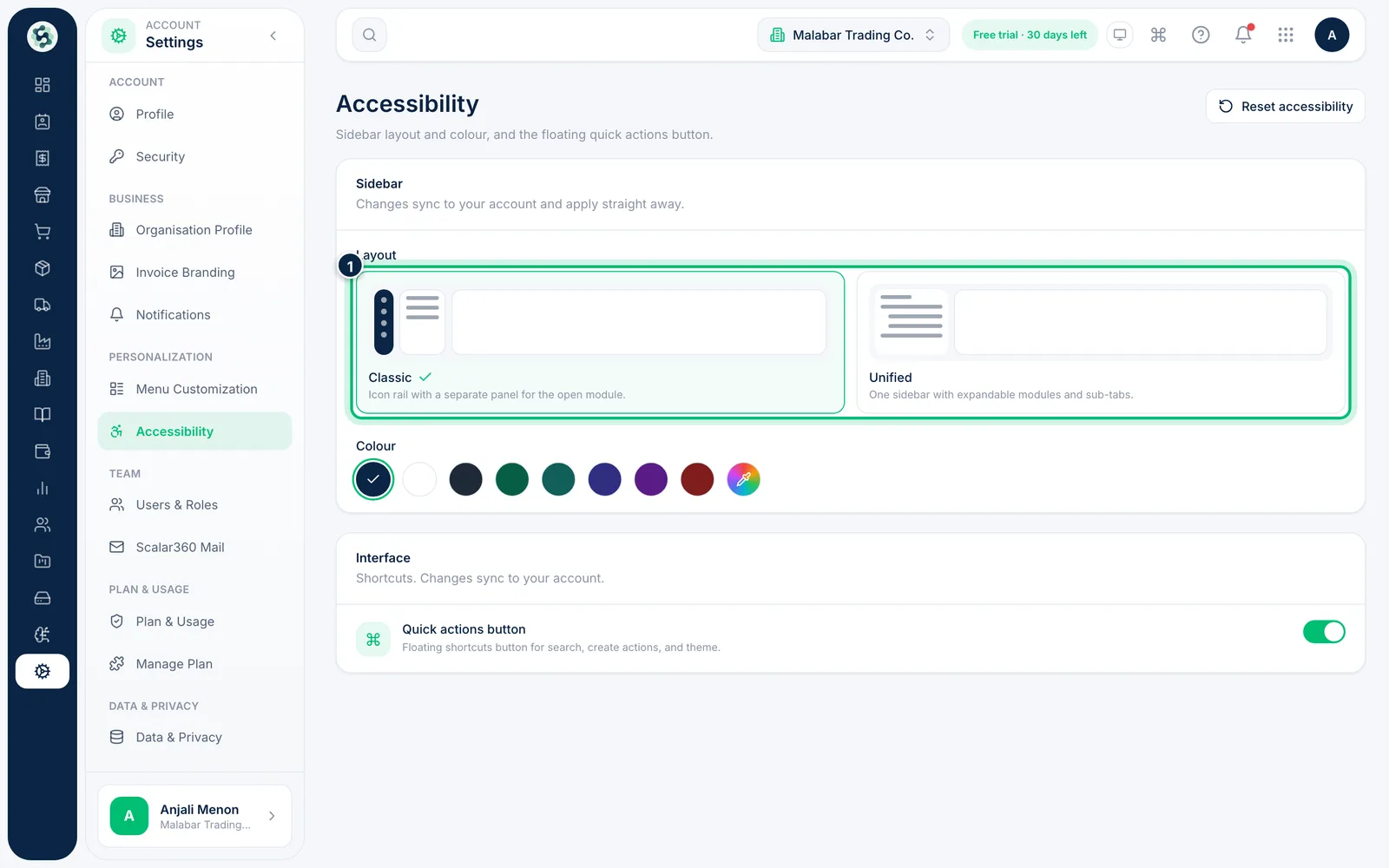
Pick Classic for an icon rail with a separate panel, or Unified for one sidebar with expandable modules and sub-tabs.
3Pick a sidebar colour
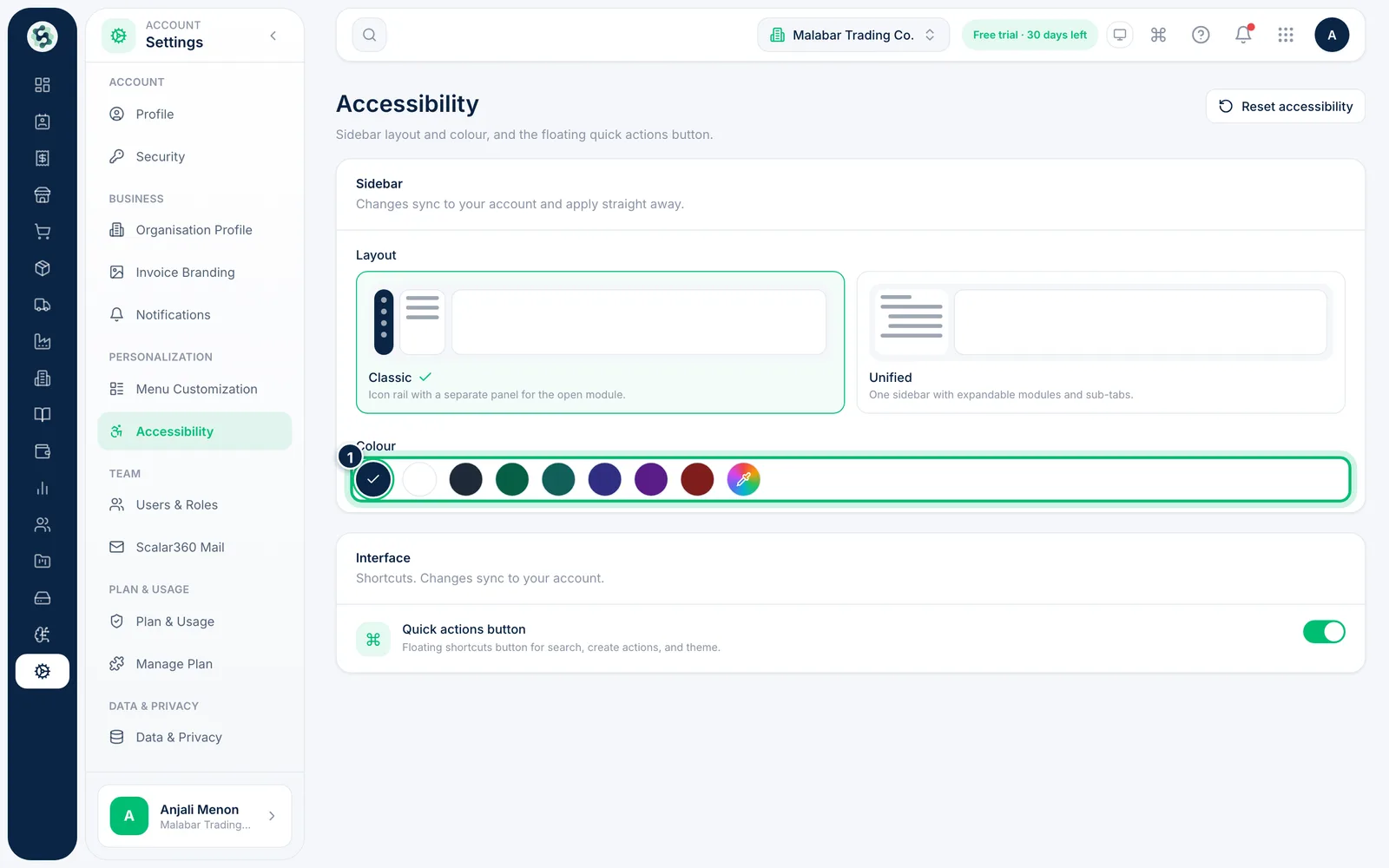
Choose a preset swatch under Colour, or use the colour picker at the end of the row to enter your own colour. Text switches between light and dark automatically for contrast.
4Show the quick actions button
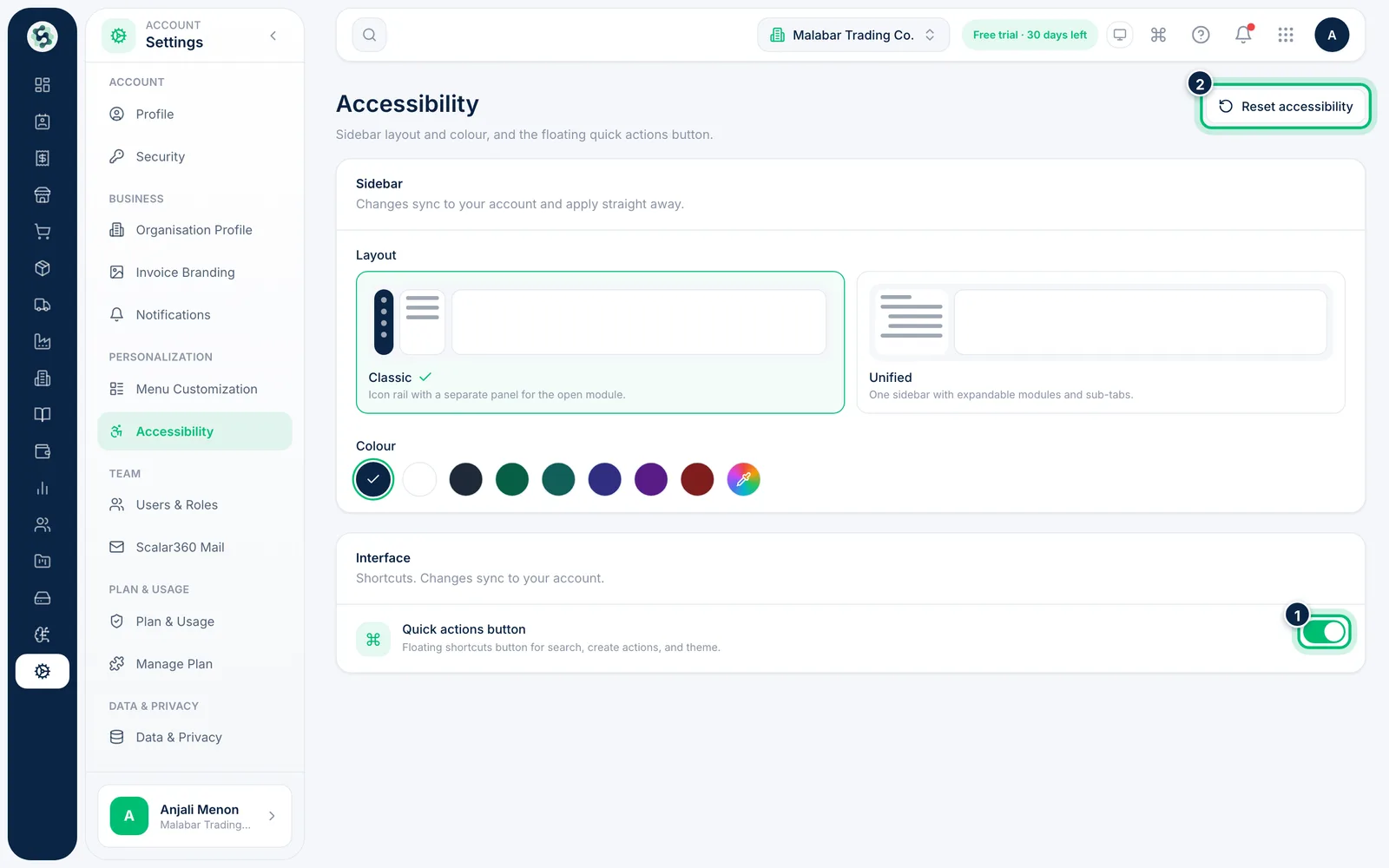
Under Interface, switch Quick actions button on to get a floating shortcut button for search, create actions and theme. Choose Reset accessibility to go back to the defaults.
Related guides
Still stuck? Contact our support team — or start a free trial to try this in your own company.