
Supply chain · 5 steps
Track batches and expiry dates
Record lots with expiry dates, watch what is about to expire, and use the soonest-expiring stock first.
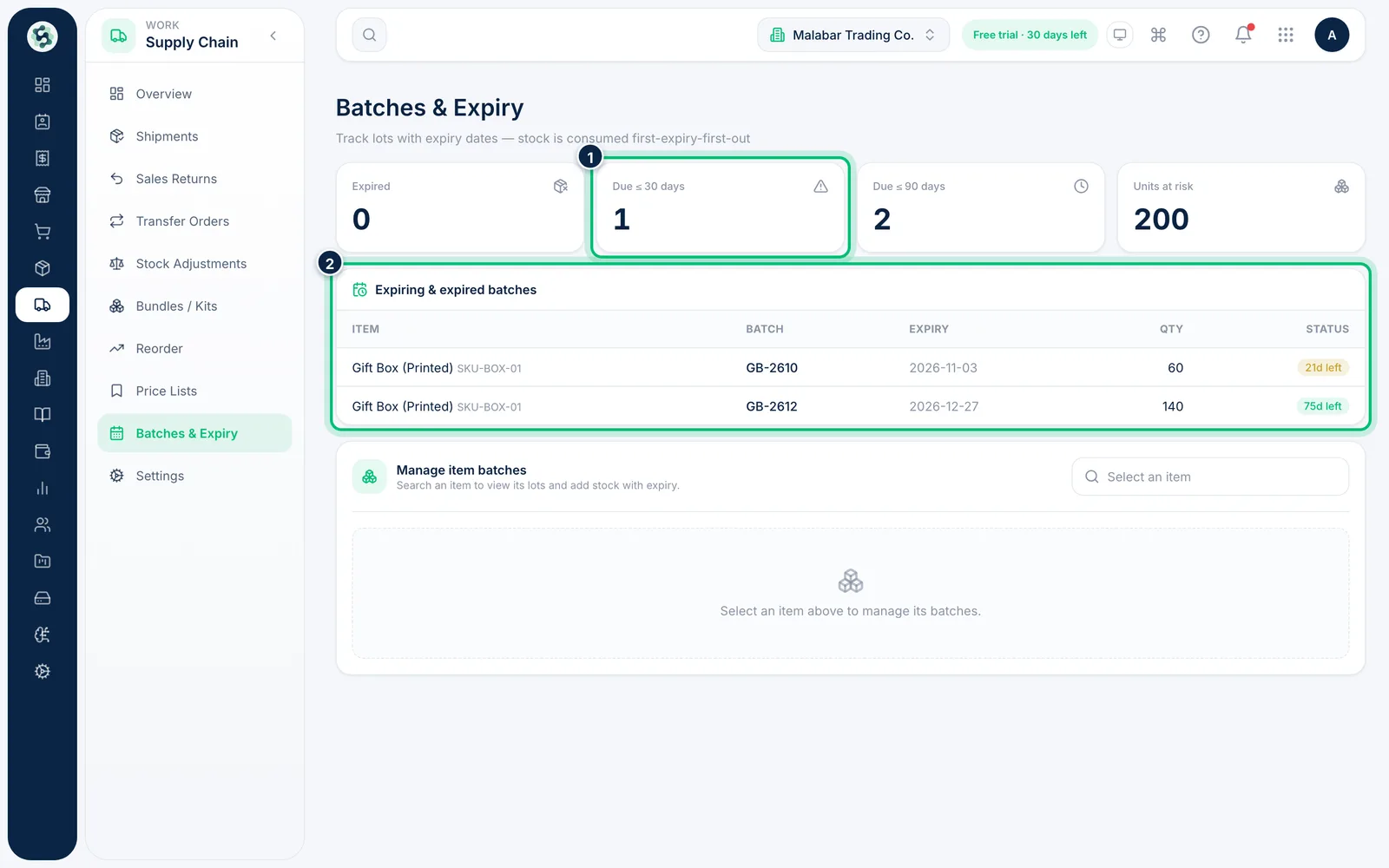
1Check what is expiring
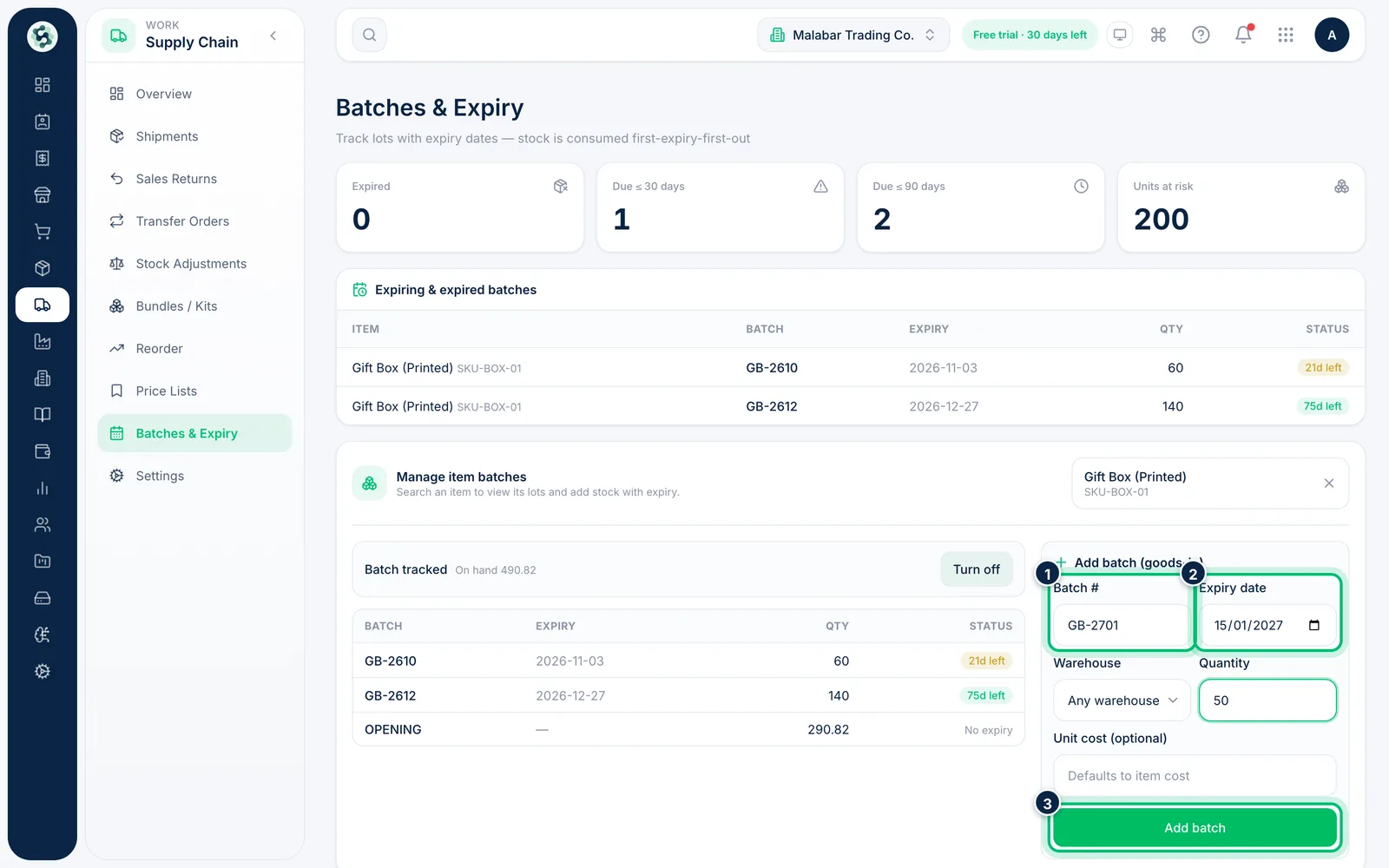
Open Supply Chain → Batches & Expiry. The cards count what is Expired, Due ≤ 30 days, Due ≤ 90 days and the Units at risk. The table below lists each batch with its expiry and status.
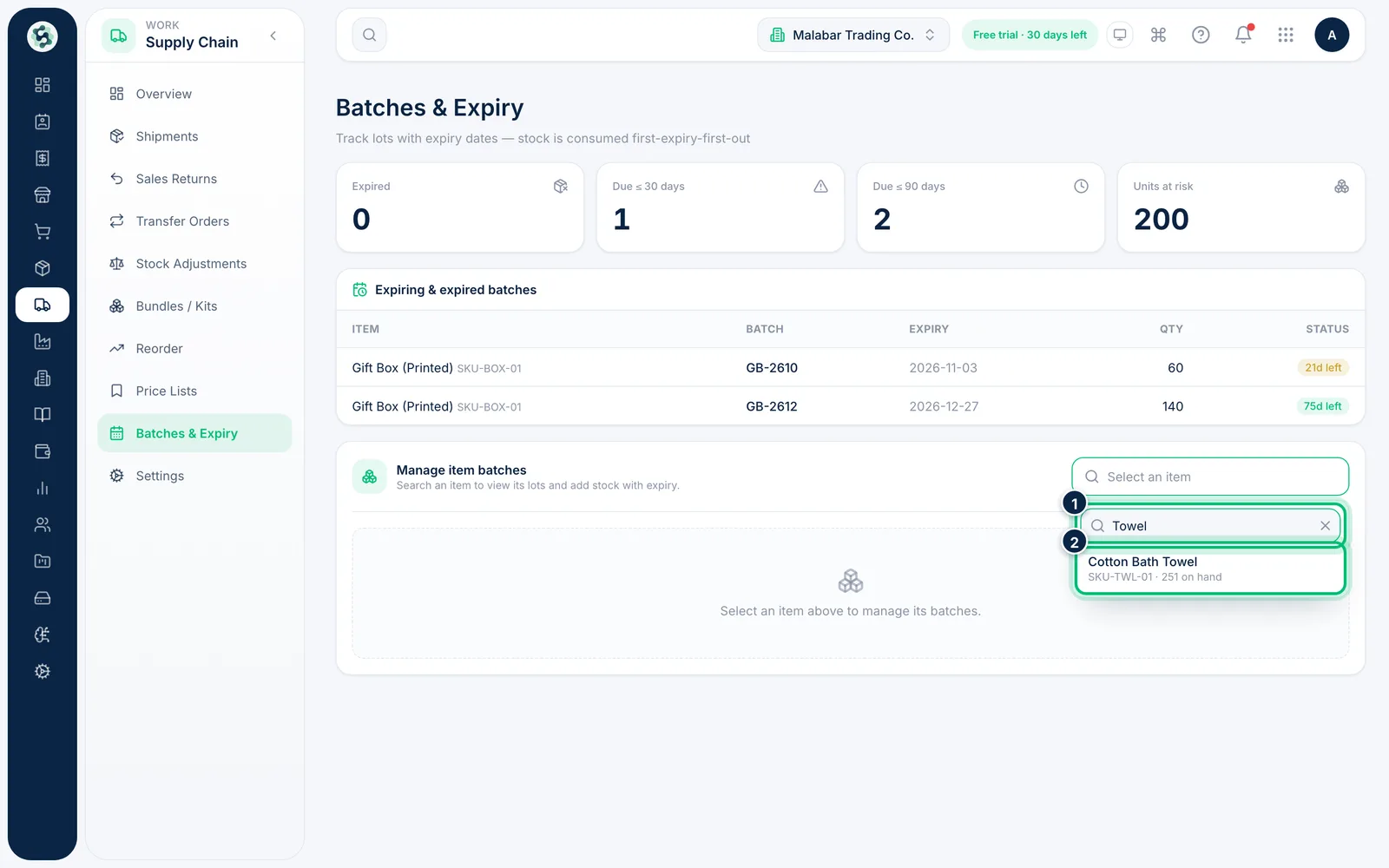
2Select an item
Under Manage item batches, choose Select an item and search for the item you want to manage.
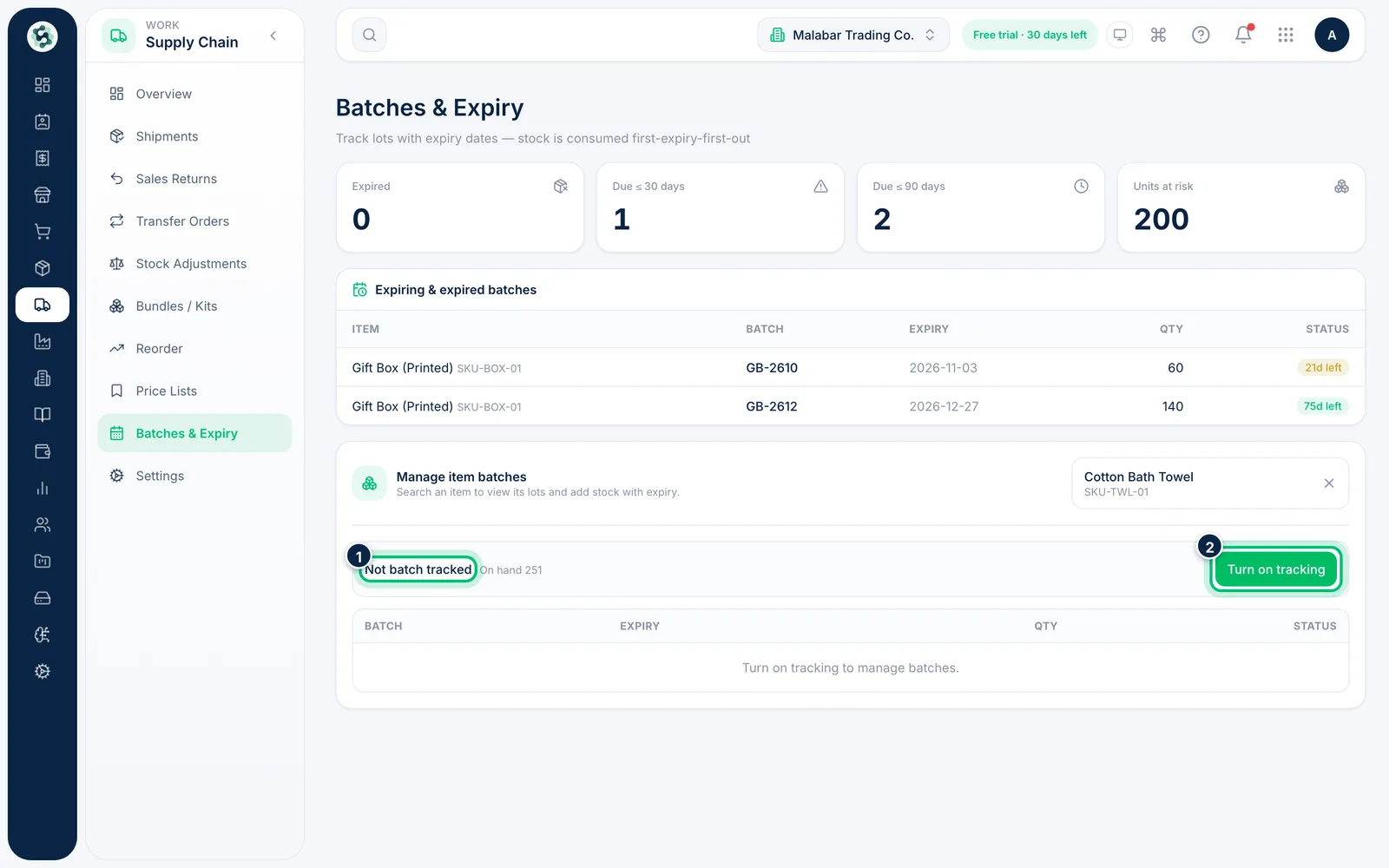
3Turn on batch tracking
An item that is not tracked shows Not batch tracked. Choose Turn on tracking to manage its lots. Turn it off again with Turn off.
4Review the batches
A tracked item lists each Batch with its Expiry, quantity and a badge showing the days left. Stock is used first-expiry-first-out.
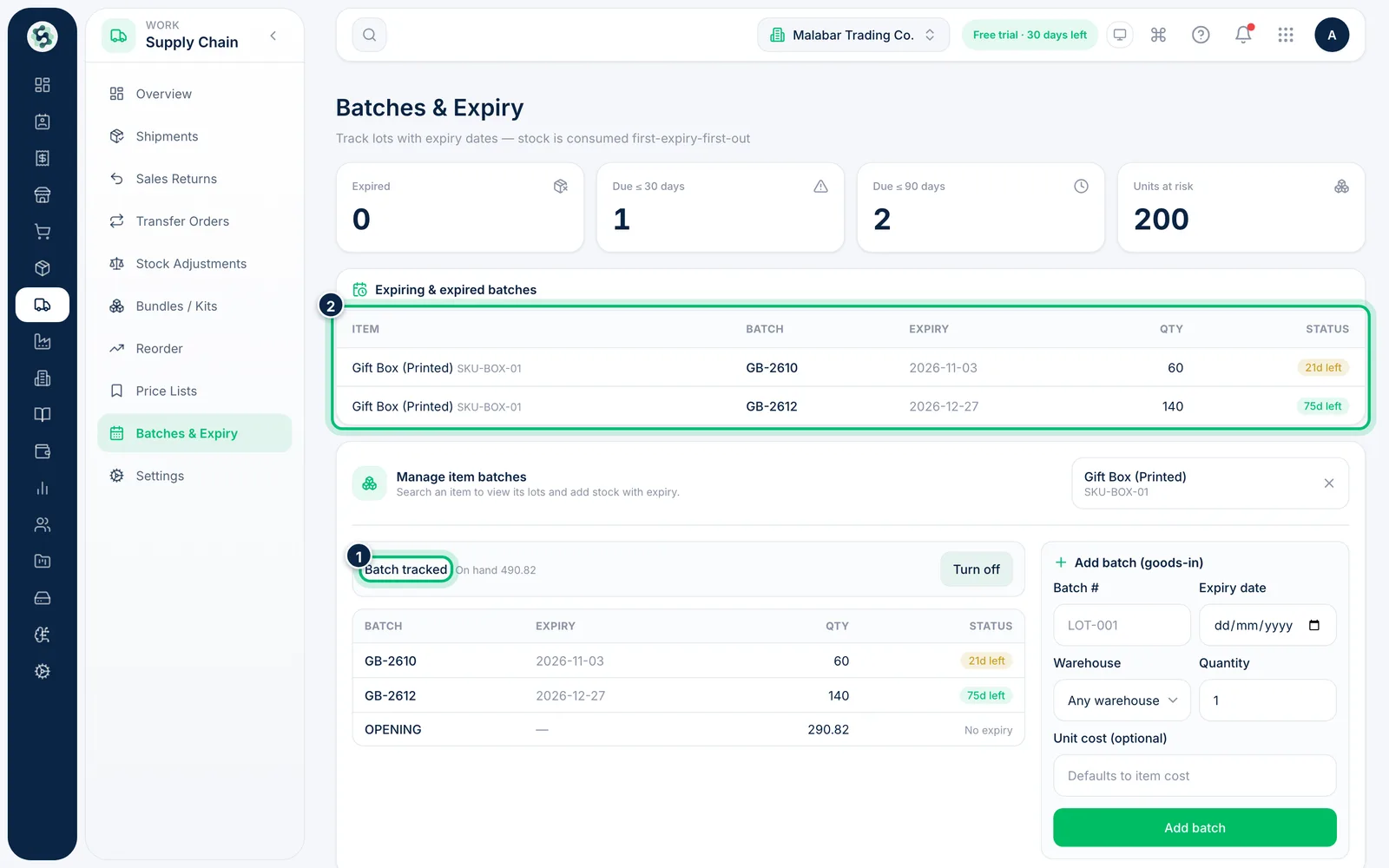
5Add a batch
In Add batch (goods-in), enter the Batch #, Expiry date, Warehouse and Quantity, and a Unit cost if it differs from the item's cost. Choose Add batch to add the stock.
Related guides
Still stuck? Contact our support team — or start a free trial to try this in your own company.