
Point of sale · 4 steps
Record cash movements and close the shift
Log cash added to or taken from the drawer, check the X-report, then count the drawer and close the shift.
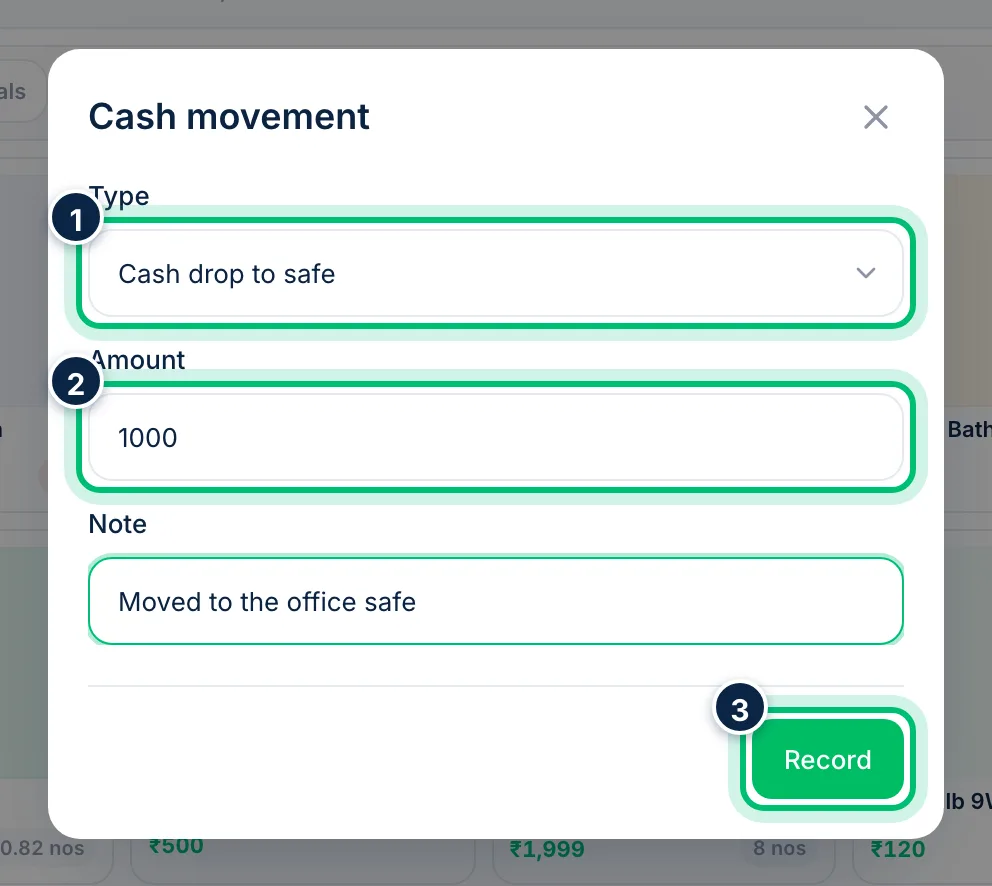
1Record cash in or out
Choose Cash on the shift bar (or press F7). Pick the Type — Drawer top-up, Cash drop to safe, Petty cash / expense, Withdrawal, Transfer or Float correction — enter the Amount and an optional Note, then choose Record.
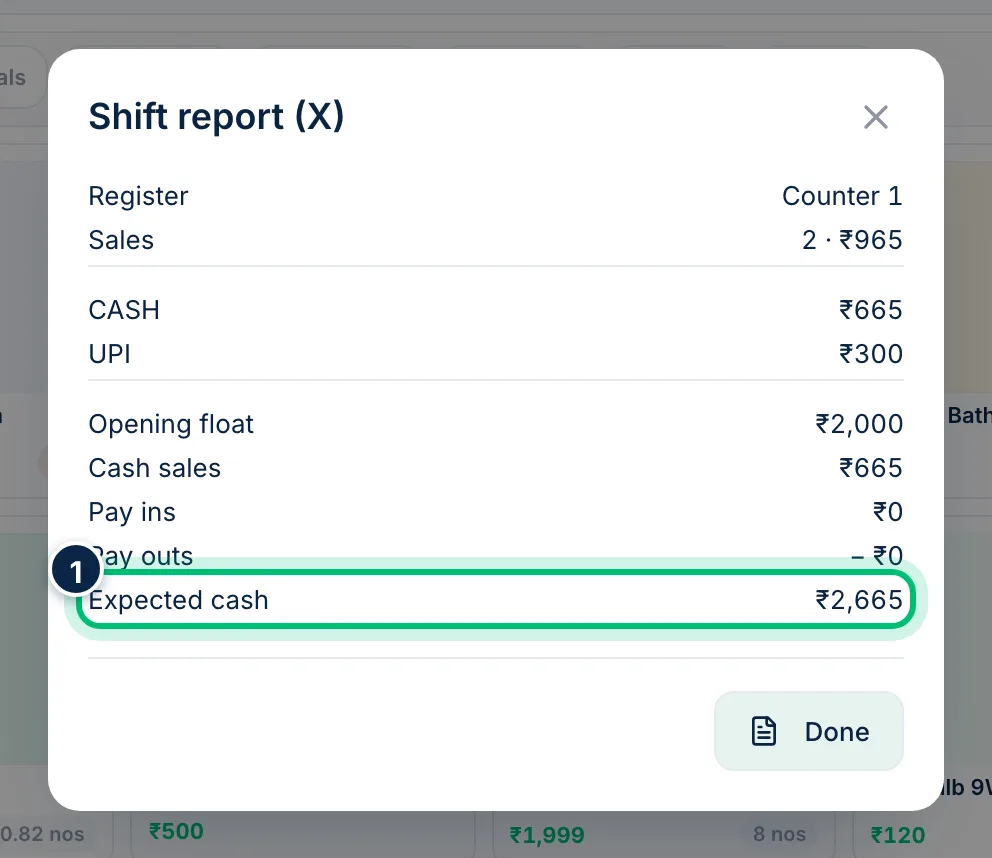
2Check the X-report
Choose More → X-report (F8) at any time for a mid-shift summary: sales by payment method, opening float, cash sales, pay-ins, pay-outs and the Expected cash in the drawer. It doesn't close anything.
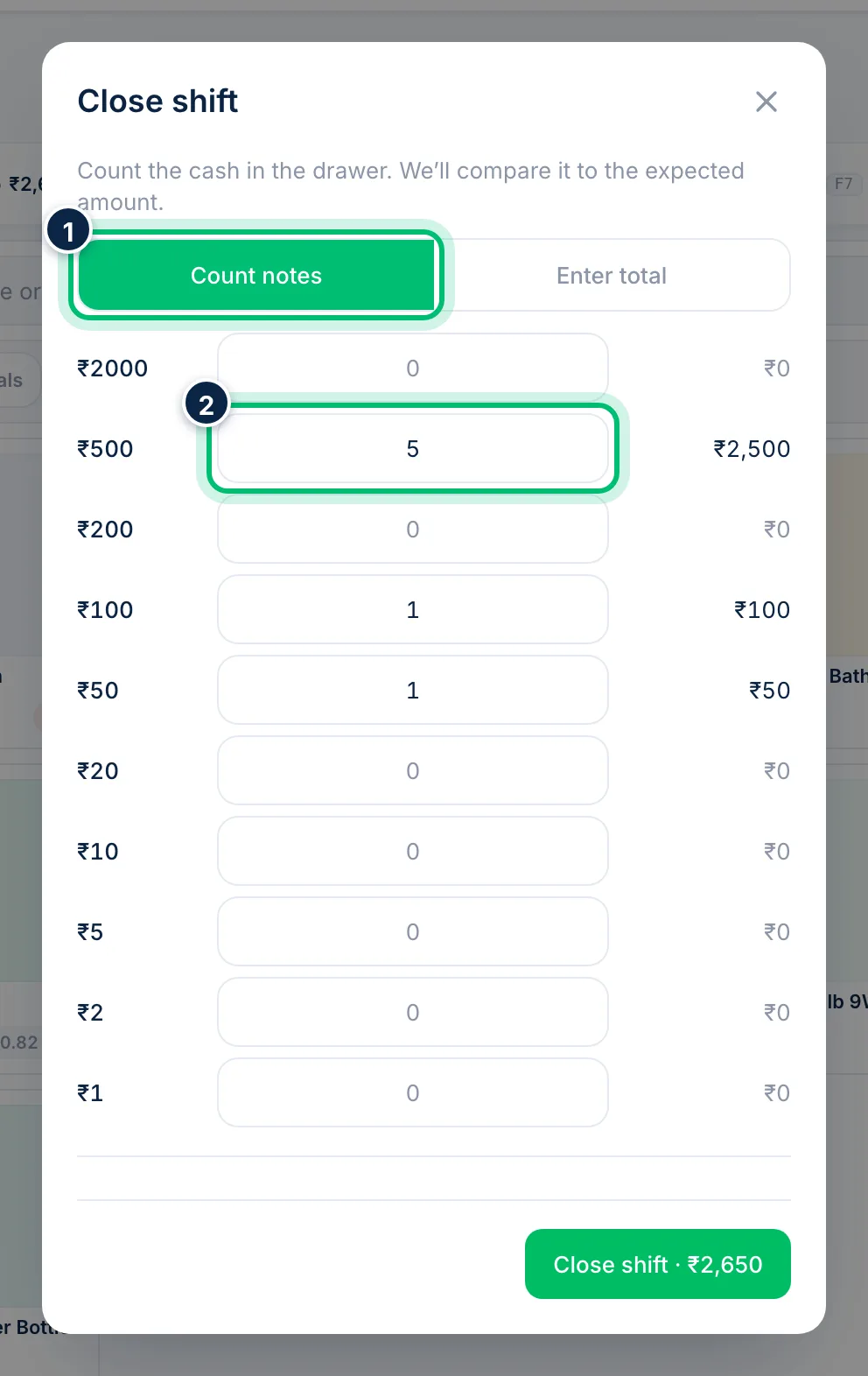
3Count the drawer
Choose Close on the shift bar. Under Count notes, enter how many of each note and coin you have, or switch to Enter total and type the amount. Scalar360 compares it to the expected cash and shows whether you're Balanced, Over or Short.
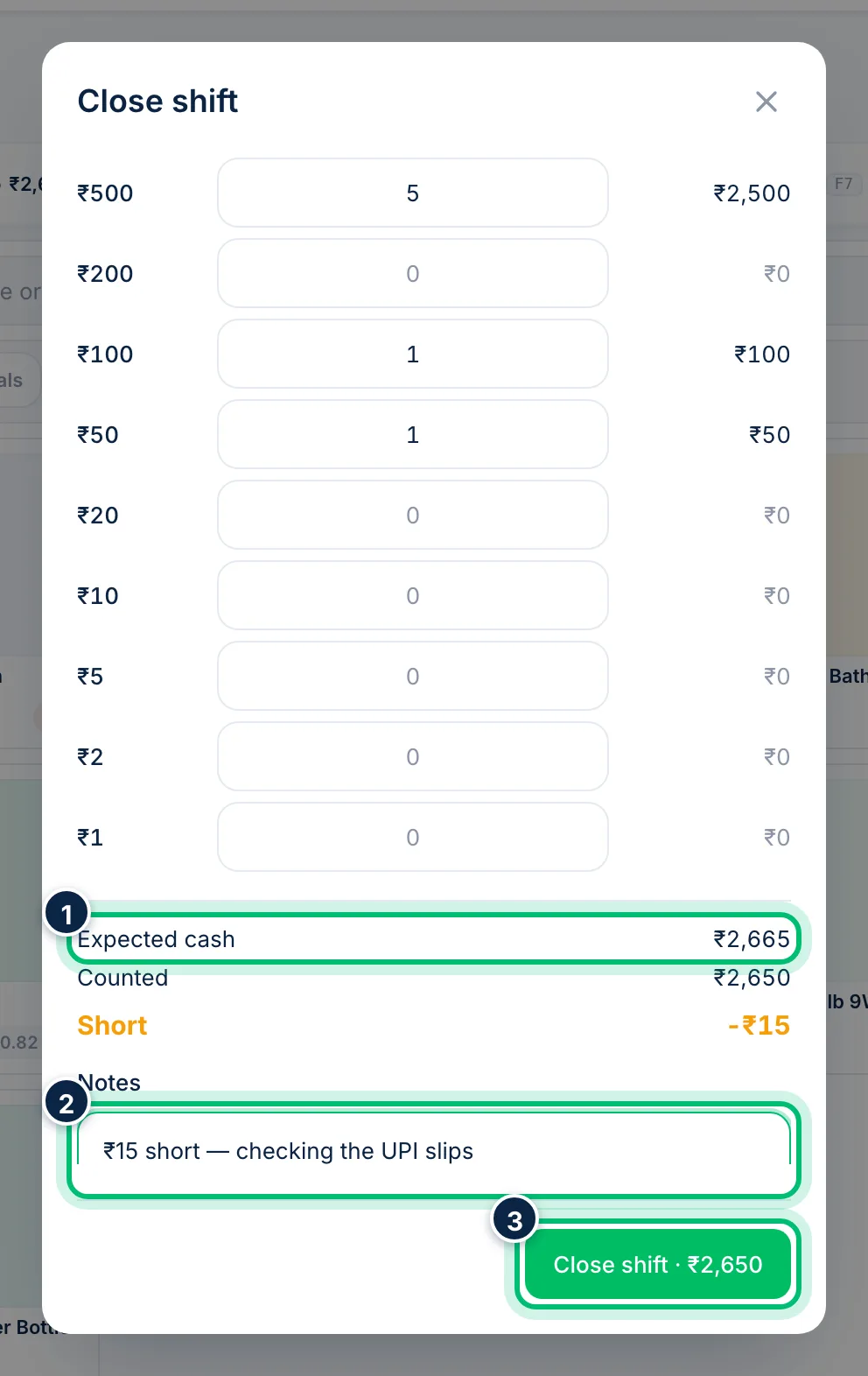
4Explain any difference and close
If the count doesn't match, add a Notes line explaining why. Choose Close shift to finish — the Z-report then shows the shift's totals with the counted cash.
Related guides
Still stuck? Contact our support team — or start a free trial to try this in your own company.