
Reports · 4 steps
Save a report view and reopen it
Save a report with its period so you can come back to it in one click.
Before you start: You need permission to create report views. If you don't see Save on a report, ask your administrator.
1Set up the report
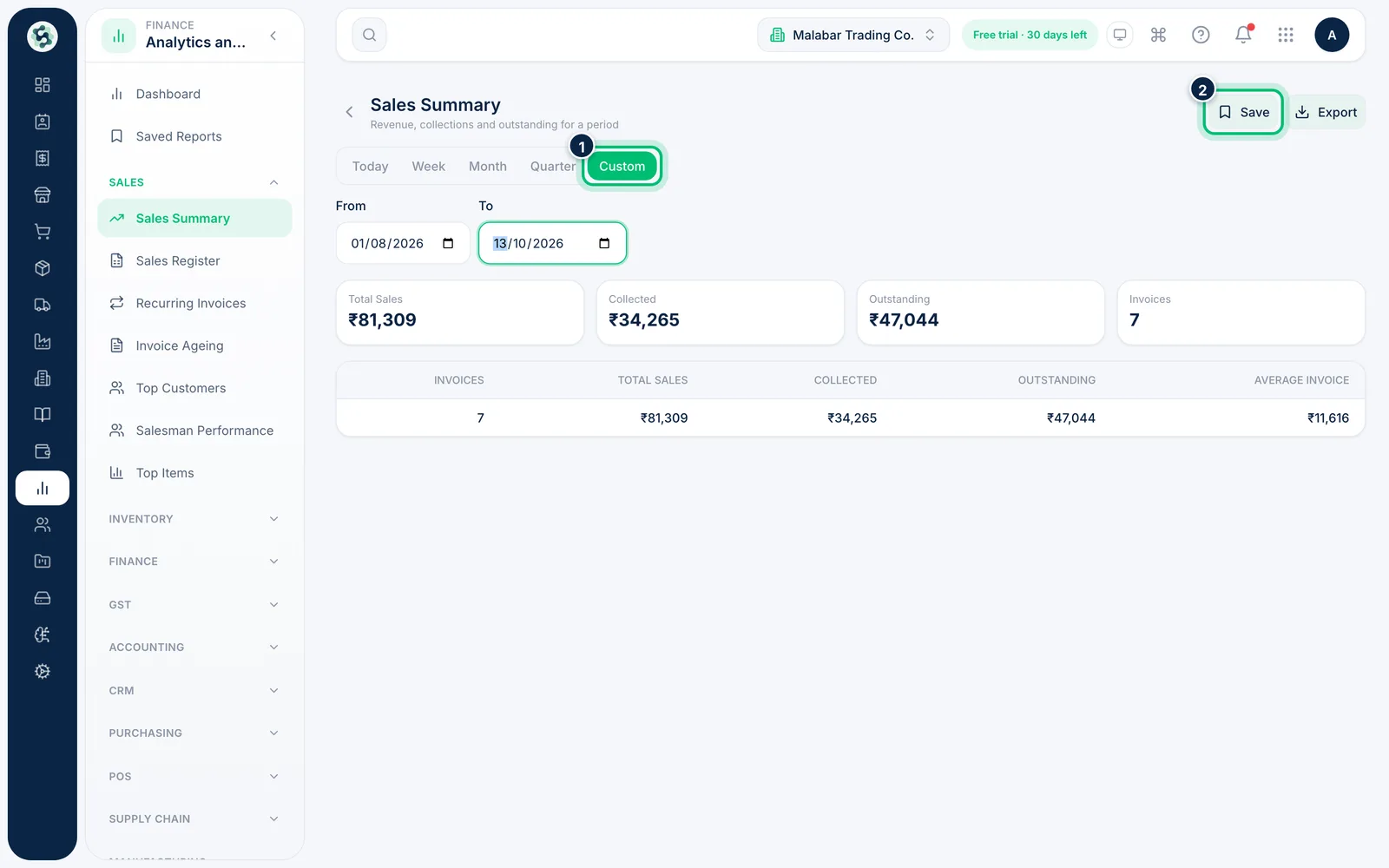
Open the report and choose the period you want to keep — for example Custom from 1 August to 13 October 2026. Then click Save.
2Name the view
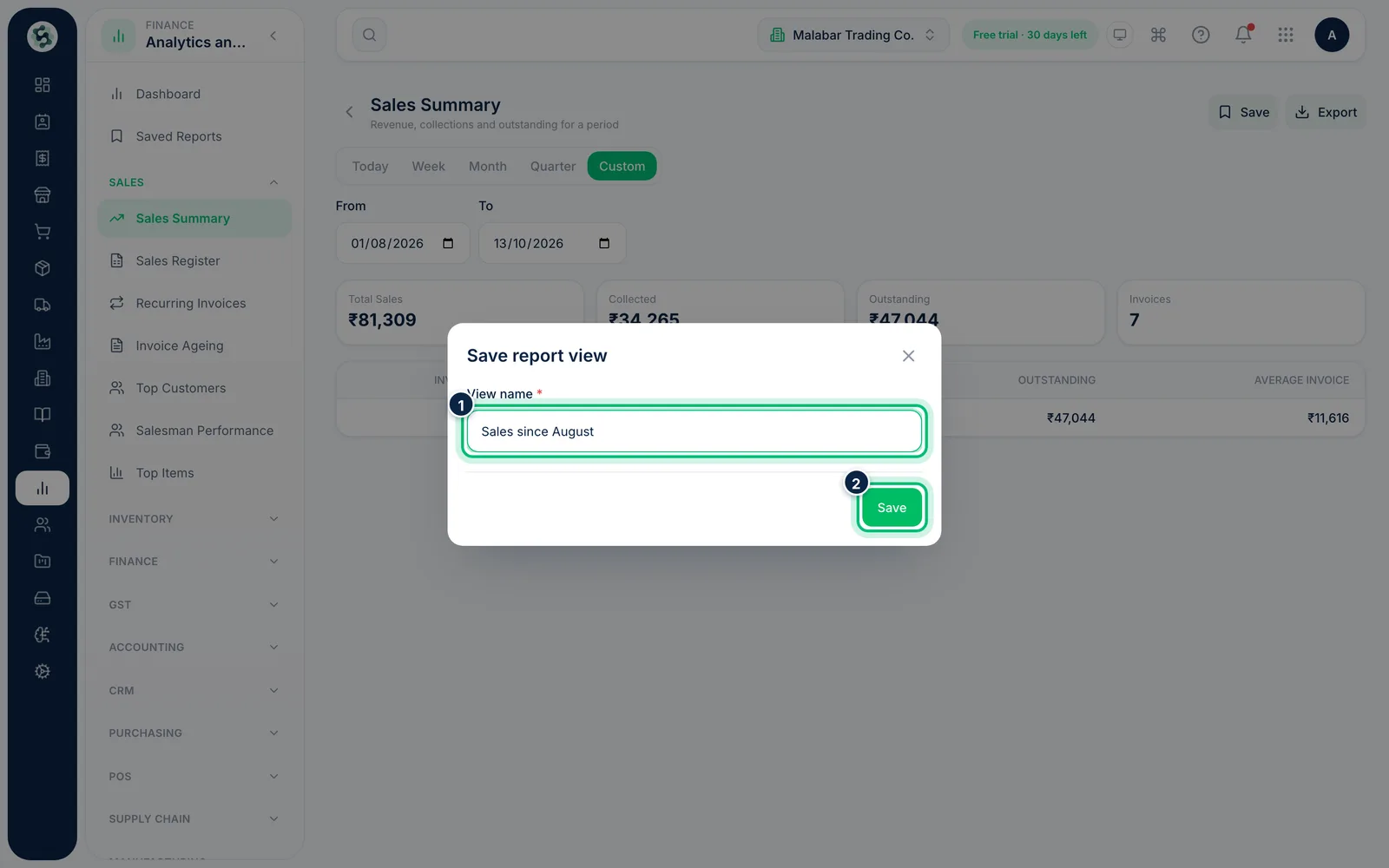
In Save report view, type a View name that says what it is, such as "Sales since August", and choose Save.
3Open Saved Reports
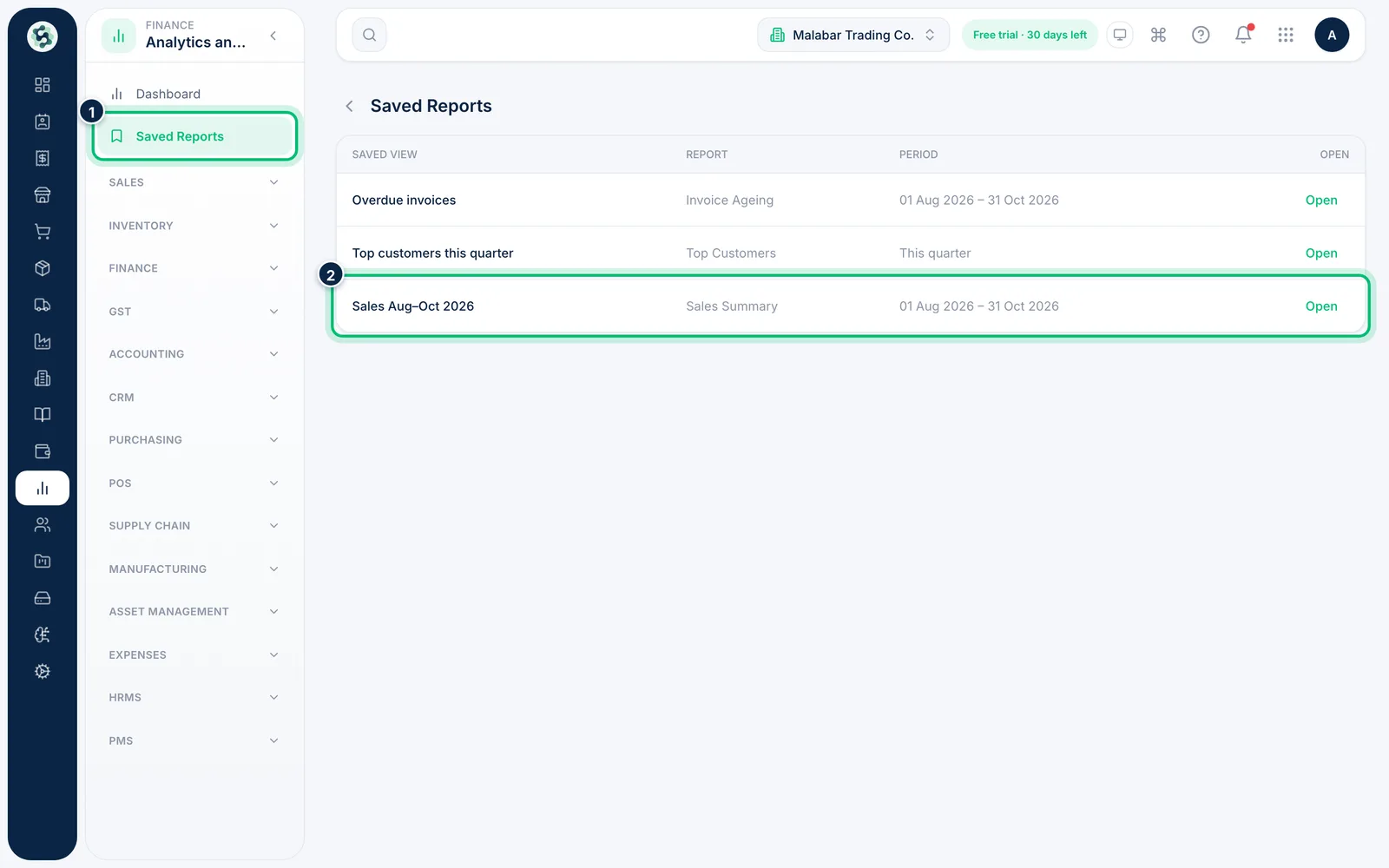
Choose Saved Reports in the left menu, or the Saved button on the reports dashboard. Each row shows the Saved view name, the Report it belongs to and its Period in plain words, such as This quarter or 01 Aug 2026 – 31 Oct 2026.
4Reopen a saved view
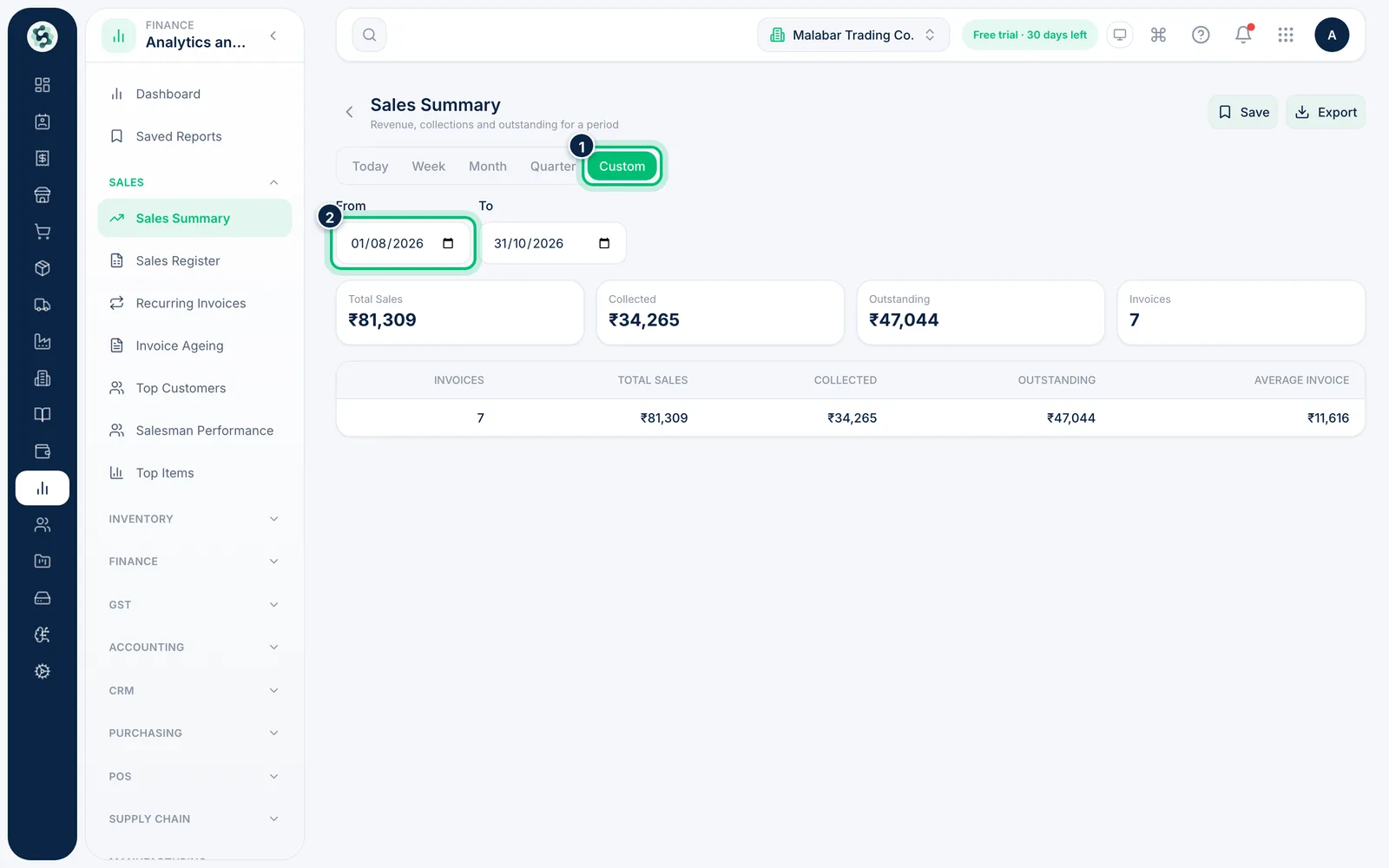
Click Open (or anywhere on the row). The report opens with the saved period already selected — here Custom, 1 August to 31 October 2026 — and shows the correct totals for those dates.
Related guides
Still stuck? Contact our support team — or start a free trial to try this in your own company.