
Sales & invoicing · 4 steps
Record a payment against an invoice
Mark money you've received against an invoice, in full or in part, so the balance and your books stay up to date.
Before you start: The invoice must be issued (Due or Overdue). Drafts can't take payments.
1Open the invoice
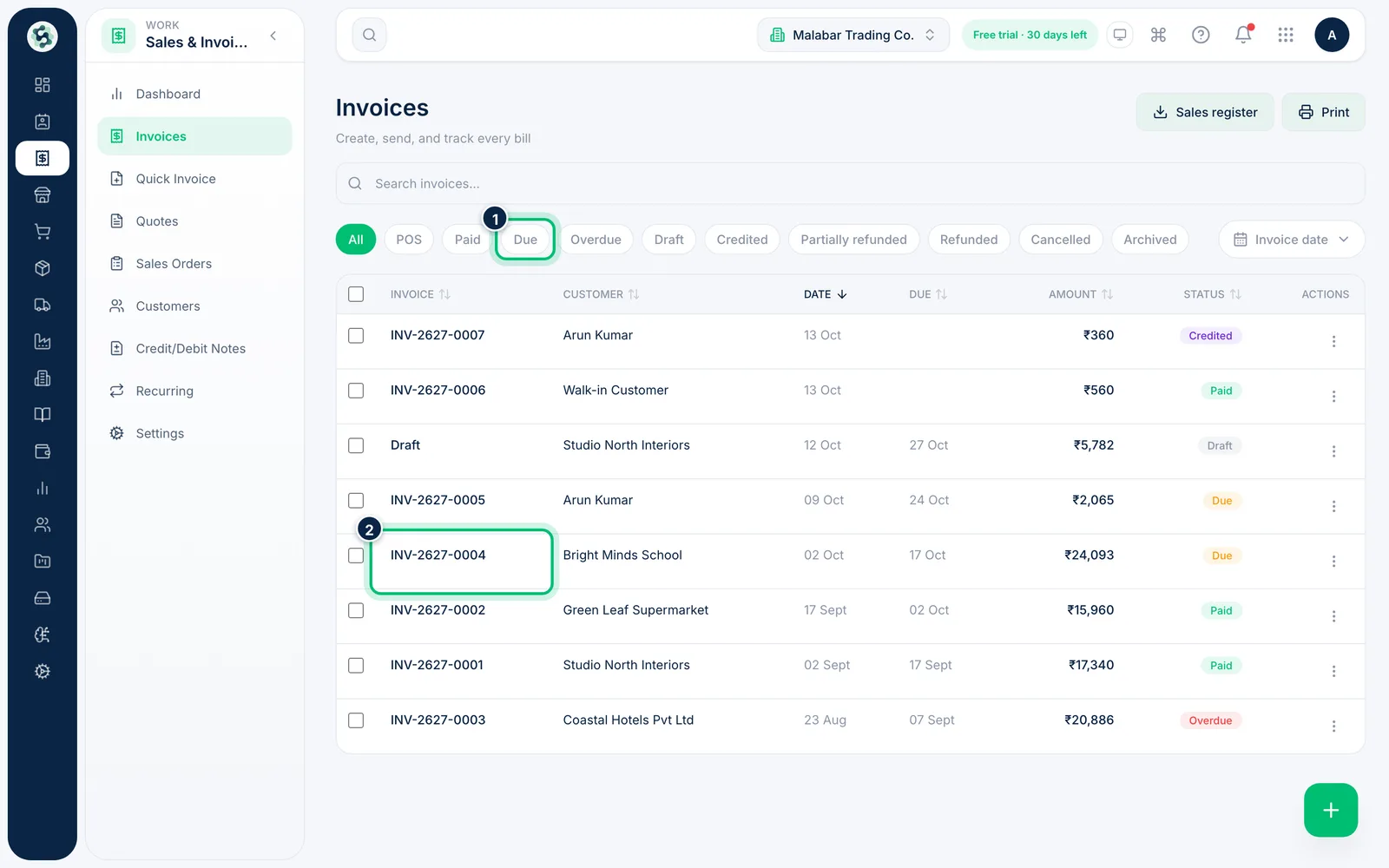
Open Sales & Invoicing → Invoices and click the invoice the customer has paid. Use the Due or Overdue filter to find unpaid invoices quickly.
2Choose Record payment
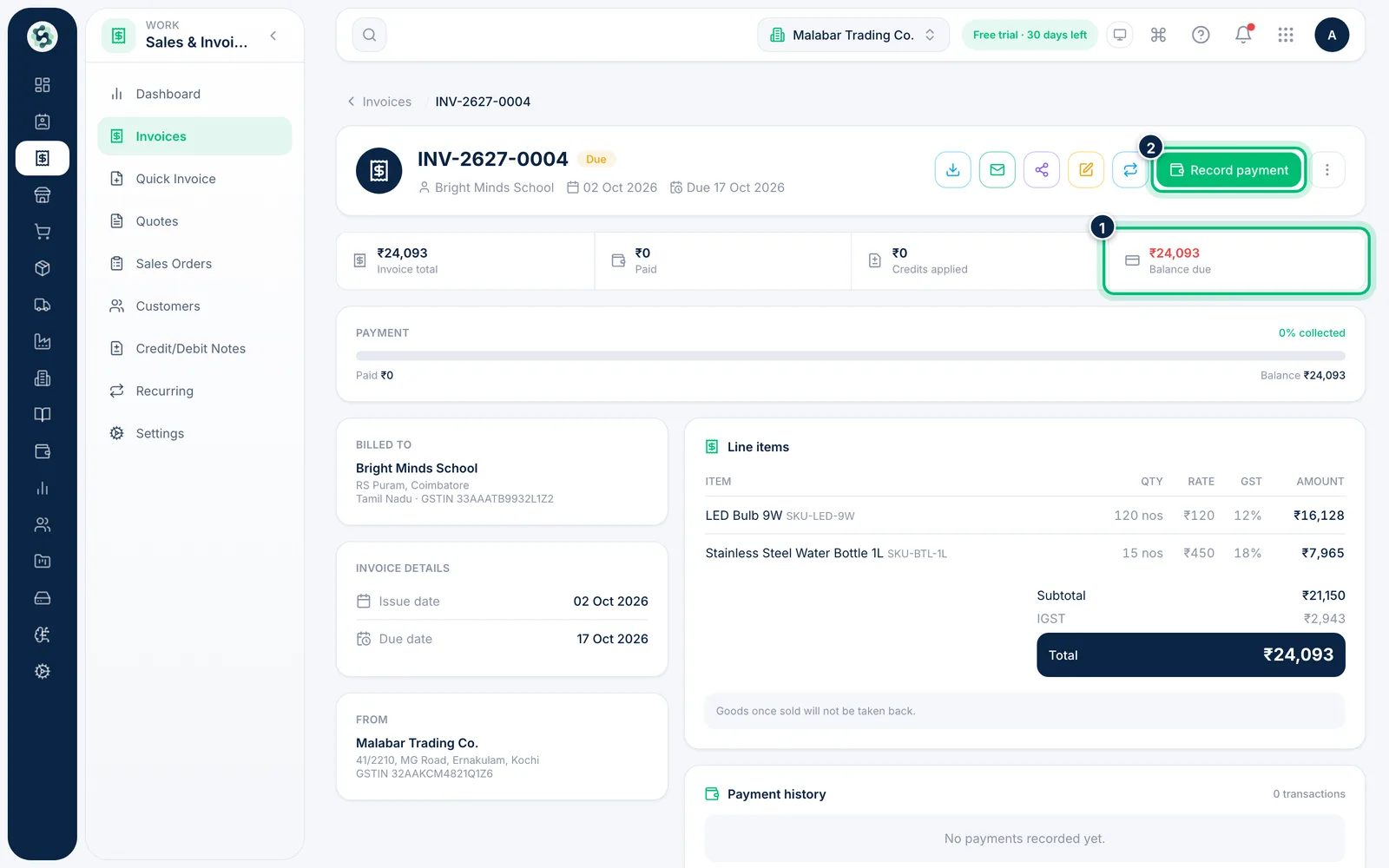
The top of the invoice shows the Invoice total, what's been Paid and the Balance due. Choose Record payment.
3Enter the amount and mode
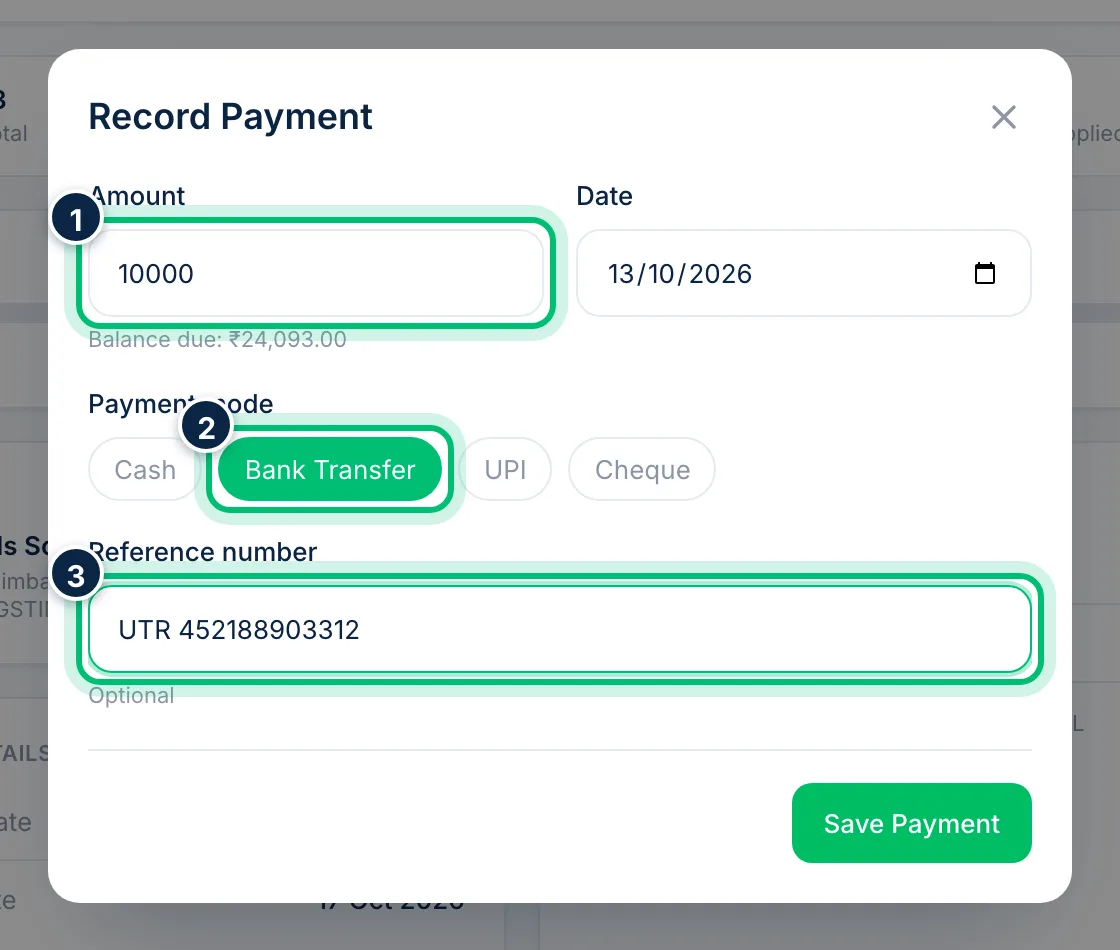
The Amount starts at the full balance due — change it if the customer paid part. Set the Date, pick the Payment mode (Cash, Bank Transfer, UPI or Cheque) and add a Reference number such as the UTR or cheque number.
4Save the payment
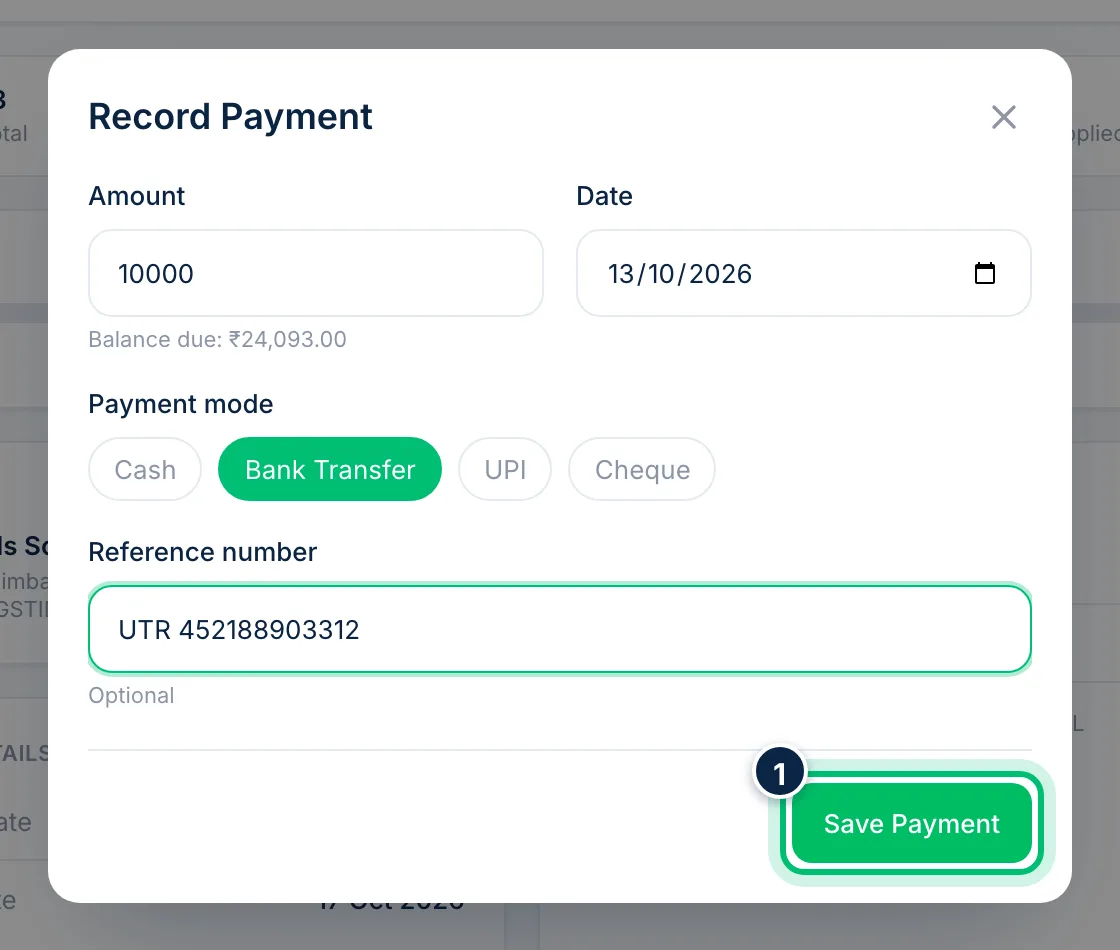
Choose Save Payment. The payment is listed on the invoice, the balance drops, and the invoice changes to Paid once nothing is left to pay.
Related guides
Still stuck? Contact our support team — or start a free trial to try this in your own company.