
Sales & invoicing · 4 steps
Create a quote and convert it to an invoice
Send a customer an estimate with GST worked out, then turn it into an invoice in one click once they agree.
Before you start: Add the customer and the items you're quoting first, or create them while you fill in the quote.
1Open Quotes and start a new one
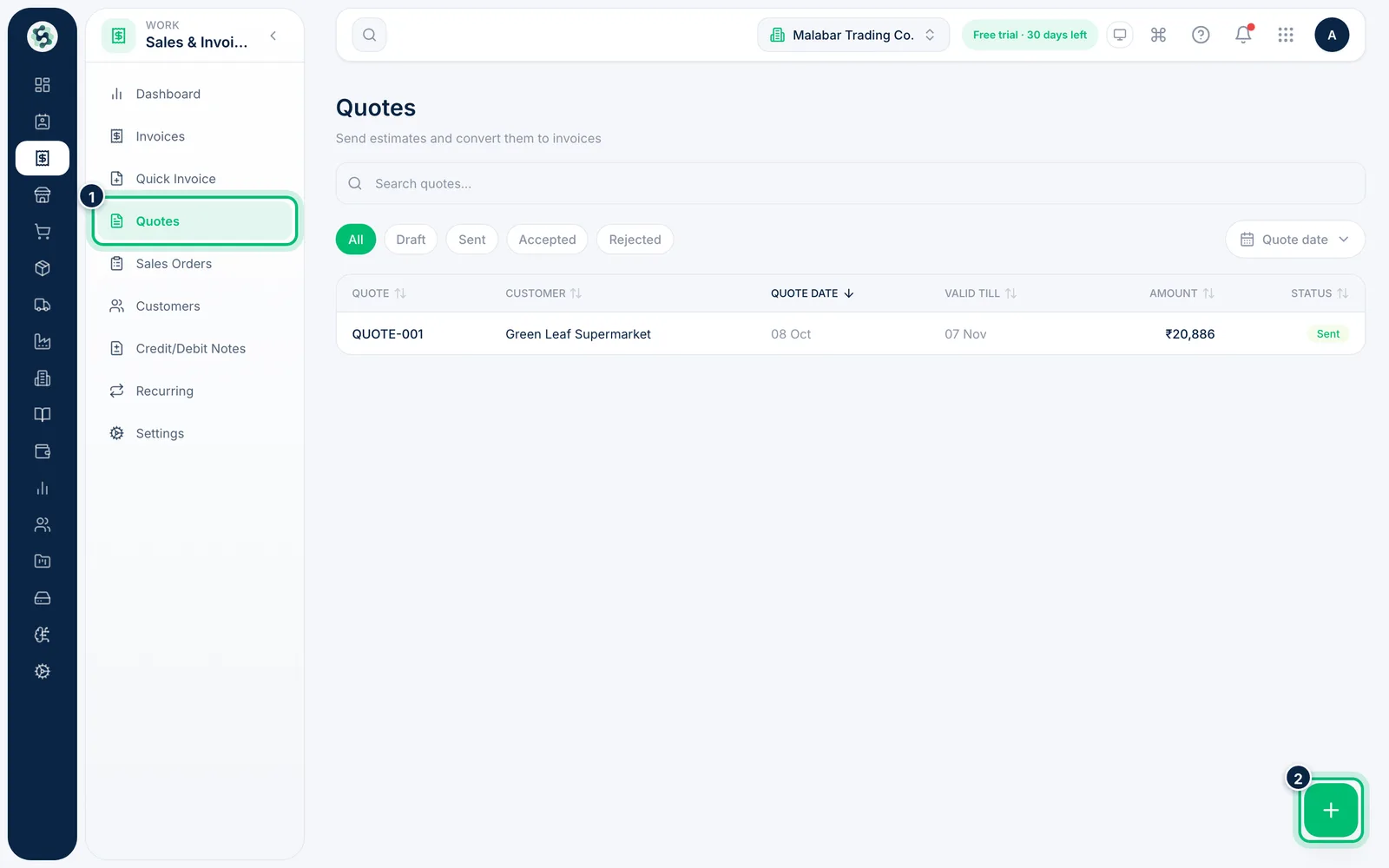
Open Sales & Invoicing → Quotes. Each quote shows its status — Draft, Sent, Accepted, Rejected or Converted — and the date it's Valid till. Choose the + button to start a new quote.
2Choose the customer and validity
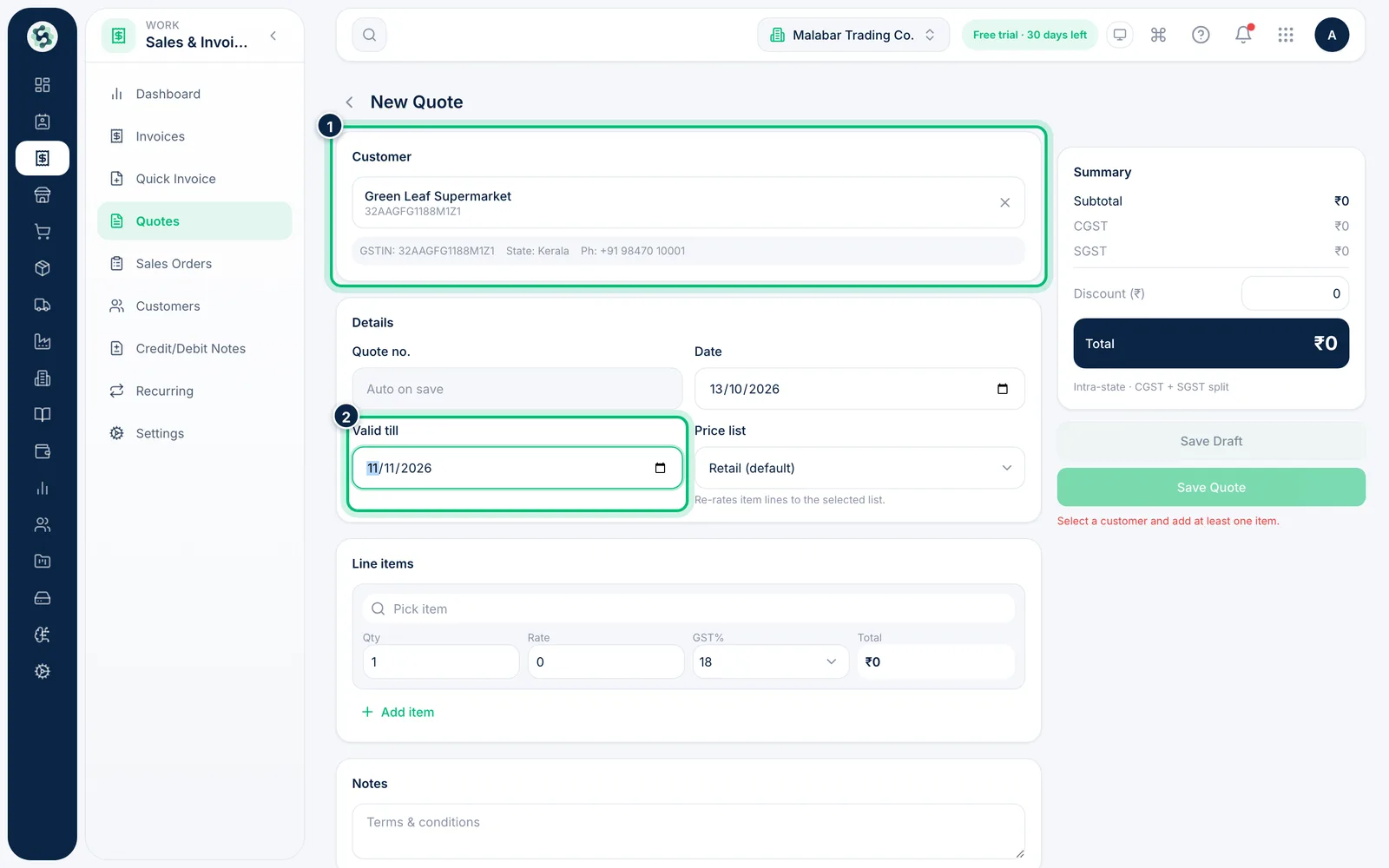
Click Select customer and pick who the quote is for. Under Details, set the quote Date and how long your prices hold in Valid till. Valid till starts 15 days after the quote date and follows the date until you change it; it can't be earlier than the quote date. The quote number is given when you save.
3Add items and save
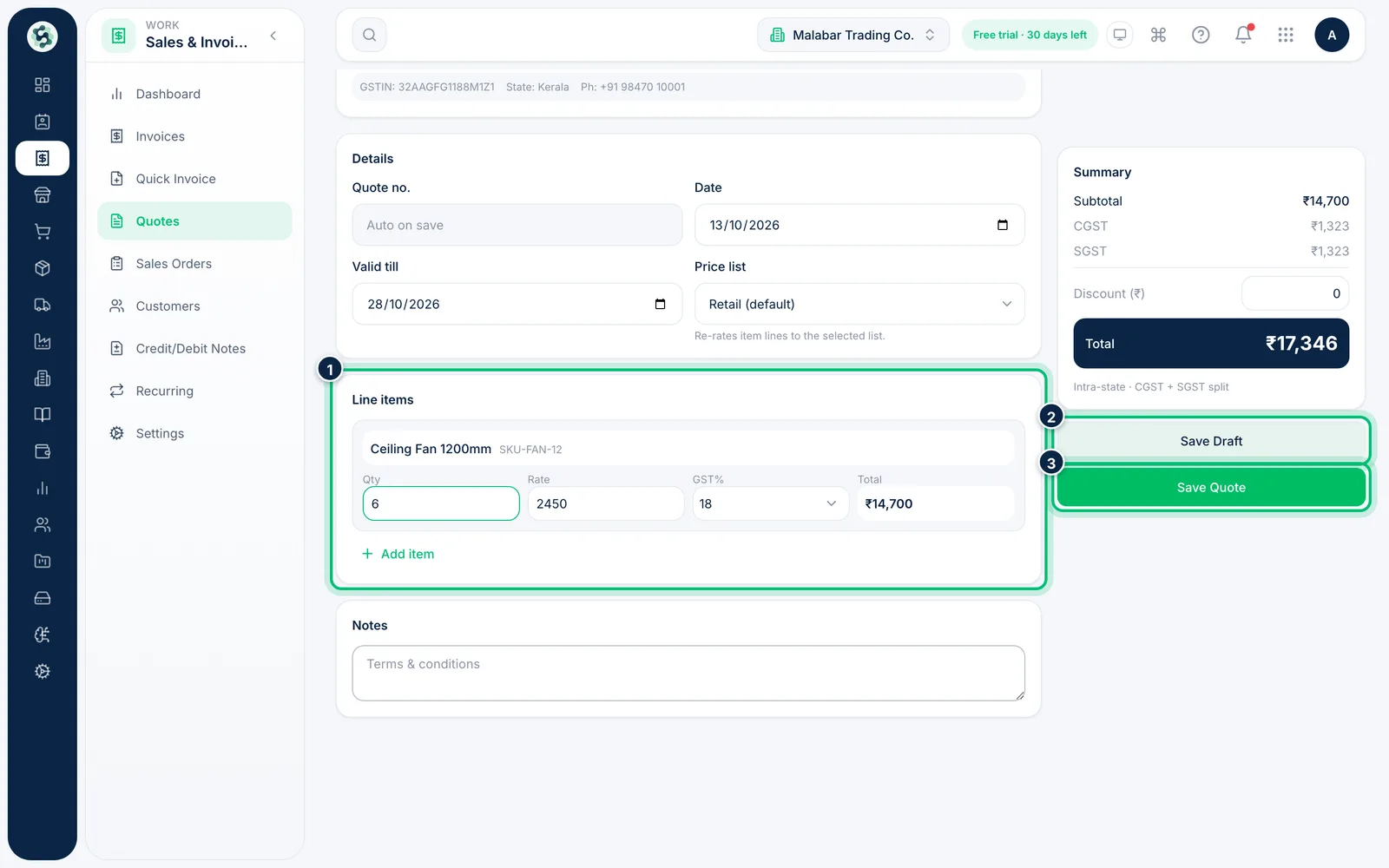
Use Pick item to add each product or service, and adjust the Qty and Rate. Choose Save Draft to keep working on it, or Save Quote to save it and mark it as Sent.
4Convert the quote to an invoice
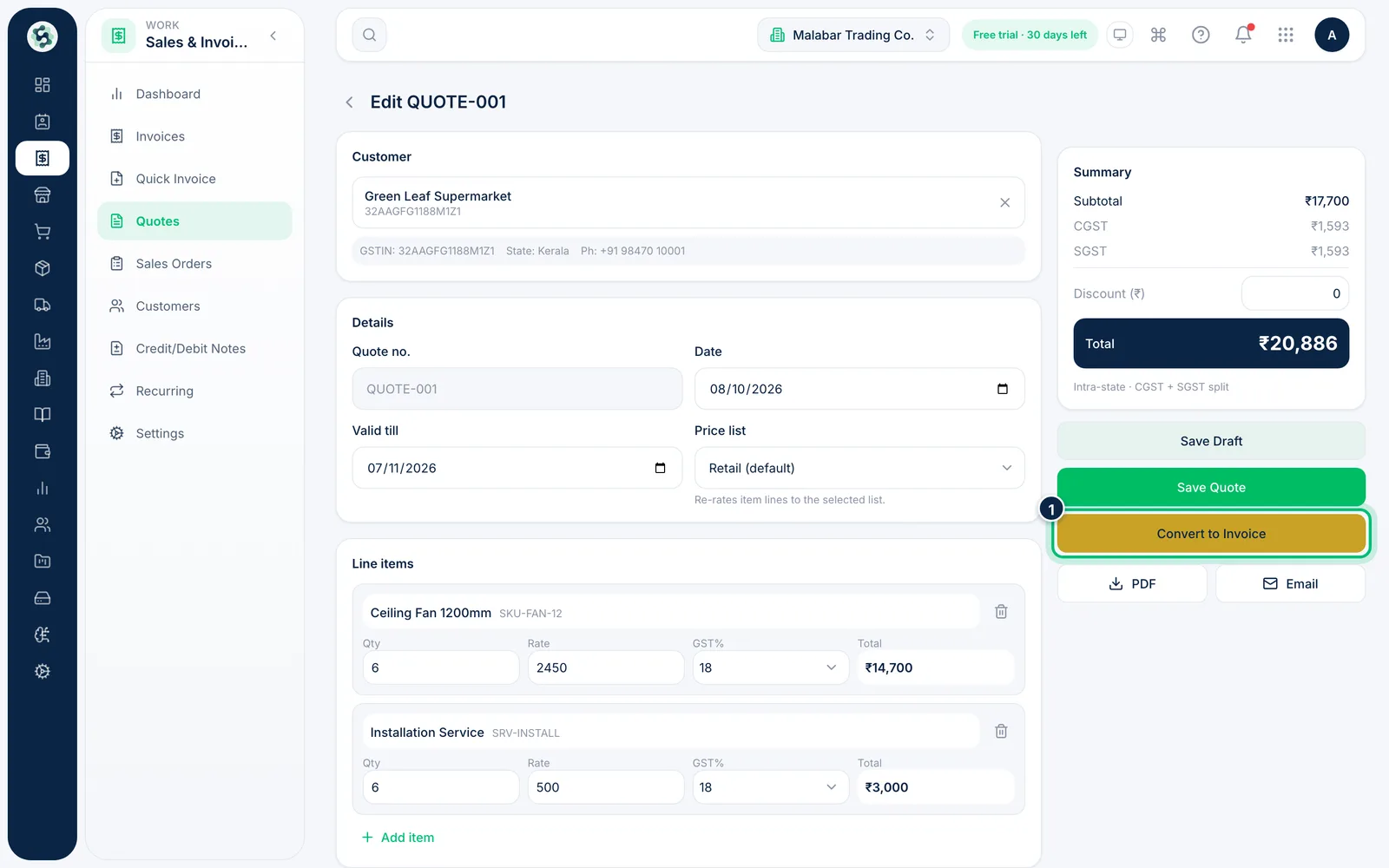
When the customer agrees, open the quote from the Quotes list and choose Convert to Invoice. Scalar360 creates the invoice with the same customer, items and tax, marks the quote Converted and opens the new invoice for you.
Related guides
Still stuck? Contact our support team — or start a free trial to try this in your own company.