
Reports · 5 steps
Find and run a report
Search the library, open a report and choose the period it covers.
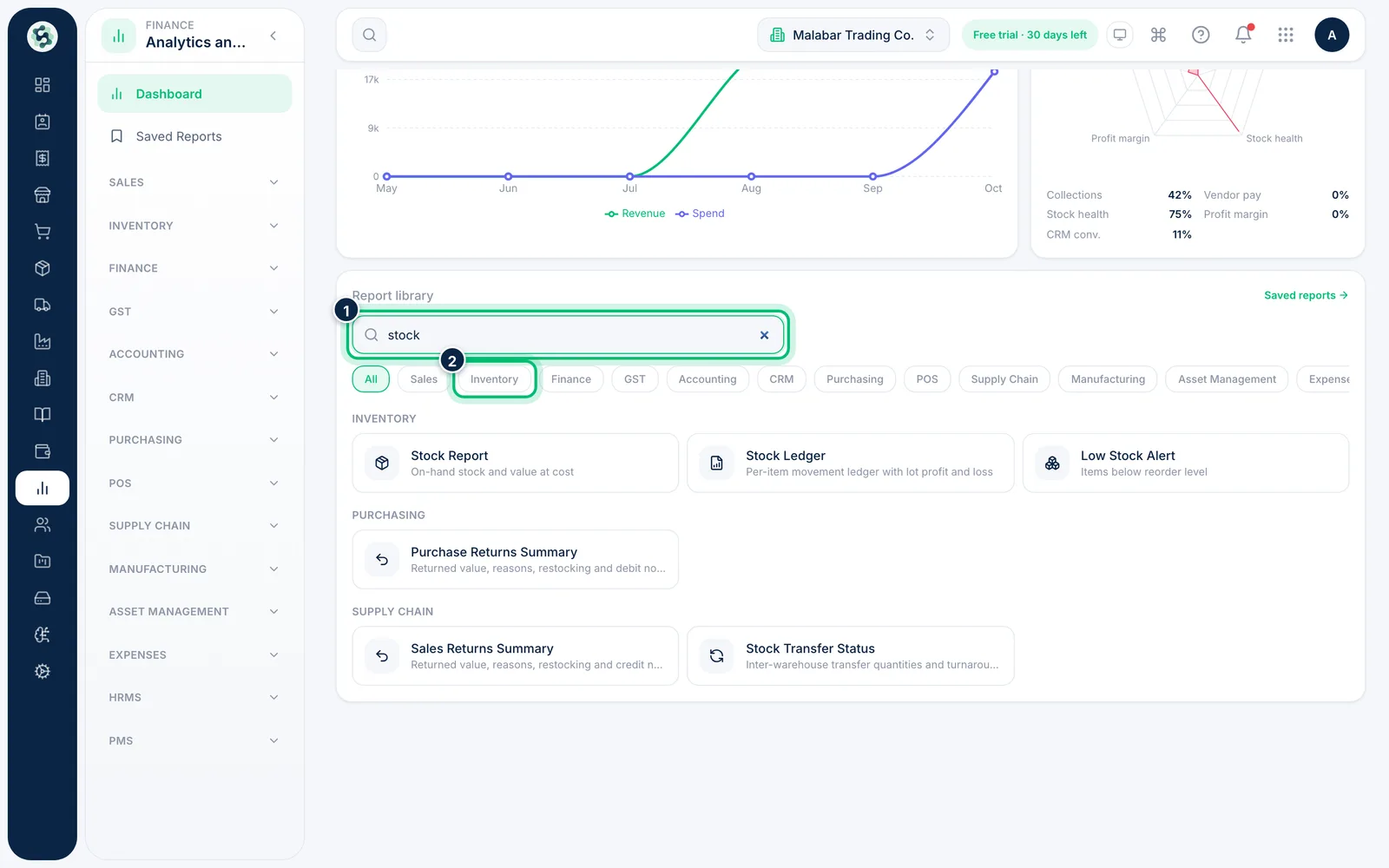
1Search or filter the library
On the reports Dashboard, type a few words in Search reports — for example "stock" — or pick a category such as Sales or Inventory to narrow the list.
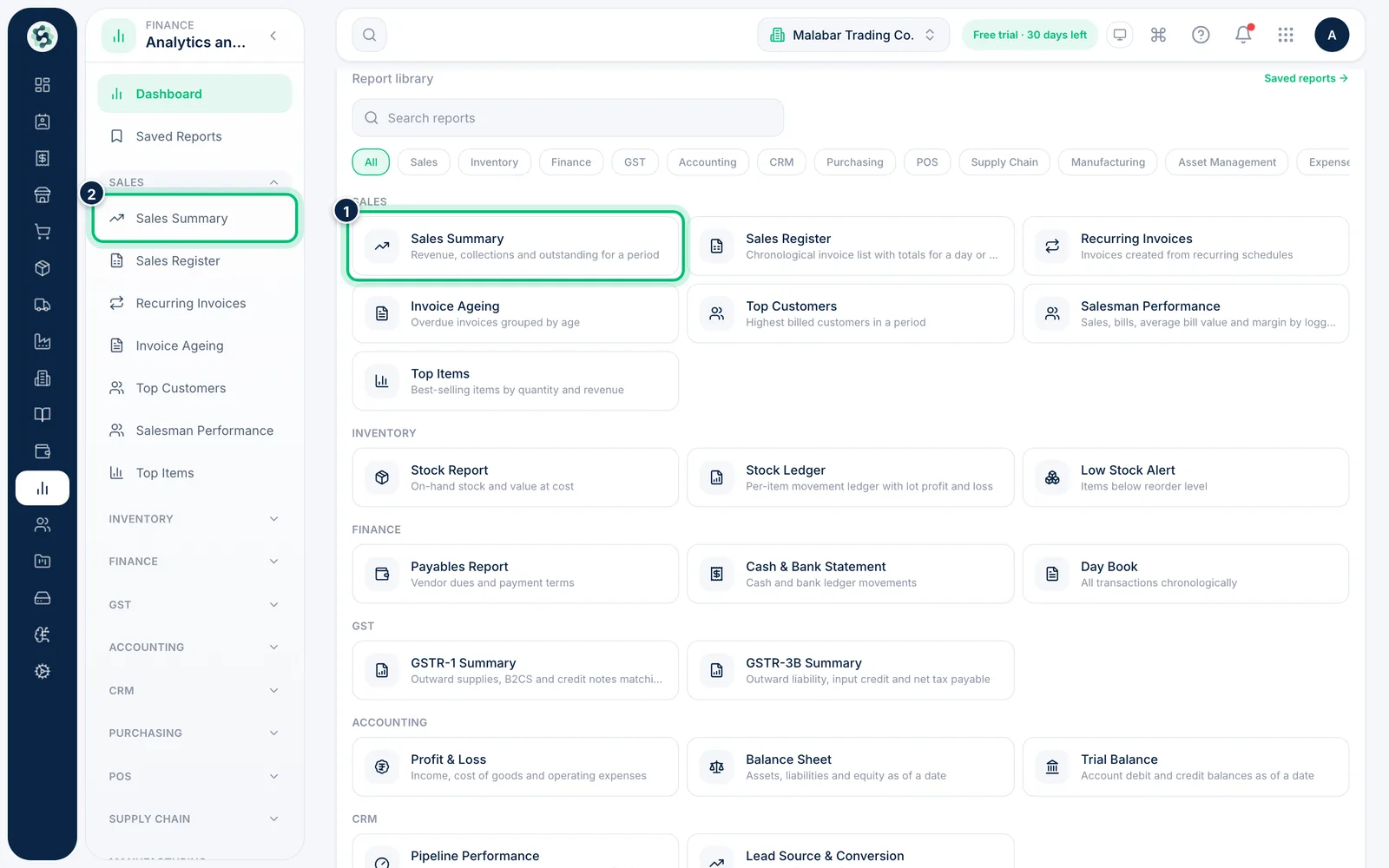
2Open a report
Click a report to open it. You can also open any report straight from the left menu: expand a group such as SALES and choose the report.
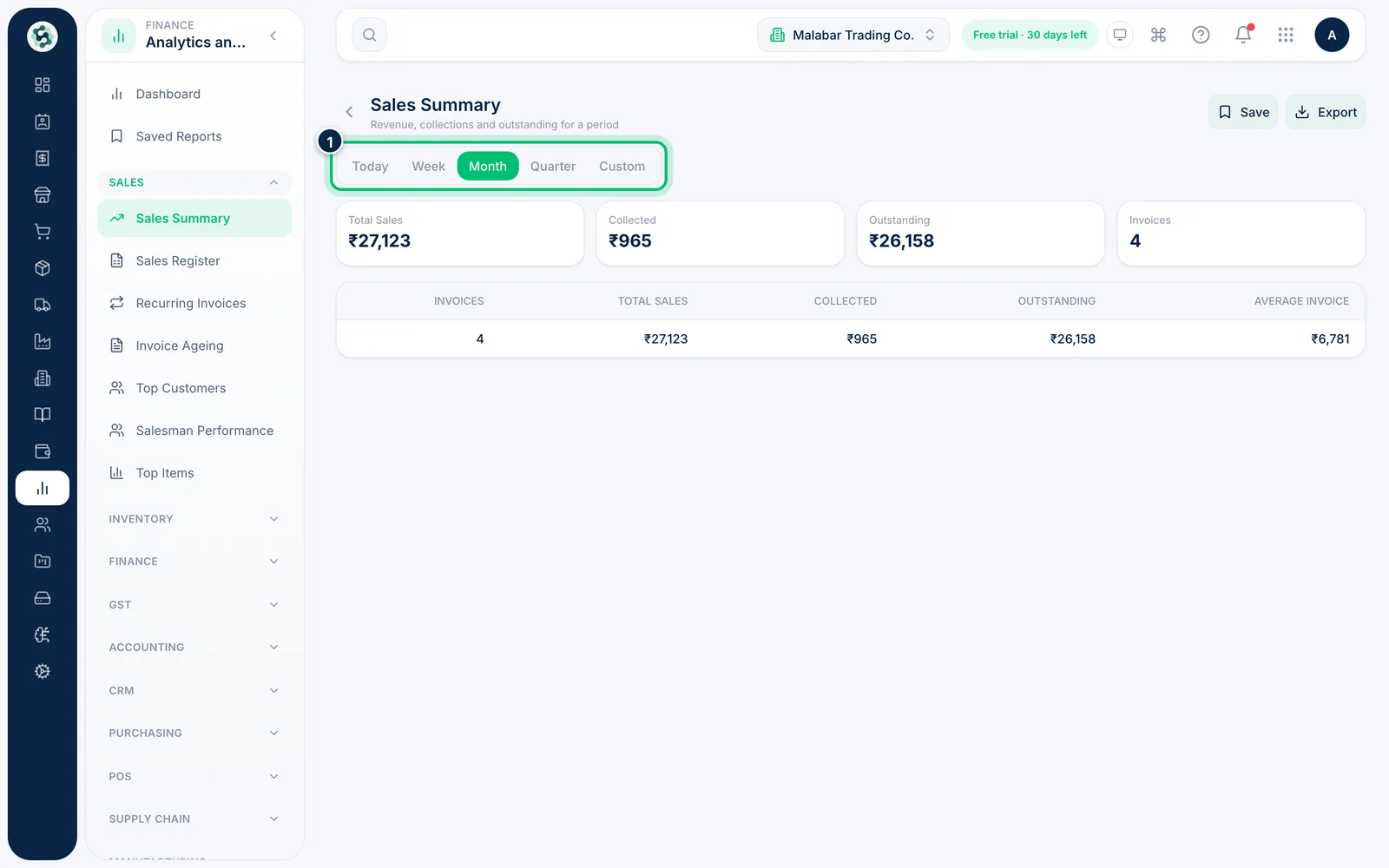
3Choose the period
Most reports open on Month — the 1st of this month to today. Switch to Today, Week (Monday to today, just as Month runs from the 1st to today) or Quarter (the current calendar quarter so far), and the report reloads straight away.
4Set your own dates
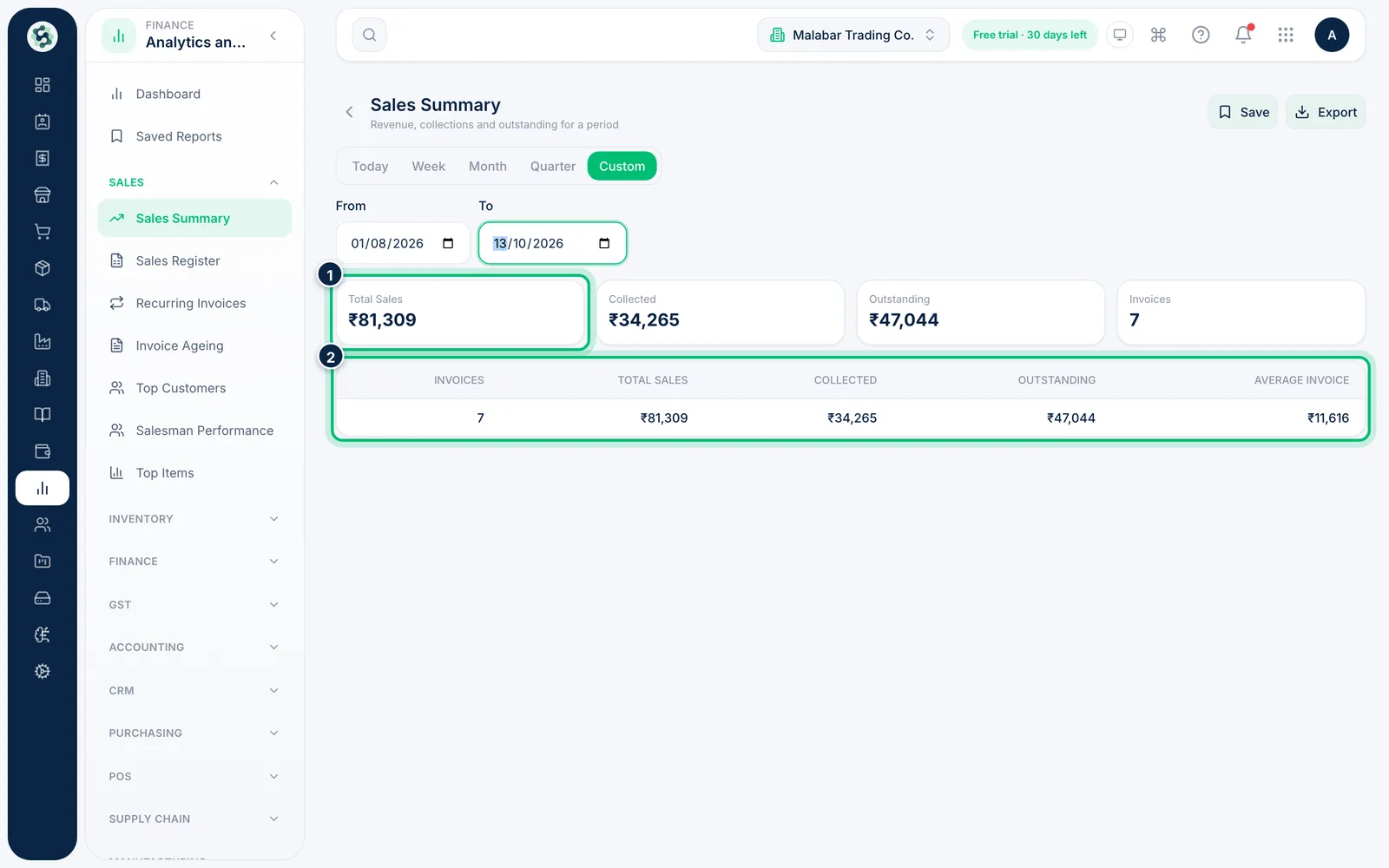
Choose Custom, then pick the From and To dates. The report runs as soon as both are set; if From is after To you'll see a message instead.
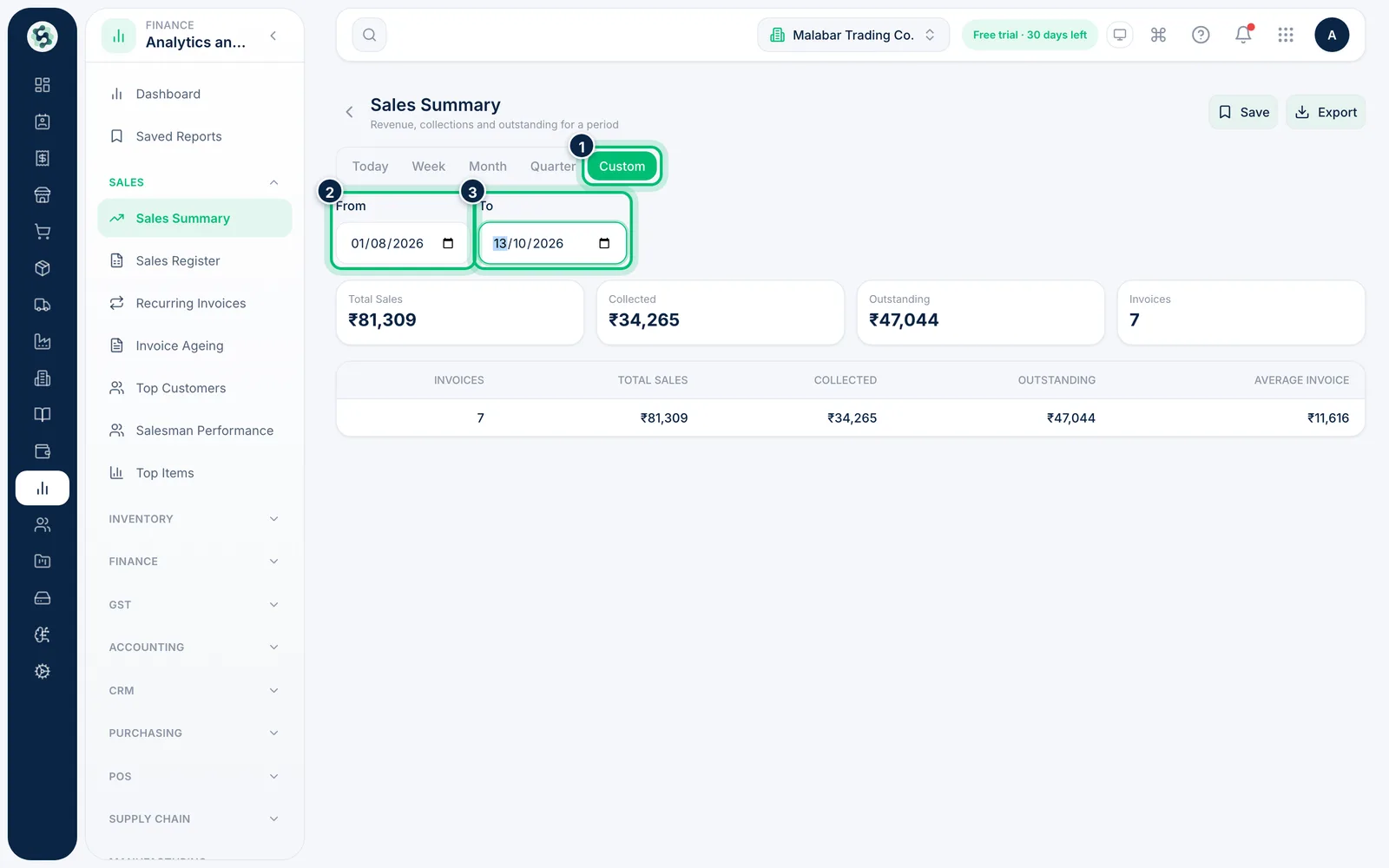
5Read the results
The cards at the top total the key figures — here Total Sales, Collected, Outstanding and Invoices. The table below has the detail; long reports show 25 rows a page with Prev and Next buttons underneath.
Related guides
Still stuck? Contact our support team — or start a free trial to try this in your own company.