
Settings & administration · 4 steps
Link mailboxes to Scalar360 Mail
Show customers, invoices and leads next to emails by linking each mailbox to a team member, and choose how documents are emailed.
Before you start: You need permission to manage users to change links. Mailboxes whose address matches a team member's login are linked automatically.
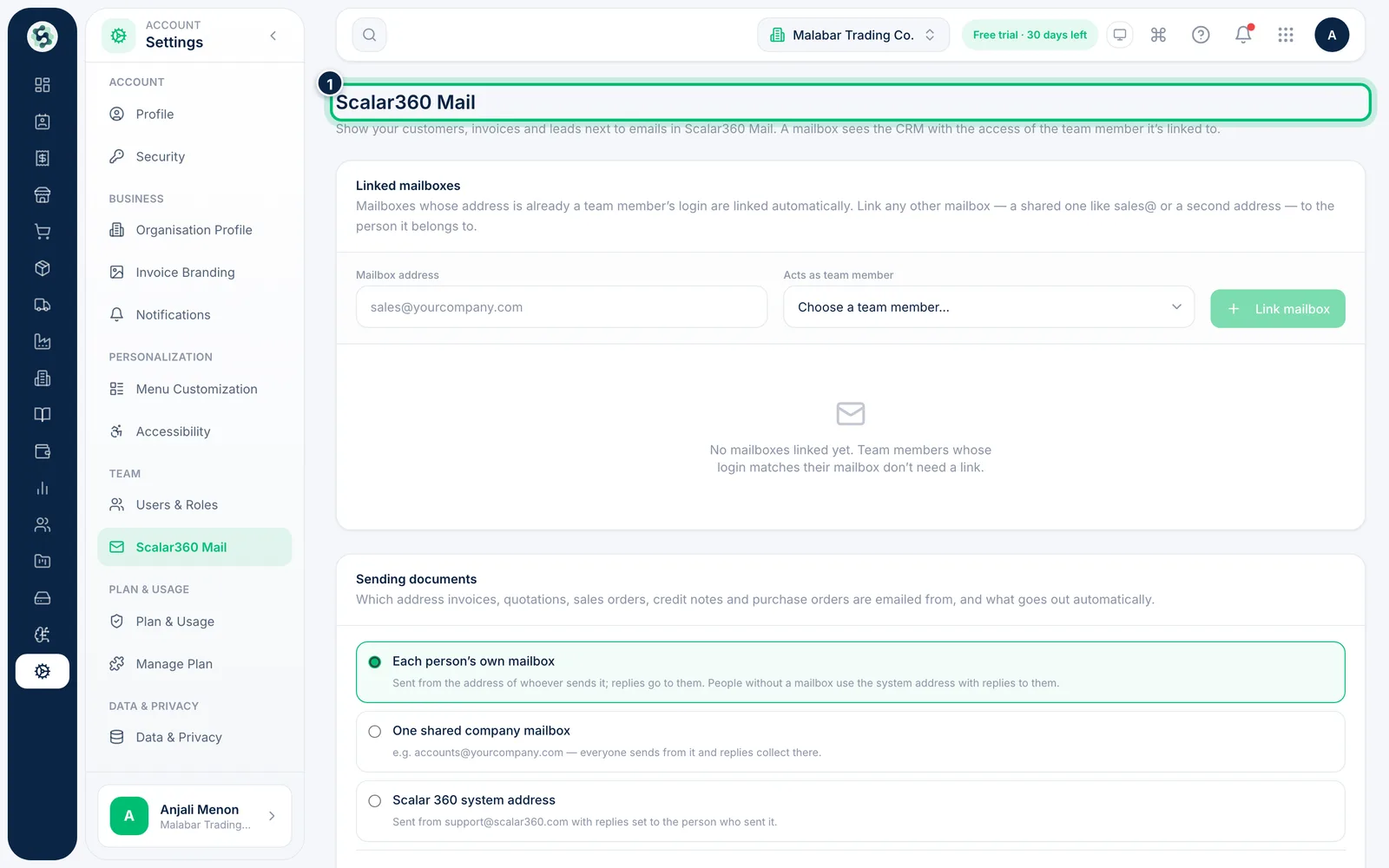
1Open Mail settings
Go to Settings → Scalar360 Mail. The page explains that a mailbox sees the CRM with the access of the team member it's linked to.
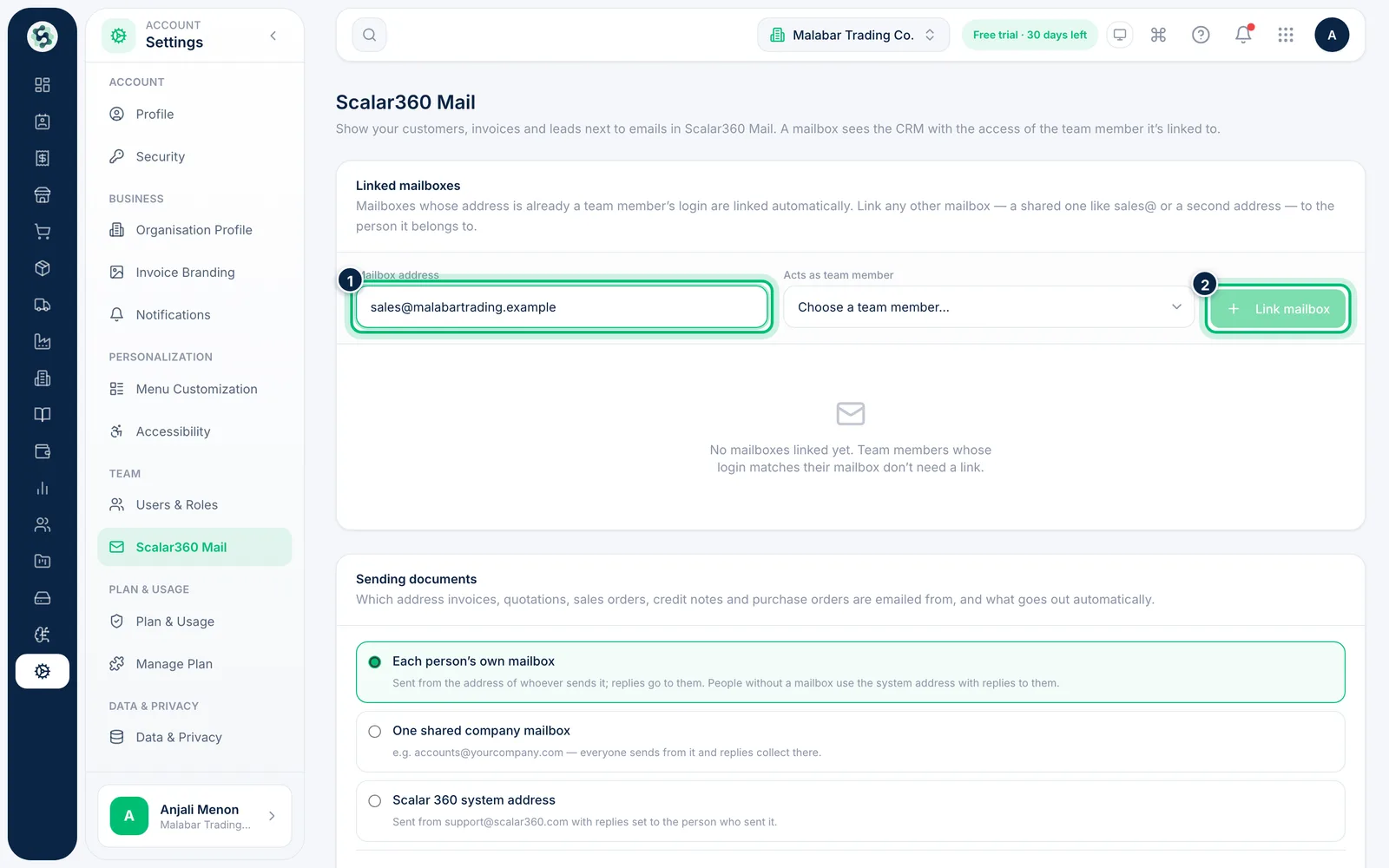
2Link another mailbox
Under Link another address, enter the Mailbox address — for example a shared sales@ mailbox — and choose the Acts as team member. Then choose Link mailbox.
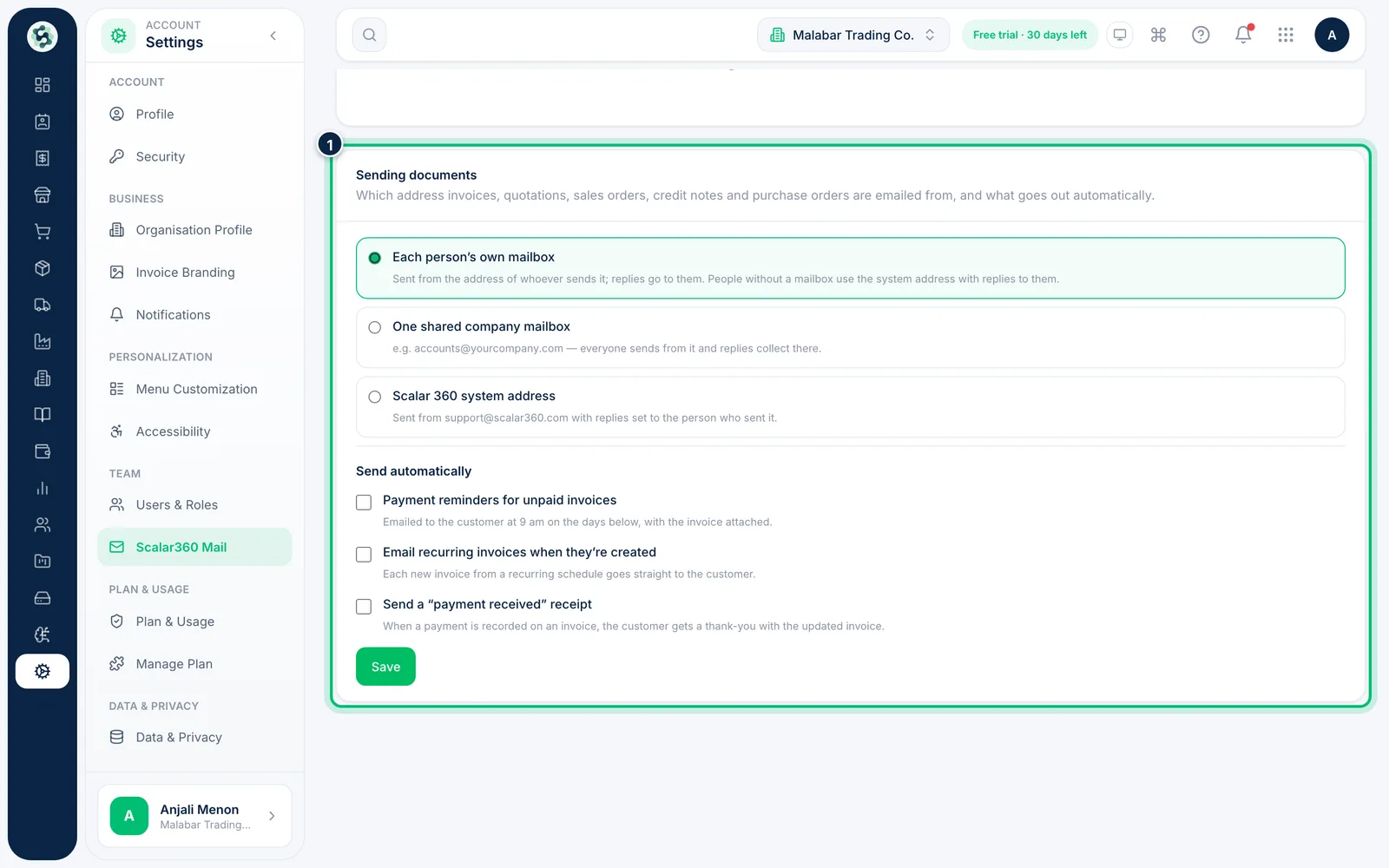
3Choose how documents are sent
Under Sending documents, choose whether invoices, quotations and orders go from Each person's own mailbox, One shared company mailbox or the Scalar 360 system address.
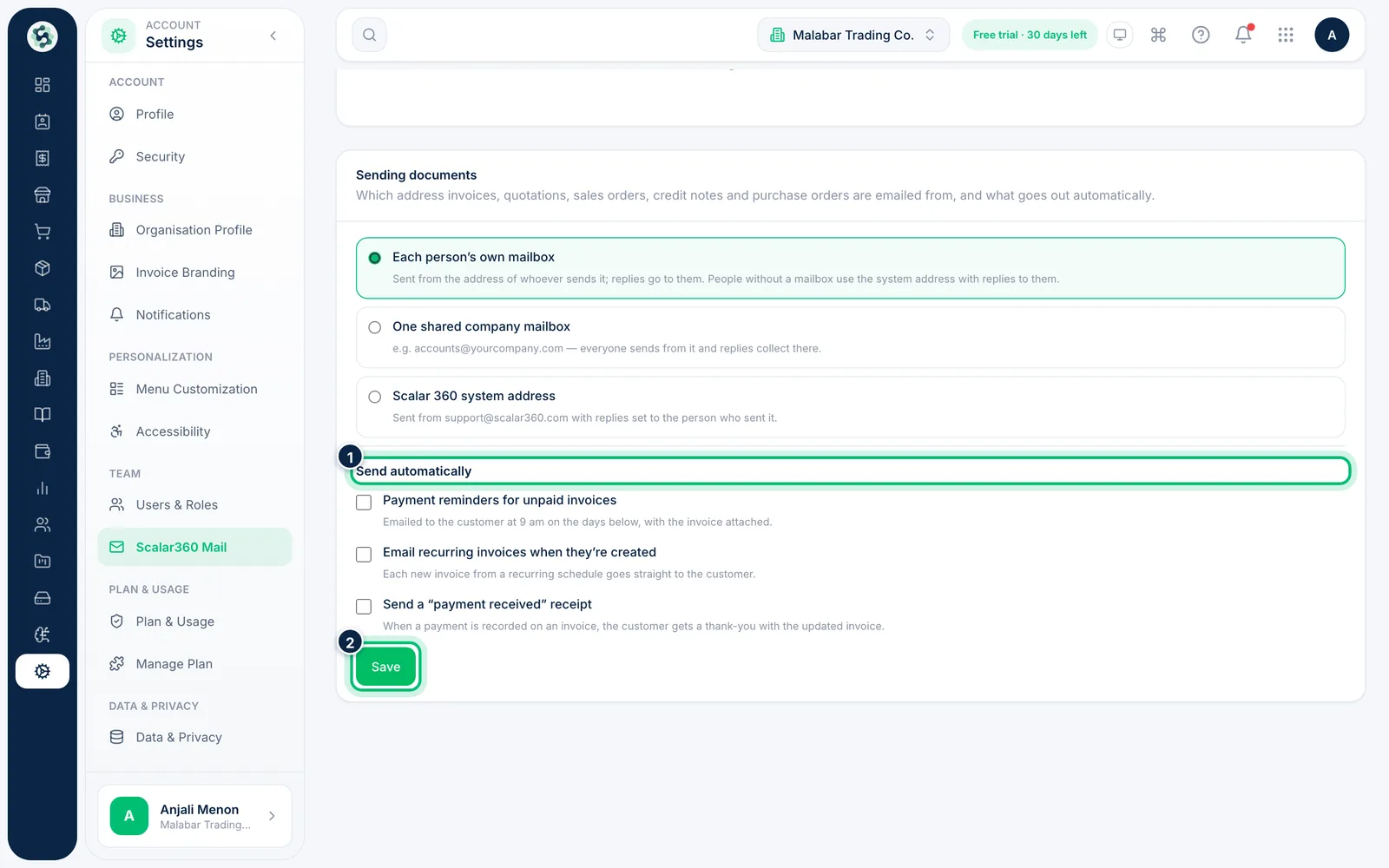
4Turn on automatic emails
Under Send automatically, tick Payment reminders for unpaid invoices, emailing recurring invoices when they're created, or sending a payment received receipt. Choose Save to keep your choices.
Related guides
Still stuck? Contact our support team — or start a free trial to try this in your own company.