
Inventory · 5 steps
Add an item with HSN, GST and opening stock
Create a product with its HSN code, GST rate, prices and the stock you already hold, so it's ready for invoices, bills and POS.
Before you start: To put opening stock in a warehouse, create the warehouse first. Categories and units can be added while you fill in the item.
1Open Items and start a new item
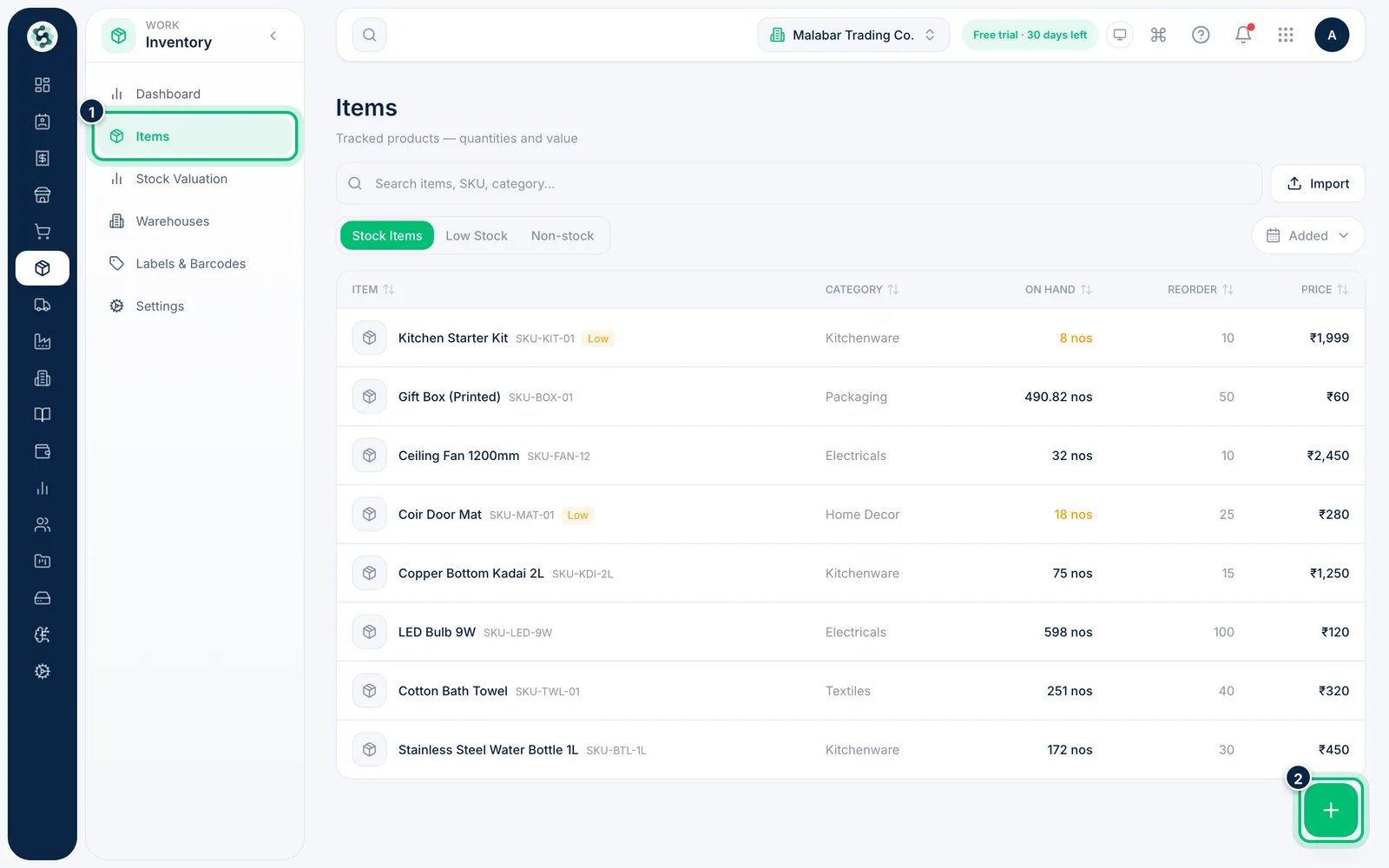
In the left menu open Inventory → Items. The list shows each item's stock on hand, reorder level and price. Choose the + button at the bottom right to add an item.
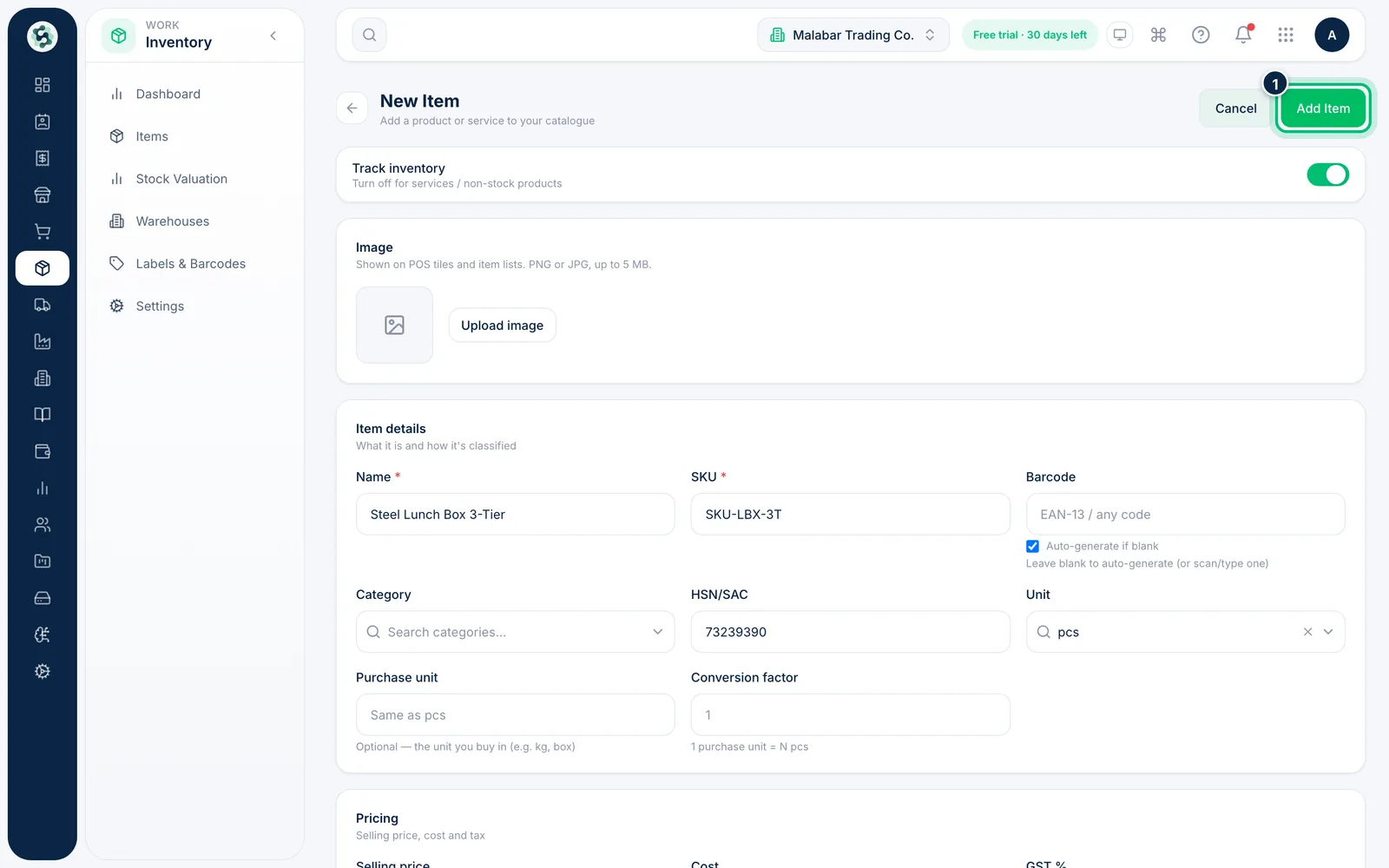
2Enter the item details and HSN code
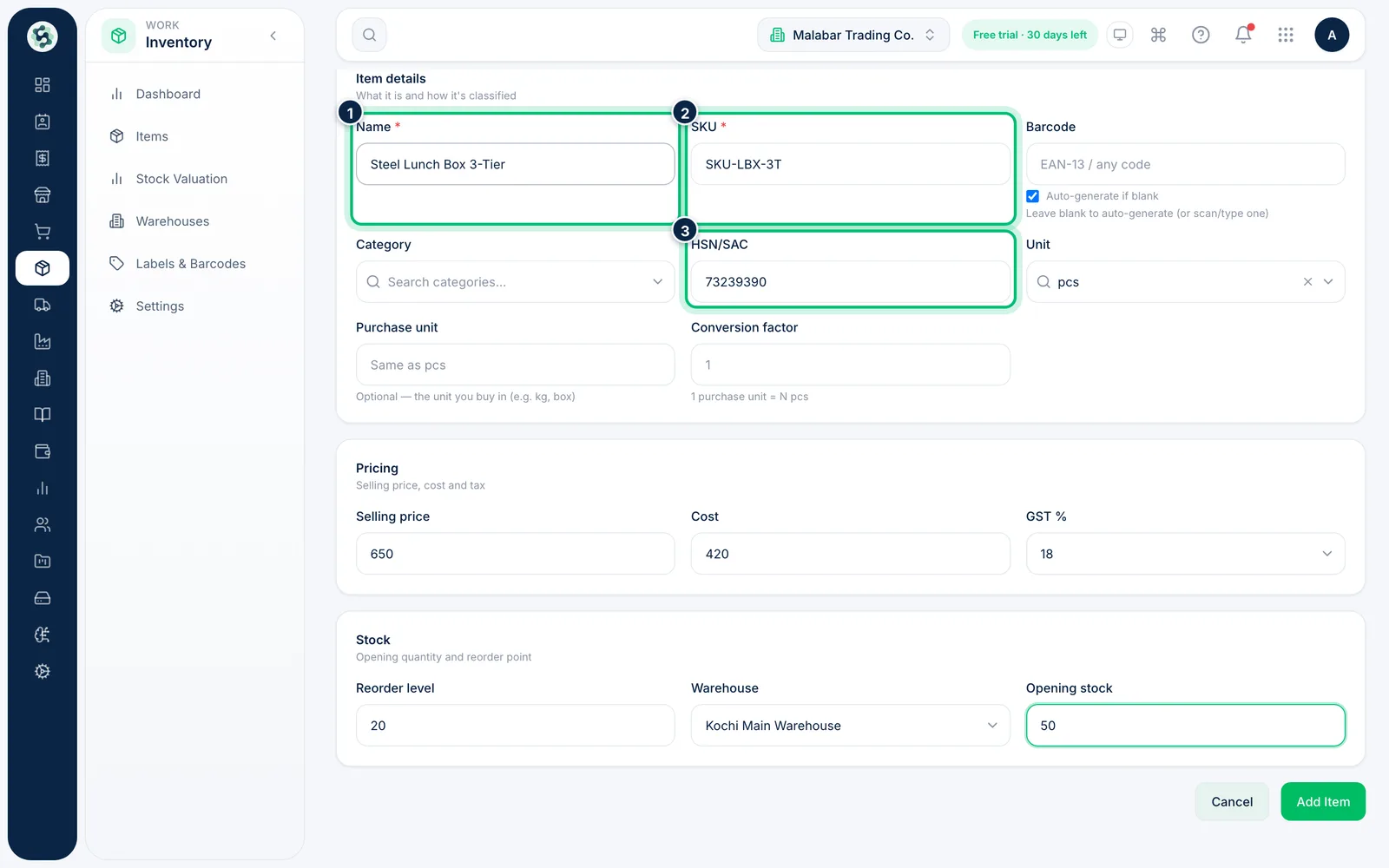
Fill in the Name and a unique SKU — both are required. Leave Barcode blank to have one generated, then add the HSN/SAC code, Category and Unit you count it in.
3Set the prices and GST rate
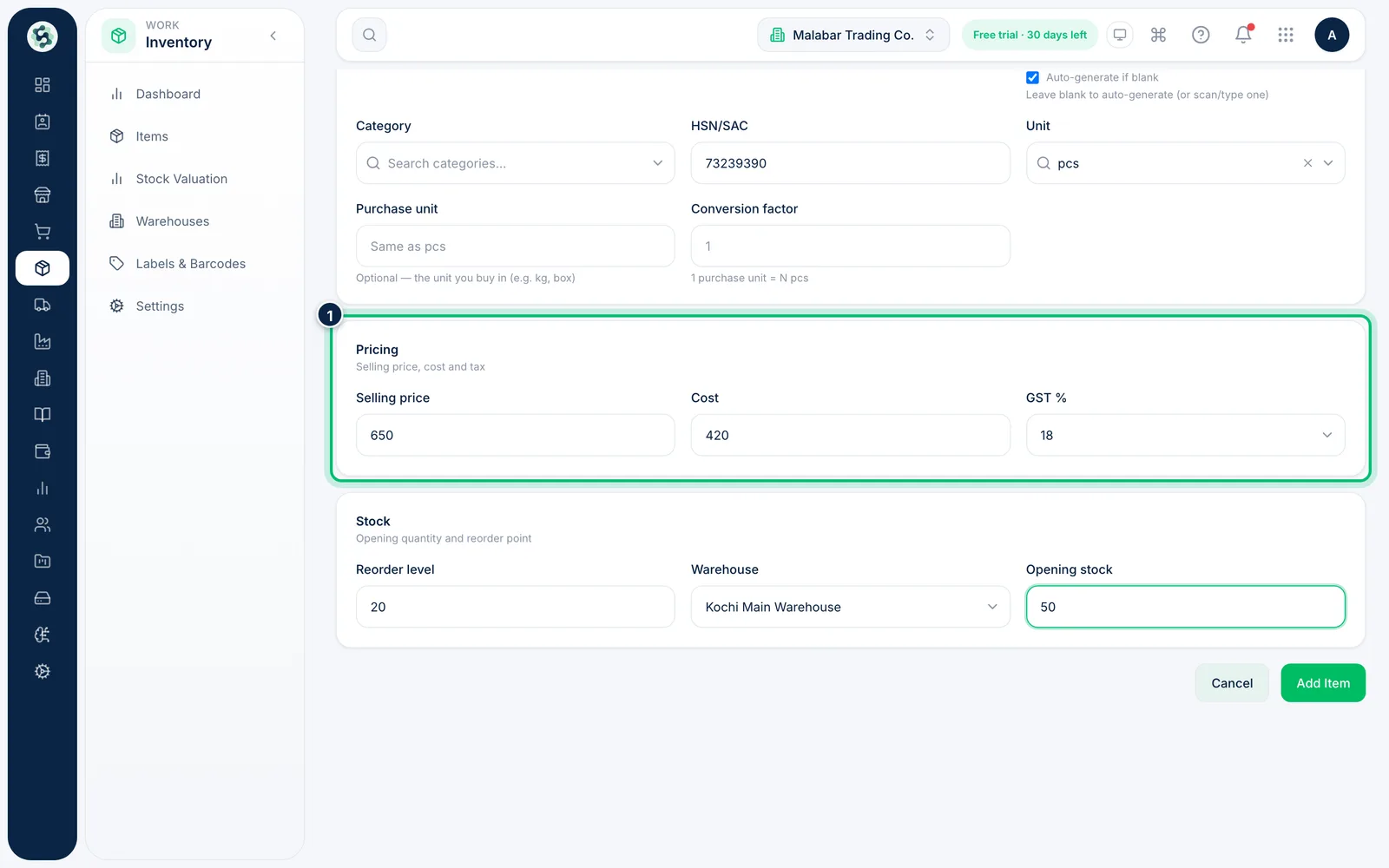
Under Pricing, enter the Selling price and your Cost, and choose the GST % — 0, 5, 12, 18 or 28. Invoices and bills pick these up when you add the item to a line.
4Add the opening stock
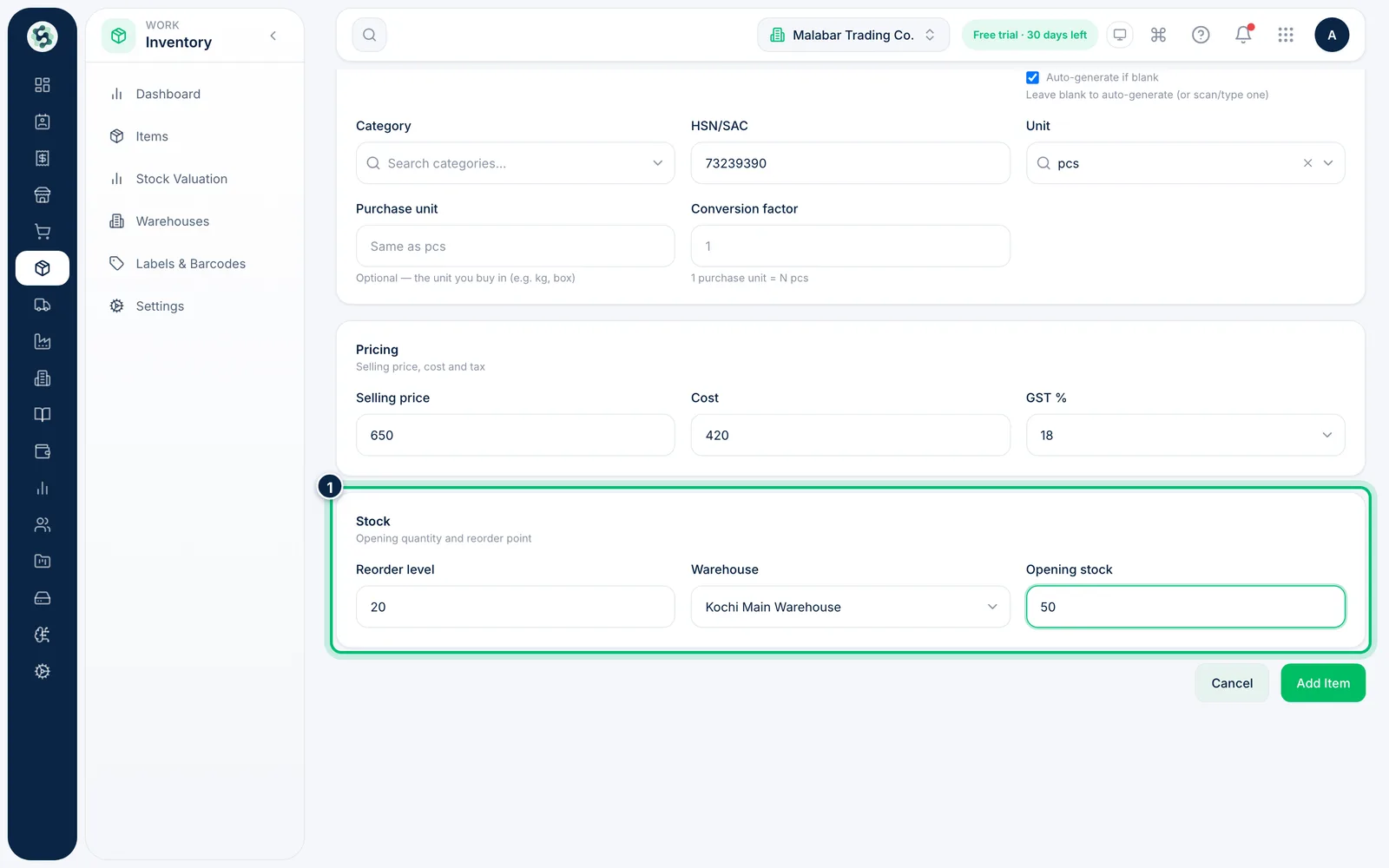
Under Stock, set the Reorder level that should warn you when stock runs low. Choose the Warehouse the goods are in and enter the Opening stock quantity.
5Save the item
Choose Add Item. The item appears in your list straight away, with its opening stock recorded against the warehouse you picked.
Related guides
Still stuck? Contact our support team — or start a free trial to try this in your own company.