
People & payroll · 5 steps
Manage leave and the holiday calendar
Set up your leave types, apply and approve leave for employees, and publish the company's holidays for the year.
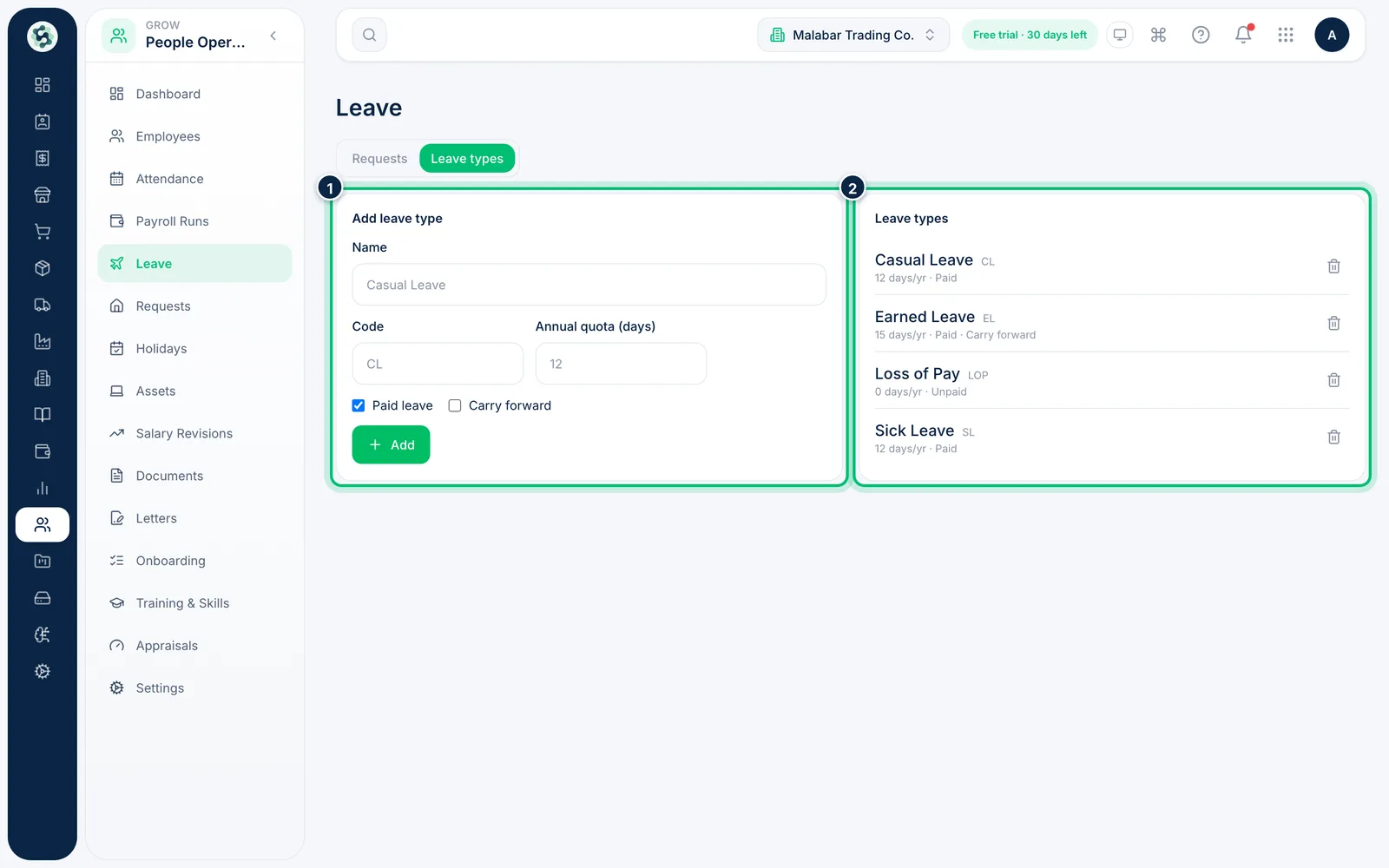
1Set up your leave types
Open People Operations → Leave and choose Leave types. Enter a Name, Code and Annual quota (days), tick Paid leave and Carry forward if they apply, and choose Add.
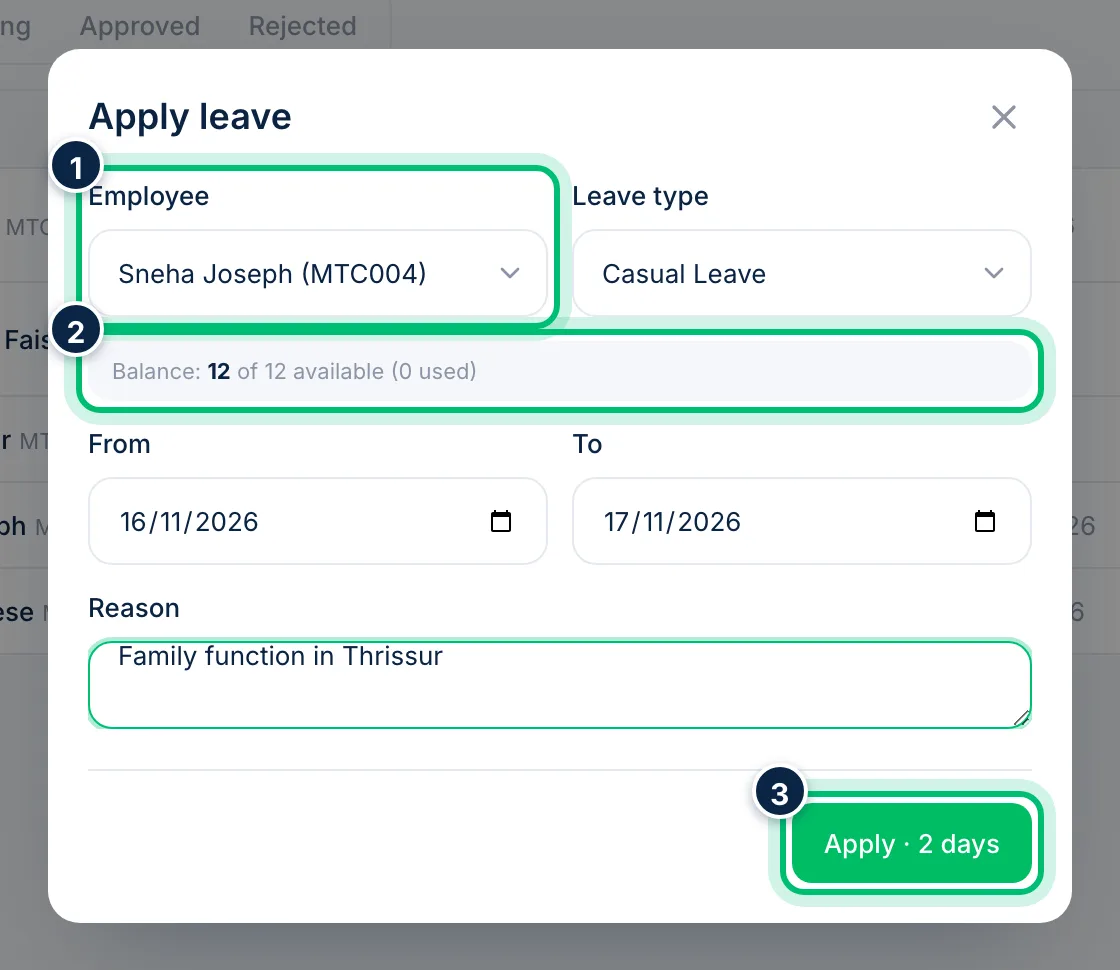
2Apply leave for an employee
On the Requests tab choose Apply leave. Pick the Employee and Leave type — their remaining balance appears — then the From and To dates and a reason. The button shows how many days you're applying for.
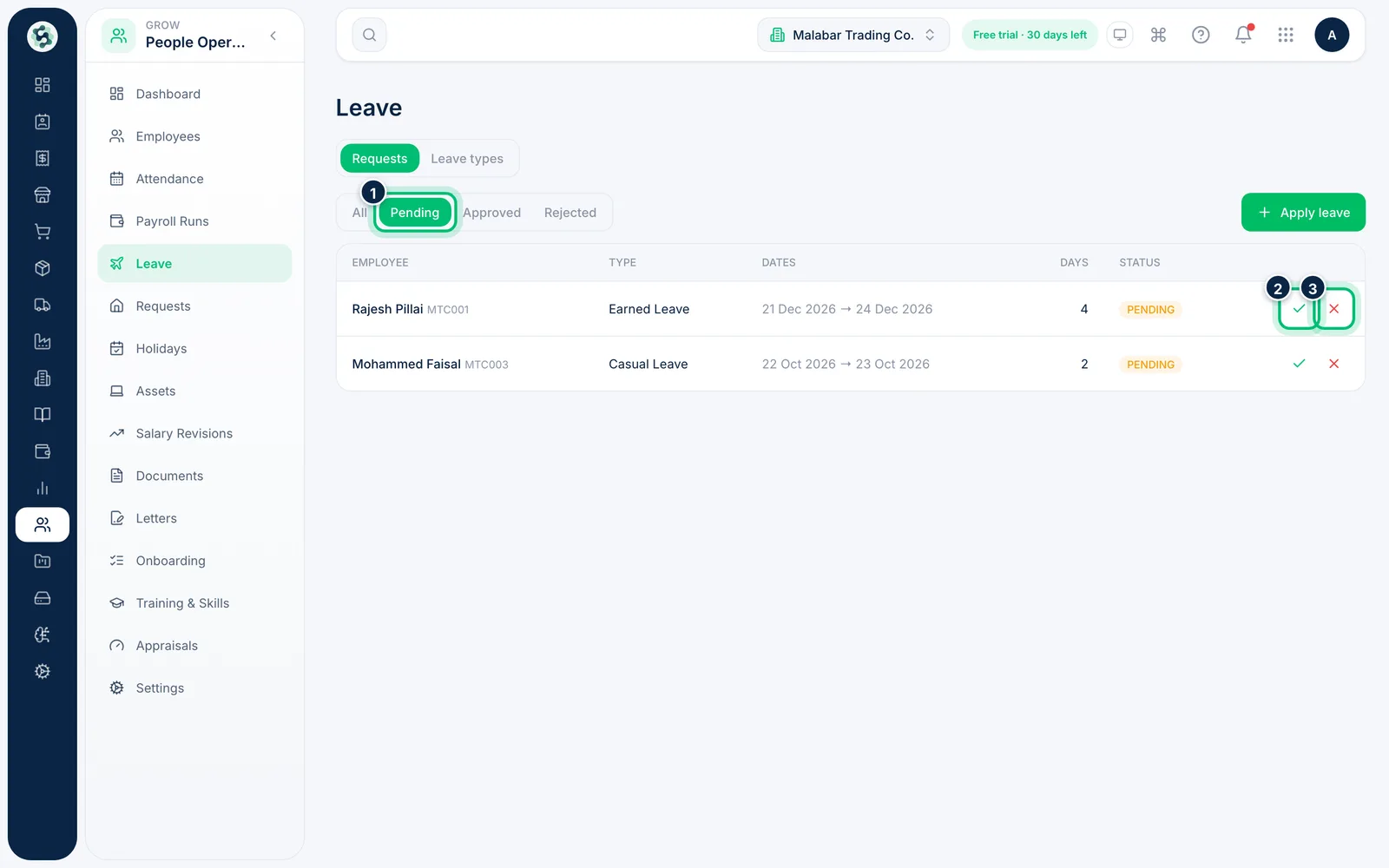
3Approve or reject leave
Choose Pending to see requests waiting for you, then the tick to approve or the cross to reject. Approving updates the leave balance and marks those days in attendance — paid leave as Leave, unpaid leave as Absent (loss of pay).
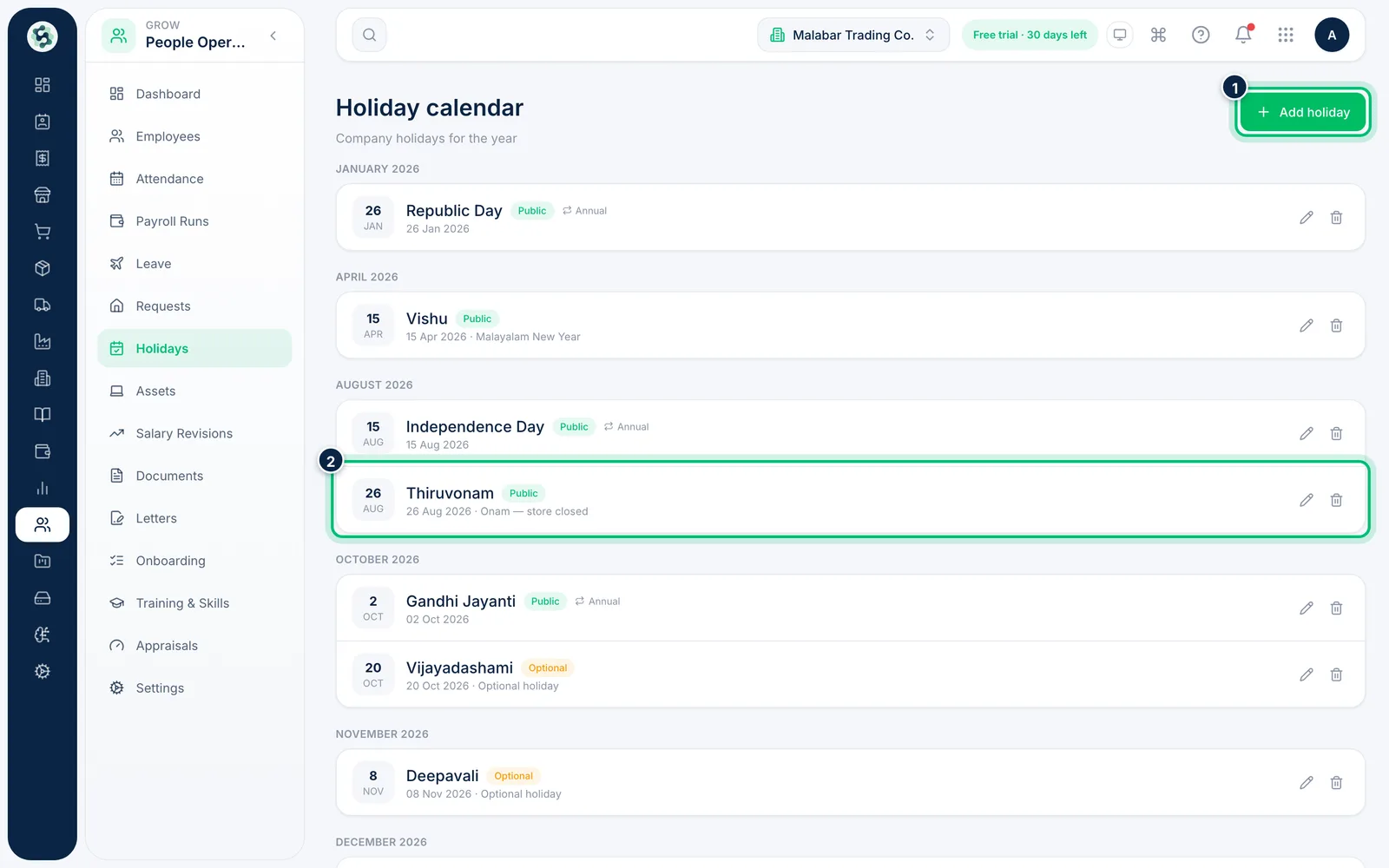
4Open the holiday calendar
Go to People Operations → Holidays. Holidays are grouped by month and marked Public, Optional or Restricted, and holidays that repeat each year are marked Annual. Choose Add holiday to add one.
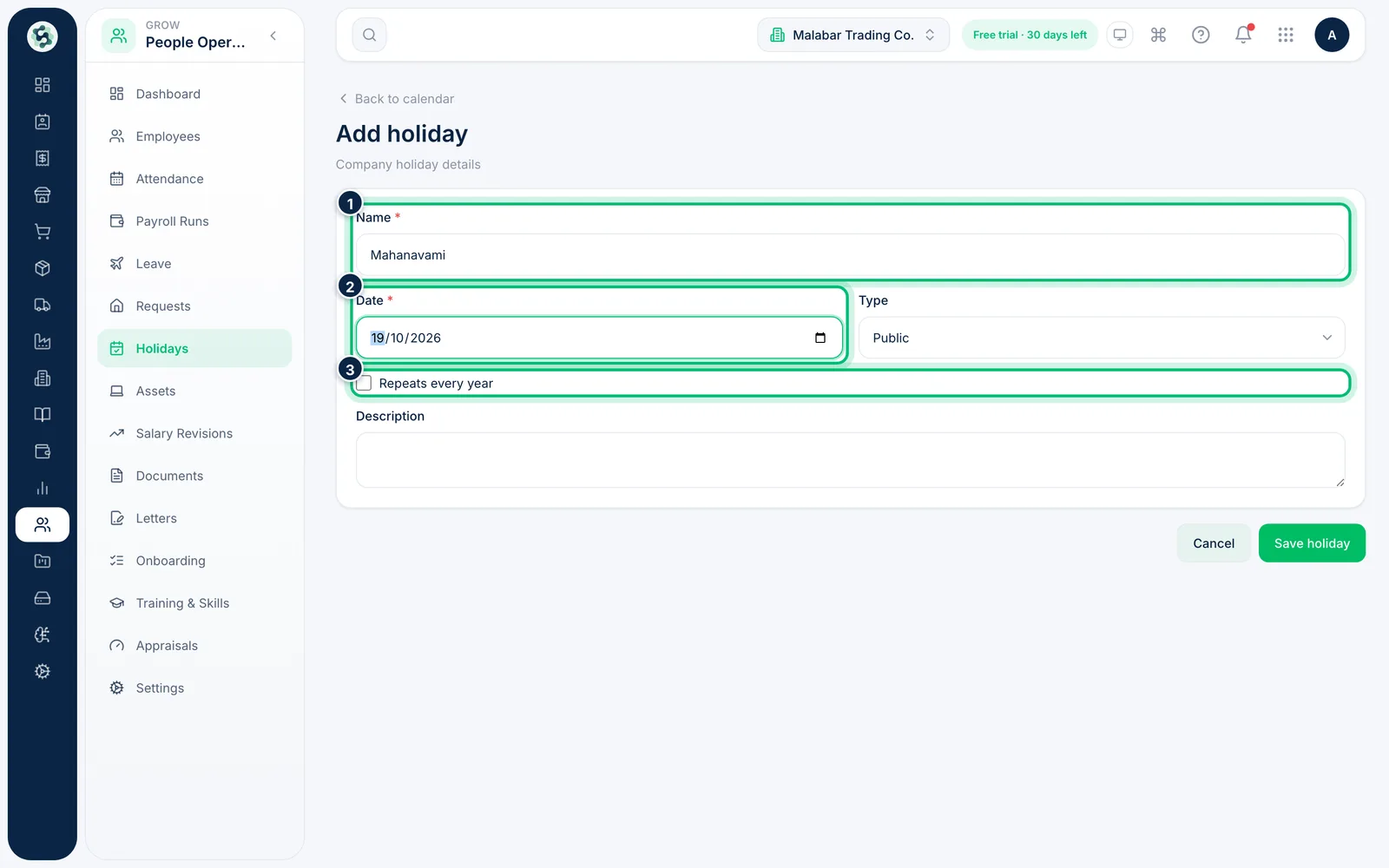
5Add a holiday
Enter the Name and Date, choose the Type, and tick Repeats every year for fixed-date holidays such as Republic Day. Choose Save holiday.
Related guides
Still stuck? Contact our support team — or start a free trial to try this in your own company.