
Supply chain · 5 steps
Take a sales return
Receive goods back from a customer, put them back in stock and issue a credit note in one step.
Before you start: A sales return is raised against an issued invoice.
1Open Sales Returns
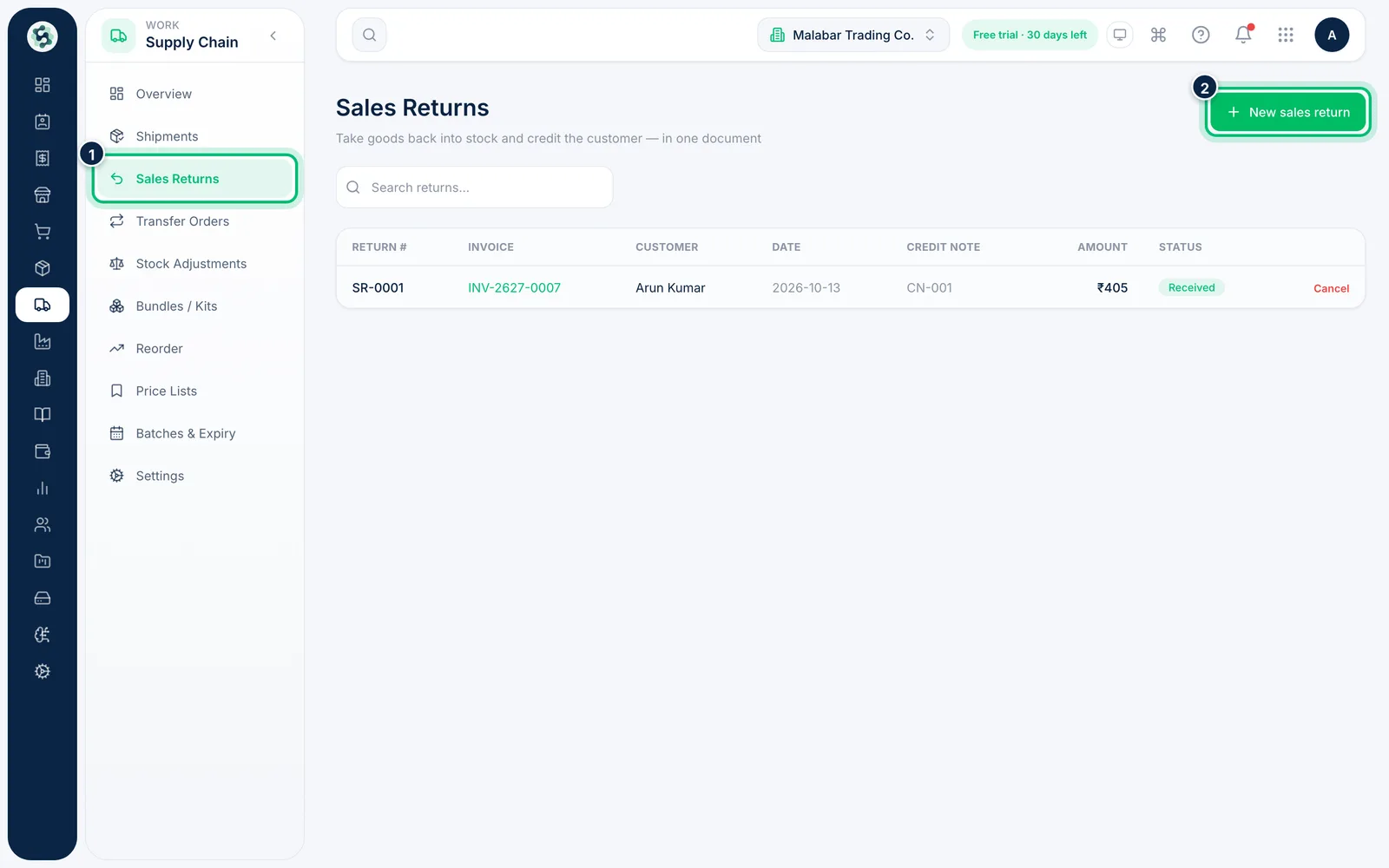
Open Supply Chain → Sales Returns. The list shows each return's invoice, customer, date, credit note, amount and status. Choose New sales return.
2Pick the invoice being returned
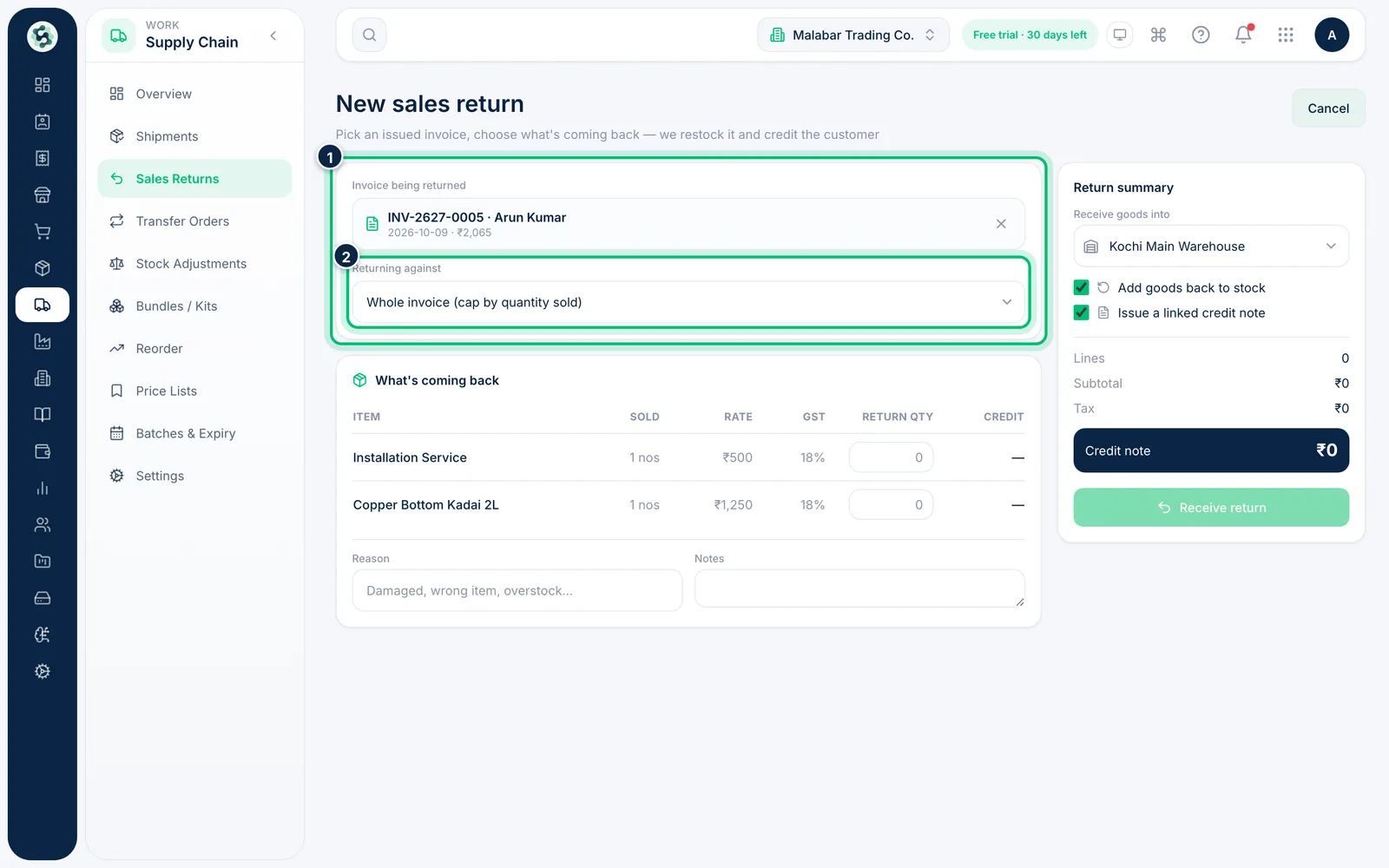
Under Invoice being returned, search by invoice number or customer and choose the invoice. If it has shipments, use Returning against to return against one dispatch or the whole invoice.
3Enter what came back and why
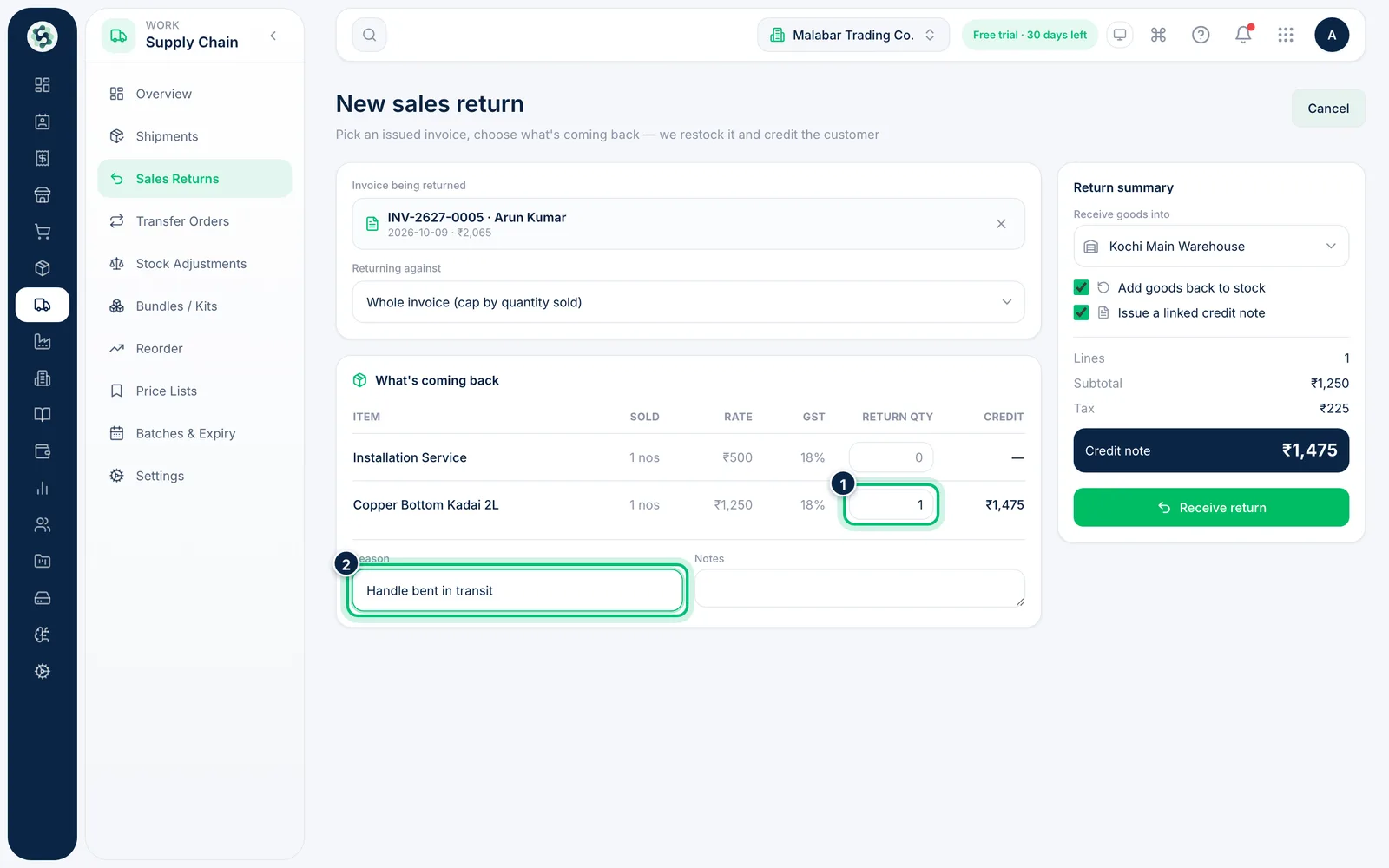
Type the returned quantity against each item — it cannot be more than was sold or shipped. Add a Reason, such as damaged or wrong item, and any Notes.
4Choose the warehouse and receive the return
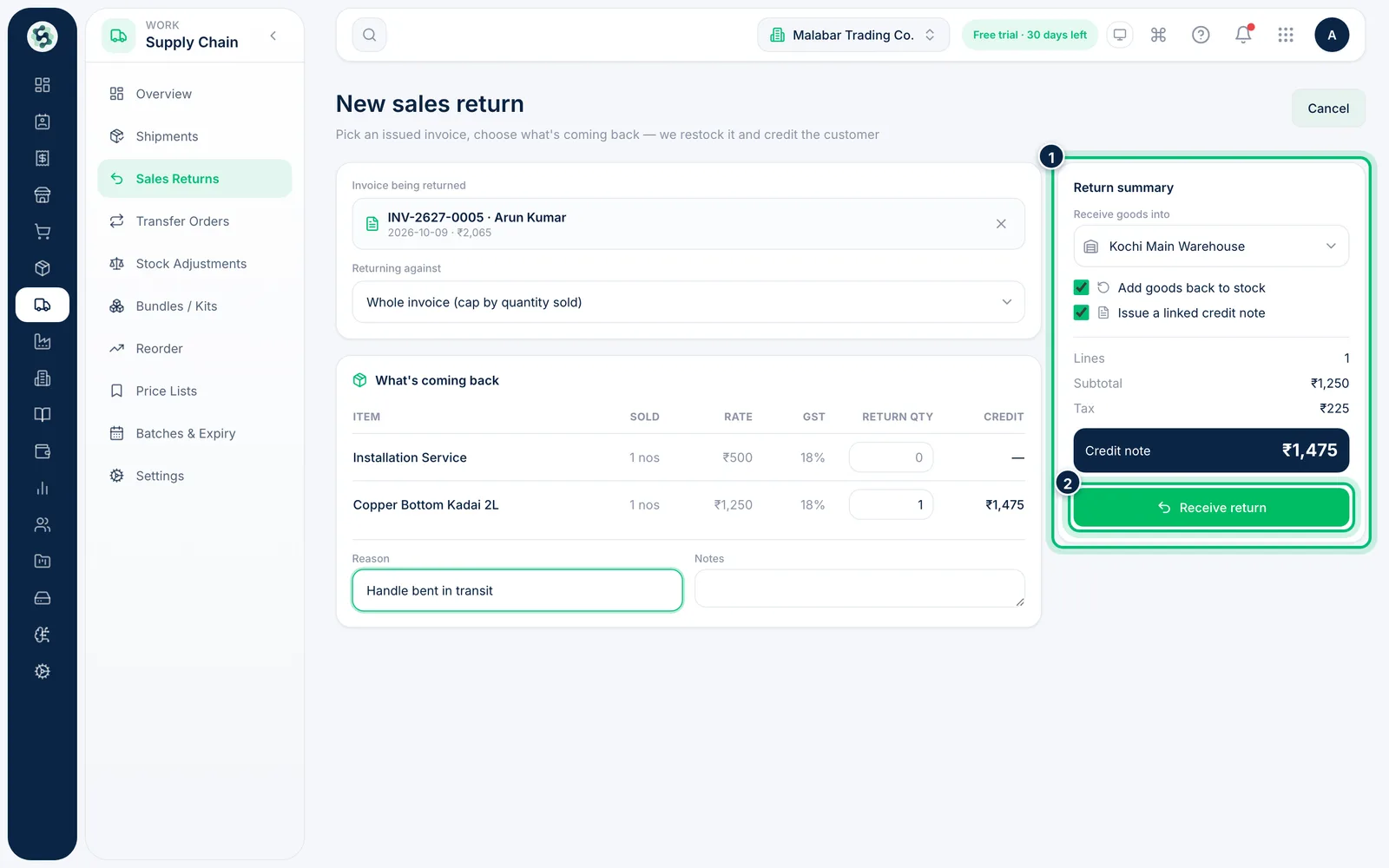
In Return summary, pick Receive goods into. Add goods back to stock and Issue a linked credit note are on by default. Check the totals, then choose Receive return.
5Review the return and its credit note
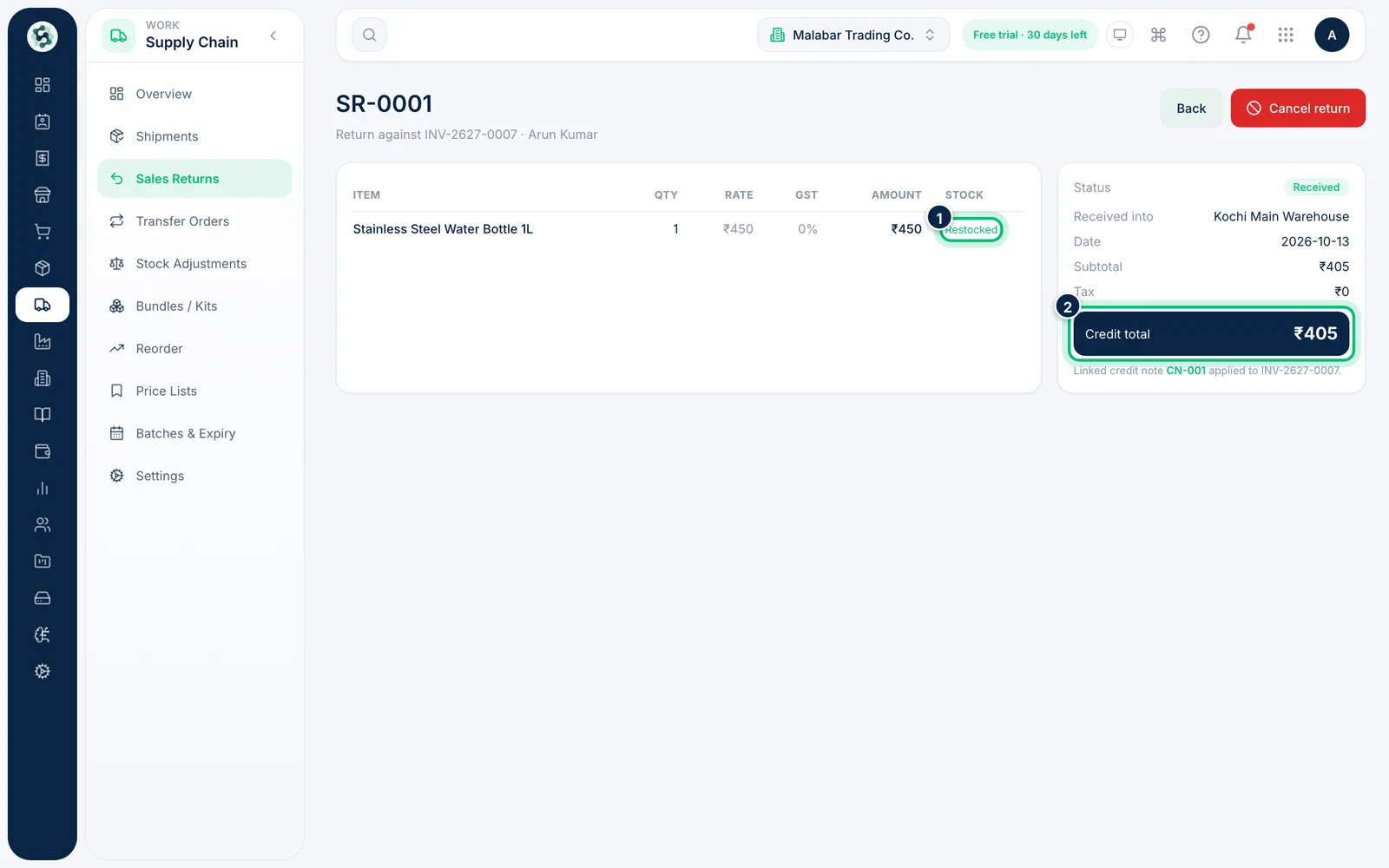
Click a return in the list to see its items, the warehouse it was Received into, the Credit total and the linked credit note applied to the invoice.
Related guides
Still stuck? Contact our support team — or start a free trial to try this in your own company.