
CRM · 4 steps
Automate follow-up work
Create rules that add tasks, notes and notifications, send emails, assign leads or change stages automatically when leads are created, change stage or go quiet.
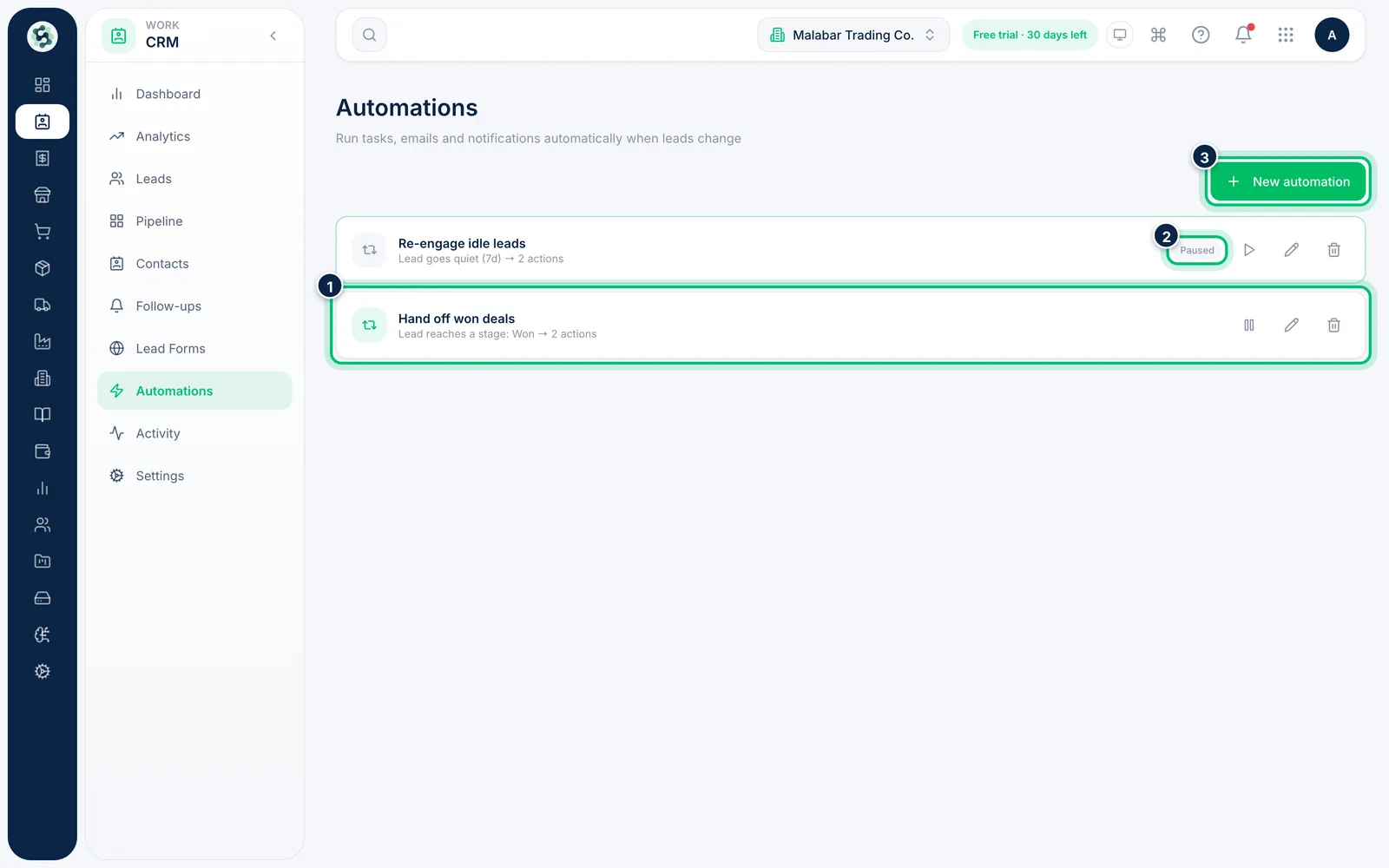
1Open Automations
Go to CRM → Automations. Each rule shows what triggers it and how many actions it runs; paused rules are marked Paused. Use the play or pause button to switch a rule on or off, and choose New automation to create one.
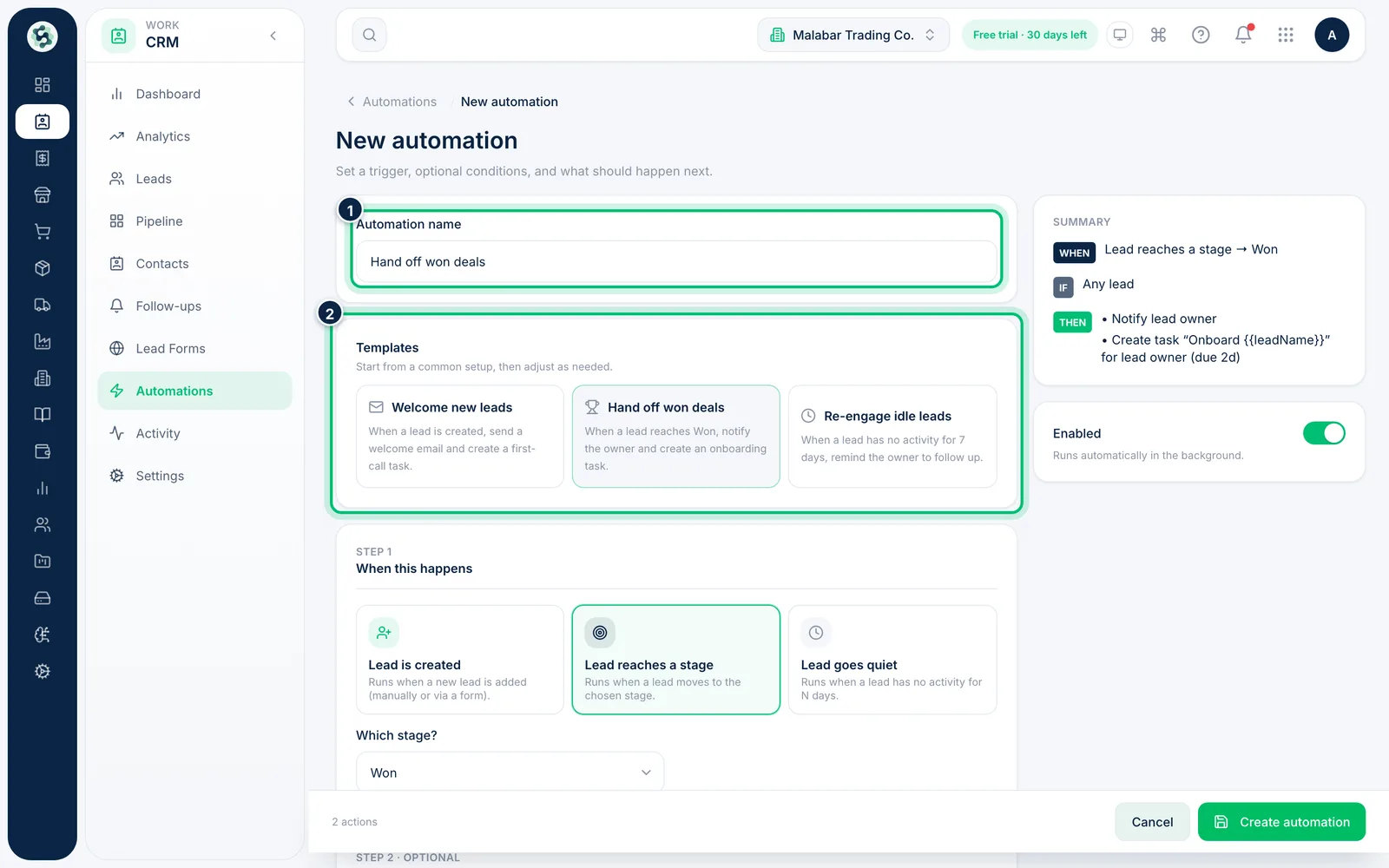
2Name it or start from a template
Enter an Automation name, or pick one of the Templates — Welcome new leads, Hand off won deals or Re-engage idle leads — to fill in the whole rule, then adjust it.
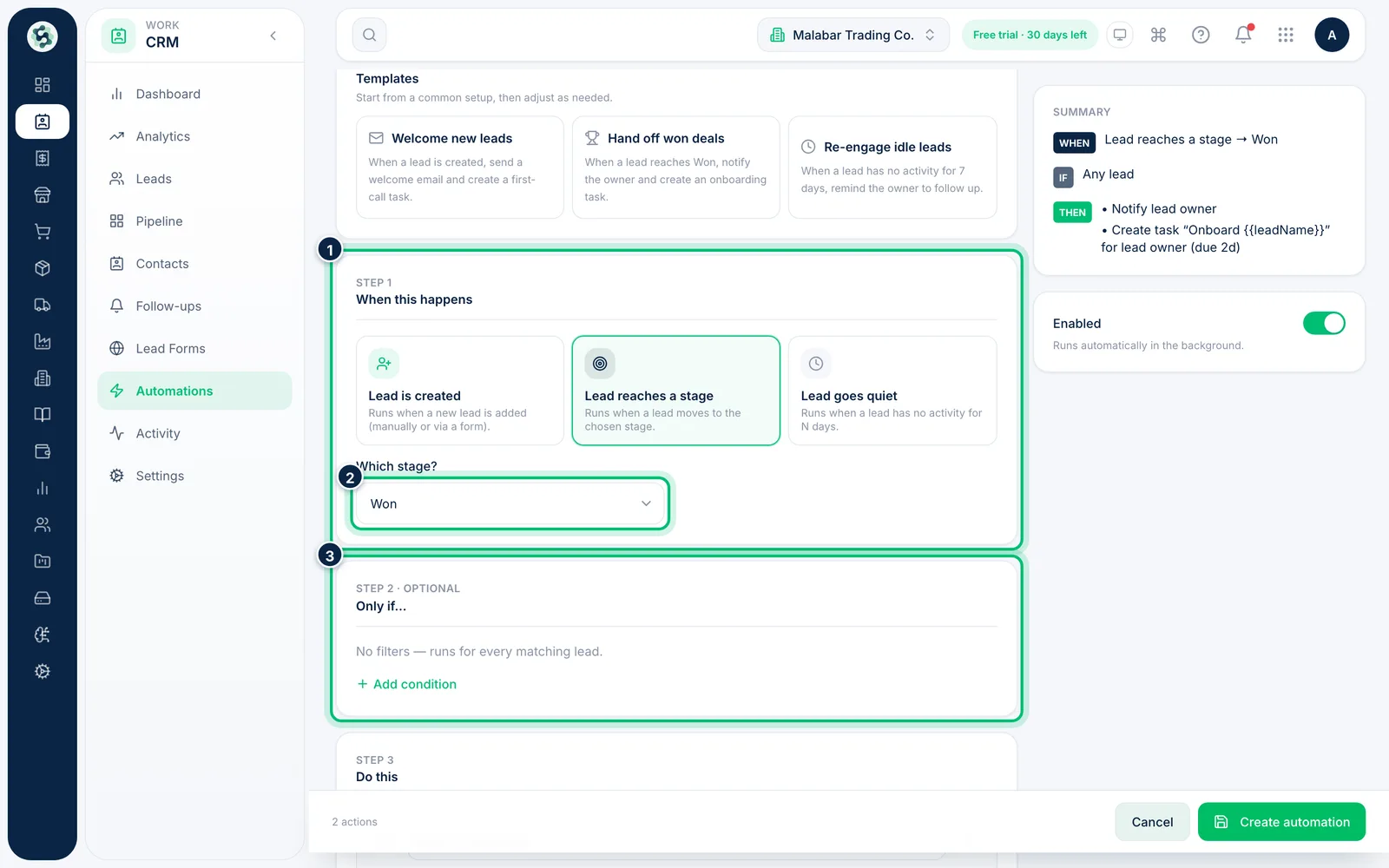
3Choose when it runs
Under When this happens, choose Lead is created, Lead reaches a stage (and pick Which stage?) or Lead goes quiet (and set the days with no activity). Under Only if…, add conditions such as source or deal value if it shouldn't run for every lead.
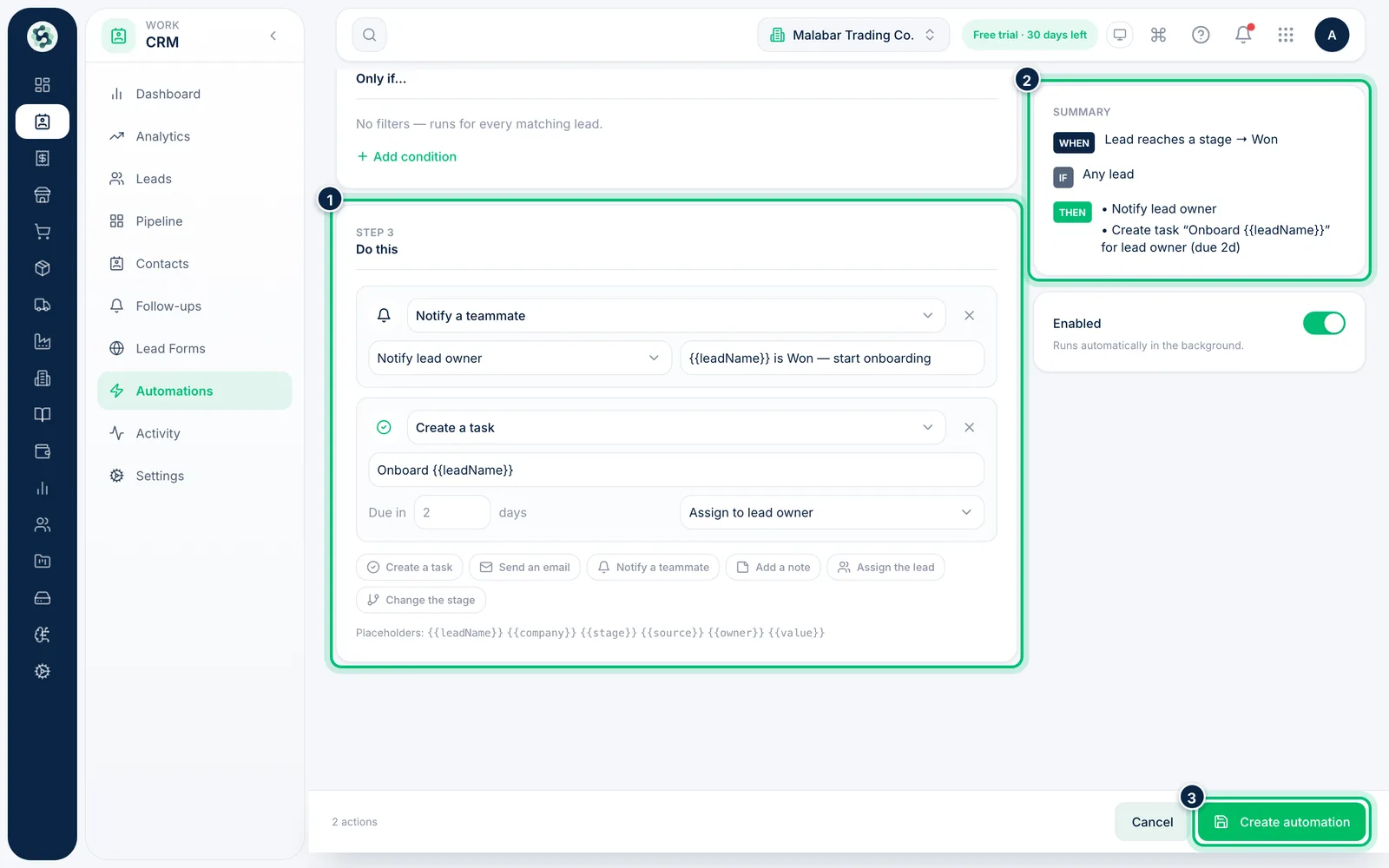
4Add what should happen
Under Do this, set each action — create a task, send an email, notify a teammate, add a note, assign the lead or change the stage. Use placeholders such as {{leadName}} in titles and messages. Check the Summary, then choose Create automation.
Related guides
Still stuck? Contact our support team — or start a free trial to try this in your own company.