
Sales & invoicing · 5 steps
Create a GST invoice
Bill a customer with the right CGST/SGST or IGST split, then issue the invoice so it can be shared and paid.
Before you start: Add the customer and the items you sell first, or create them while you fill in the invoice.
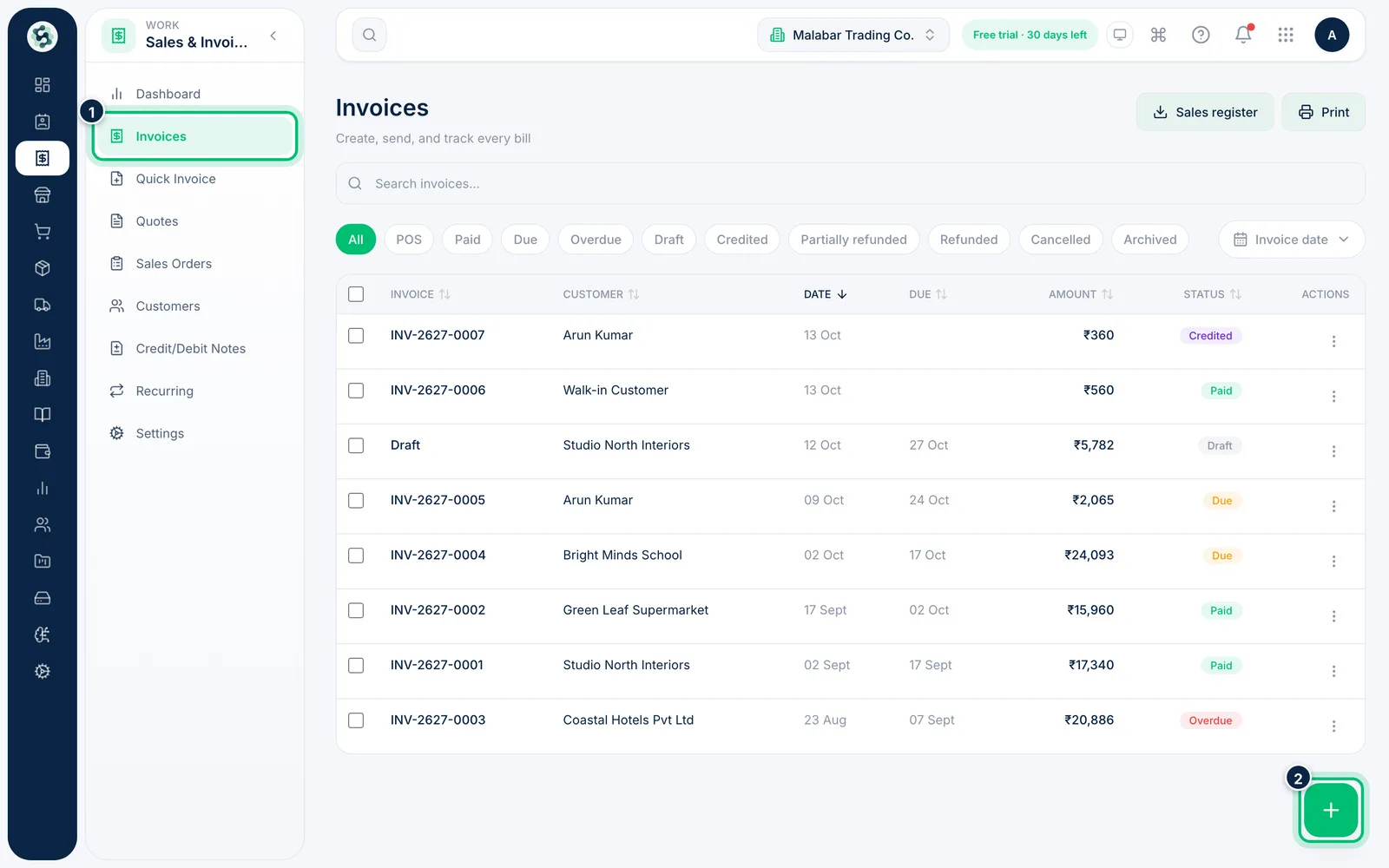
1Open Invoices and start a new one
In the left menu open Sales & Invoicing → Invoices. You'll see every invoice with its status — Draft, Due, Paid or Overdue. Choose the + button at the bottom right to start a new invoice.
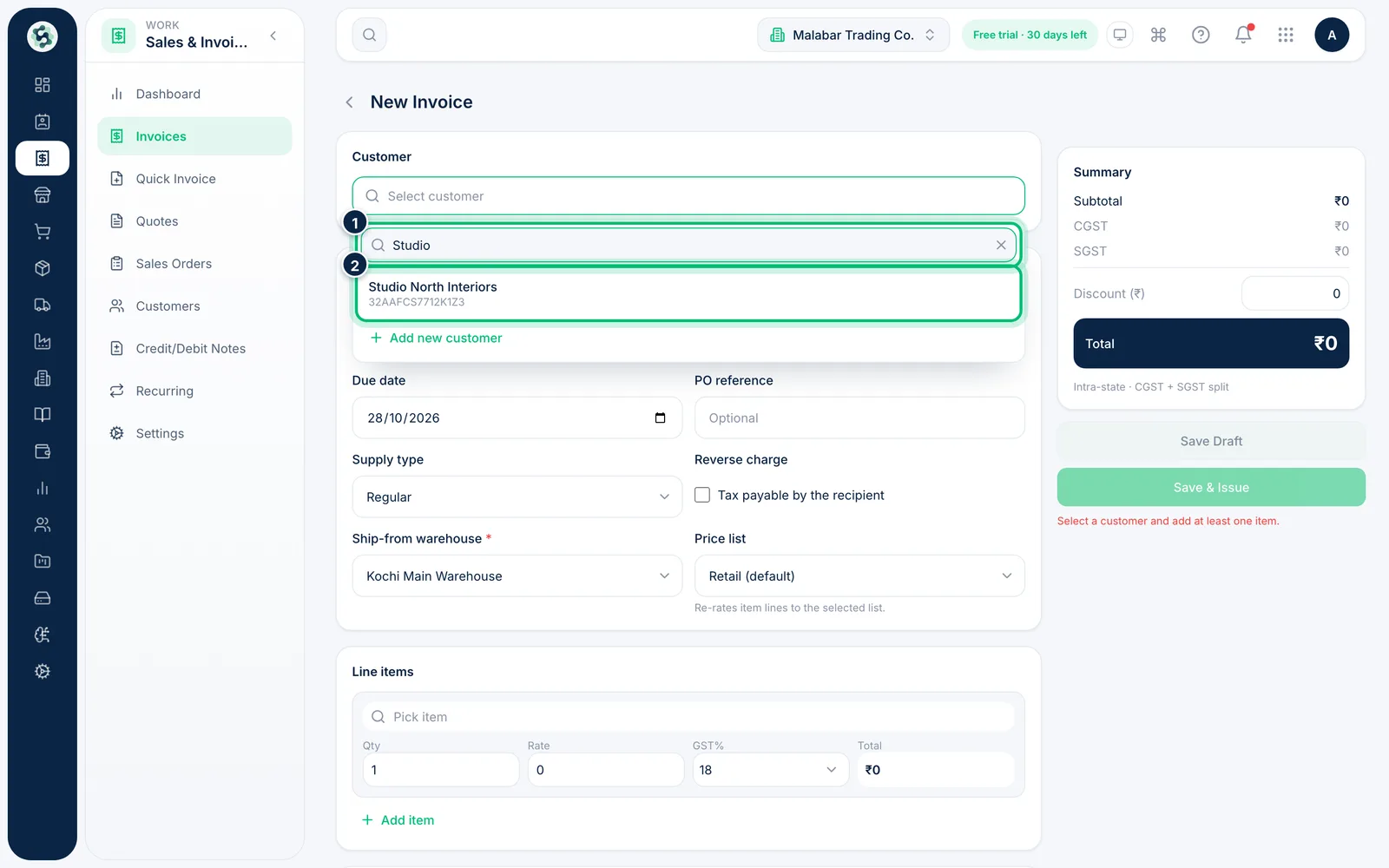
2Choose the customer
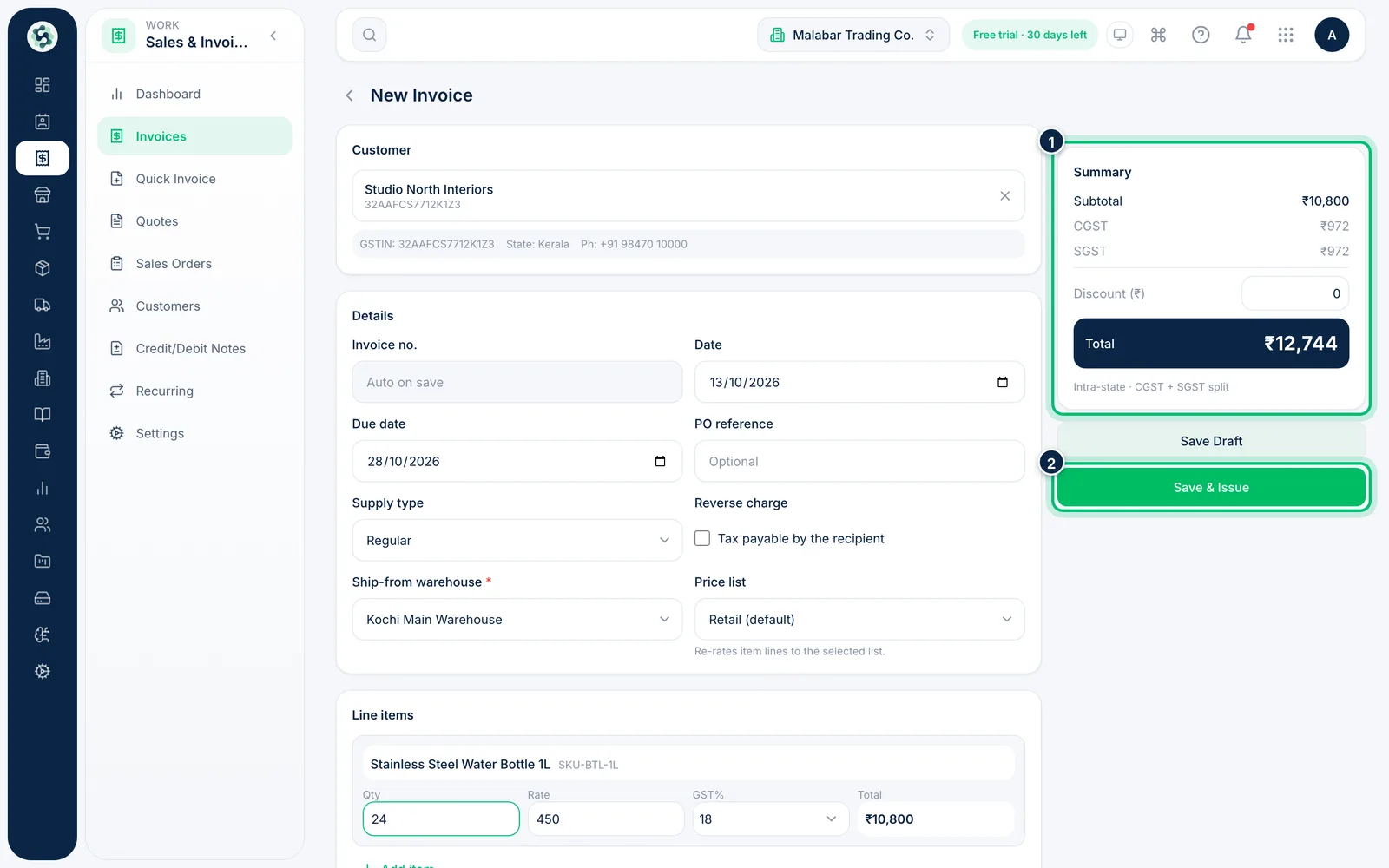
Click Select customer and start typing the name. Scalar360 fills in their GSTIN and state, and works out whether the sale is intra-state (CGST + SGST) or inter-state (IGST).
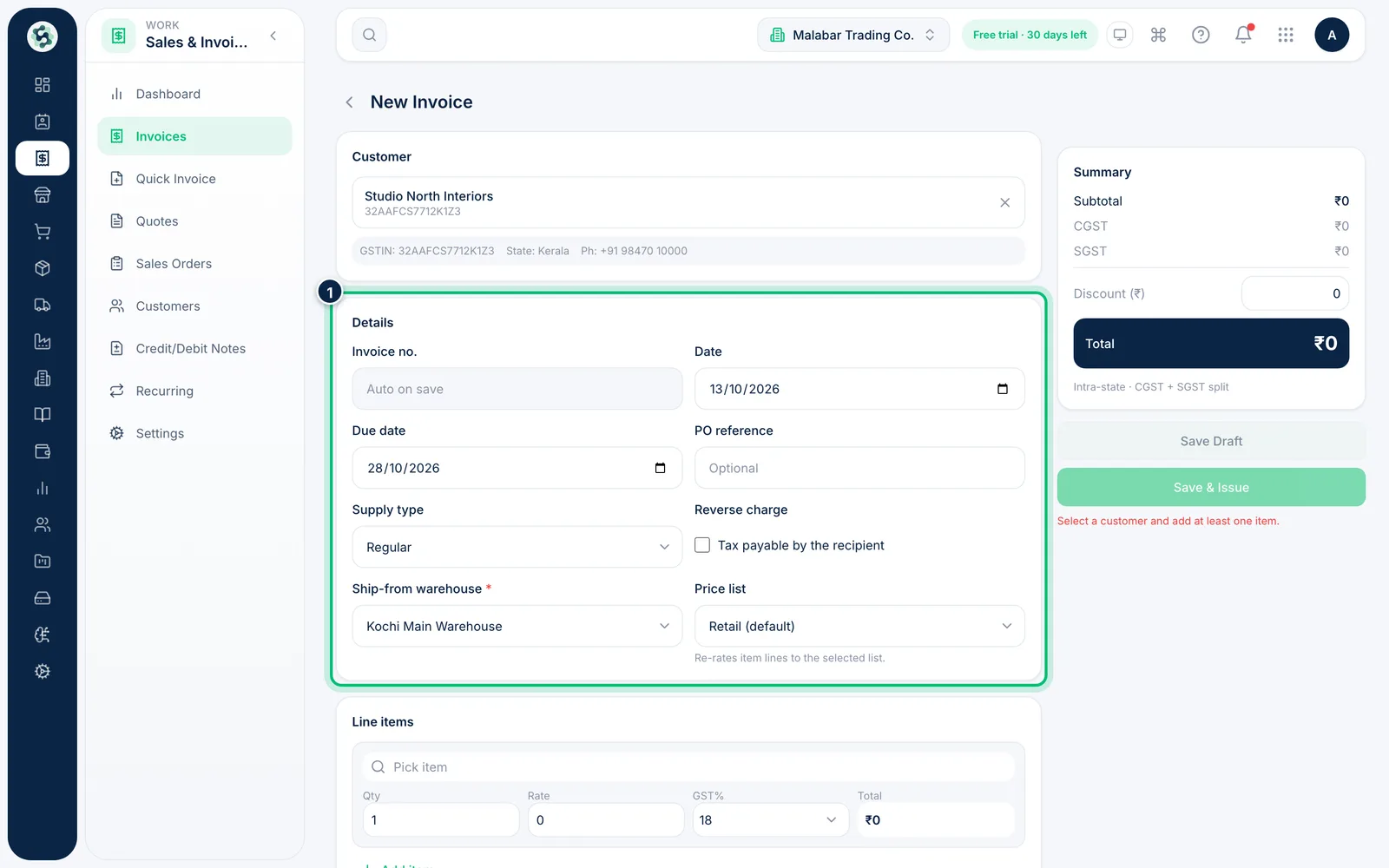
3Check the invoice details
The invoice number is generated when you save. Set the Date. The Due date is filled in for you as 15 days after the issue date (or the customer's credit days) and updates when you change the customer or date, until you edit it yourself. Add a PO reference if the customer gave you one, and tick Reverse charge only when the recipient pays the tax. If you have more than one warehouse, choose the Ship-from warehouse that the goods leave from.
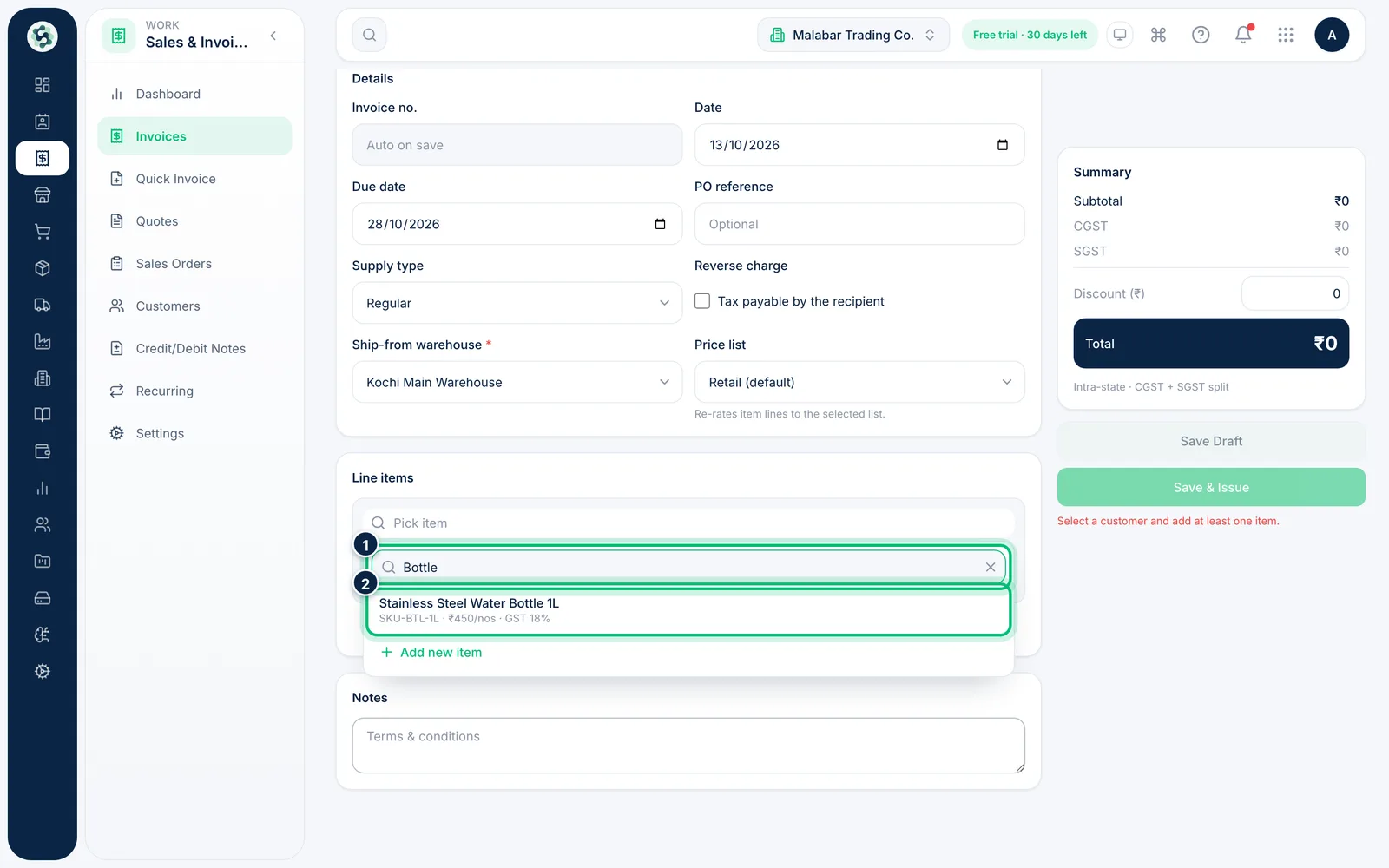
4Add line items
Under Line items, click Pick item and choose a product or service. Its rate, HSN/SAC code and GST rate come from the item; change the Qty, Rate or GST% if this sale is different. Use Add item for more lines.
5Review the totals and issue
The Summary shows the subtotal, the tax split and the total. Choose Save Draft to finish later, or Save & Issue to give the invoice its number and post it to your accounts and stock.
Related guides
Still stuck? Contact our support team — or start a free trial to try this in your own company.