
Super Intelligence (AI & API) · 4 steps
Connect Claude, ChatGPT or another AI app
Follow the step-by-step guide for your AI app, which adds Scalar360 as a connection and sends you back here to approve it.
Before you start: You need an account with the AI app. Some apps need a paid plan to add custom connections, and on company plans an admin may have to allow the Scalar360 server address first.
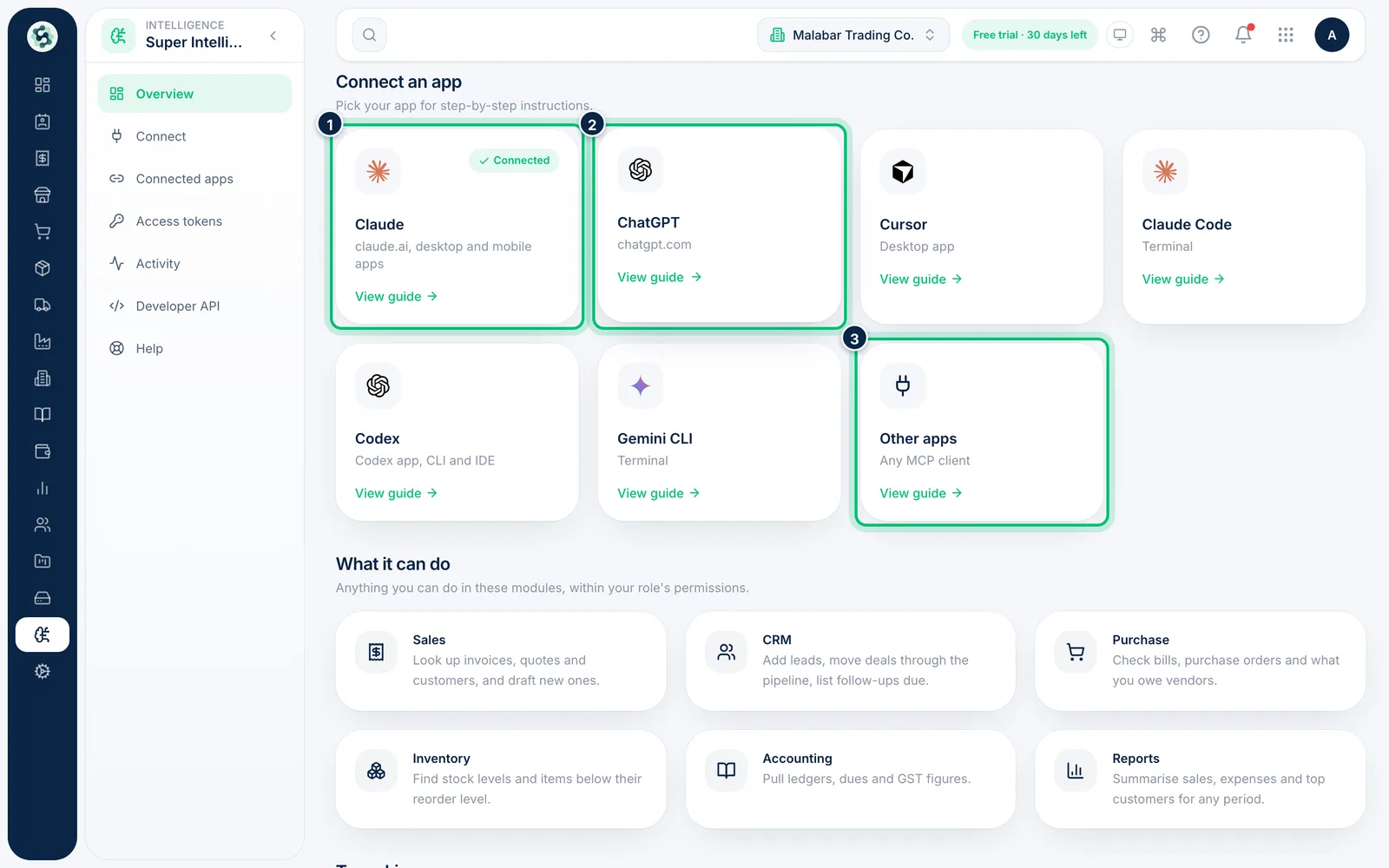
1Pick your AI app
On the Overview tab, under Connect an app, choose your app: Claude, ChatGPT, Cursor, Claude Code, Codex, Gemini CLI or Other apps. Apps you've already connected show a Connected badge.
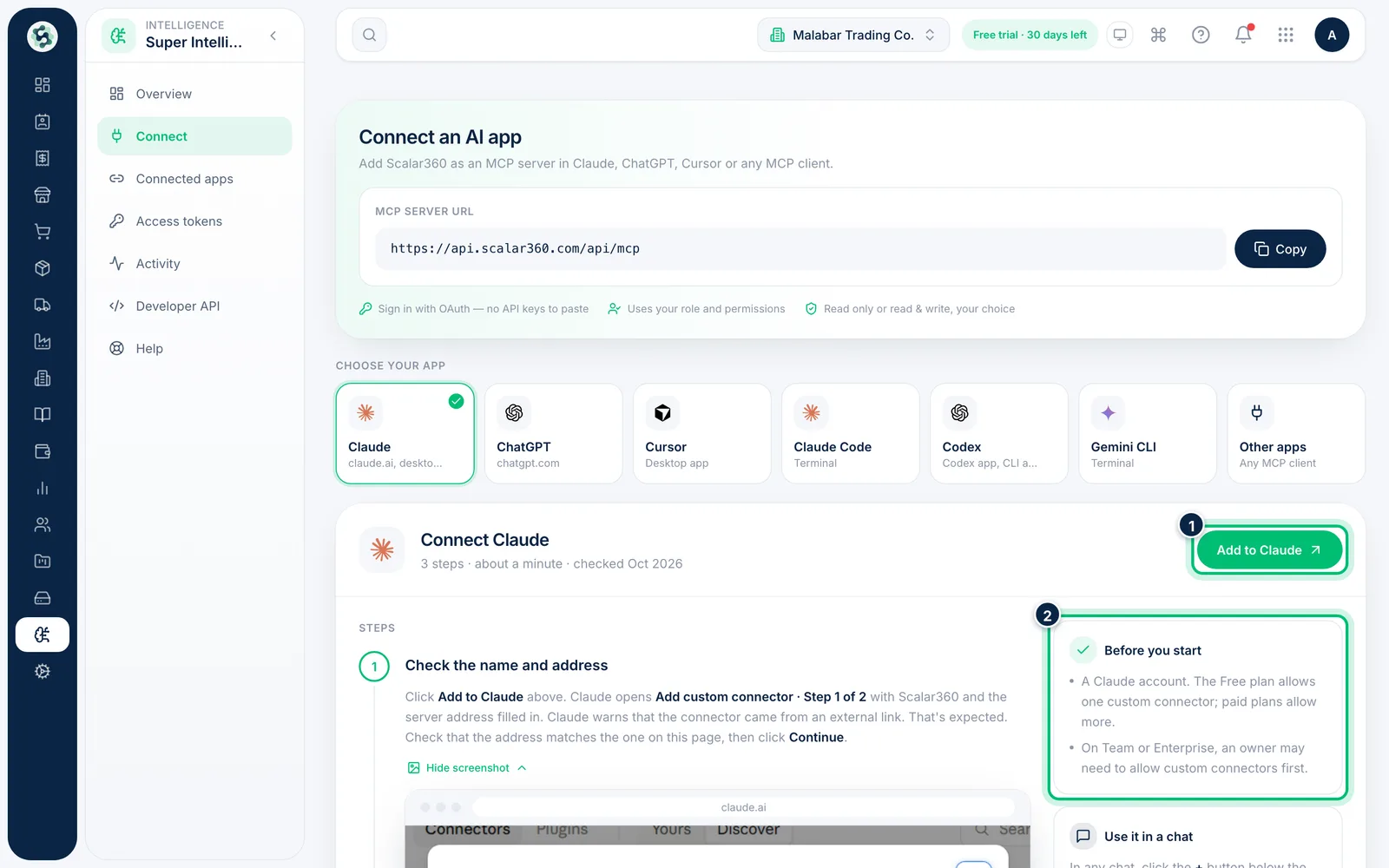
2Check what you need first
Each guide opens with how many steps it has and a Before you start list — the plan or account you need. For Claude, the green Add to Claude button opens Claude's connector page with the address already filled in.
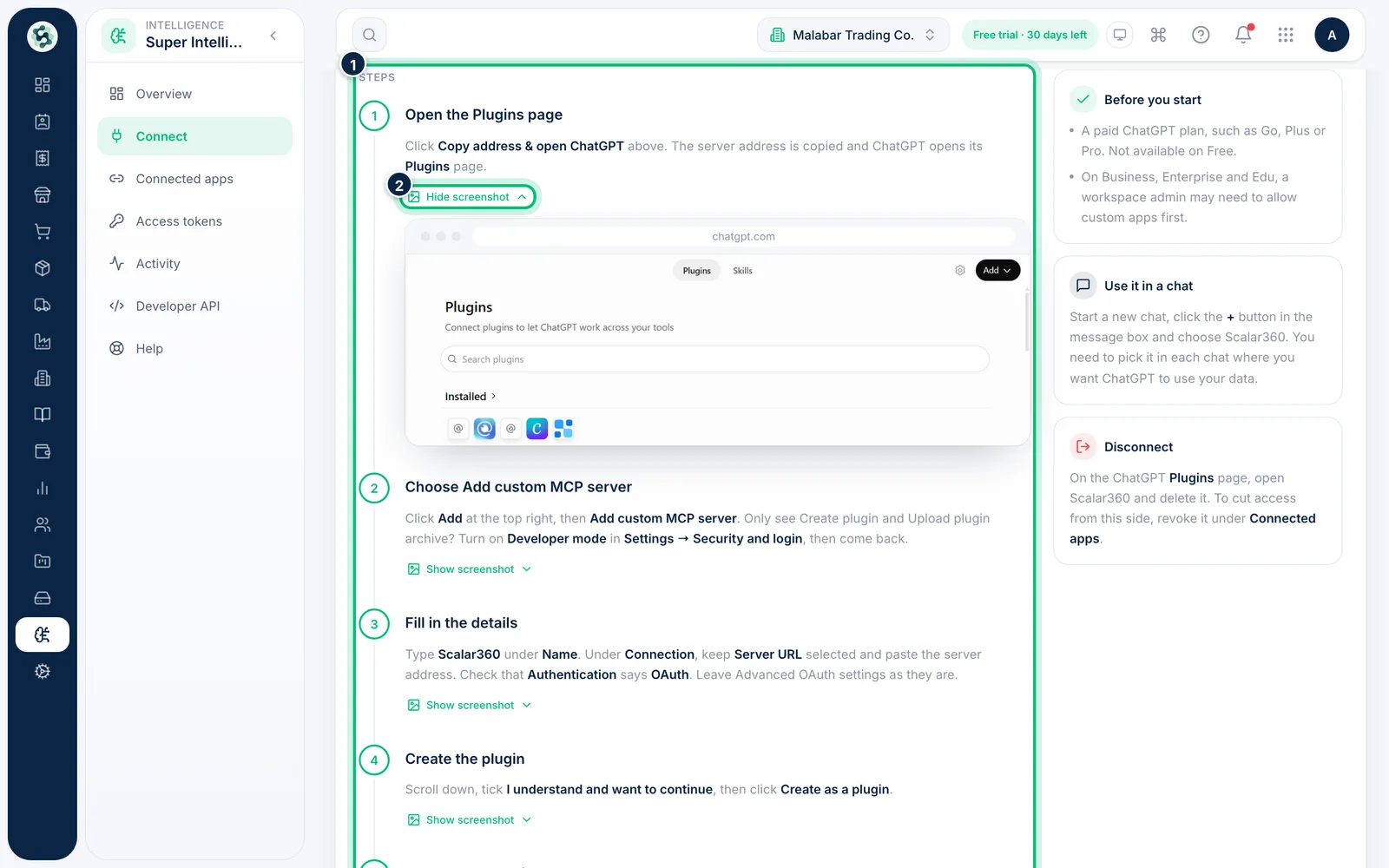
3Follow the numbered steps
The Steps list walks through each screen in your AI app. Choose Show screenshot under a step to see what to expect, and copy the MCP server URL from the top of the page wherever the app asks for it.
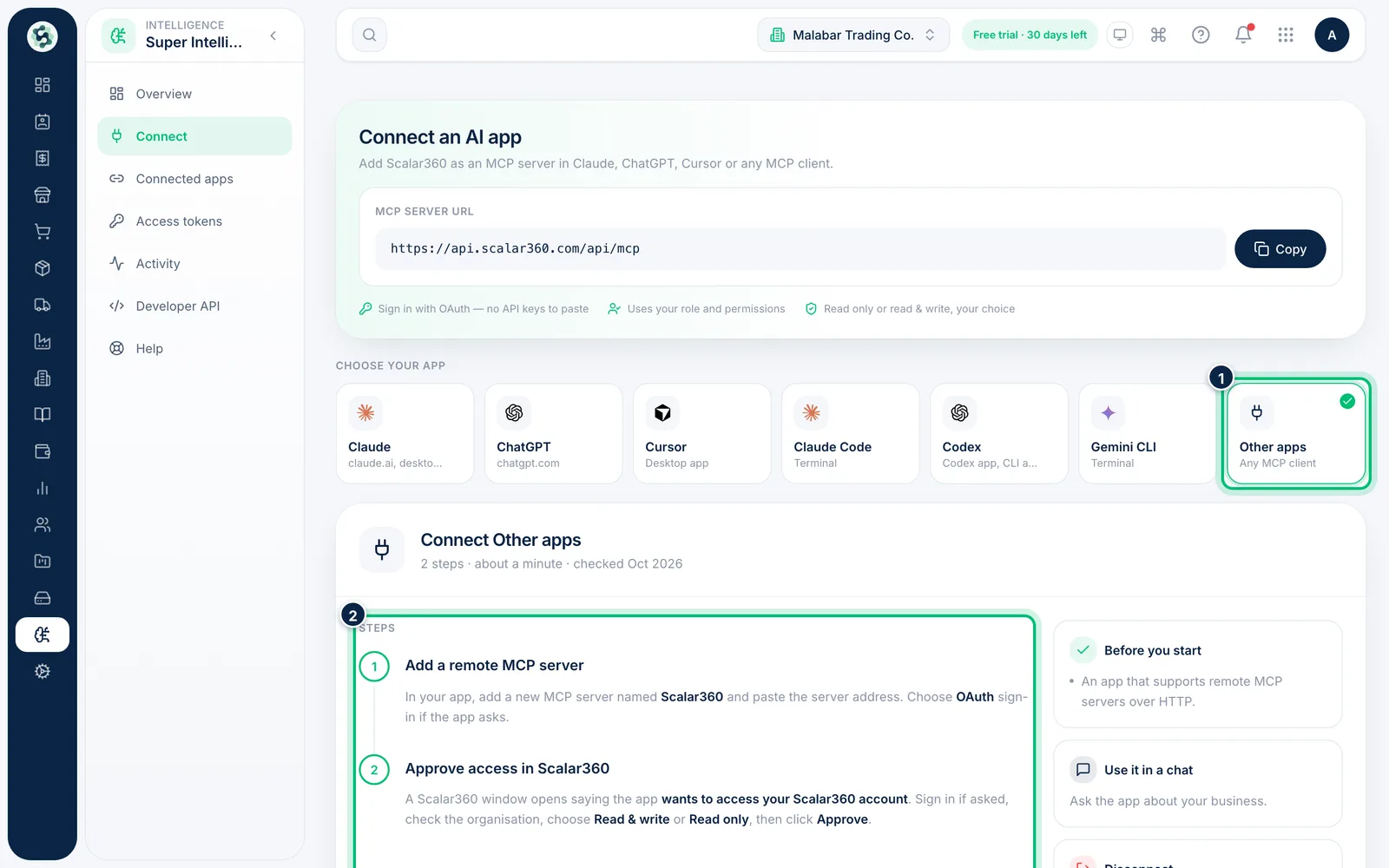
4Use a generic setup for any other app
Any app that supports remote MCP servers works. Choose Other apps, add a remote server named Scalar360 in that app, paste the server address and pick OAuth sign-in if asked.
Related guides
Still stuck? Contact our support team — or start a free trial to try this in your own company.