
Getting started · 5 steps
Company details & branding
Keep your business, GST and bank details up to date, and choose how your invoices look.
Before you start: Changes apply to the organisation you're working in. Everyone with access can view Organisation Profile, but only the Owner, an Admin, or someone granted Organization Profile · Edit can change it. Invoice Branding needs the Invoice Branding permission.
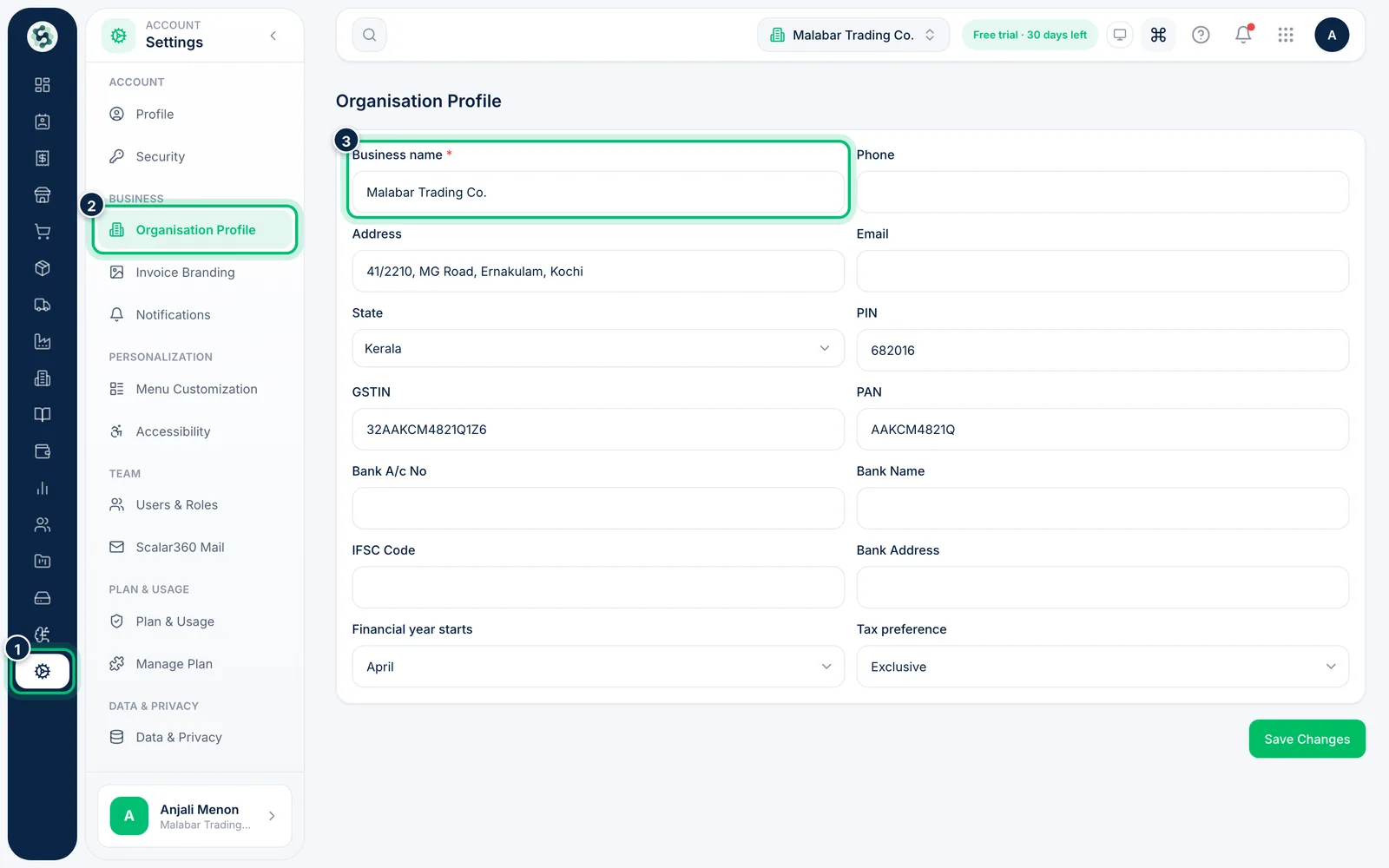
1Open Organisation Profile
Open Settings at the bottom of the rail, then Organisation Profile. Check your Business name, phone, address, email, state and PIN. If the fields are greyed out and a note says you can only view them, ask your Owner or an Admin for edit access.
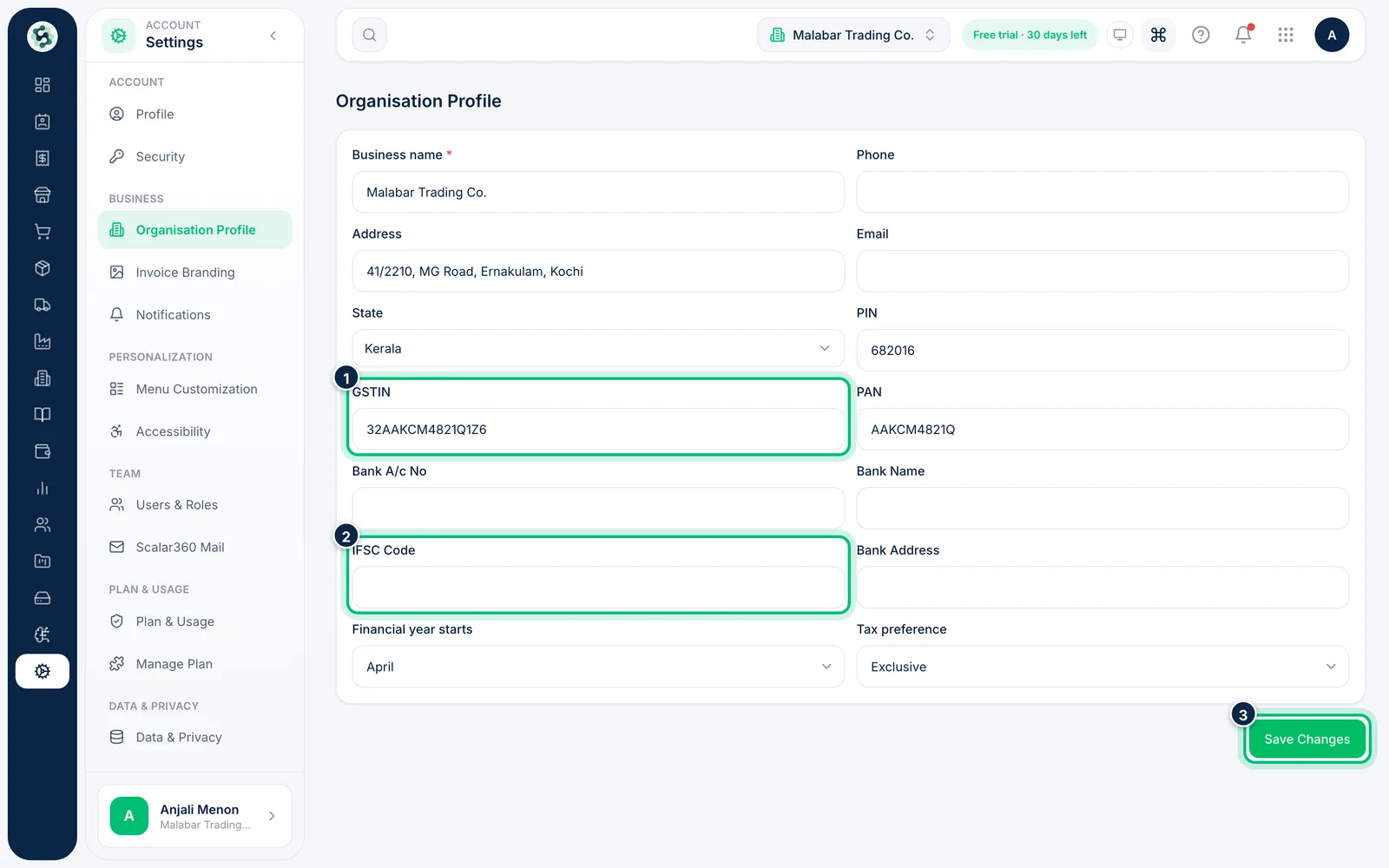
2Add GST and bank details
Fill in your GSTIN and PAN, and your bank account, bank name, IFSC Code and branch address so they can appear on invoices. Choose Save Changes when you're done.
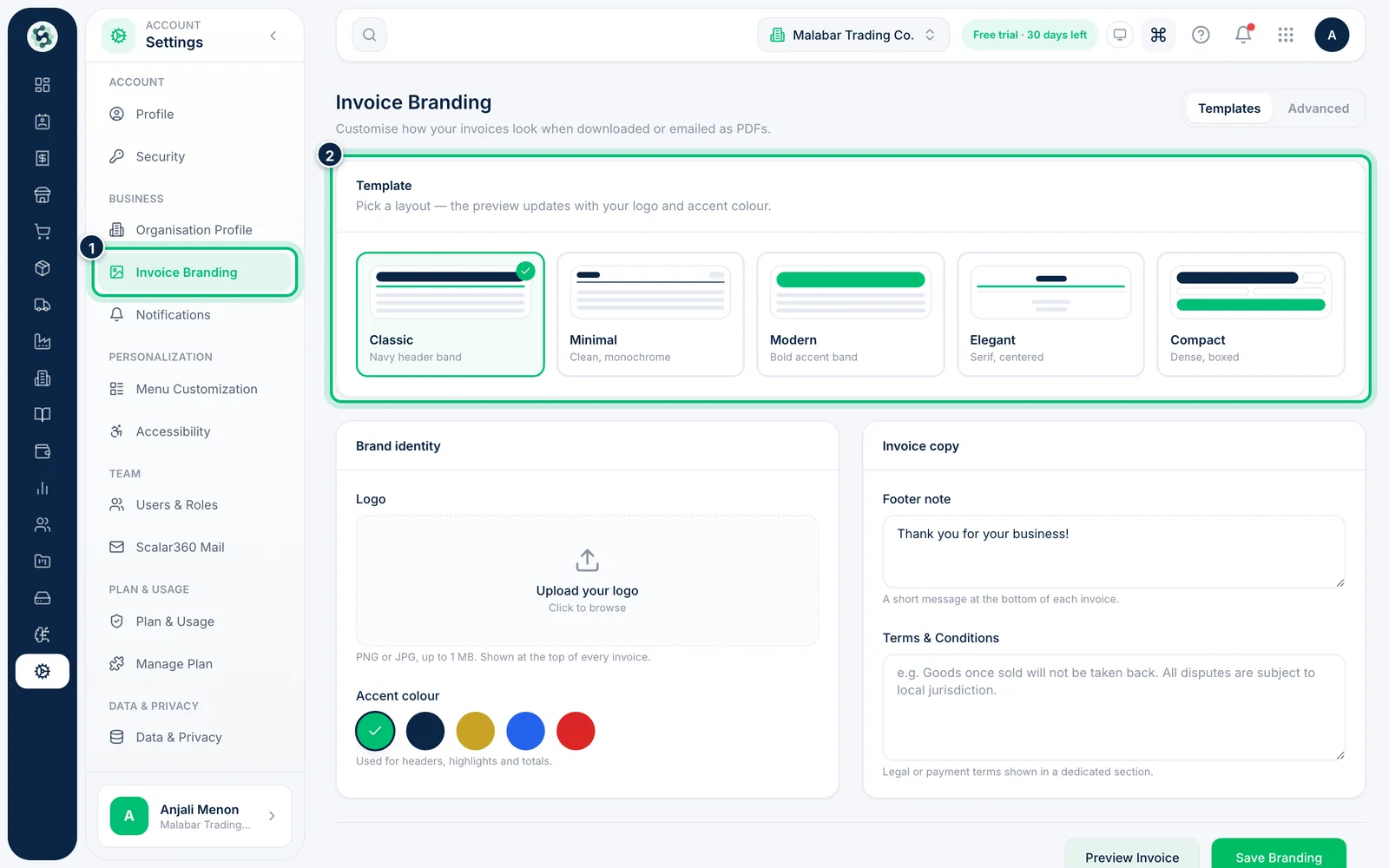
3Pick an invoice template
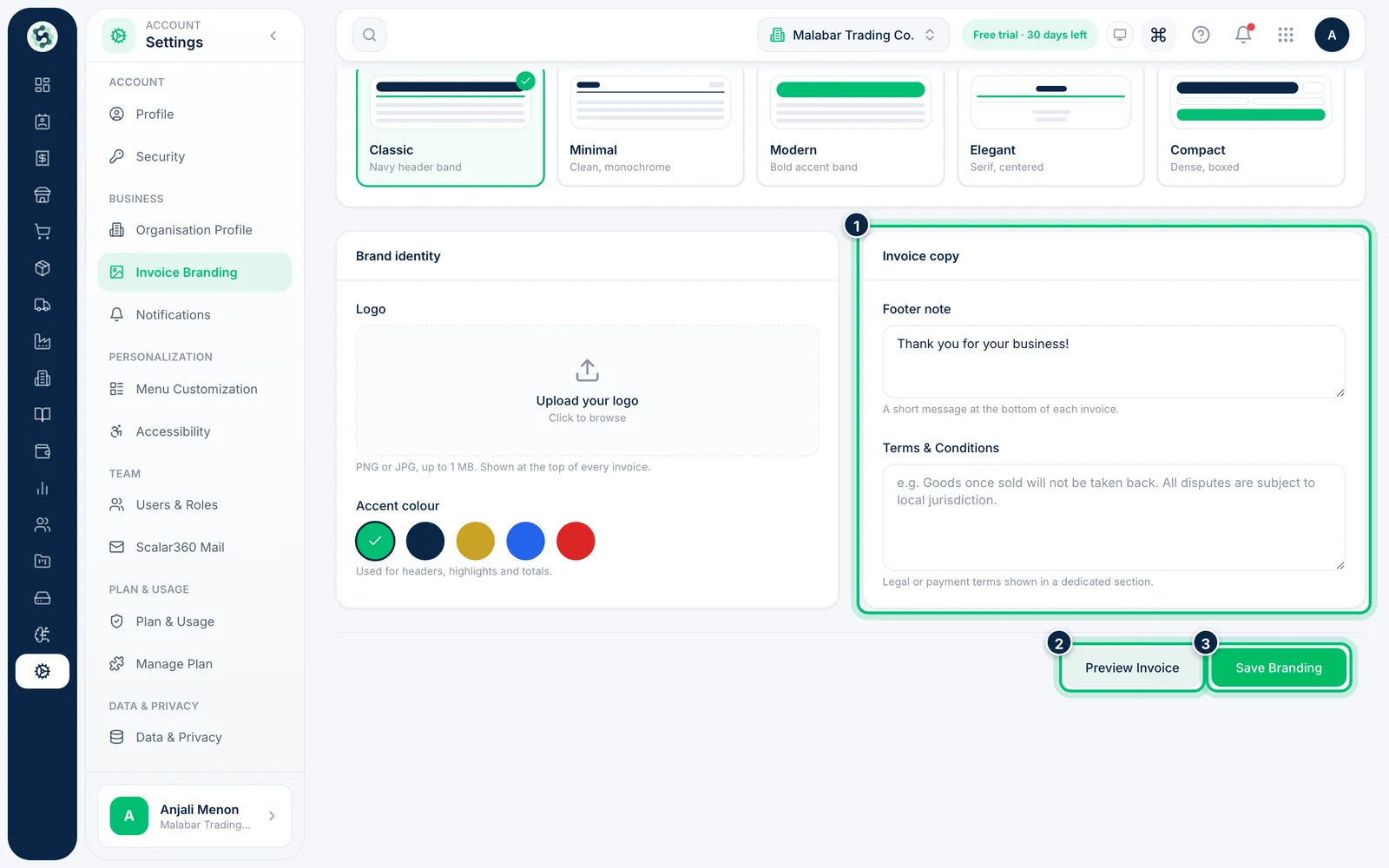
Open Invoice Branding. Under Template, choose a layout — Classic, Minimal, Modern, Elegant or Compact. The thumbnails update with your accent colour.
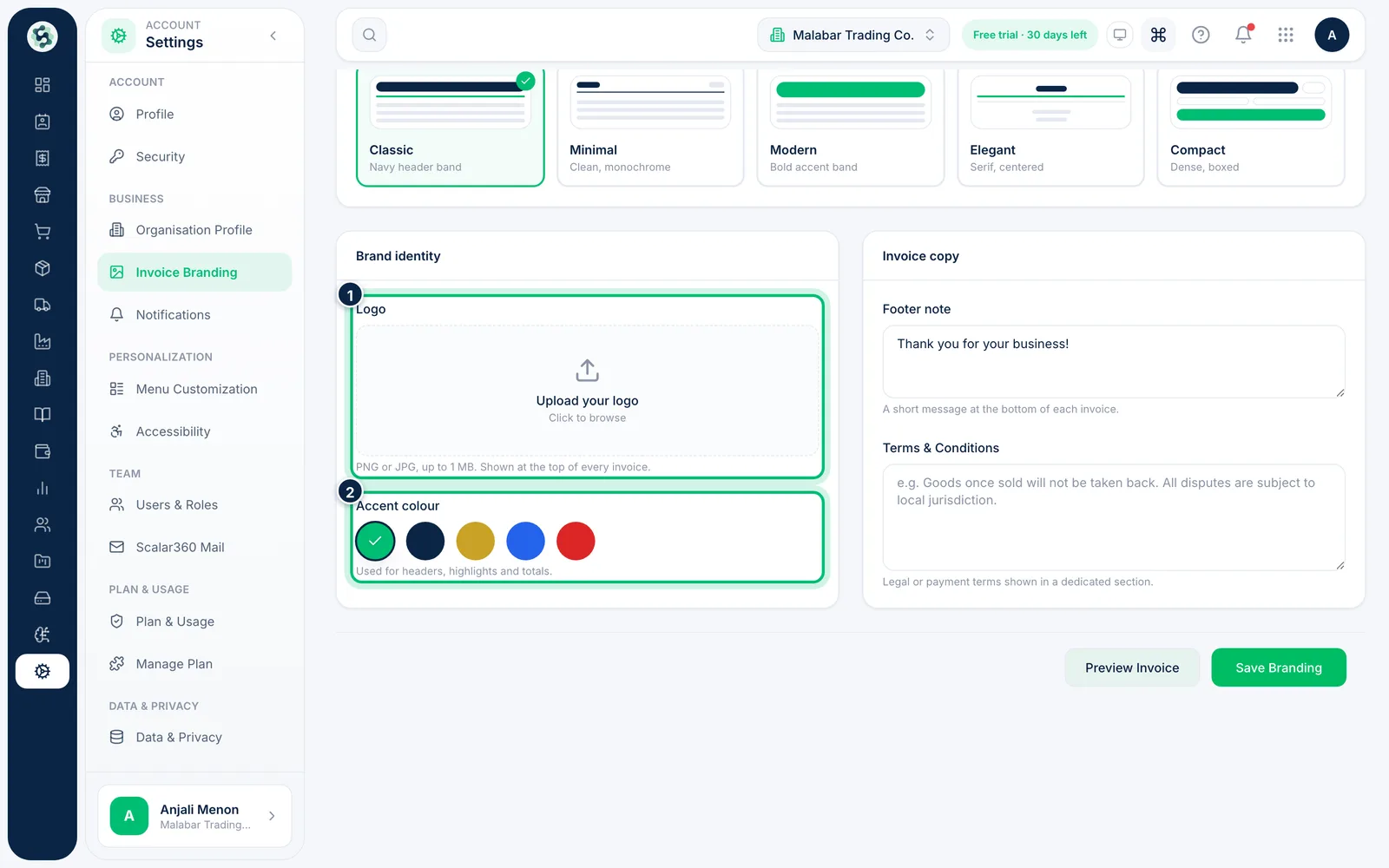
4Add your logo and accent colour
Under Brand identity, upload a PNG or JPG Logo (up to 1 MB) and choose an Accent colour for headers, highlights and totals.
5Add a footer and terms, then save
Write a short Footer note and your Terms & Conditions. Choose Preview Invoice to see the result, then Save Branding.
Related guides
Still stuck? Contact our support team — or start a free trial to try this in your own company.