
Supply chain · 5 steps
Ship an invoice
Dispatch the goods on an issued invoice from a warehouse, in full or in part. Stock leaves the warehouse when you dispatch.
Before you start: The invoice must be issued, with goods still to ship. Shipping moves stock out of the warehouse and records the cost of goods sold, so check the quantities first.
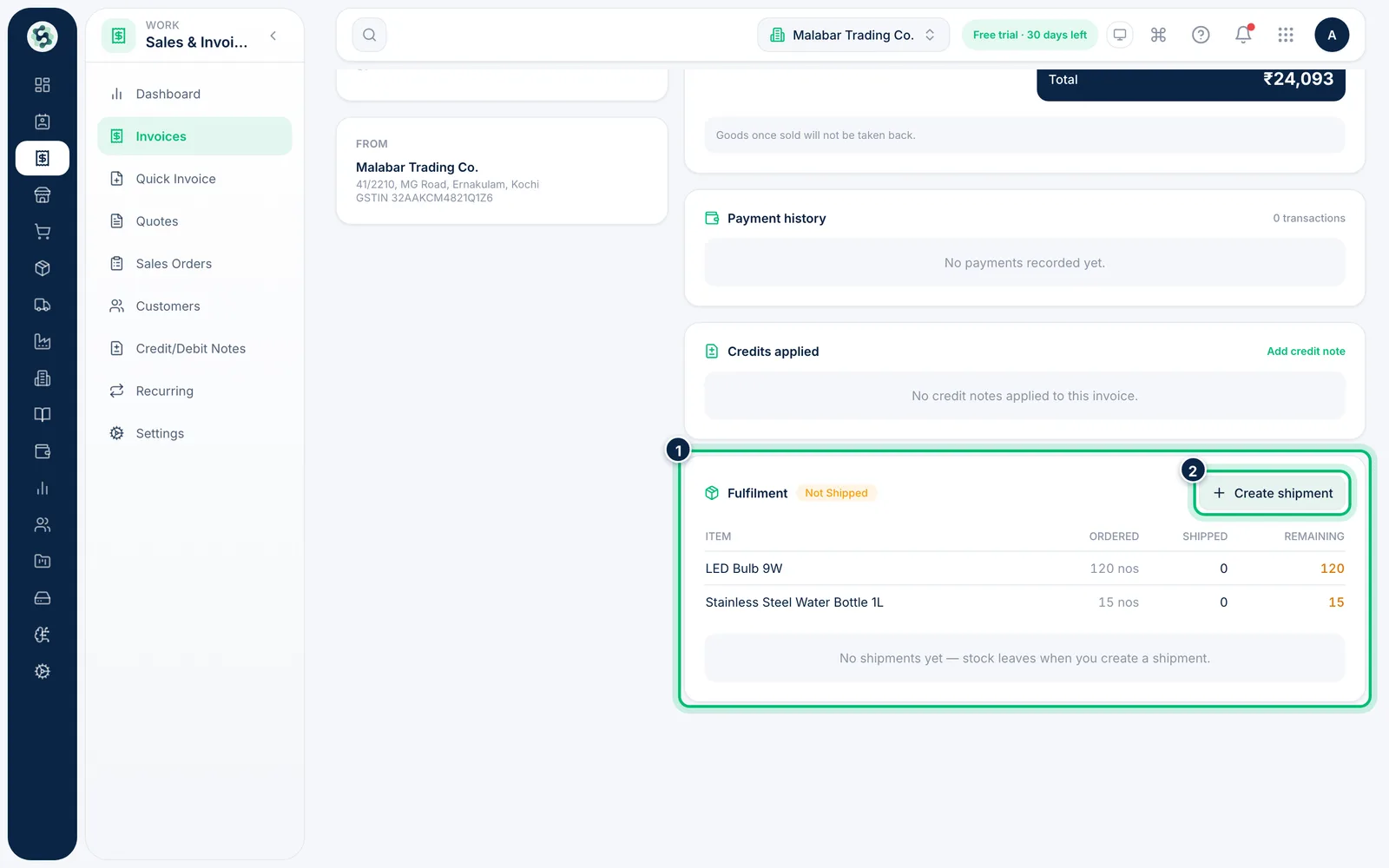
1Open the invoice and its Fulfilment section
Open an issued invoice from Sales & Invoicing → Invoices. The Fulfilment section shows each item's Ordered, Shipped and Remaining quantity. Choose Create shipment.
2Choose the items and quantities to ship
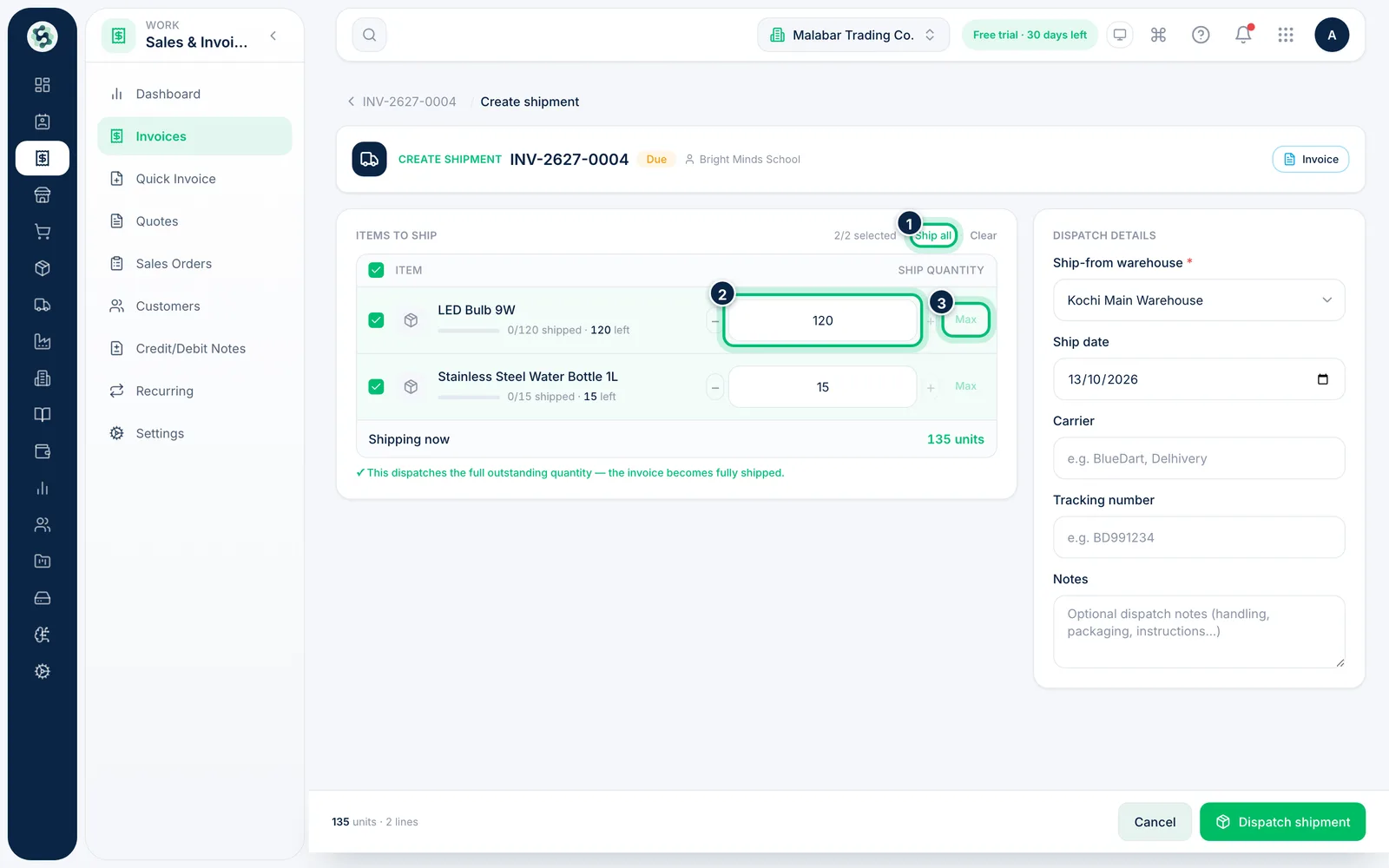
Every item with stock left to ship starts selected at its full remaining quantity. Change a Ship quantity to send part of an order, use Max to reset it, or choose Ship all or Clear.
3Pick the warehouse and add carrier details
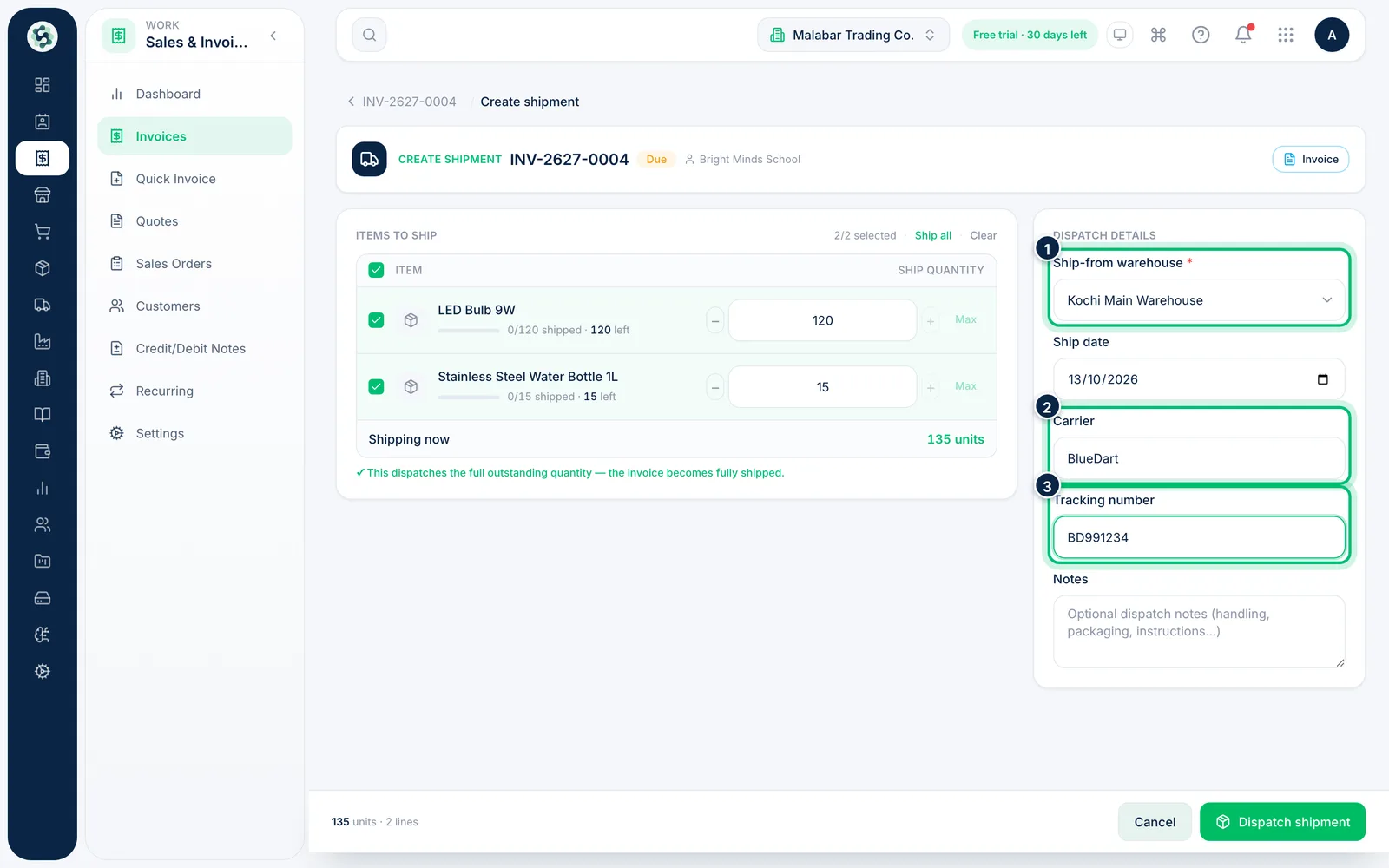
Under Dispatch details, choose the Ship-from warehouse — it is required. Set the Ship date, then add the Carrier and Tracking number if you have them. Notes are optional.
4Dispatch the shipment
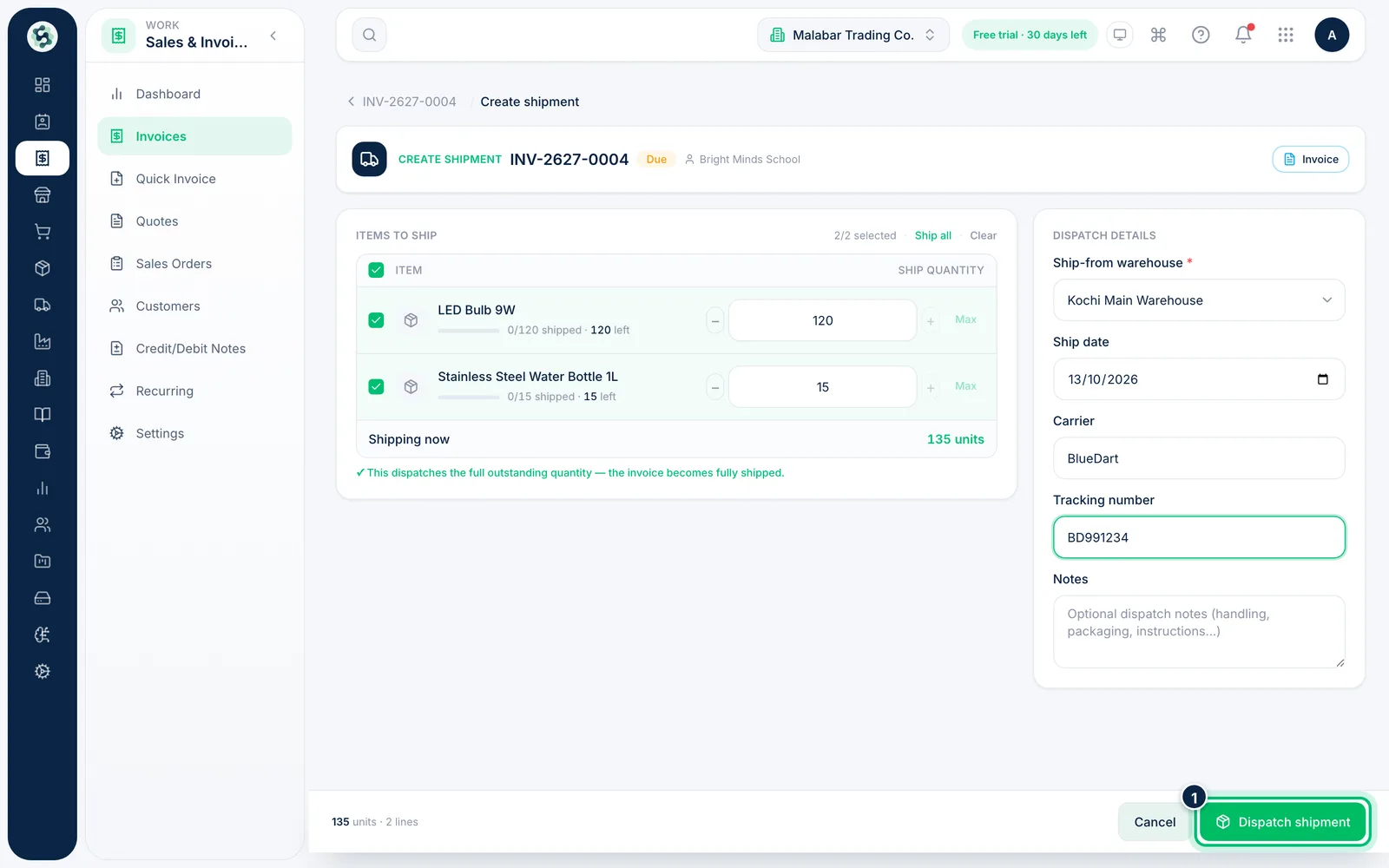
Choose Dispatch shipment. The shipment gets its own number, stock leaves the warehouse and the invoice's Fulfilment status moves to Partially shipped or Fully shipped.
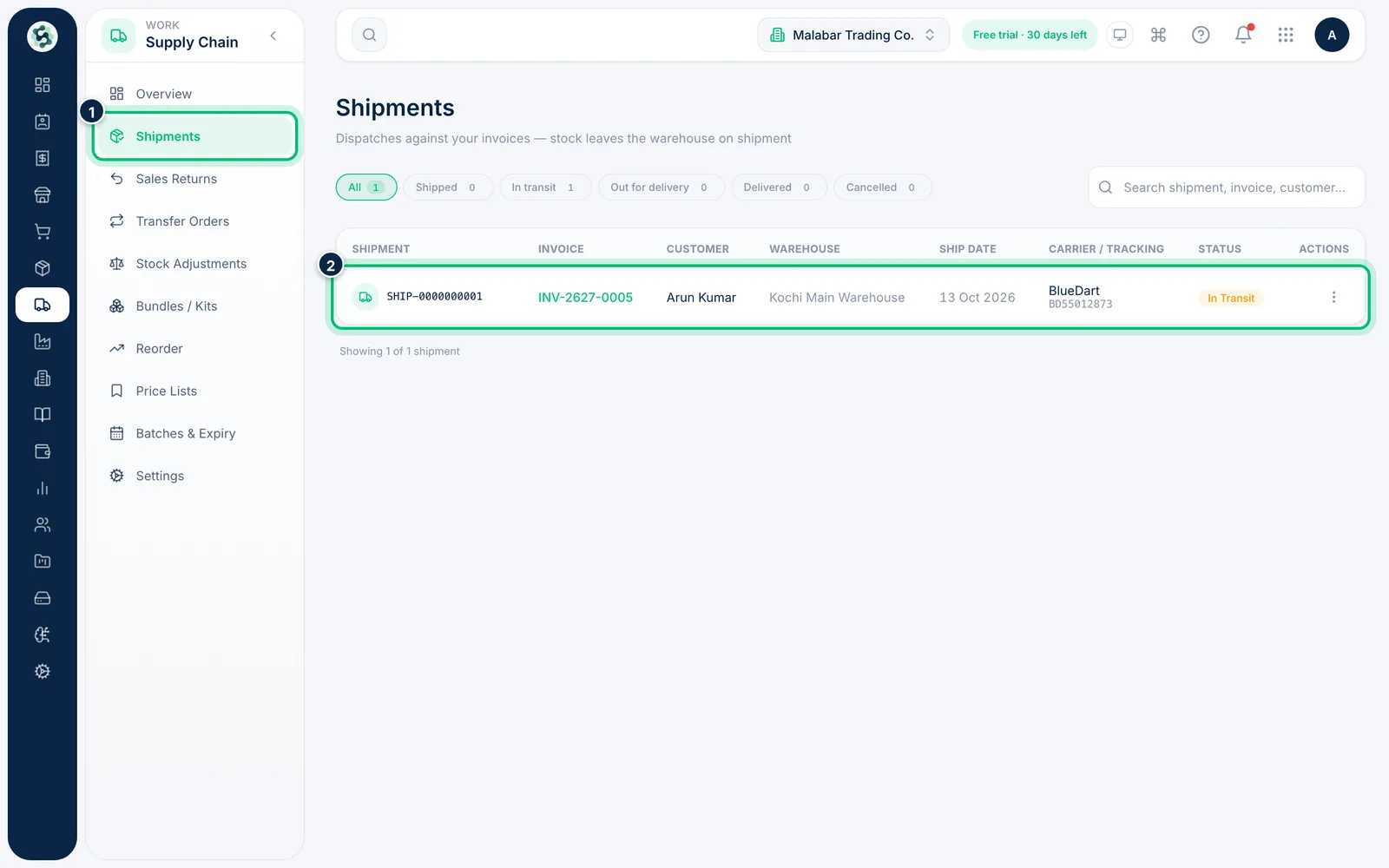
5Find it in Shipments
Open Supply Chain → Shipments. Each dispatch is listed with its invoice, customer, warehouse, ship date, carrier and tracking number.
Related guides
Still stuck? Contact our support team — or start a free trial to try this in your own company.