
Projects · 5 steps
Log time and invoice a project
Record the hours spent on each task, link the project to a customer and turn unbilled time into an invoice.
Before you start: To create an invoice, the project needs a bill-to customer and at least one billable time entry that hasn't been invoiced.
1Log time on a task
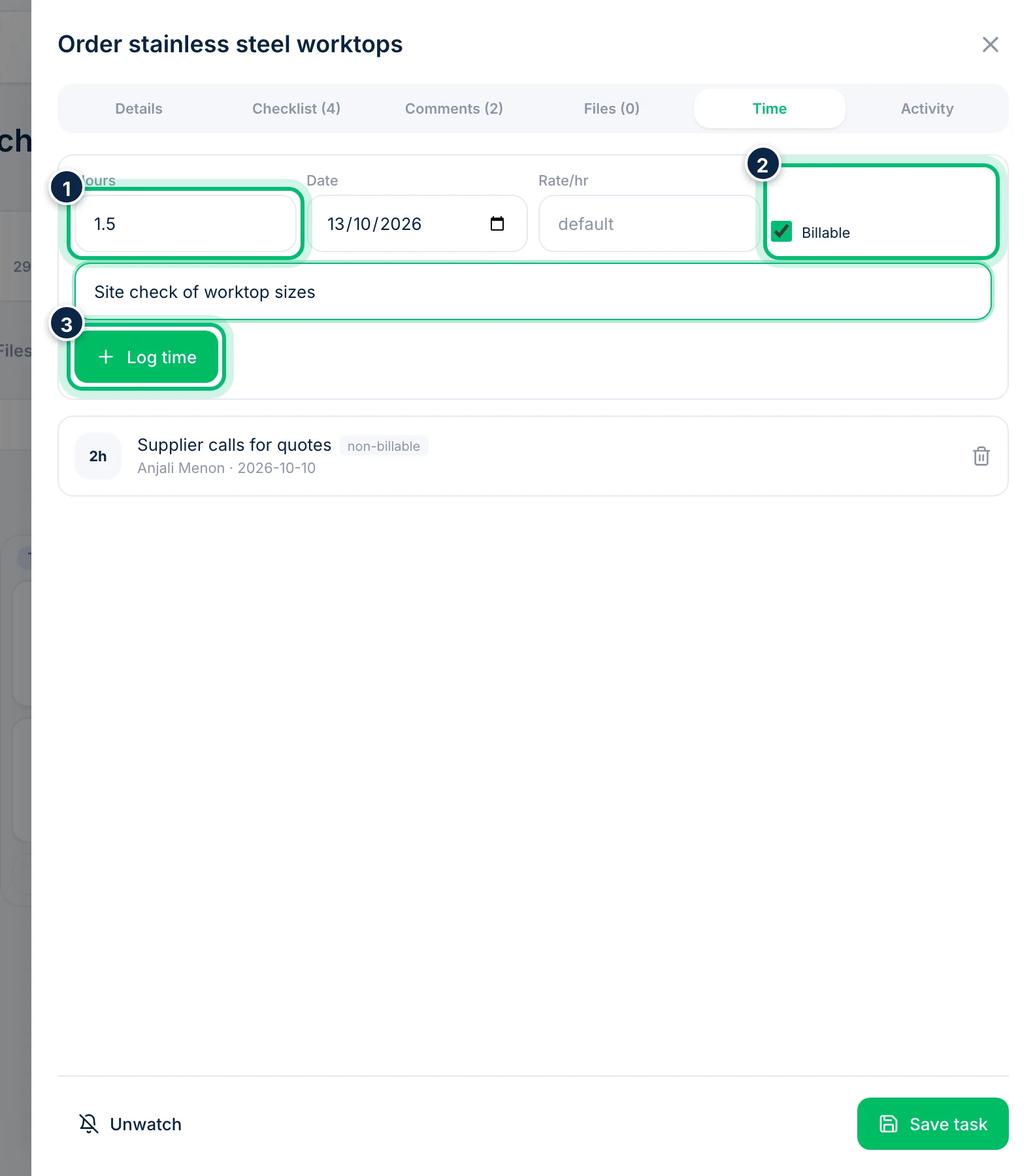
Open a task and go to the Time tab. Enter the Hours and Date, leave Rate/hr blank to use the project's default rate, and tick or untick Billable. Add a note and choose Log time.
2Check the time already logged
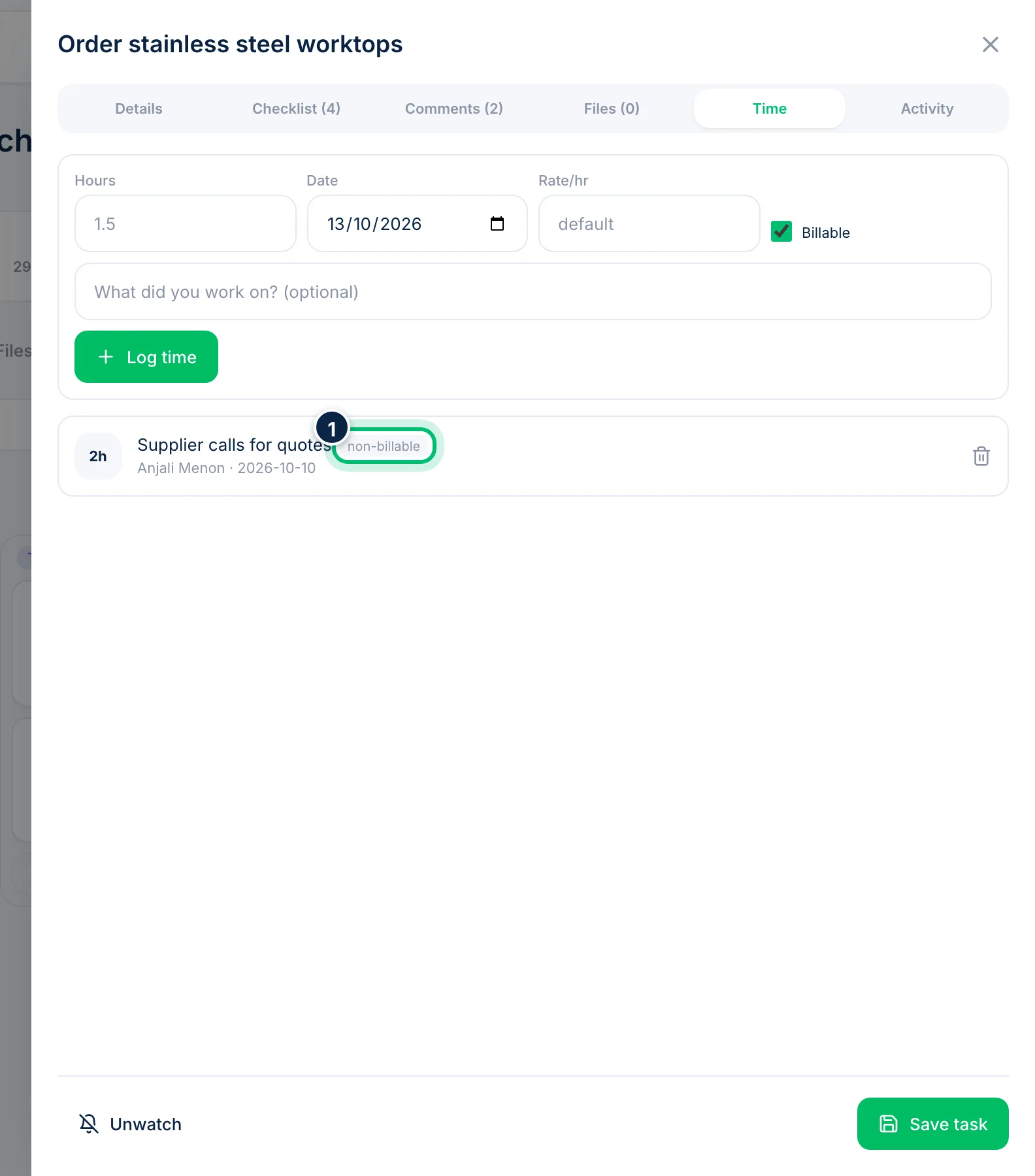
Below the form you'll see each entry with its hours, who logged it and the amount. Entries marked non-billable are never invoiced, and invoiced entries can no longer be deleted.
3Link the project to a customer
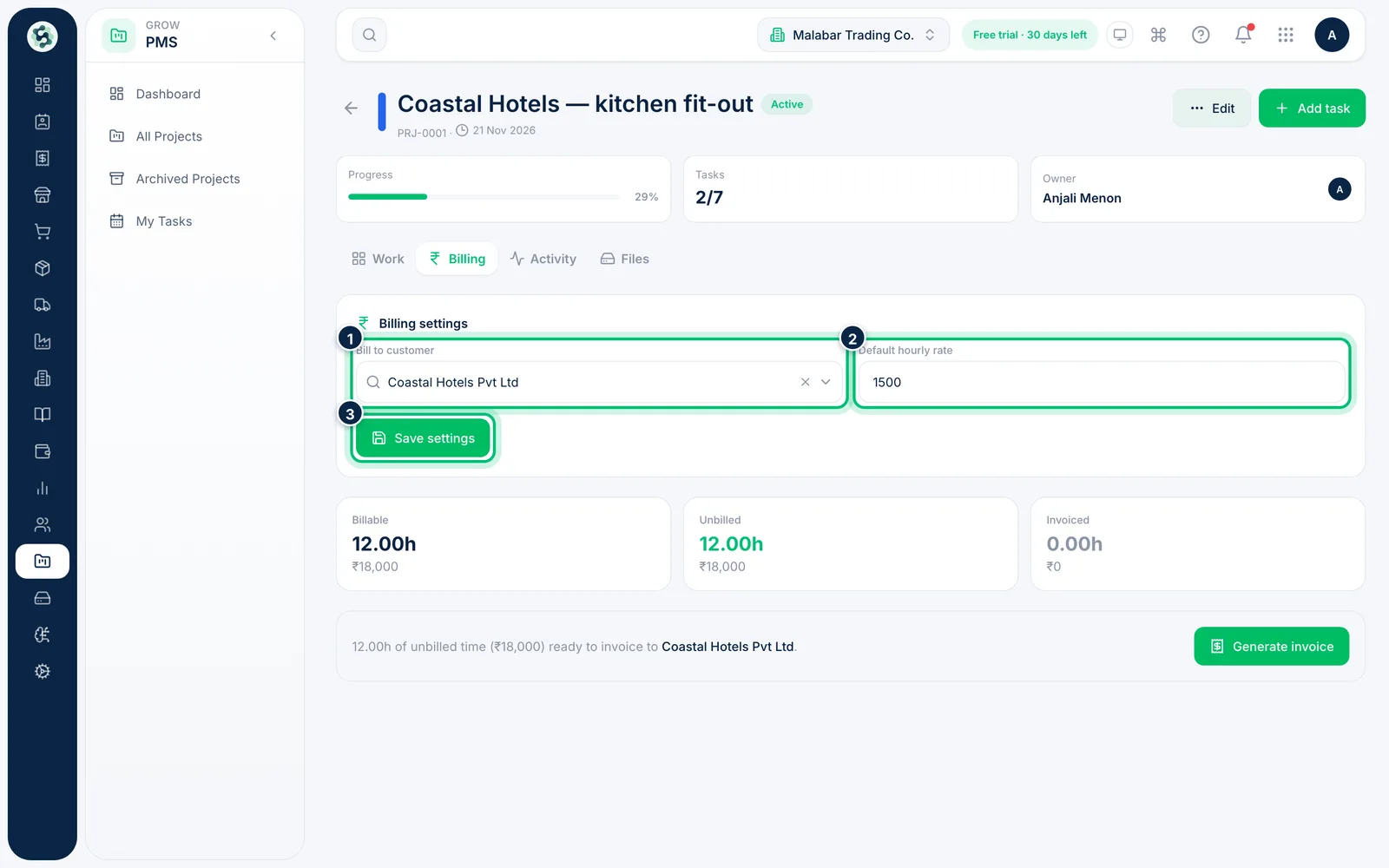
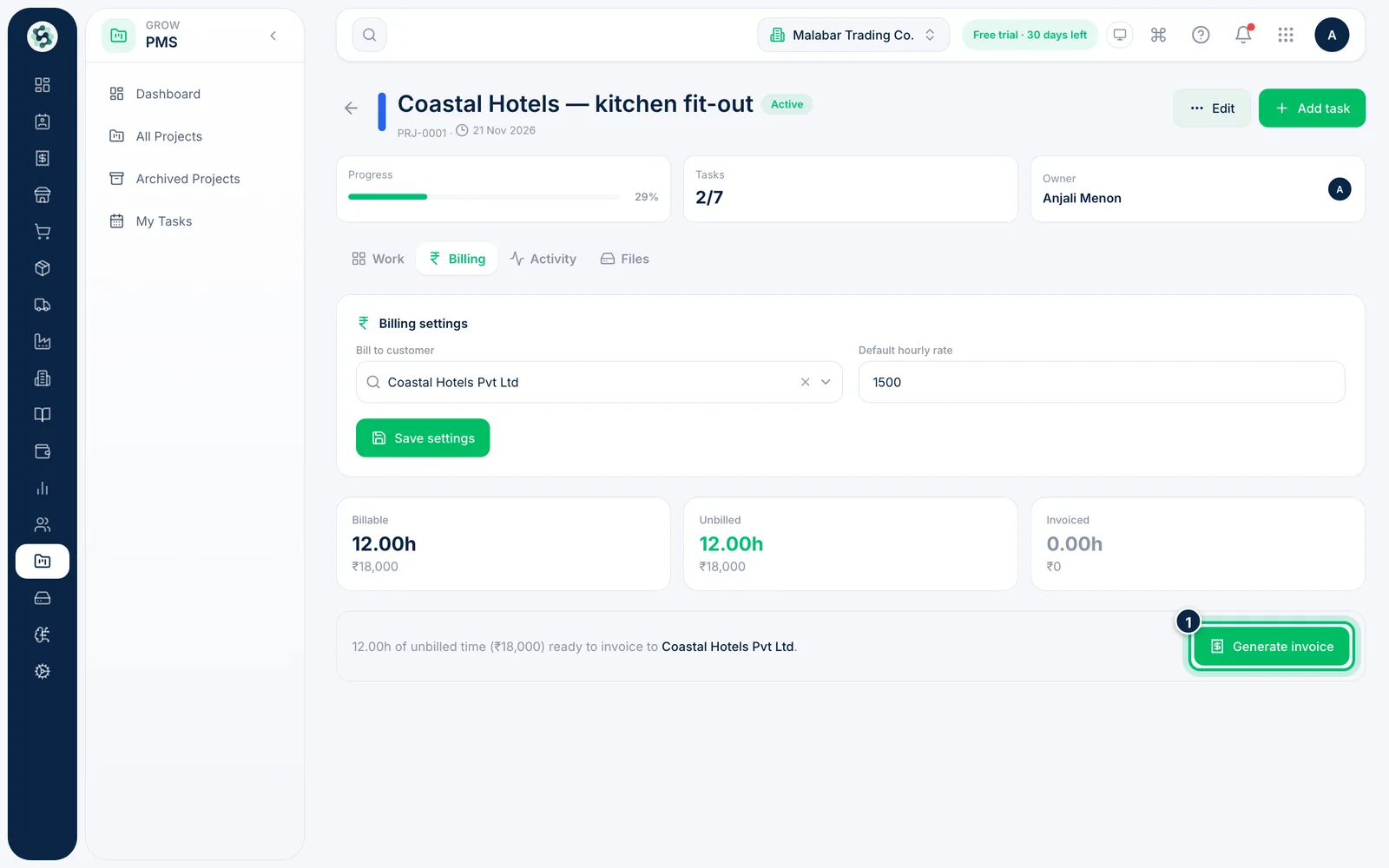
Close the task and open the project's Billing tab. Choose the Bill to customer, set a Default hourly rate and choose Save settings.
4Review billable and unbilled time
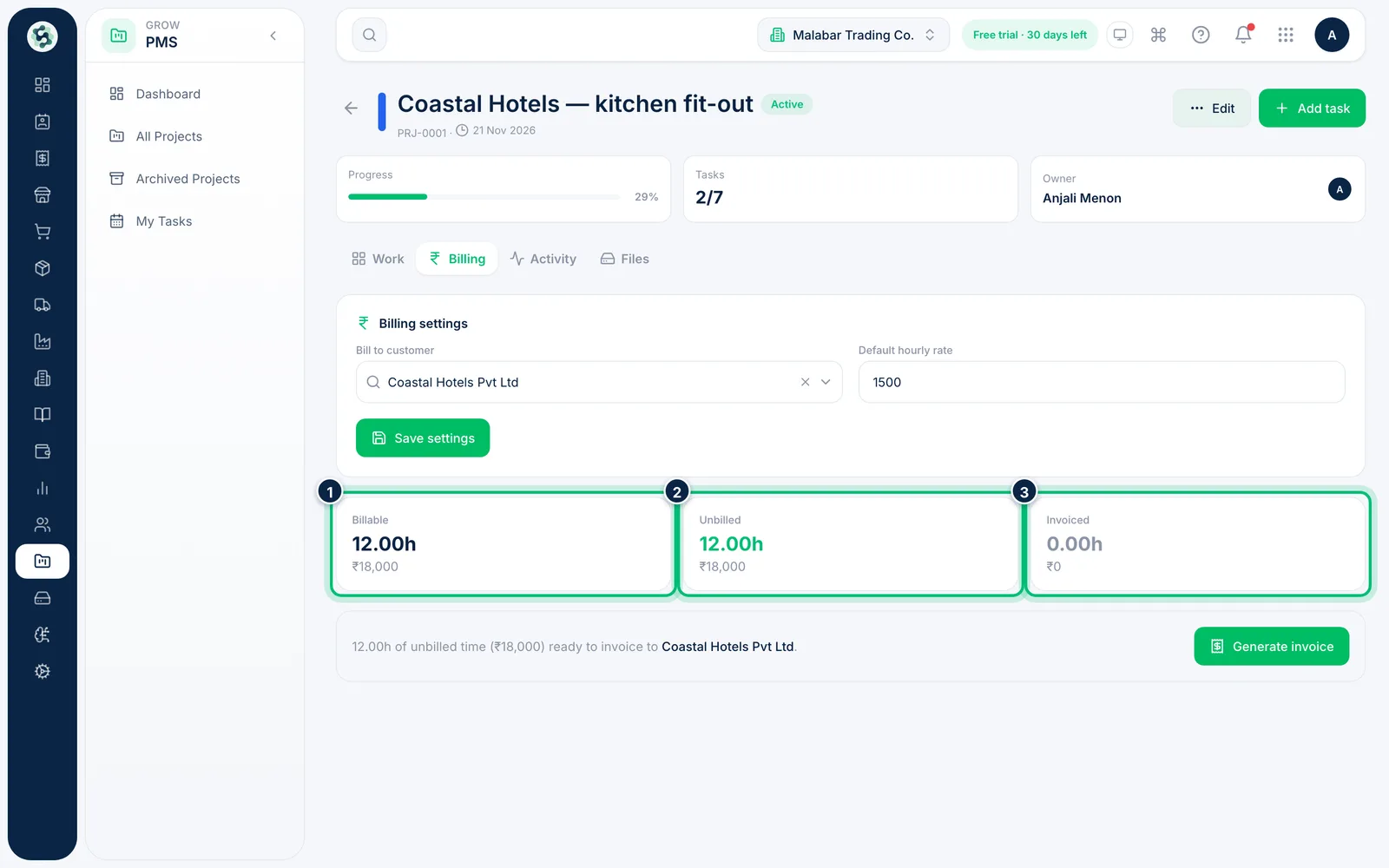
The cards show the hours and amount that are Billable, still Unbilled and already Invoiced for the project.
5Generate the invoice
Choose Generate invoice. Scalar360 creates a draft invoice for the customer from the unbilled time, with lines grouped by task and rate, and opens it so you can check it before you send it.
Related guides
Still stuck? Contact our support team — or start a free trial to try this in your own company.