
People & payroll · 3 steps
Handle work-from-home and travel requests
Raise work-from-home and trip pre-approvals for employees, with travel mode, cost and advance, and approve or reject them.
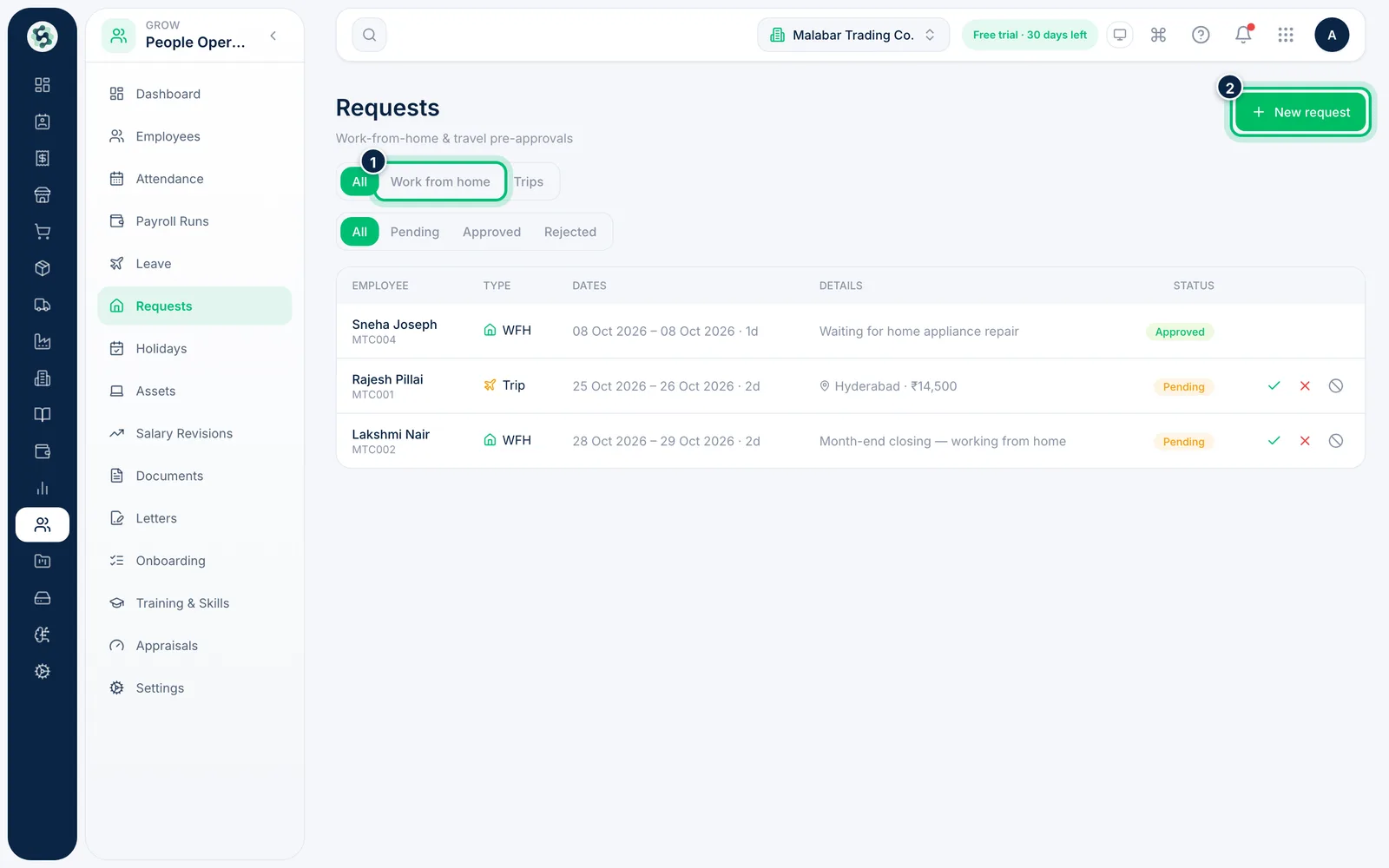
1Open Requests
Go to People Operations → Requests. Filter by Work from home or Trips, and by status. Choose New request to raise one.
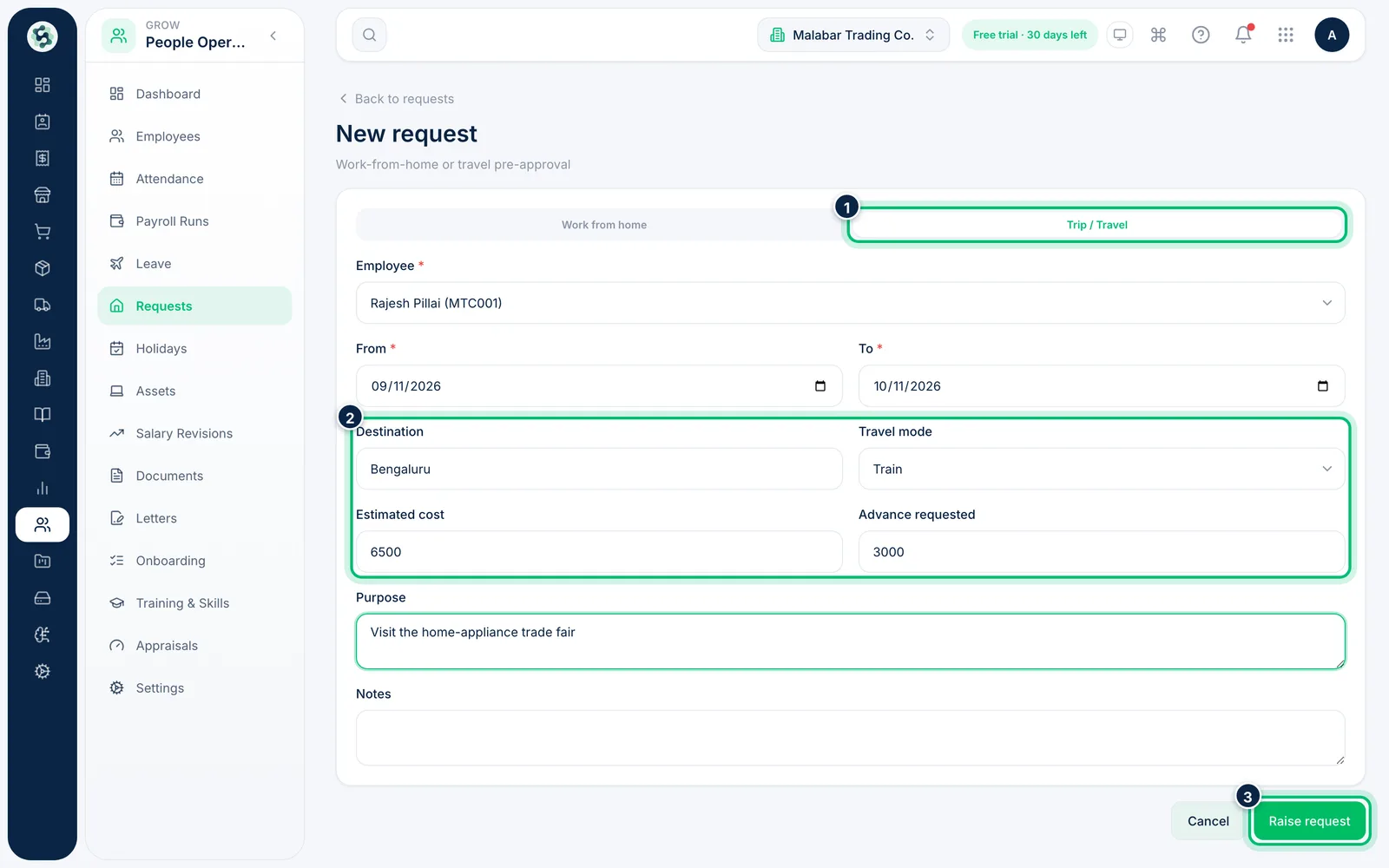
2Fill in a trip request
Choose Trip / Travel, pick the Employee and the From and To dates. Add the Destination, Travel mode, Estimated cost, any Advance requested and the purpose, then choose Raise request.
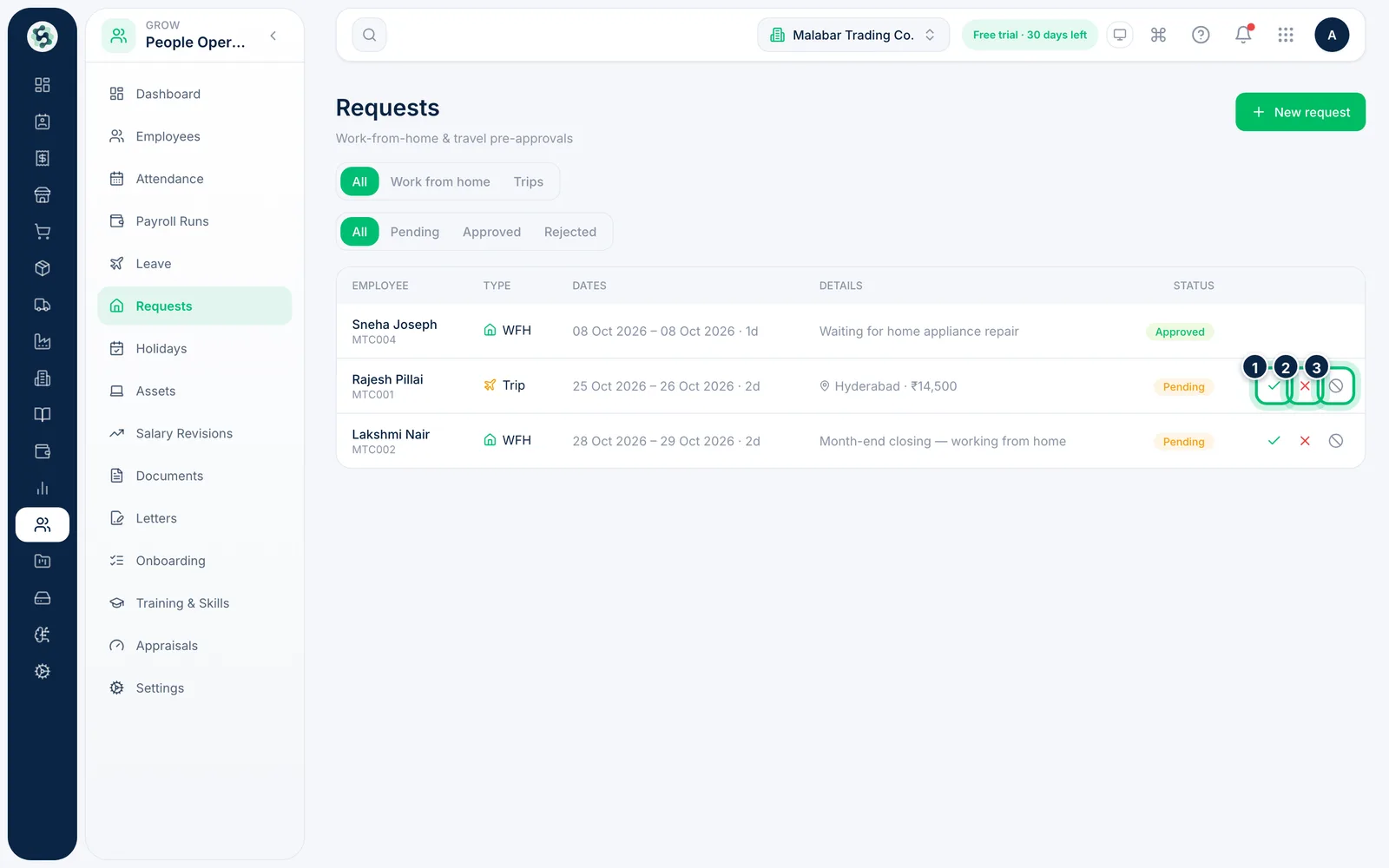
3Approve, reject or cancel
Pending requests show three buttons: approve, reject and cancel. When you reject, enter a reason so the employee knows why.
Related guides
Manage leave and the holiday calendarSet up your leave types, apply and approve leave for employees, and publish the company's holidays for the year.Track attendanceSee who has checked in today, mark attendance for any day, and check each employee's paid days for the month before you run payroll.
Still stuck? Contact our support team — or start a free trial to try this in your own company.