
Inventory · 4 steps
Set up units, categories and stock preferences
Manage the units you count in, the categories you group items by, extra item fields and when invoices reduce stock.
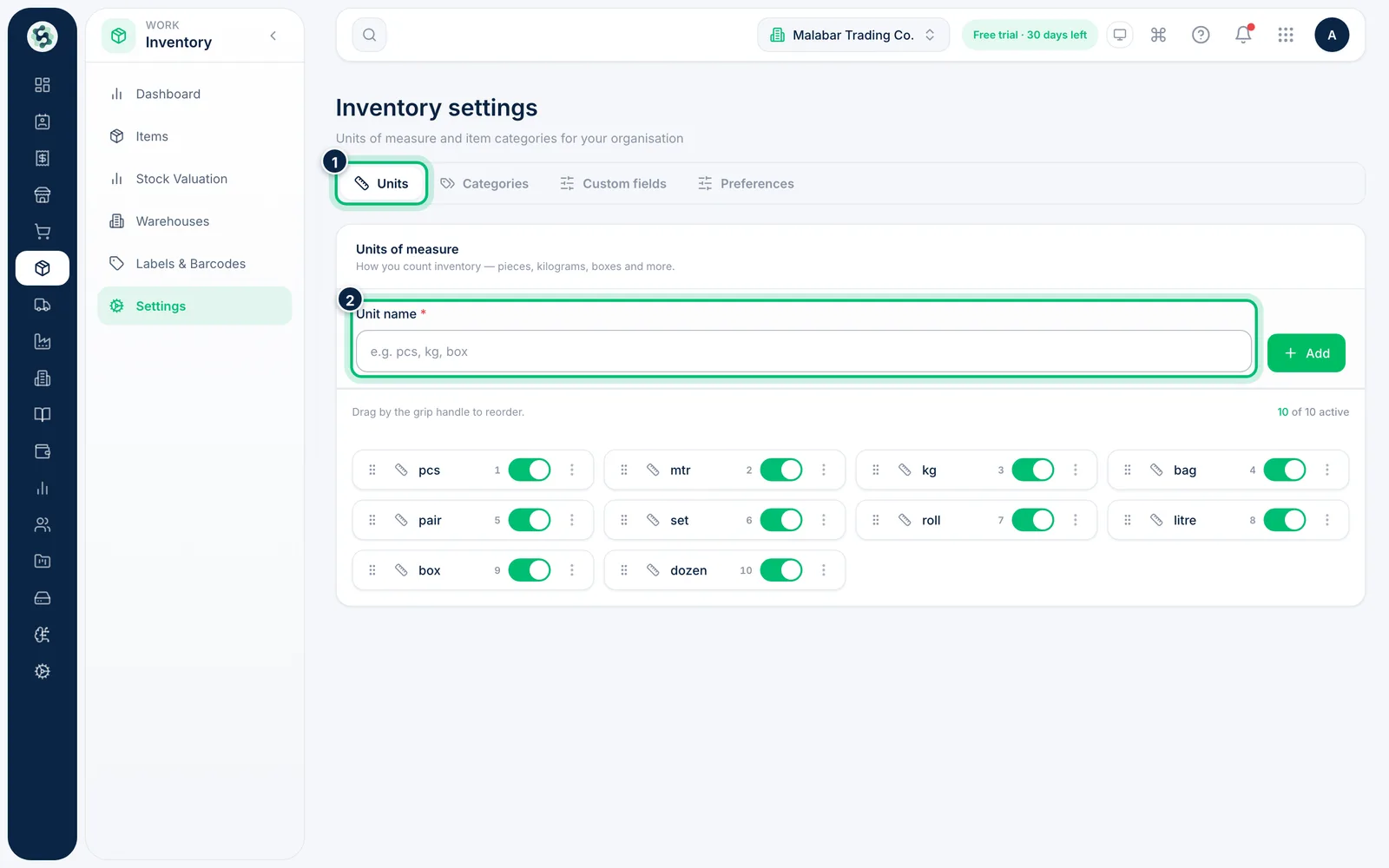
1Add units of measure
Open Inventory → Settings. On the Units tab, type a Unit name such as box or kg and choose Add. Drag units to reorder them, or use the switch to hide one you no longer use.
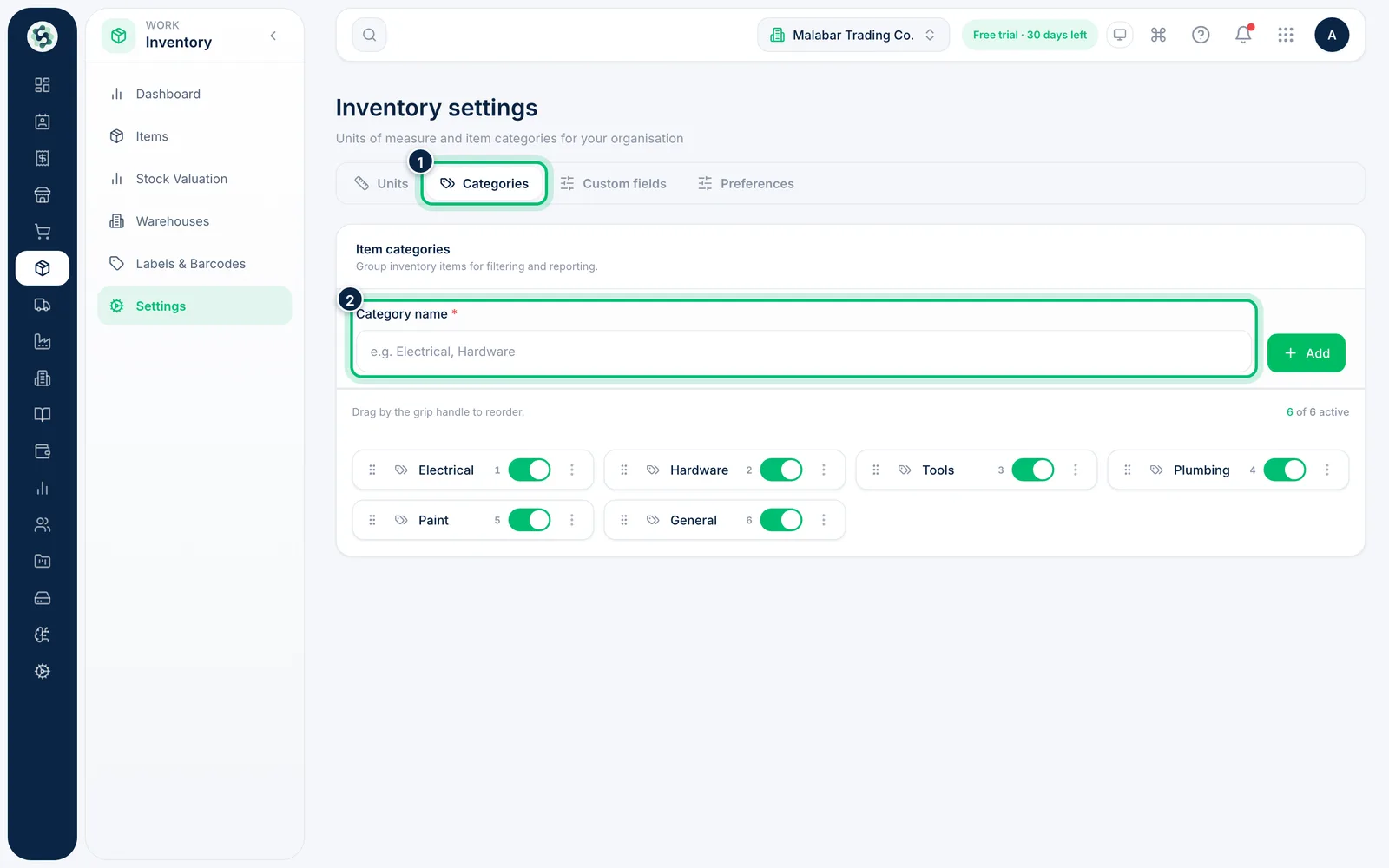
2Add item categories
On the Categories tab, add the groups you use for filtering and reports — for example Electricals or Kitchenware.
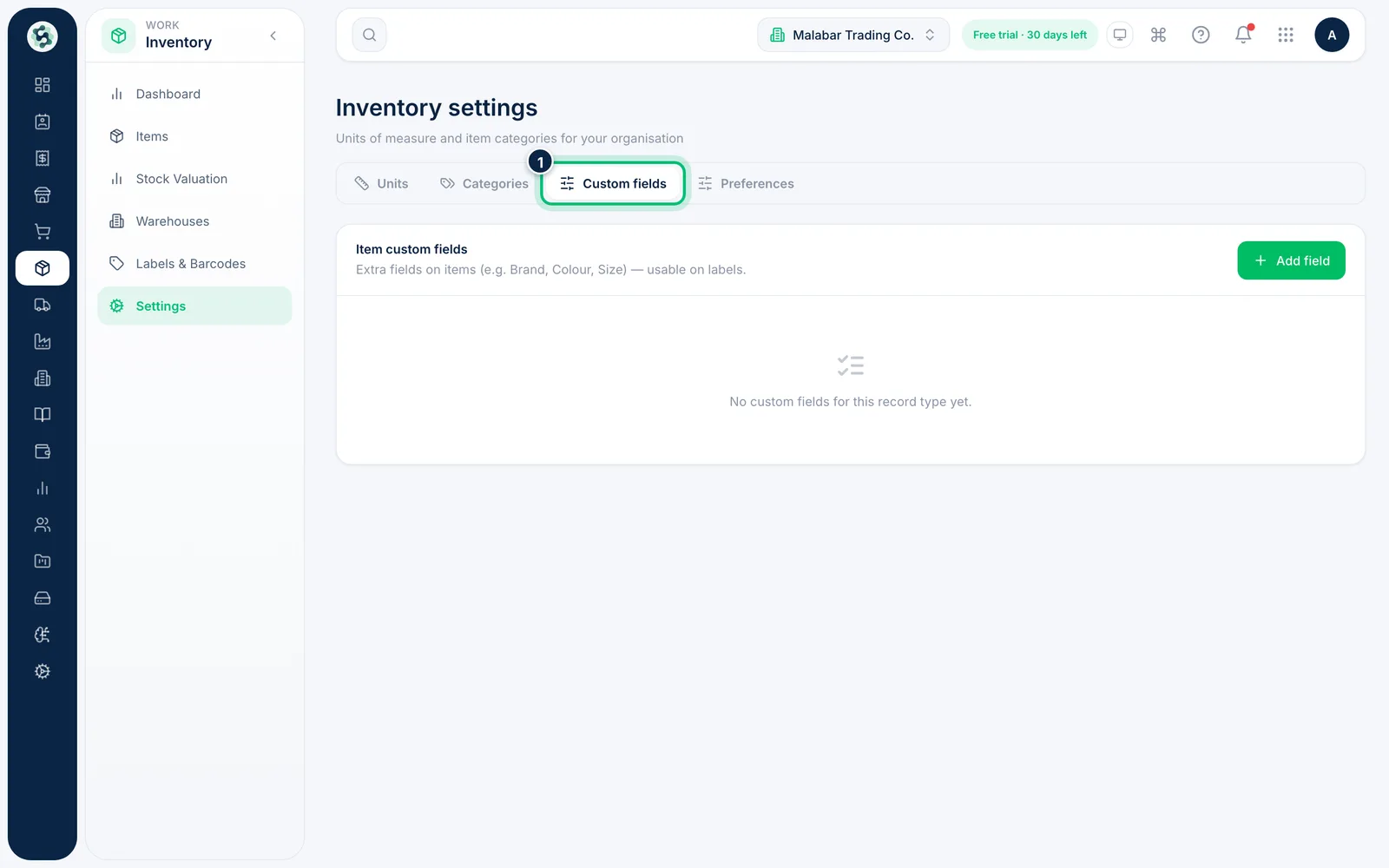
3Add custom fields
On the Custom fields tab, add extra item fields such as Brand, Colour or Size. They appear on the item form and can be printed on labels.
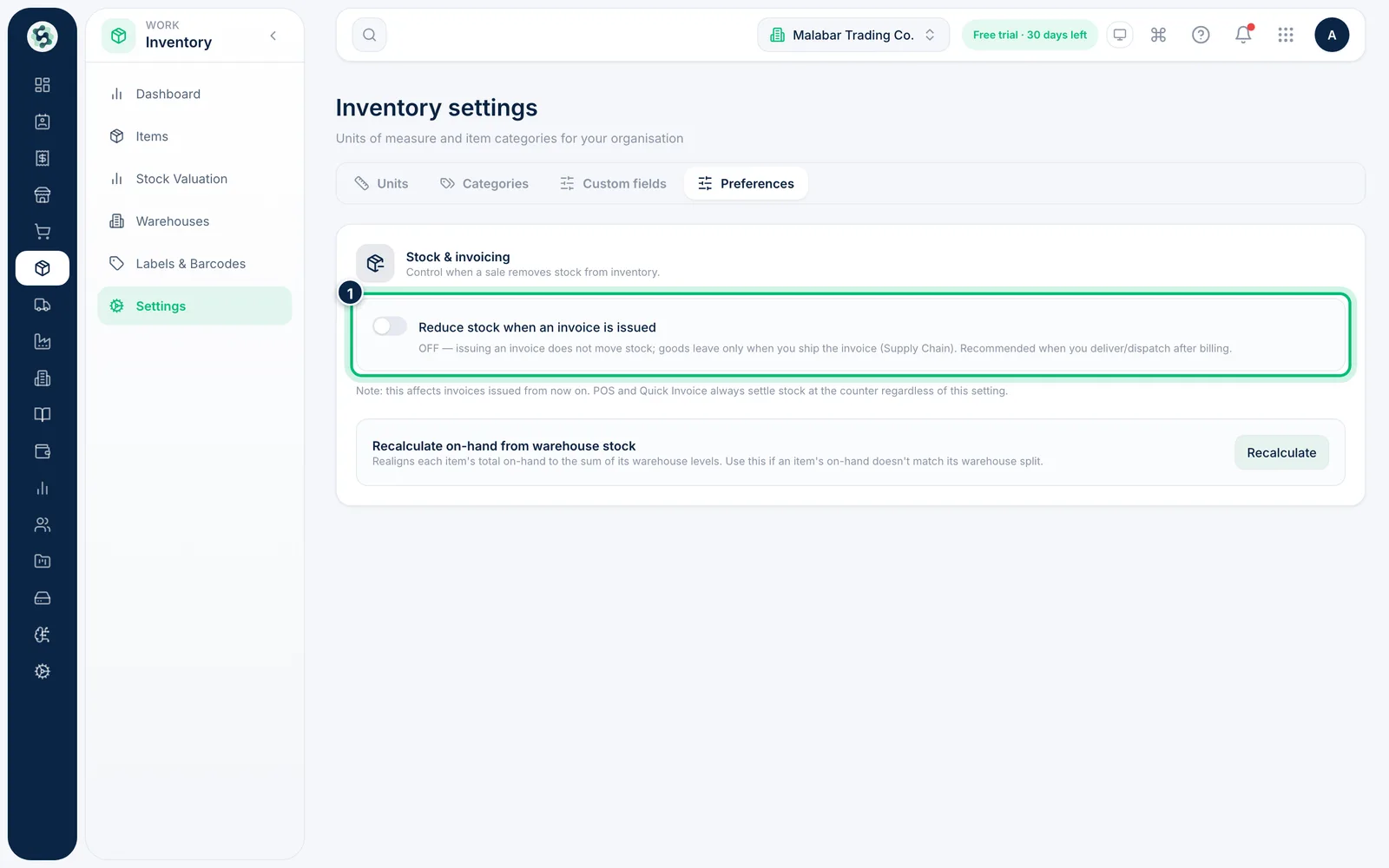
4Choose when invoices reduce stock
On the Preferences tab, switch on Reduce stock when an invoice is issued if goods leave when you bill. Leave it off if you deliver later — stock then moves when you ship the invoice from Supply Chain.
Related guides
Still stuck? Contact our support team — or start a free trial to try this in your own company.