
Scalar360 Mail · 3 steps
Set up email signatures
Create one or more signatures and choose which is added to new messages and to replies.
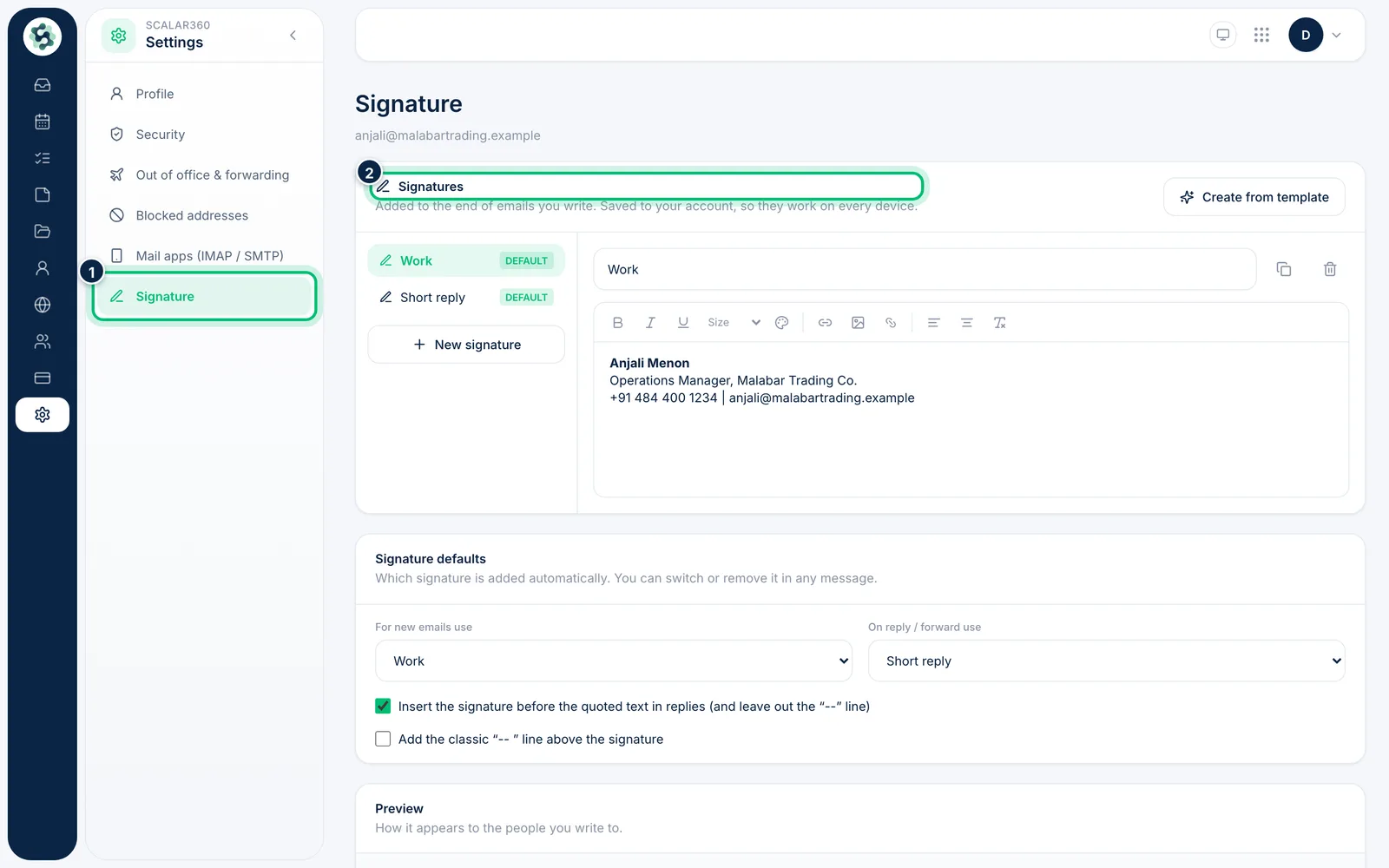
1Open Signature settings
Choose Settings in the left rail, then Signature. Your signatures are listed with the ones used by default marked.
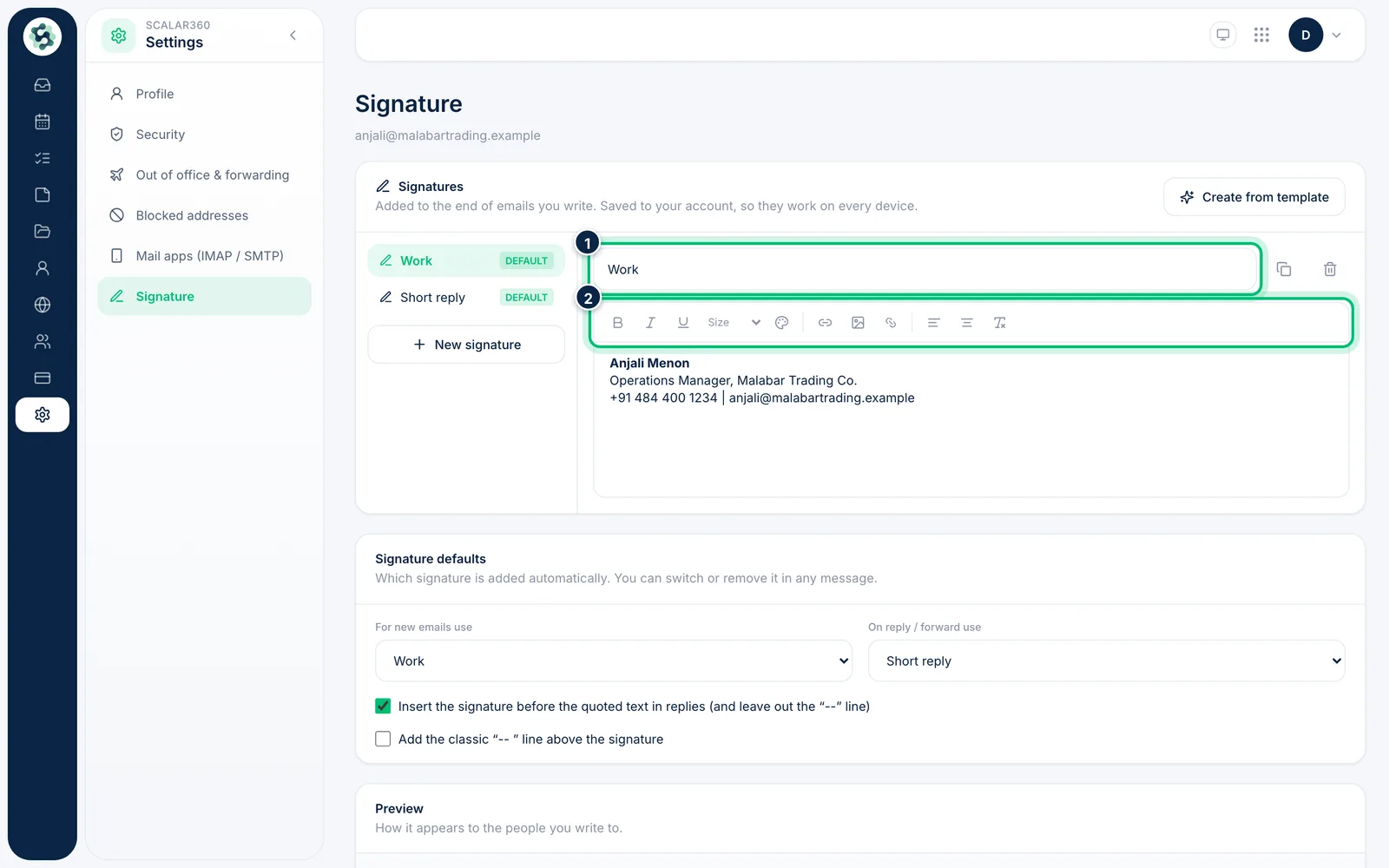
2Edit the signature
Give the signature a name and write it in the editor. The toolbar handles bold, italic, links, a logo or photo, alignment and colours. The Preview shows how it reads in a message.
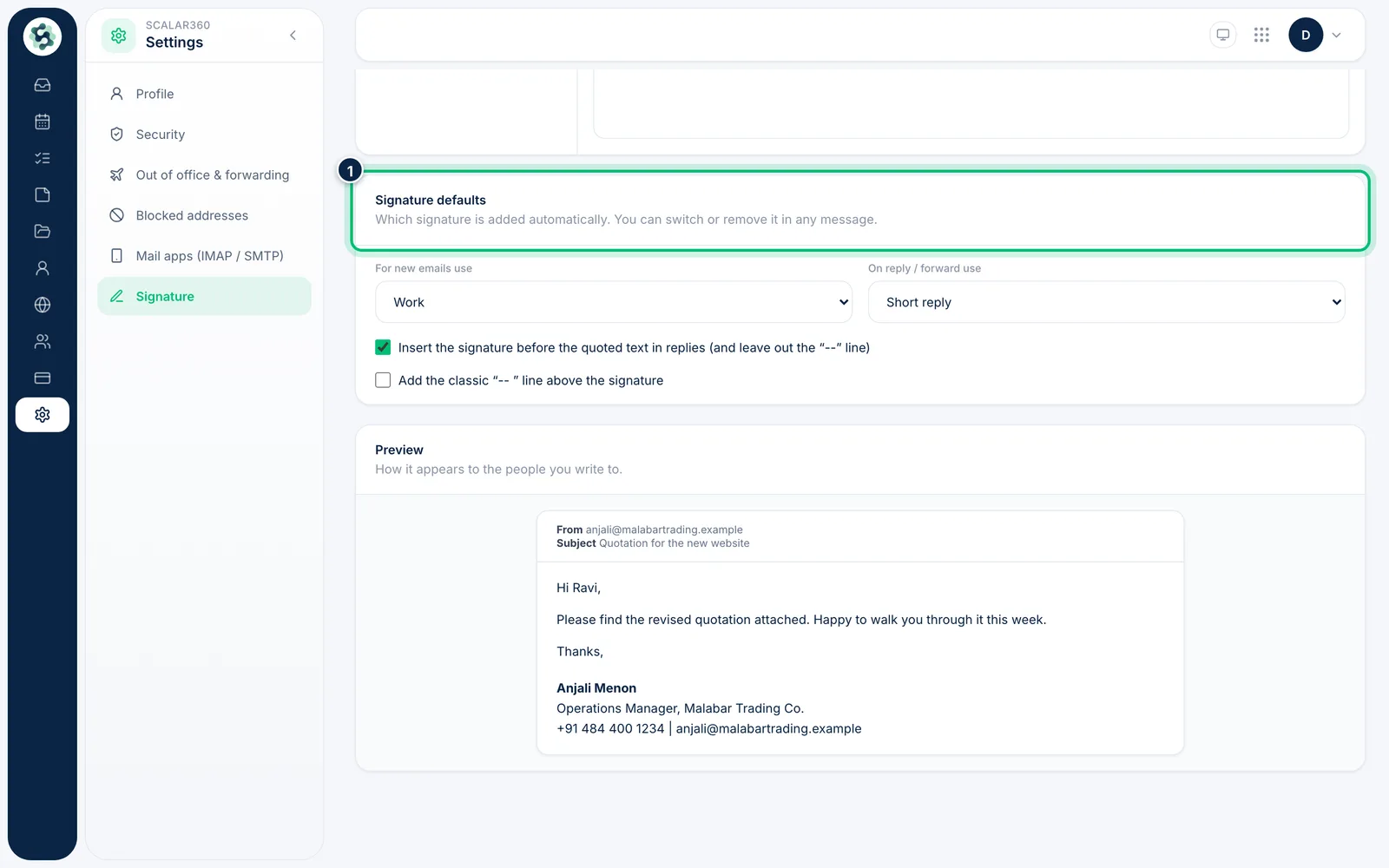
3Choose the defaults
Under Signature defaults pick the signature For new emails use and the one On reply / forward use. Choose save to keep your changes.
Related guides
Still stuck? Contact our support team — or start a free trial to try this in your own company.