
Purchasing & vendors · 5 steps
Track payables and pay a vendor
See what you owe and what's overdue, then record a payment against a bill.
Before you start: You need at least one saved bill.
1See what you owe at a glance
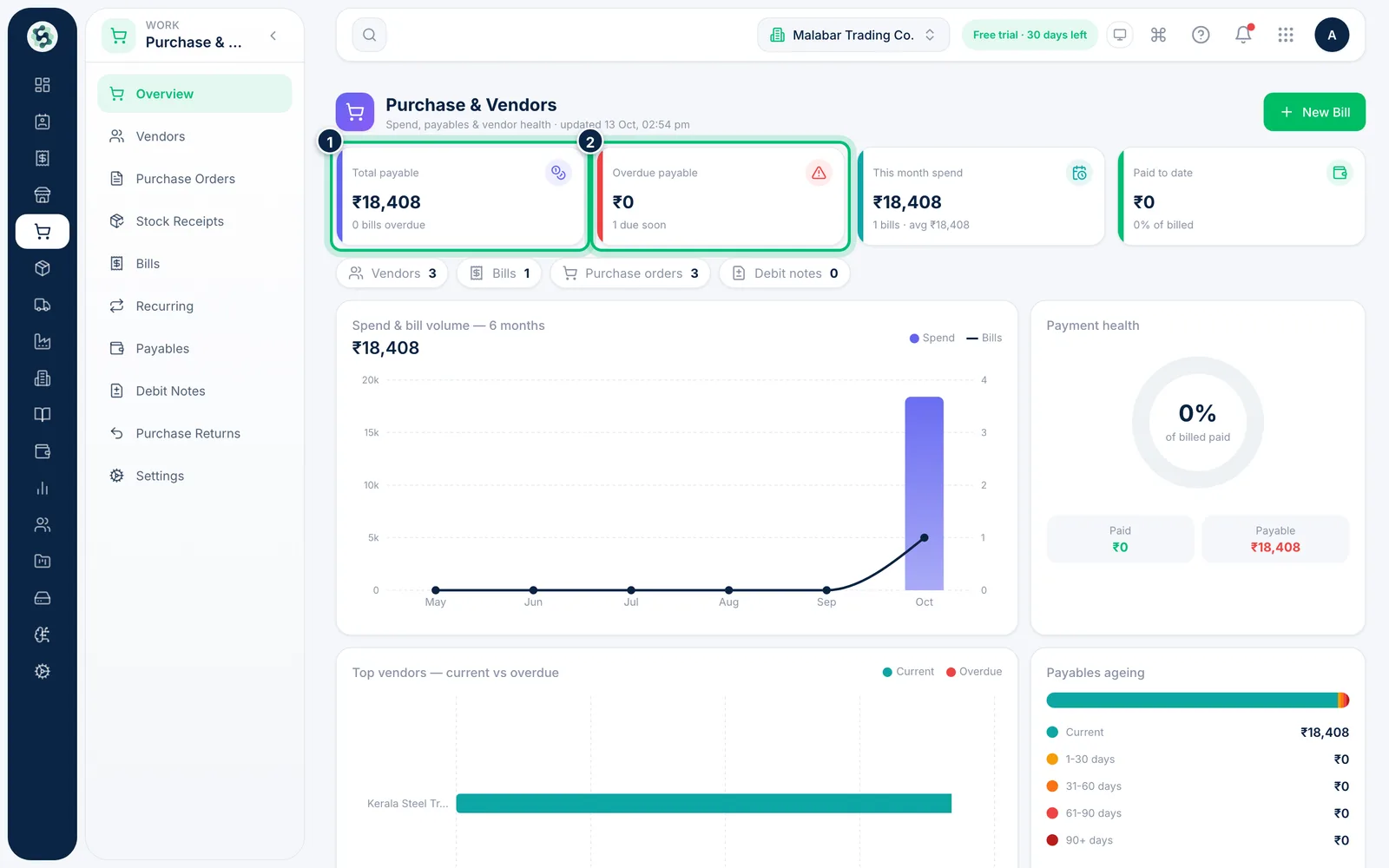
The Purchase & Vendors overview shows your Total payable, Overdue payable, this month's spend and what you've paid to date. Scroll down for the payables ageing, overdue bills and open purchase orders.
2Check payables by vendor
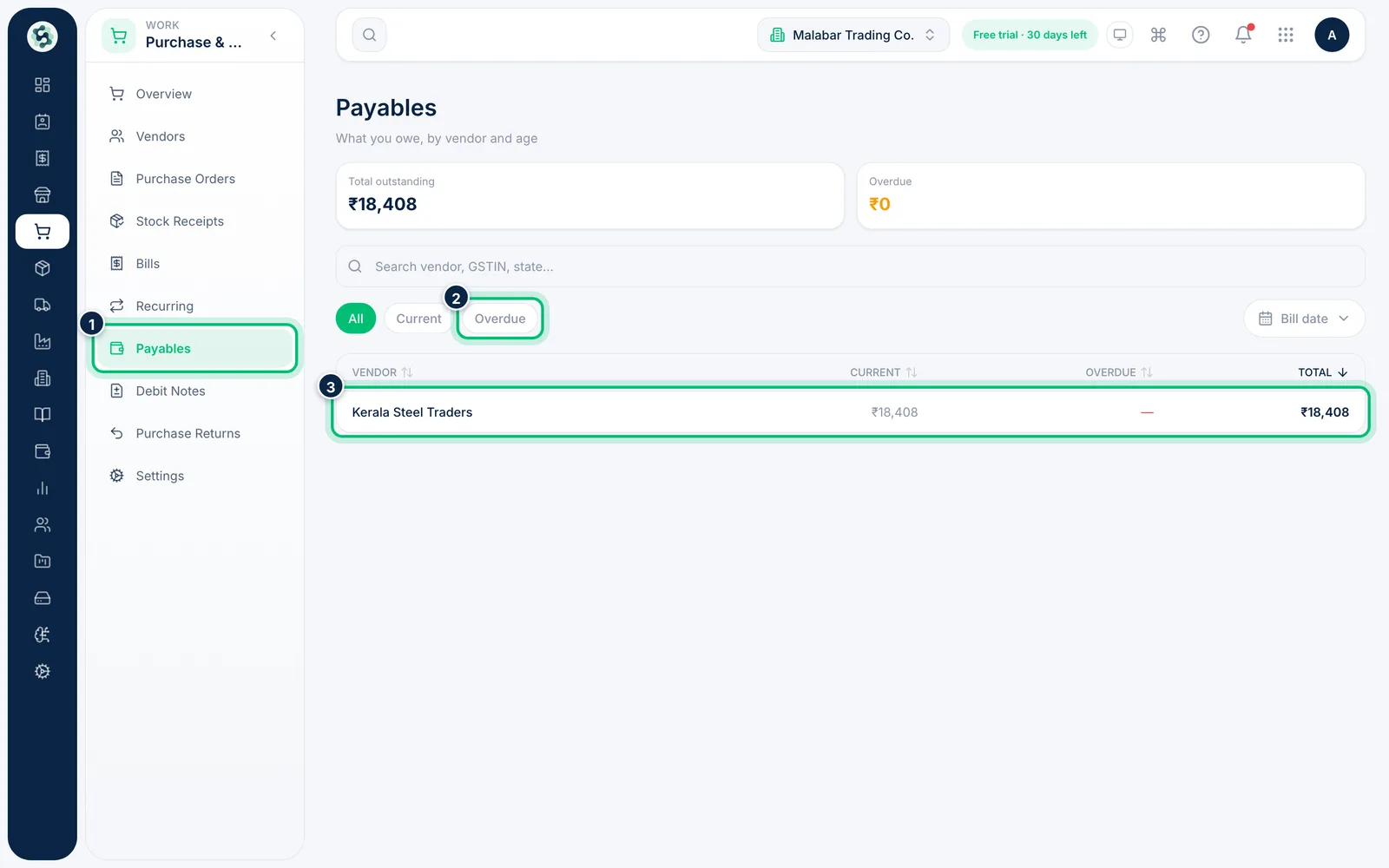
Open Payables to see how much you owe each vendor, split into Current and Overdue. Use the chips to show only overdue vendors, or Bill date to narrow the period. Click a vendor to open their page.
3Open the bill you're paying
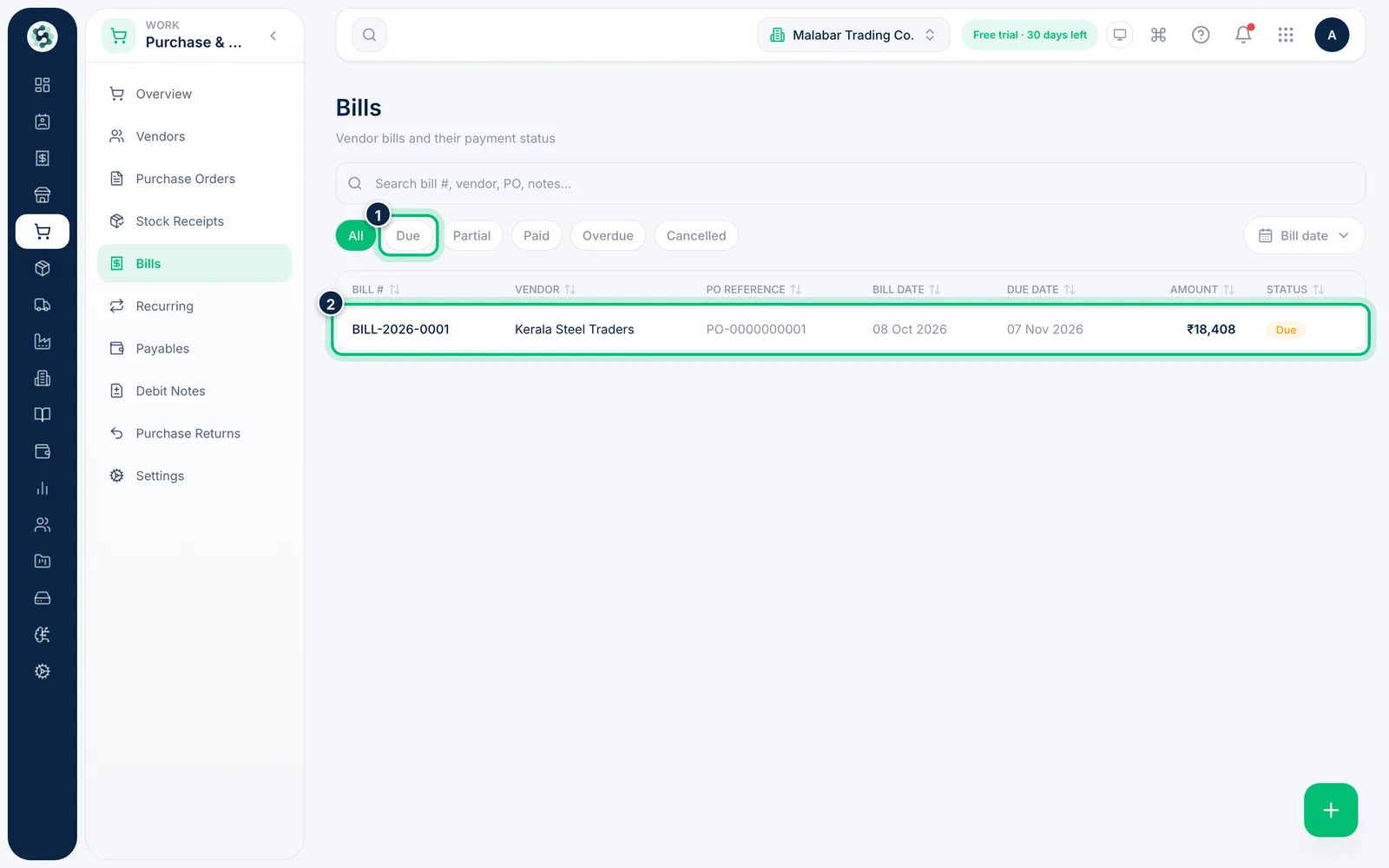
Go to Bills and click the bill. The chips along the top filter bills by status — Due, Partial, Paid, Overdue or Cancelled.
4Choose Record payment
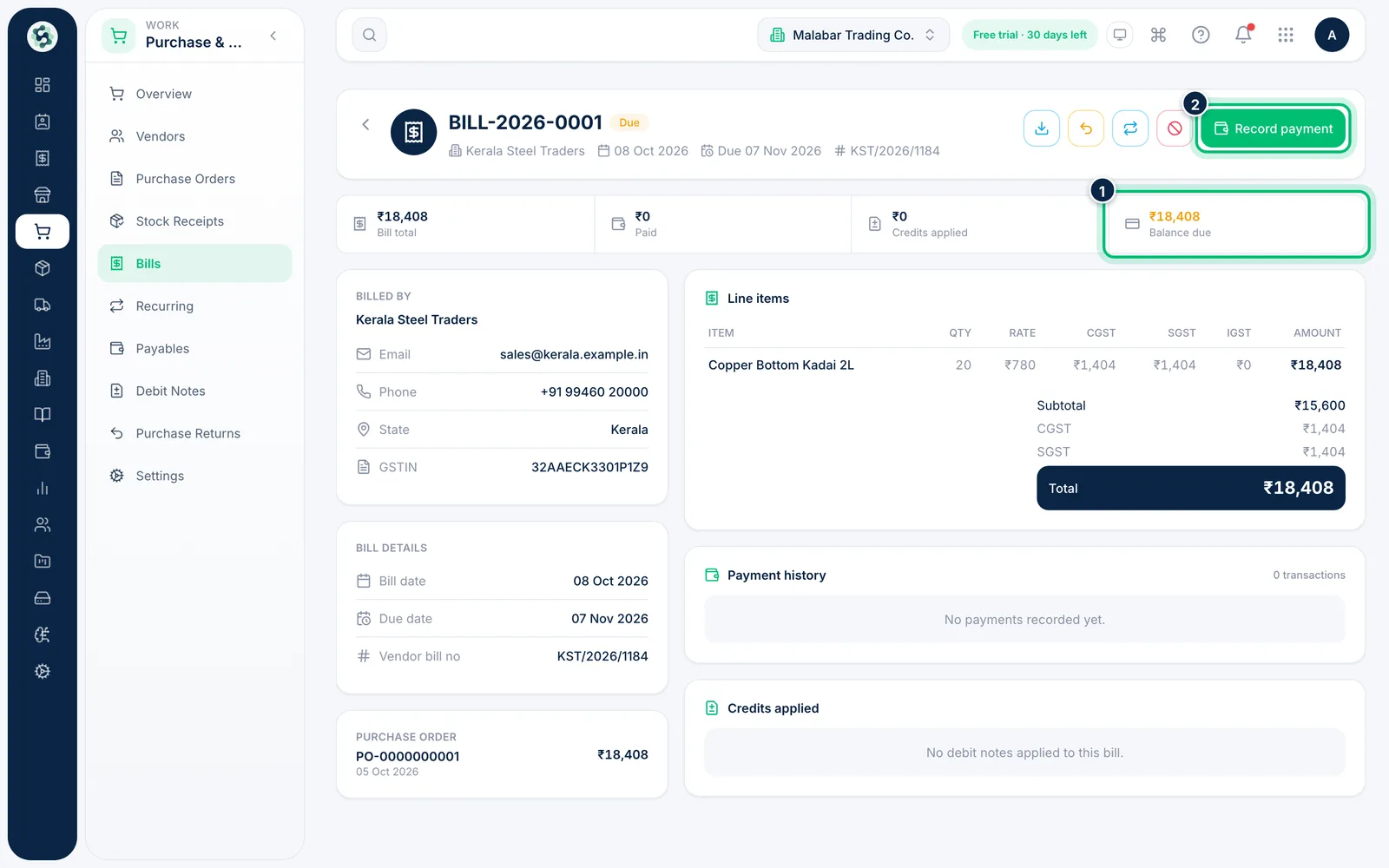
The bill page shows the Bill total, what's been Paid, any Credits applied and the Balance due. Choose Record payment.
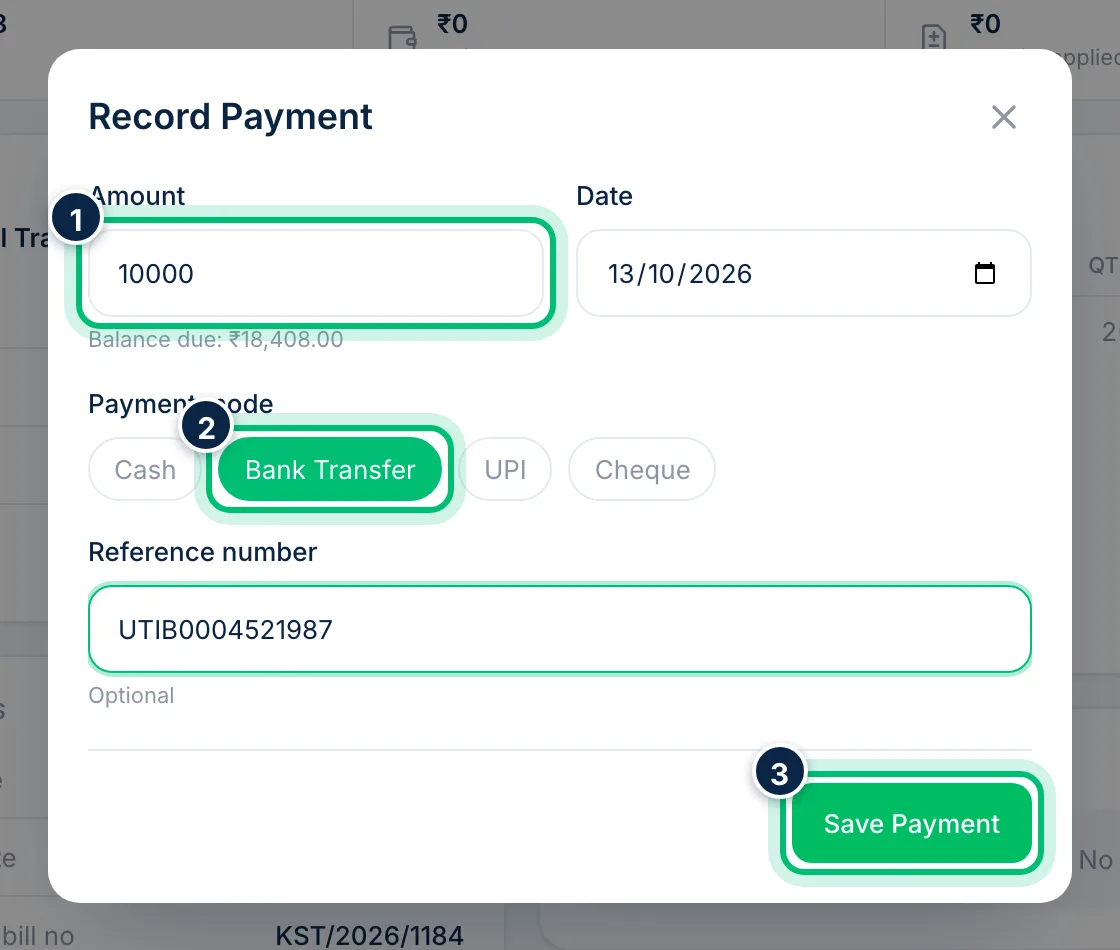
5Enter the payment and save
Enter the Amount — it can't be more than the balance due shown under the box. Set the Date, choose the Payment mode (Cash, Bank Transfer, UPI or Cheque) and add the UTR or cheque number in Reference number. Choose Save Payment.
Related guides
Still stuck? Contact our support team — or start a free trial to try this in your own company.