
Inventory · 4 steps
Transfer stock between warehouses
Move goods from one warehouse to another with a transfer order that tracks them while they're in transit.
Before you start: You need at least two warehouses.
1Start a new transfer
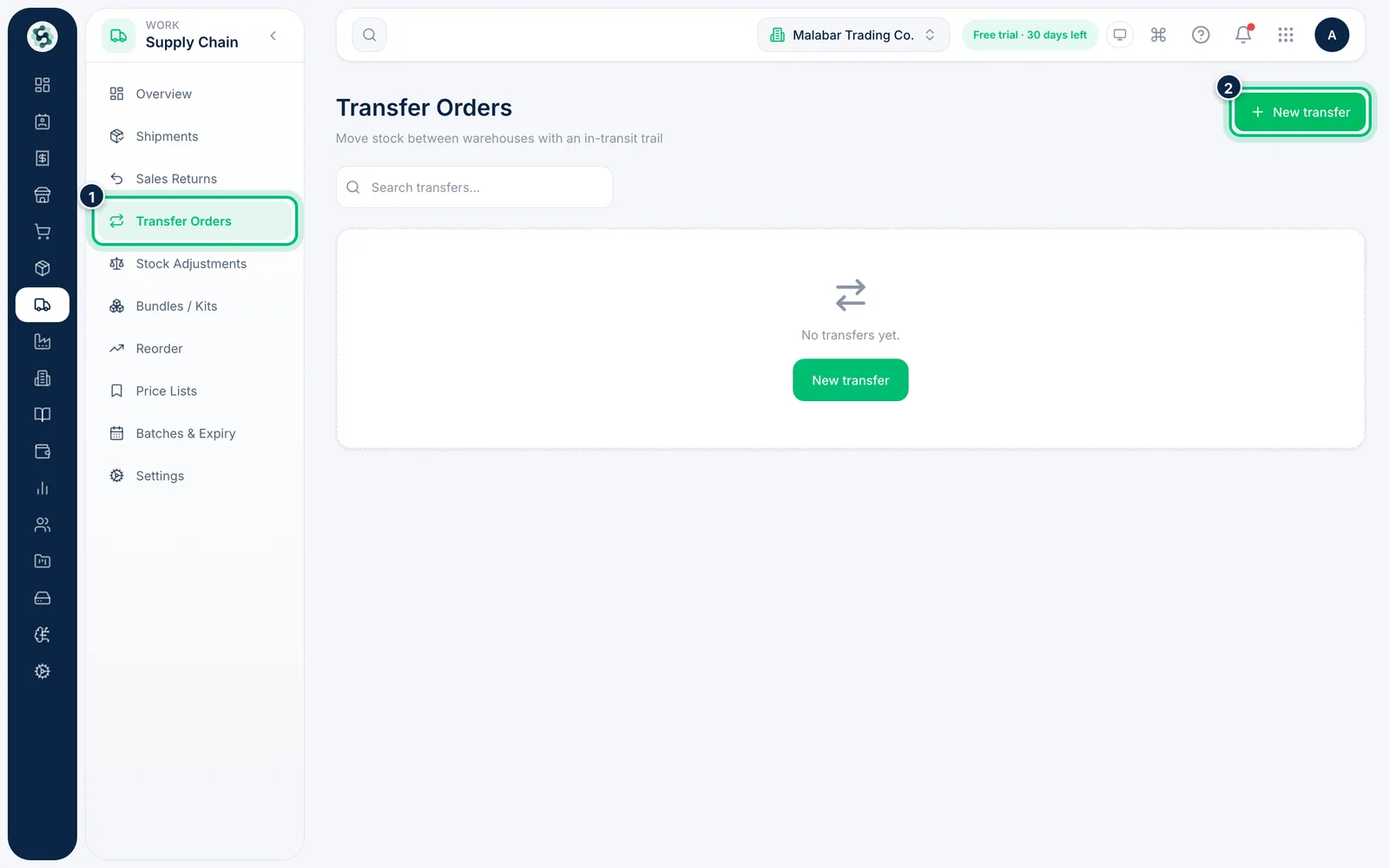
Open Supply Chain → Transfer Orders and choose New transfer.
2Choose where the stock is going
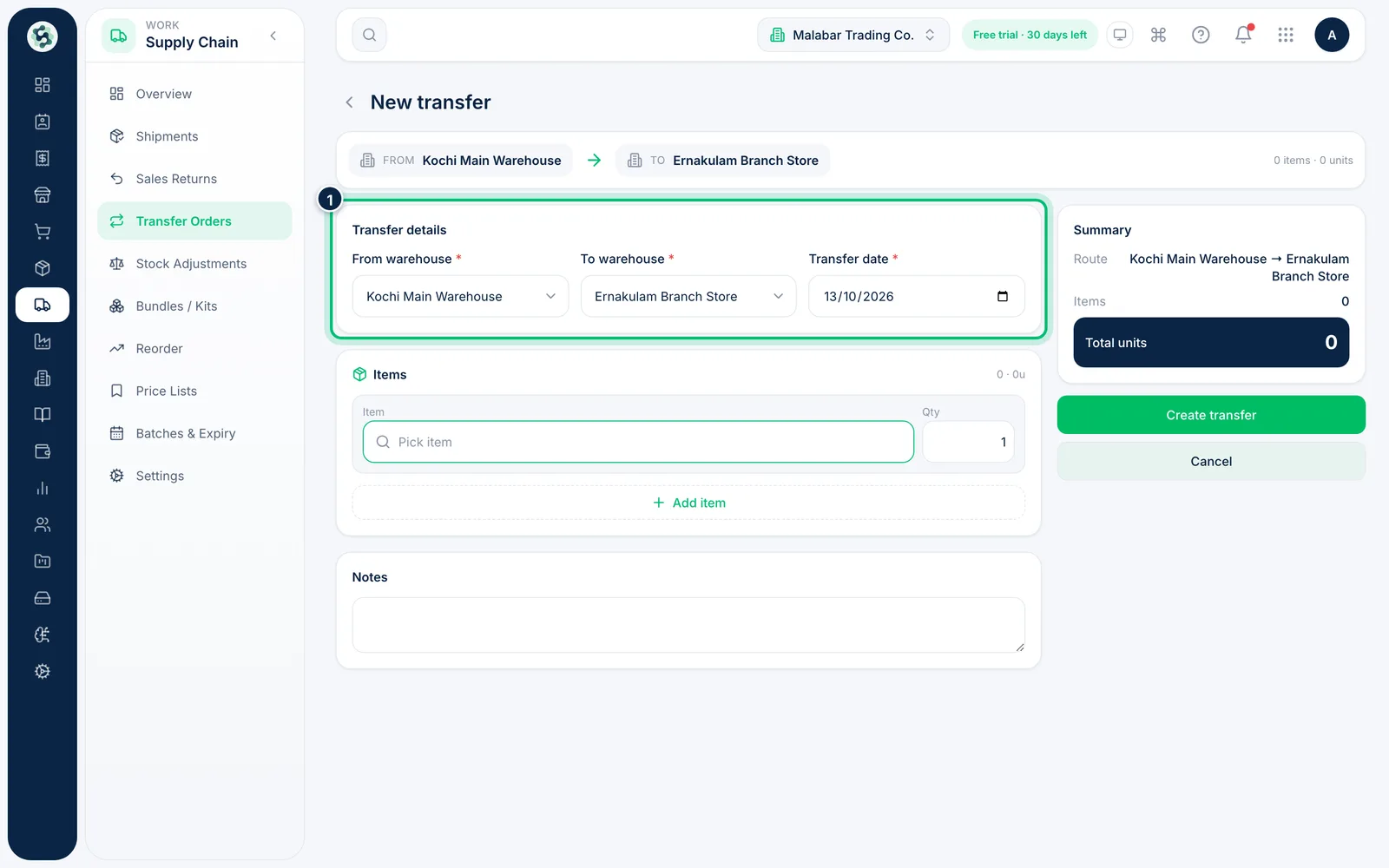
Pick the From warehouse and the To warehouse, and set the Transfer date. The banner at the top shows the route.
3Add the items to move
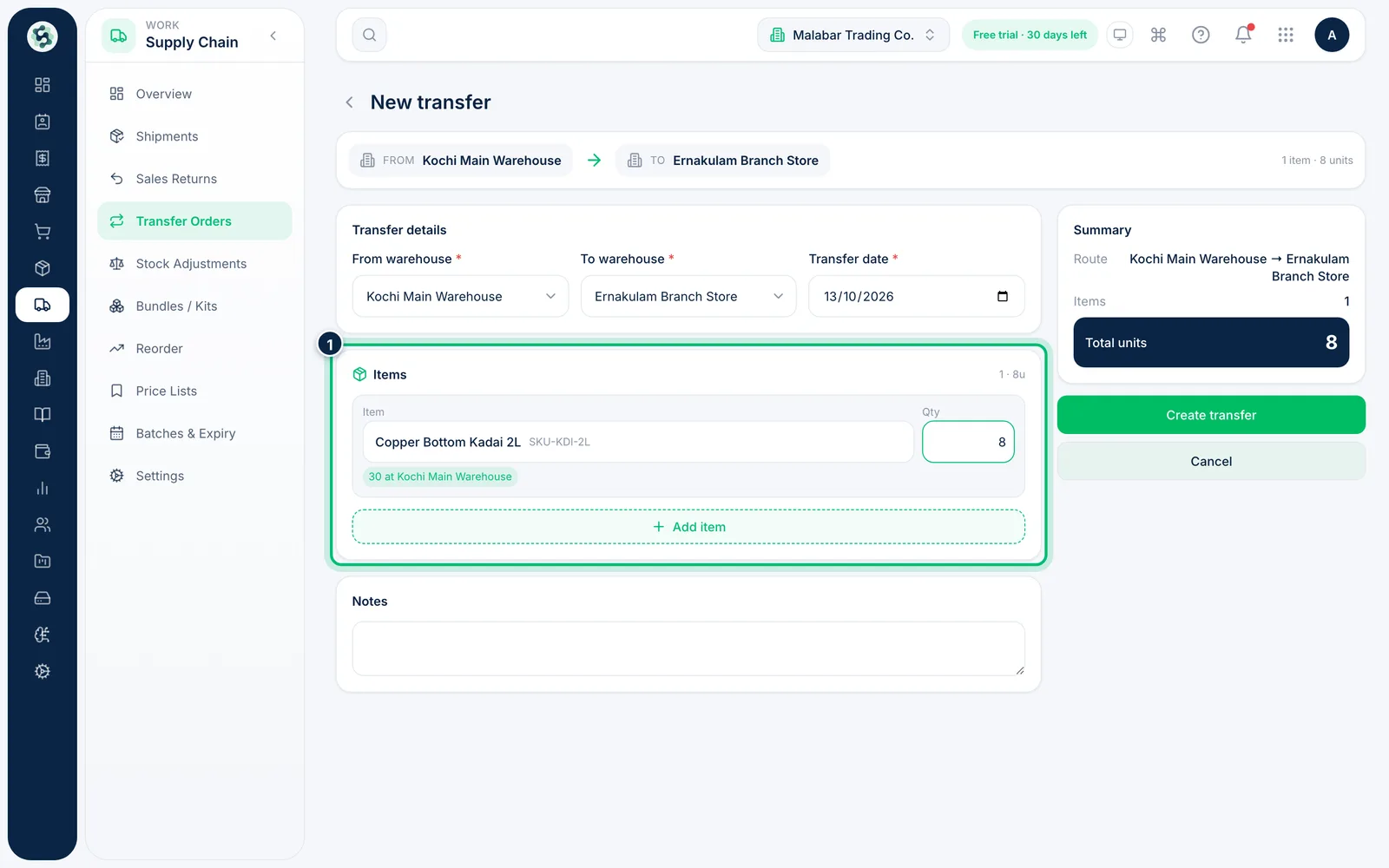
Click Pick item, choose the item and enter the Qty. Scalar360 shows how many are available at the source warehouse and warns you if there aren't enough. Use Add item for more lines.
4Create, dispatch and receive
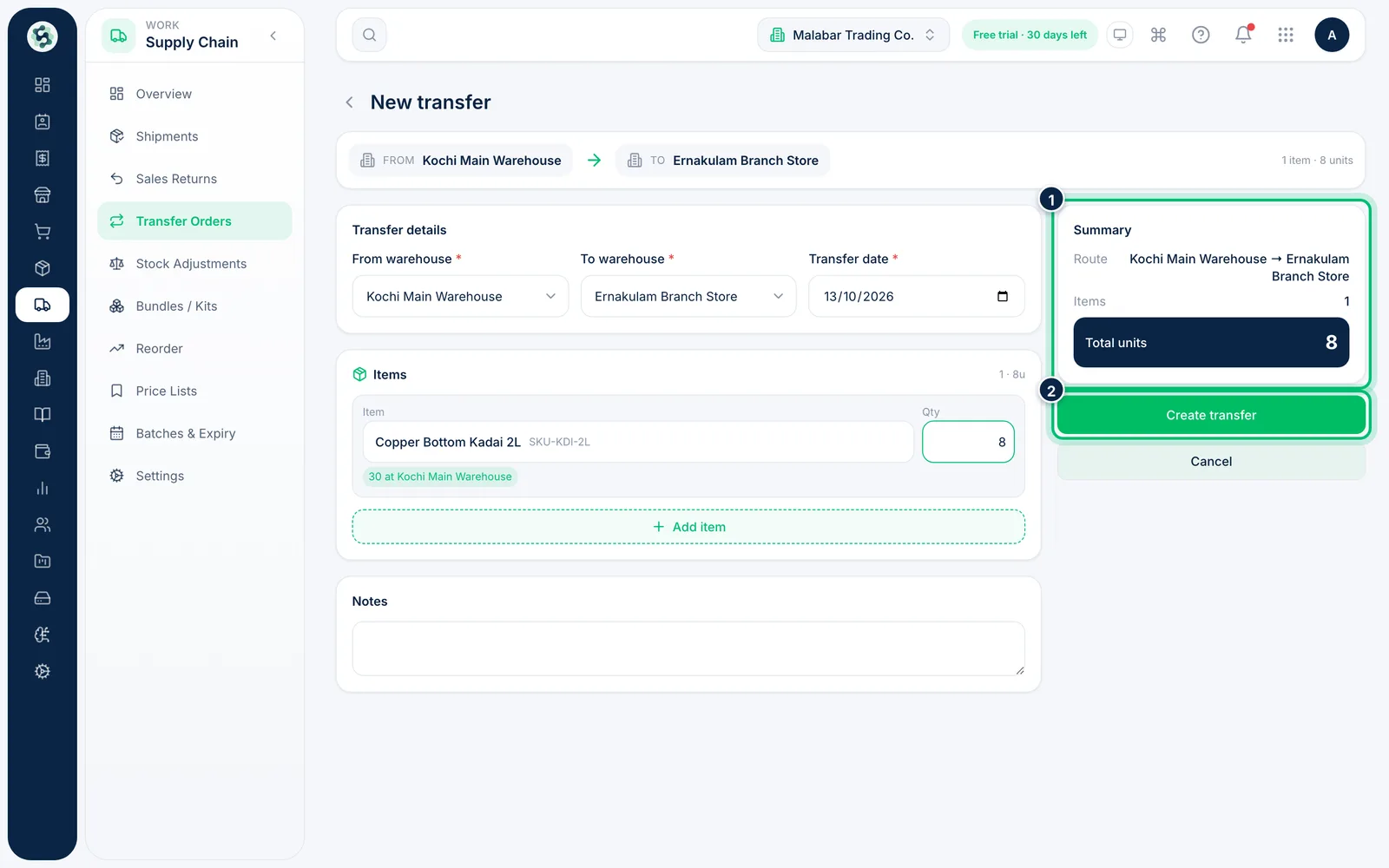
Choose Create transfer to save it as a draft. Open it and choose Dispatch when the goods leave — stock leaves the source and is shown as in transit. When they arrive, choose Receive at destination to add them to the other warehouse.
Related guides
Still stuck? Contact our support team — or start a free trial to try this in your own company.