
Expenses · 4 steps
Track your claims
See where each of your claims has got to, and fix and resubmit one that was returned to you.
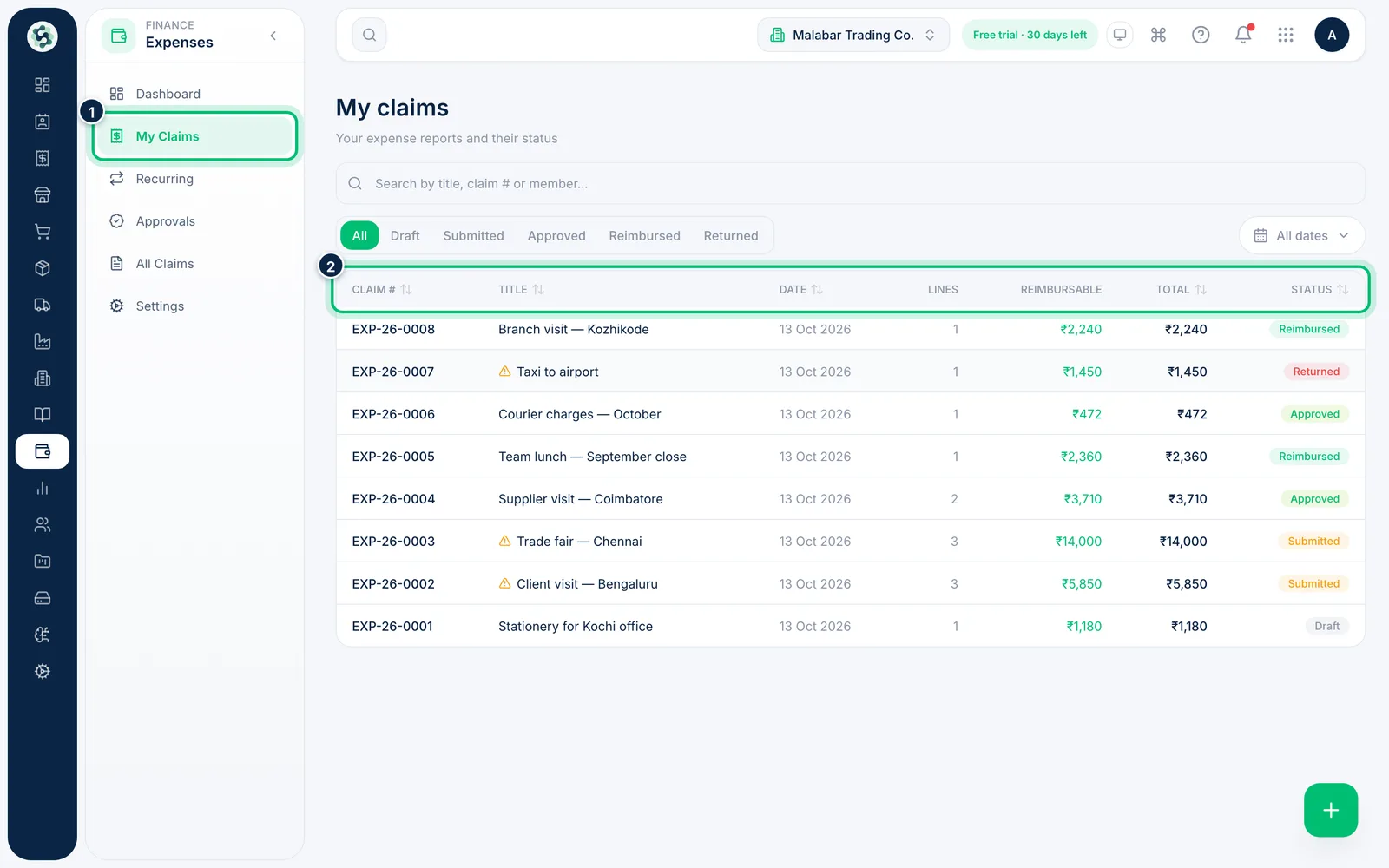
1Open My Claims
Go to Expenses → My Claims. Each row shows the claim number, title, date, number of lines, the Reimbursable amount, the Total and its Status.
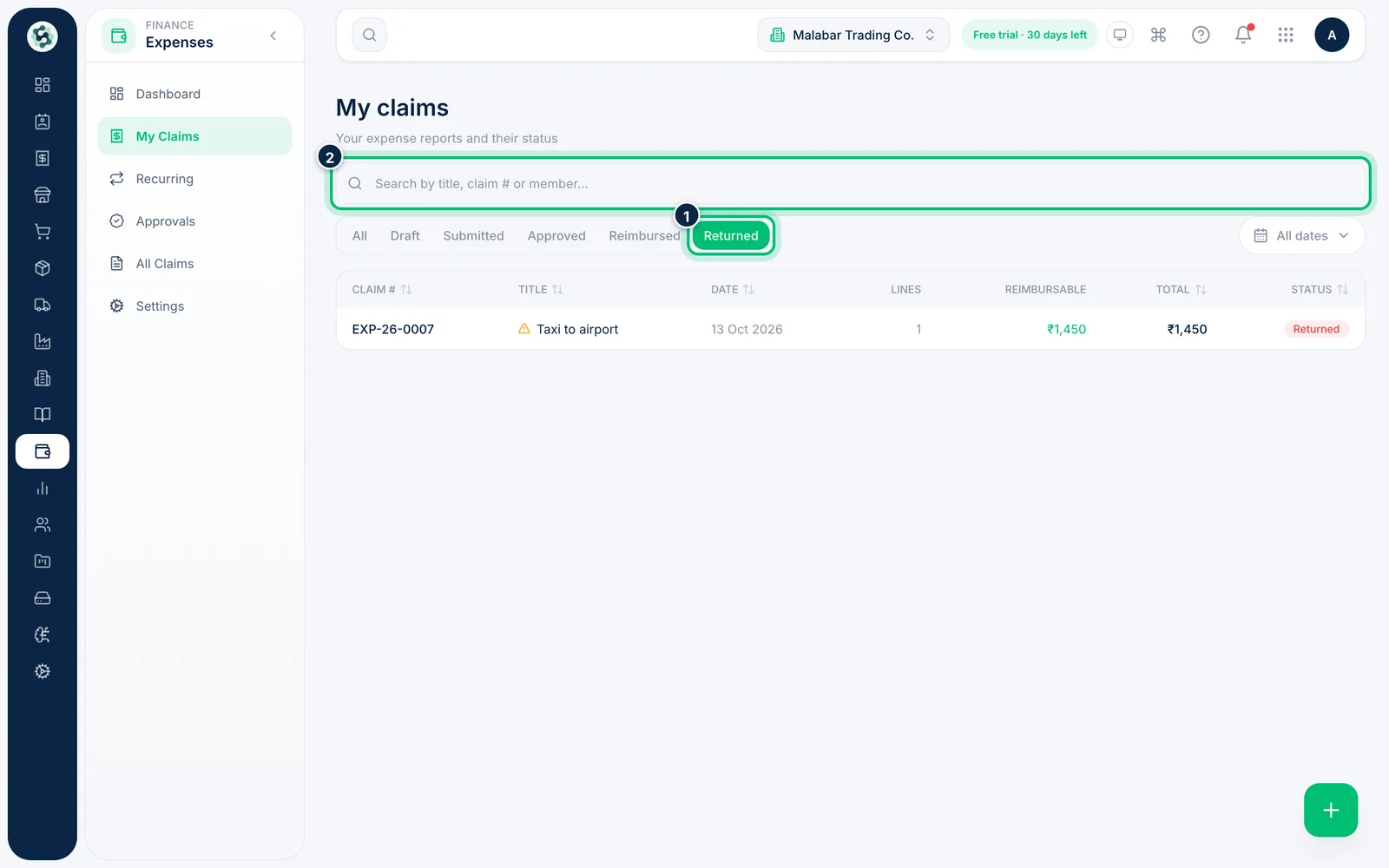
2Filter by status
Use the tabs — Draft, Submitted, Approved, Reimbursed or Returned — to see only claims at that stage. You can also search by title or claim number, or pick a date range.
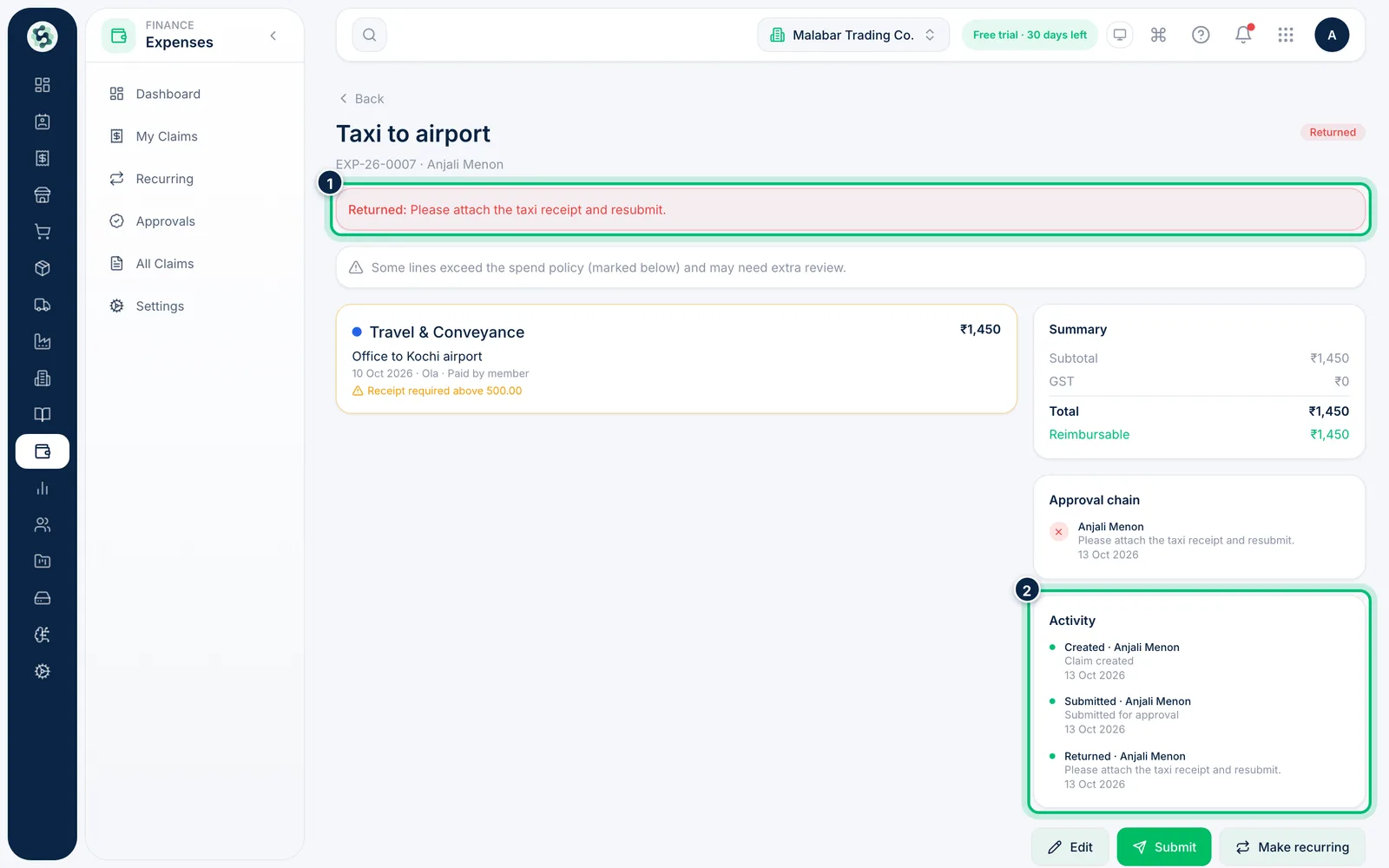
3See why a claim was returned
Open a returned claim. The approver's reason appears at the top, and Activity lists everything that's happened to the claim so far.
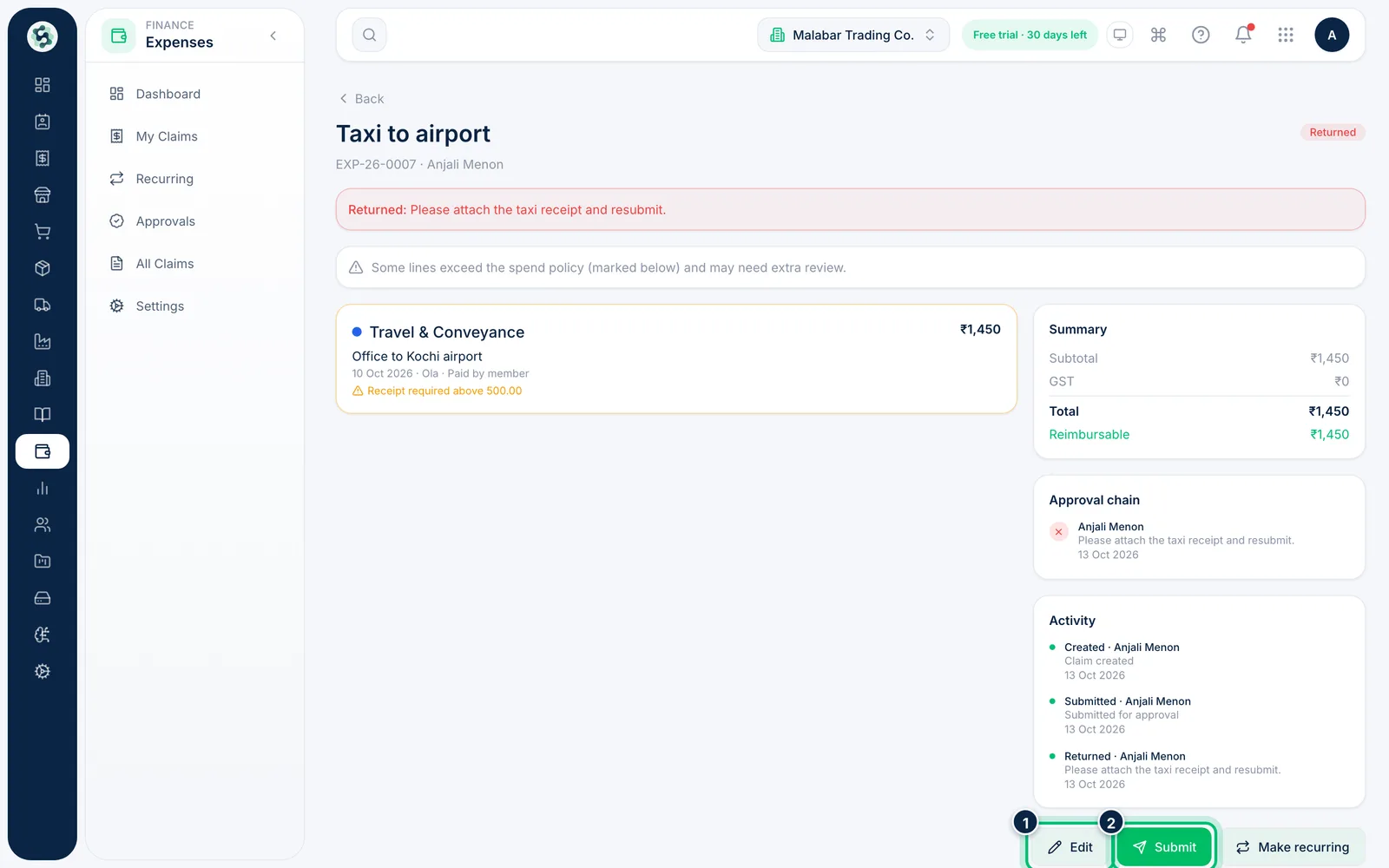
4Fix it and send it back
Choose Edit to correct the claim — for example to attach the missing receipt — then choose Submit to send it again. It goes back through the approval chain from the start.
Related guides
Still stuck? Contact our support team — or start a free trial to try this in your own company.