
Projects · 4 steps
Archive, restore or reopen a project
Put finished or paused projects away so your lists stay focused, and bring them back when you need them.
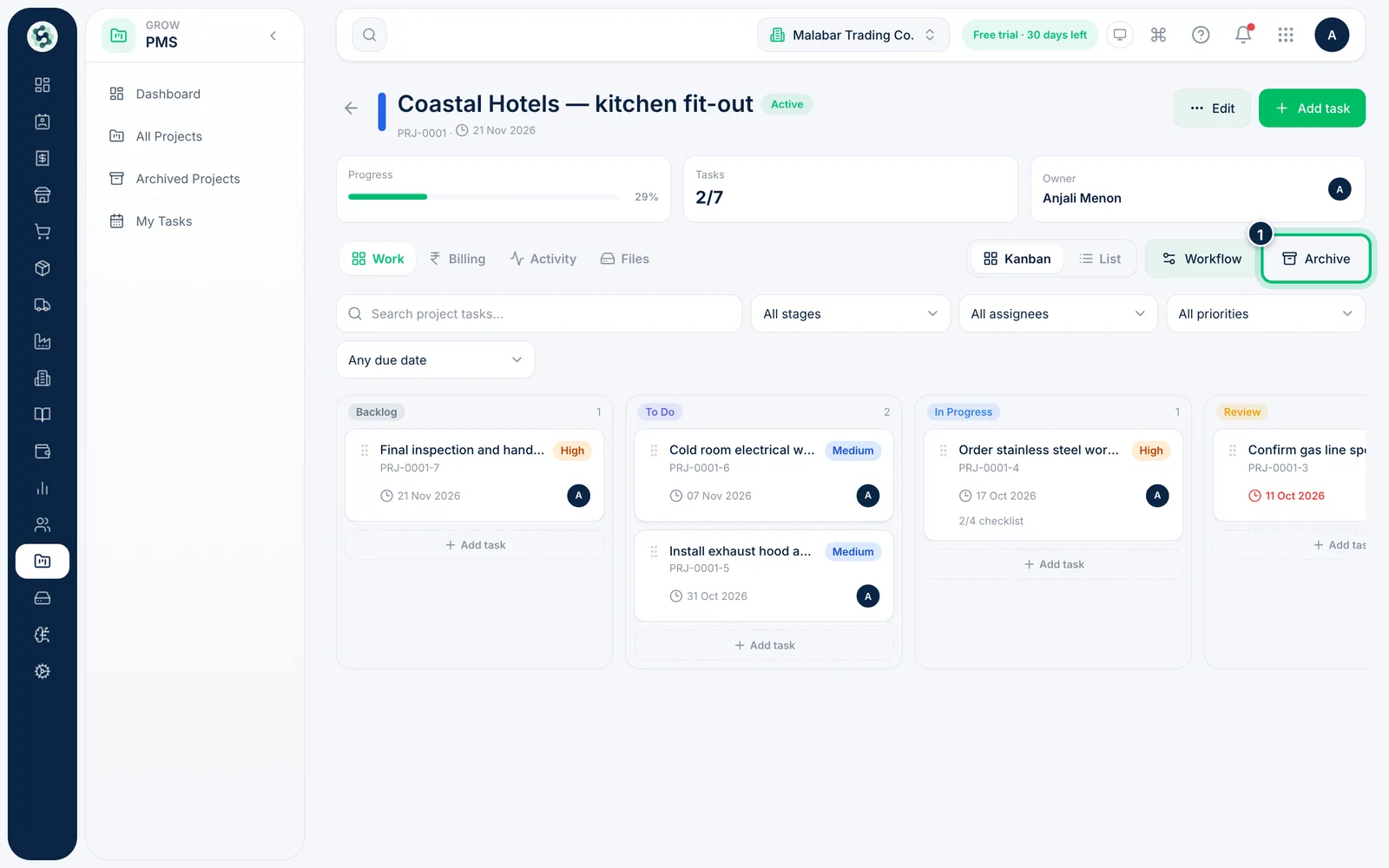
1Archive the project
Open the project, choose Settings → General, and under Lifecycle choose Archive project.
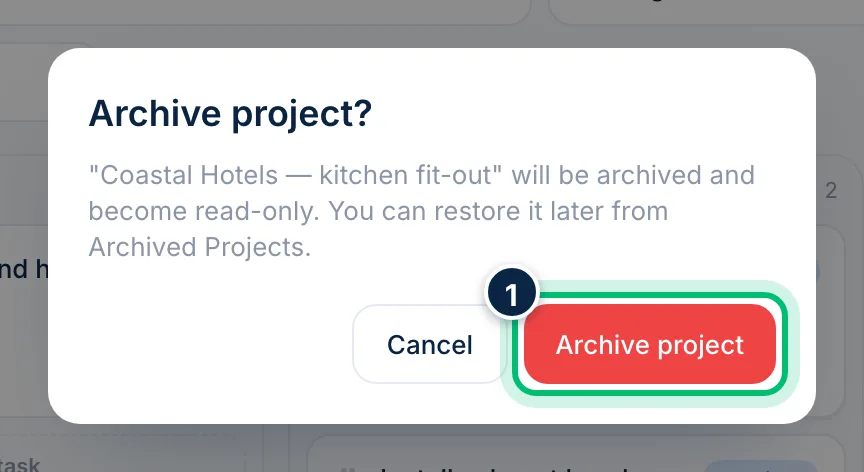
2Confirm
Choose Archive project to confirm. The project becomes read-only and moves to the Archived tab; nothing in it is deleted.
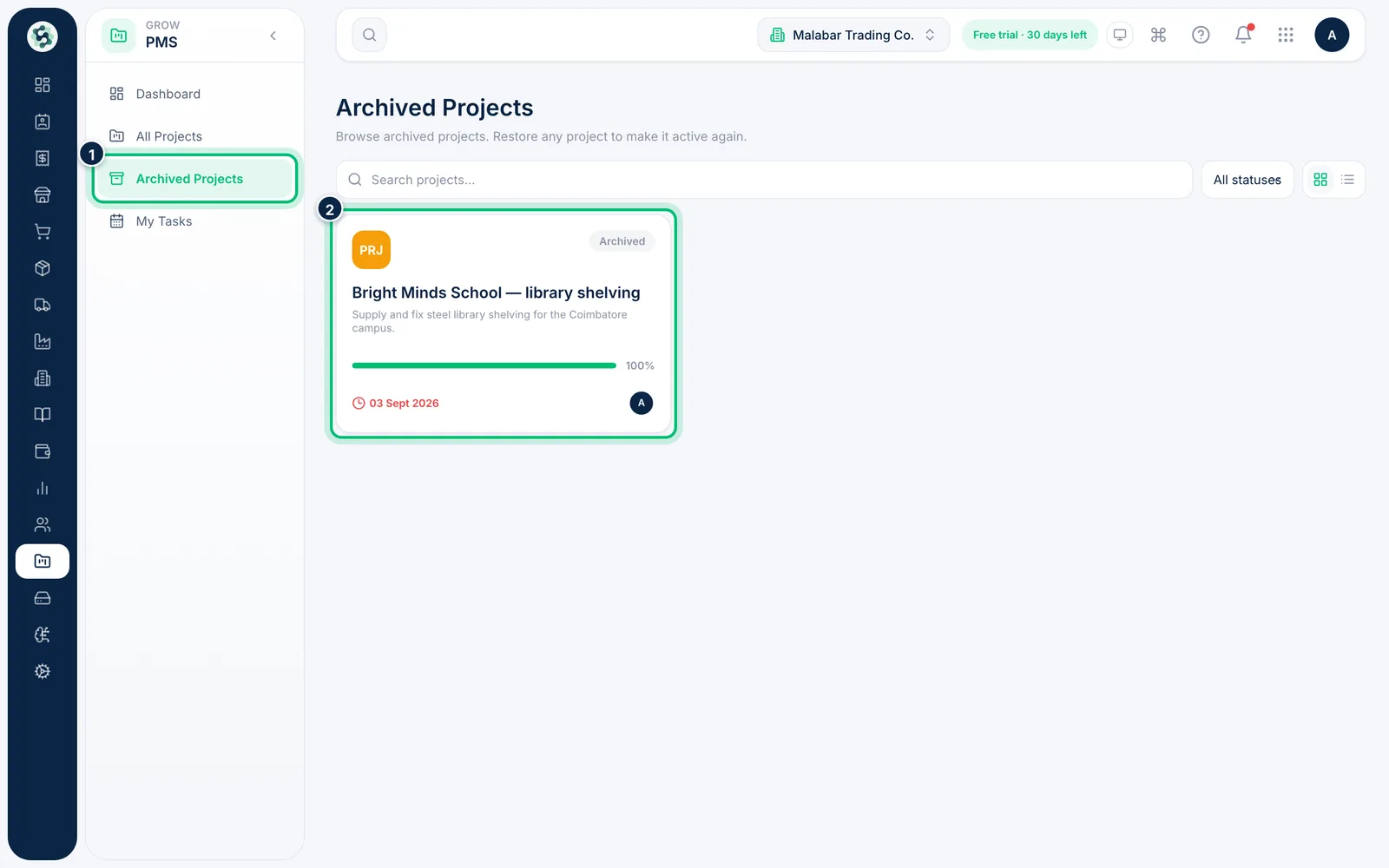
3Find archived projects
Open PMS → Projects and choose the Archived tab to browse them. You can still open an archived project to look at its tasks, comments and history.
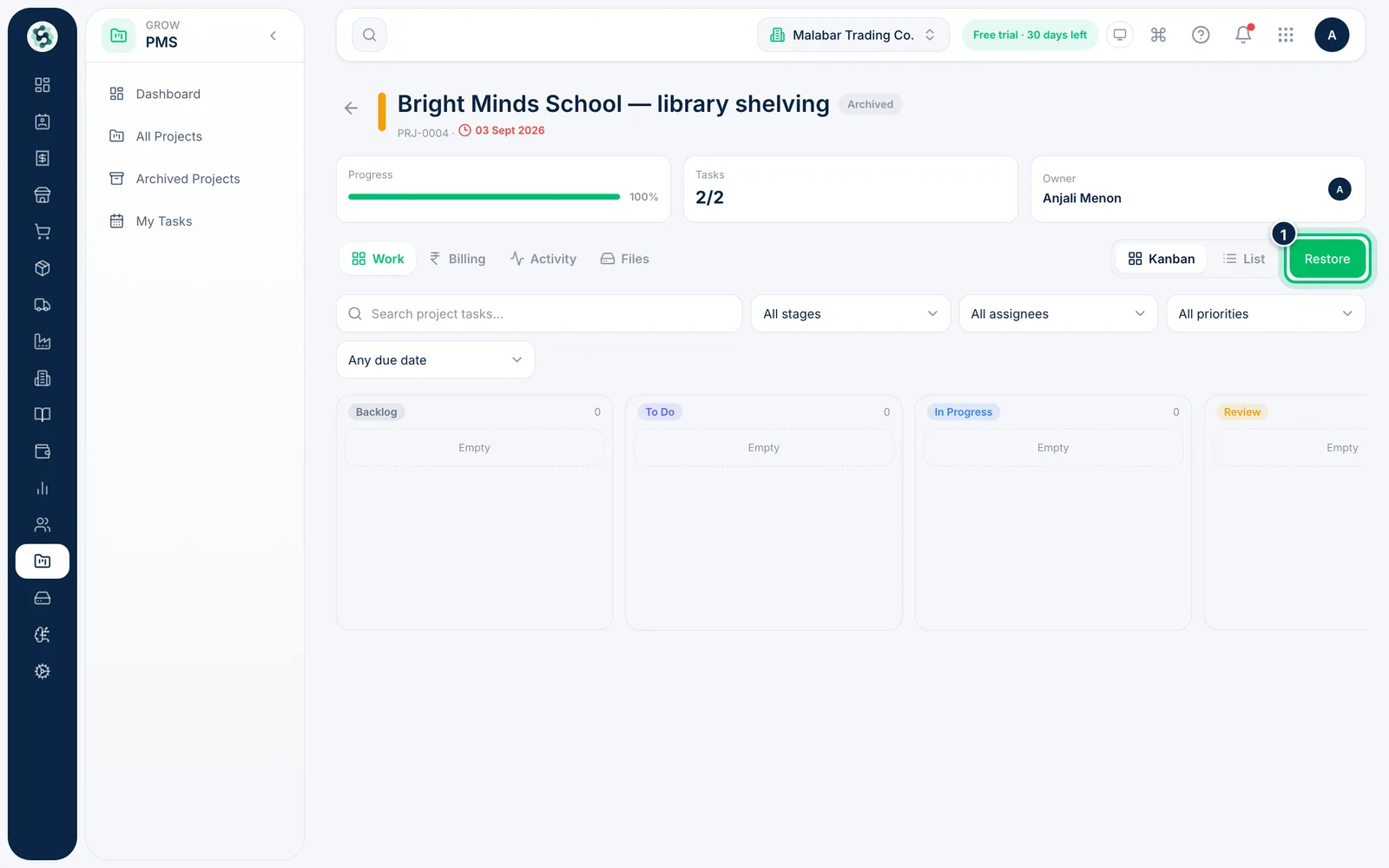
4Restore the project
Open the archived project and choose Restore to make it active again. If the project was Completed, choose Reopen afterwards to set it back to Active so tasks can be edited.
Related guides
Create a projectSet up a project with an owner, status, priority and dates, so the team has one place to plan and track the work.Track progress on the PMS dashboardSee active projects, open and overdue tasks, progress per project and each member's workload at a glance.
Still stuck? Contact our support team — or start a free trial to try this in your own company.