
Settings & administration · 4 steps
Export your data and manage your account
Download a copy of your organisation's data, request a password reset link or deactivate your account.
Before you start: Exporting downloads a JSON file to your computer. Deactivating needs care — read the warning first.
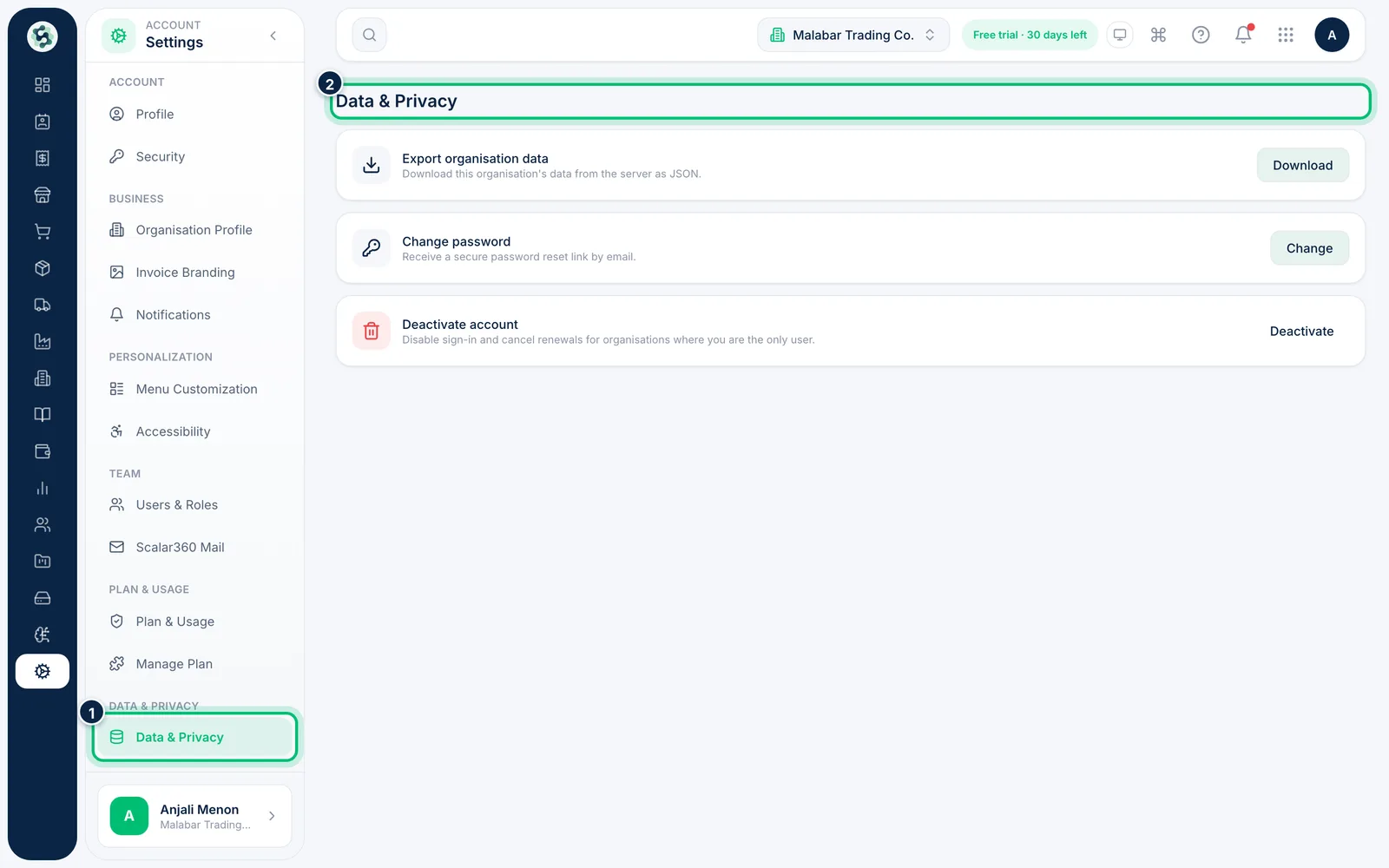
1Open Data & Privacy
Go to Settings → Data & Privacy. Three actions are listed.
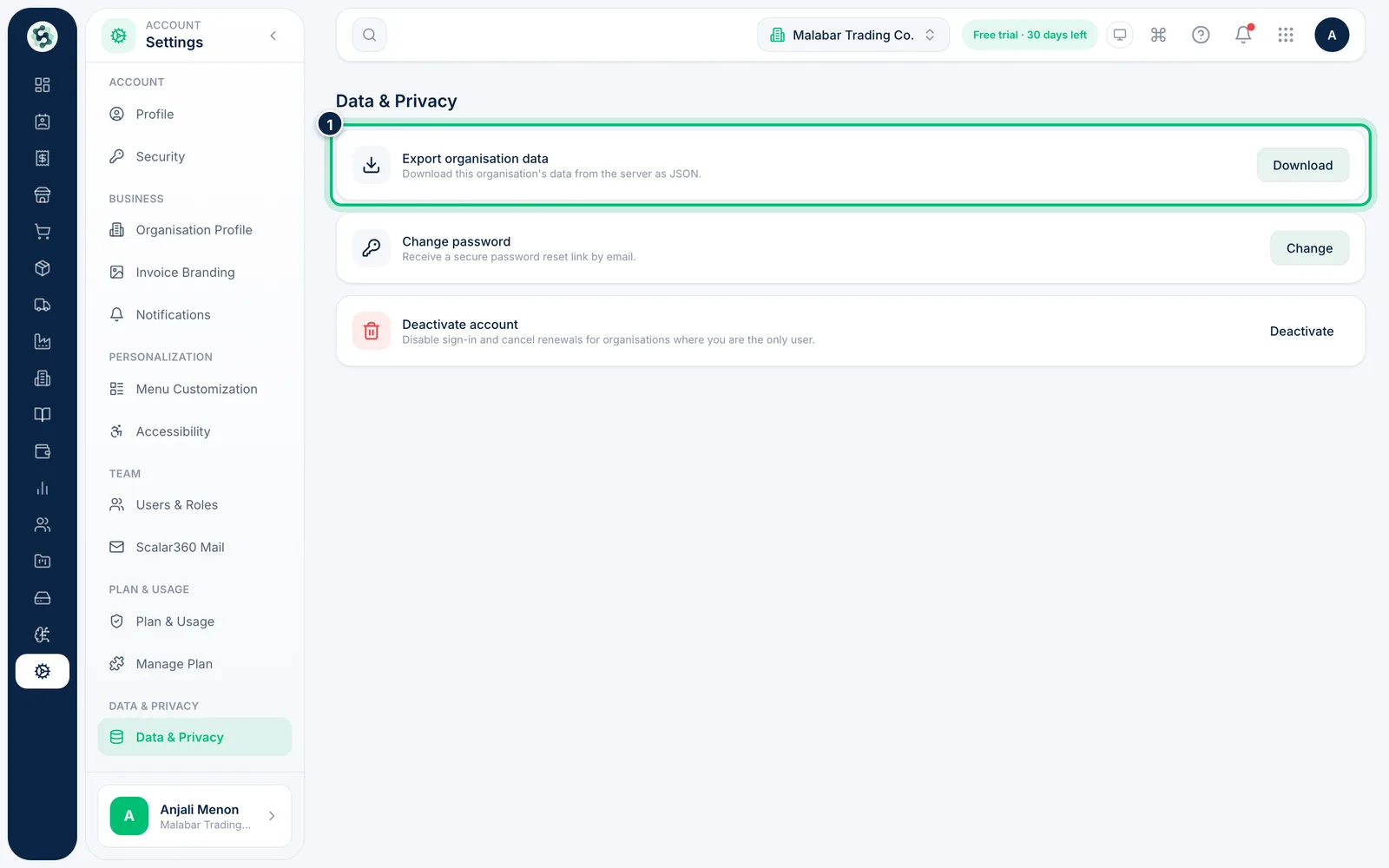
2Export your organisation's data
Choose Download next to Export organisation data to get this organisation's data as a JSON file. Do this regularly if you keep your own backups.
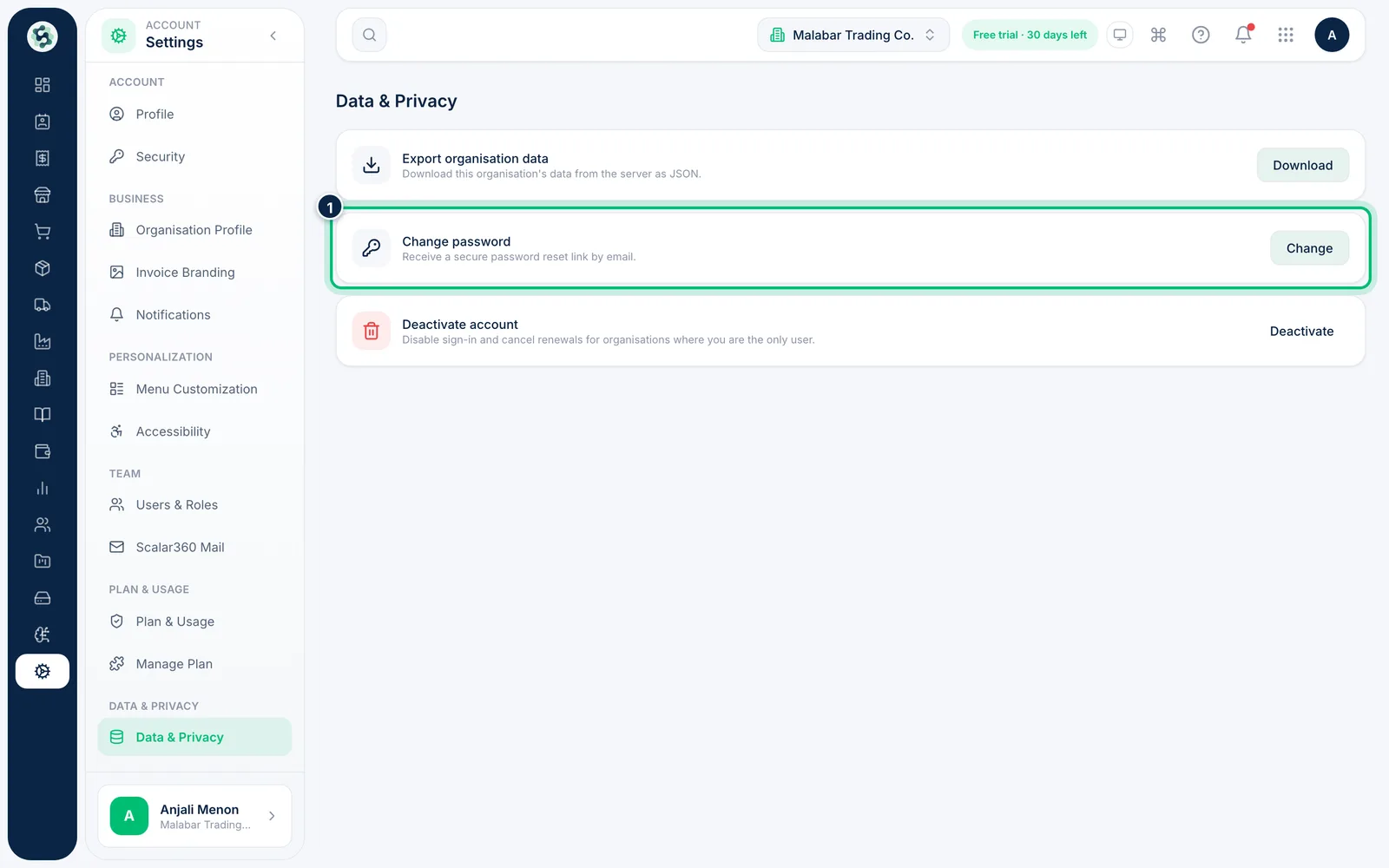
3Get a password reset link
Choose Change next to Change password and we email you a secure reset link.
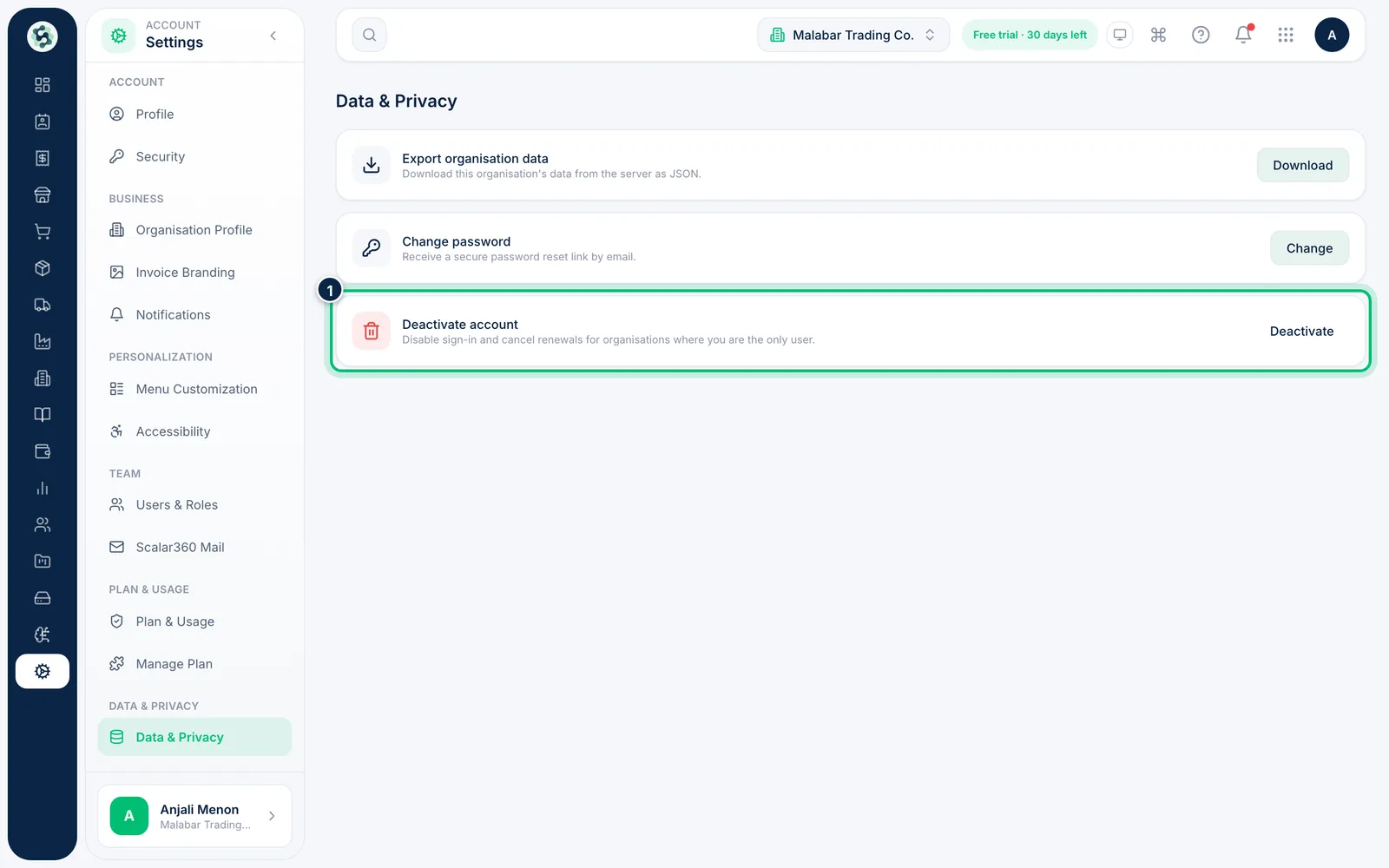
4Know what deactivating does
Deactivate account disables your sign-in and cancels renewals for organisations where you are the only user. Records and billing history are kept. If you are the only owner of an organisation with other users, you must transfer ownership first.
Related guides
Still stuck? Contact our support team — or start a free trial to try this in your own company.