
Accounting & GST · 5 steps
View profit & loss, balance sheet and trial balance
Run your P&L for any period and your balance sheet or trial balance as of any date, straight from the general ledger.
Before you start: Every invoice, bill, receipt, payment and expense posts a balanced journal entry automatically, so these reports are always up to date.
1Open the General Ledger
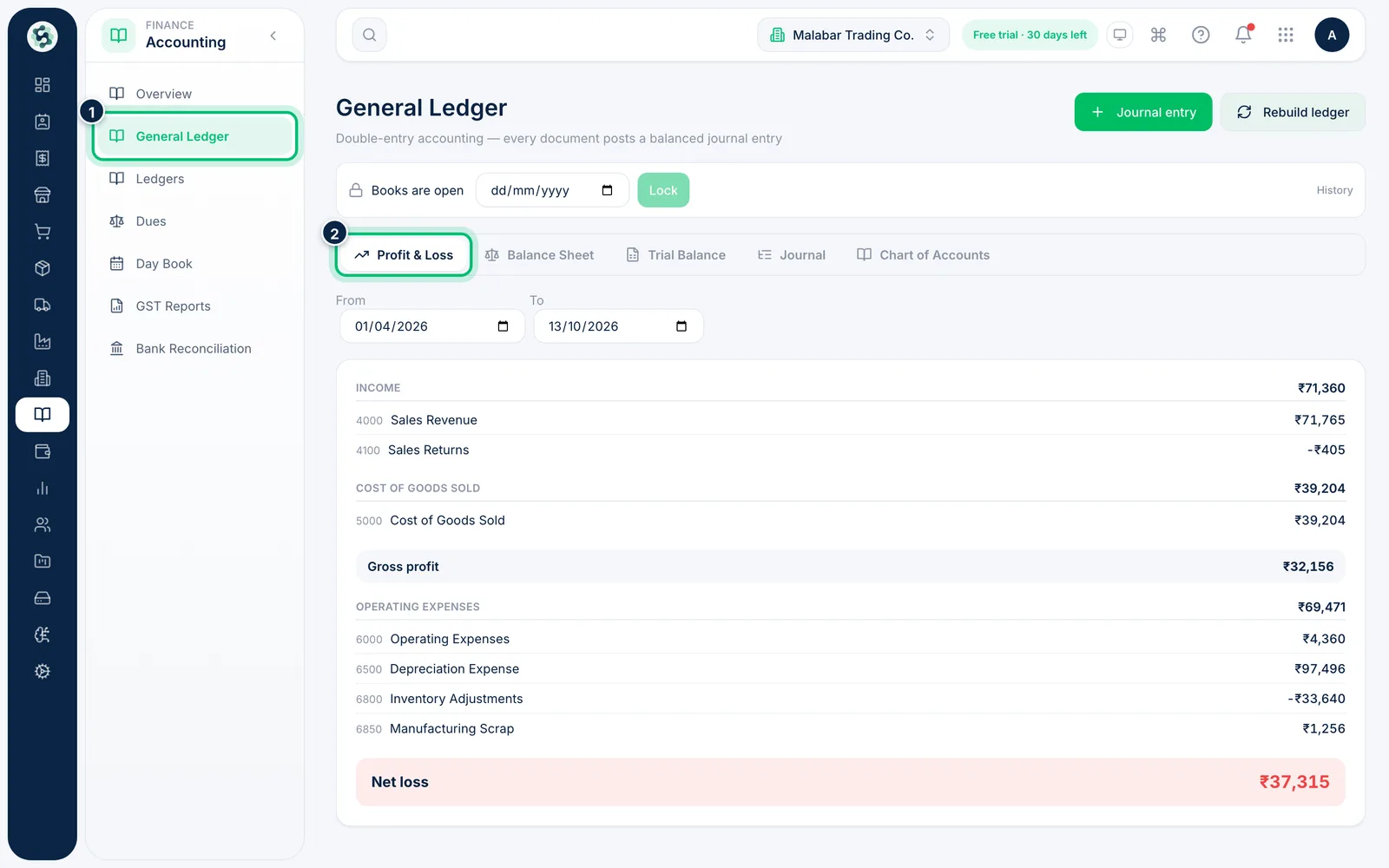
In the left menu open Accounting → General Ledger. It opens on the Profit & Loss tab, from the start of the financial year to today.
2Choose the period for your P&L
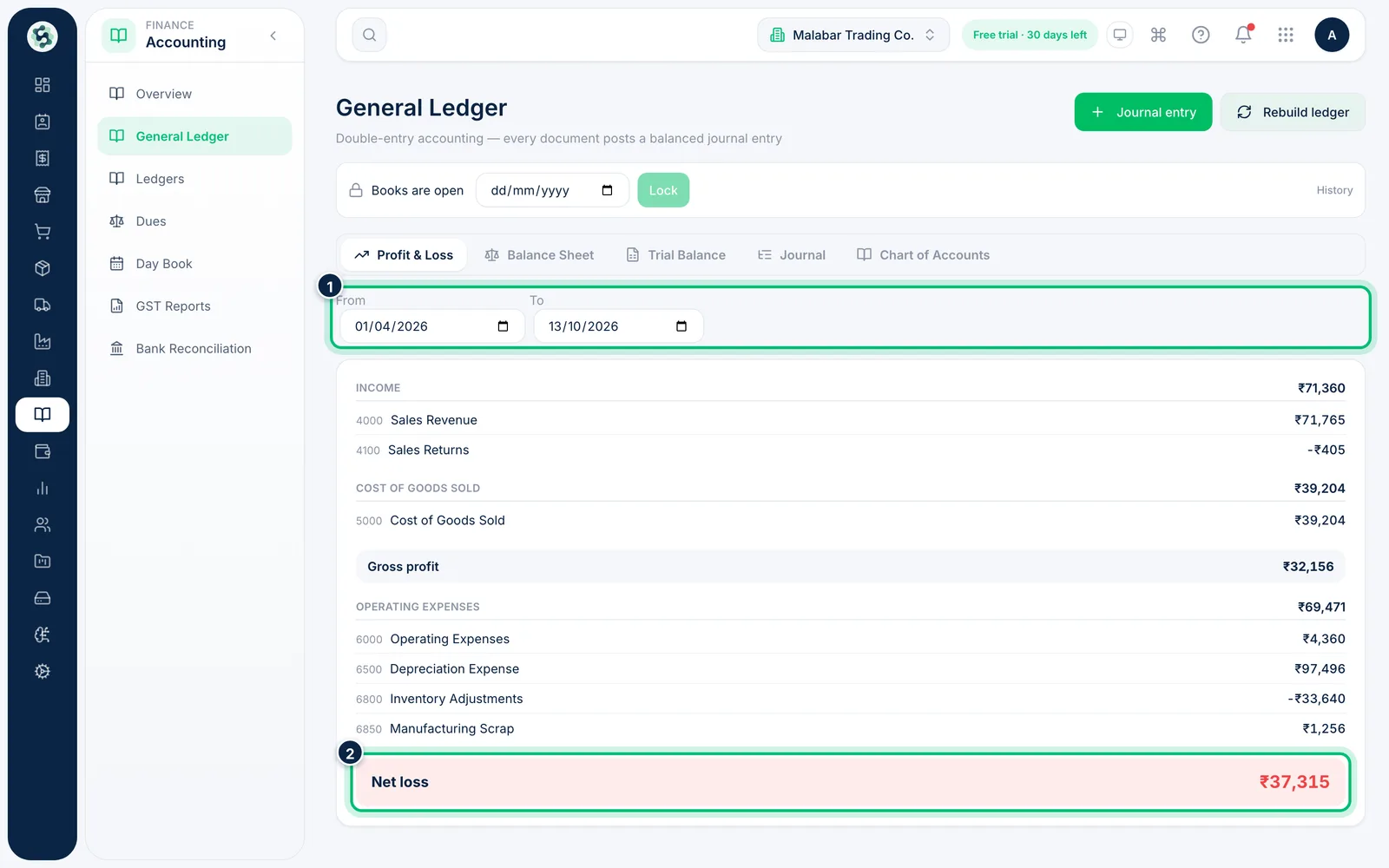
Set From and To to the period you want. The report shows Income, Cost of goods sold, Gross profit, Operating expenses and, at the bottom, your Net profit (or loss).
3Check the balance sheet
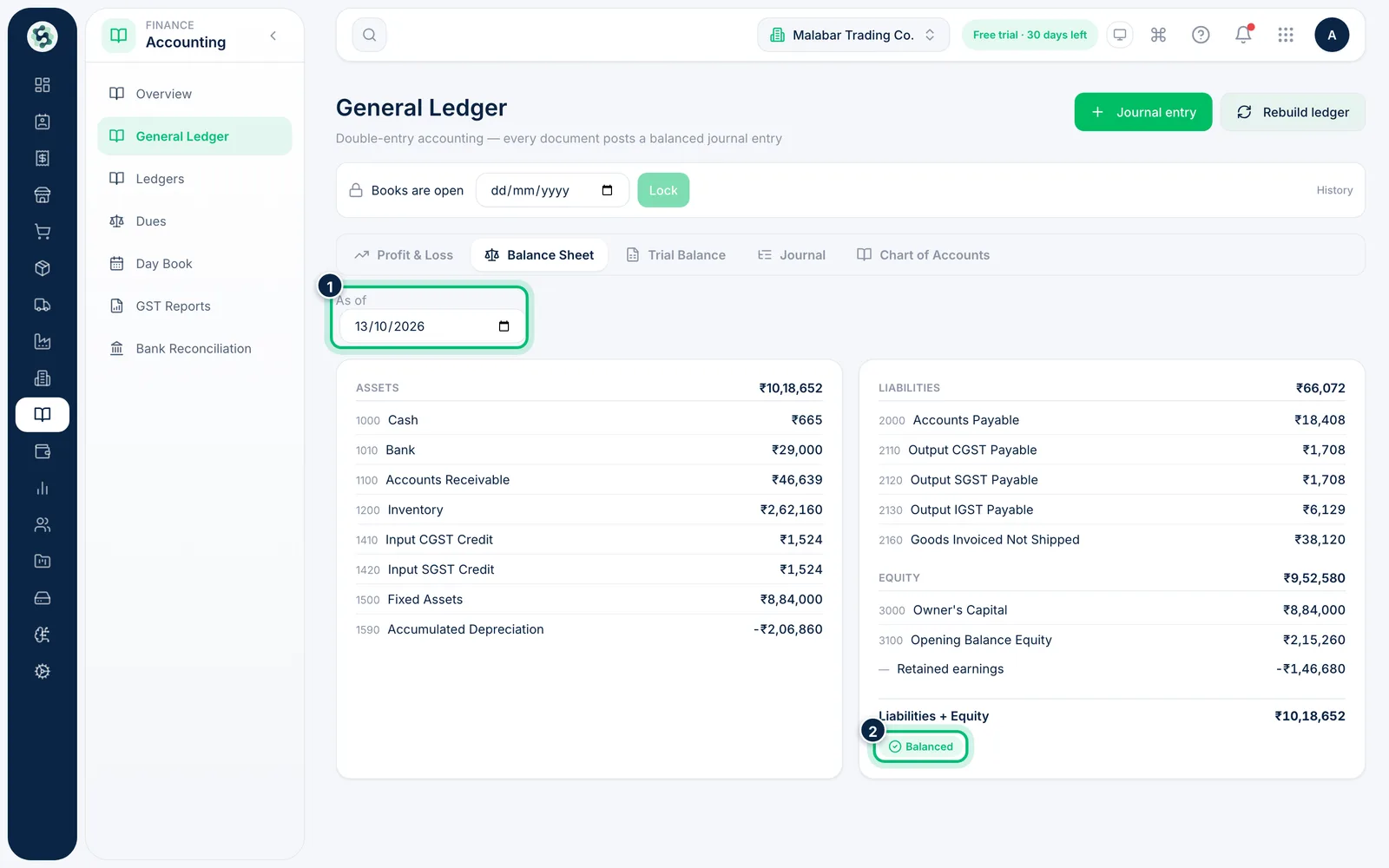
Open the Balance Sheet tab and pick an As of date. Assets sit on the left; liabilities and equity (including retained earnings) on the right. The Balanced badge confirms both sides agree.
4Review the trial balance
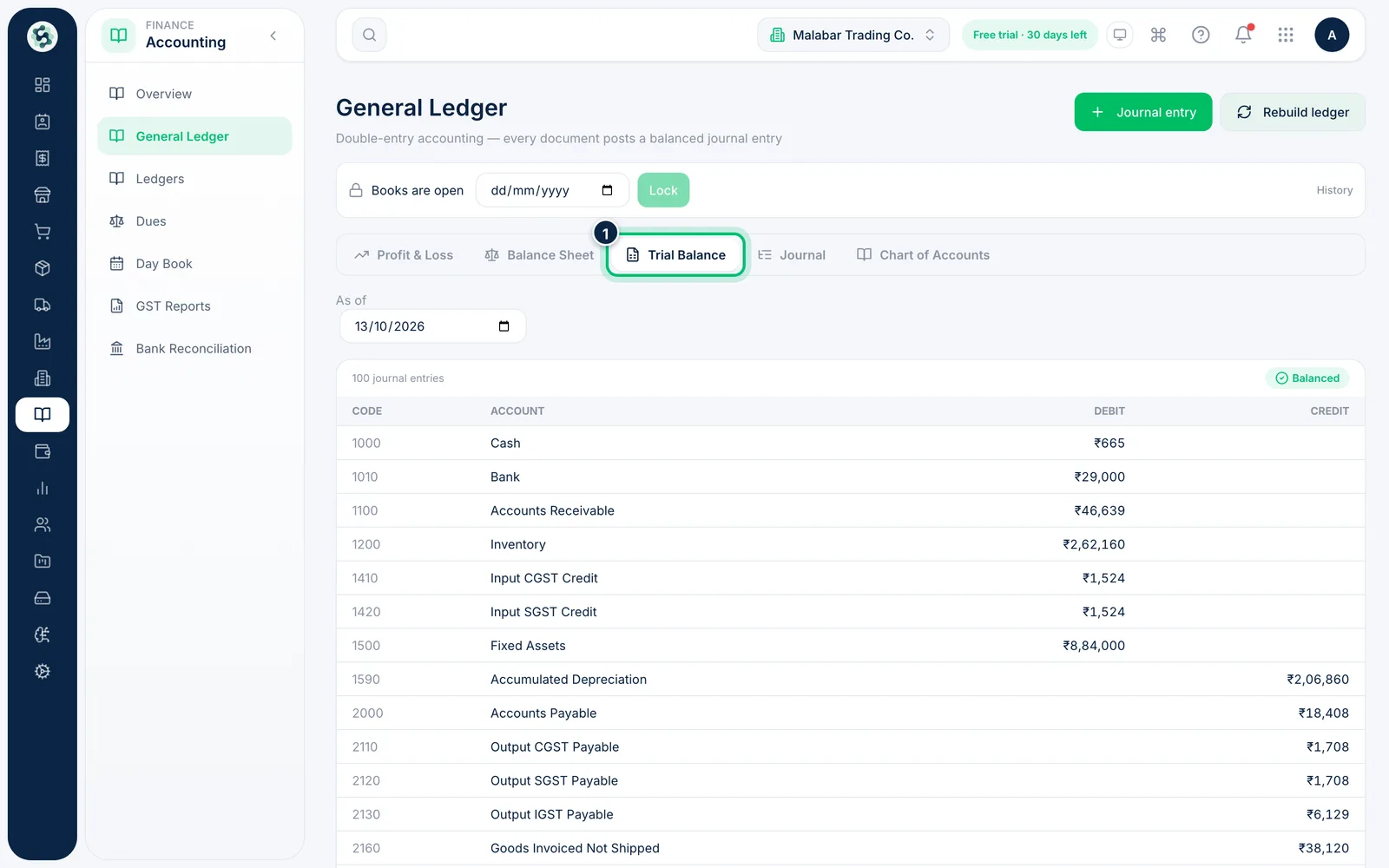
The Trial Balance tab lists the debit or credit balance of every account on the chosen date, with the totals at the bottom. It also shows how many journal entries are included.
5Browse the chart of accounts
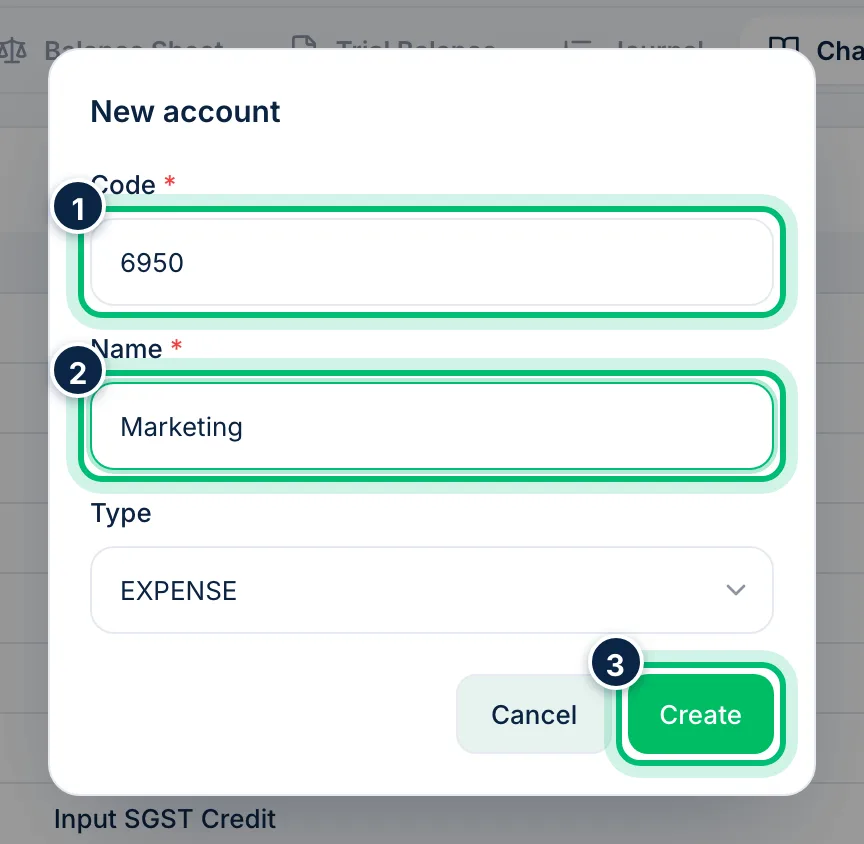
The Chart of Accounts tab lists every account with its code, type and normal balance. Choose Add account to create one — give it a Code, a Name and a Type, then choose Create.
Related guides
Still stuck? Contact our support team — or start a free trial to try this in your own company.