
Expenses · 4 steps
Reimburse a claim
Record that you've paid an employee back for an approved claim — by bank transfer, cash or through payroll.
Before you start: You need permission to reimburse expenses. Only approved claims can be reimbursed.
1Find the approved claims
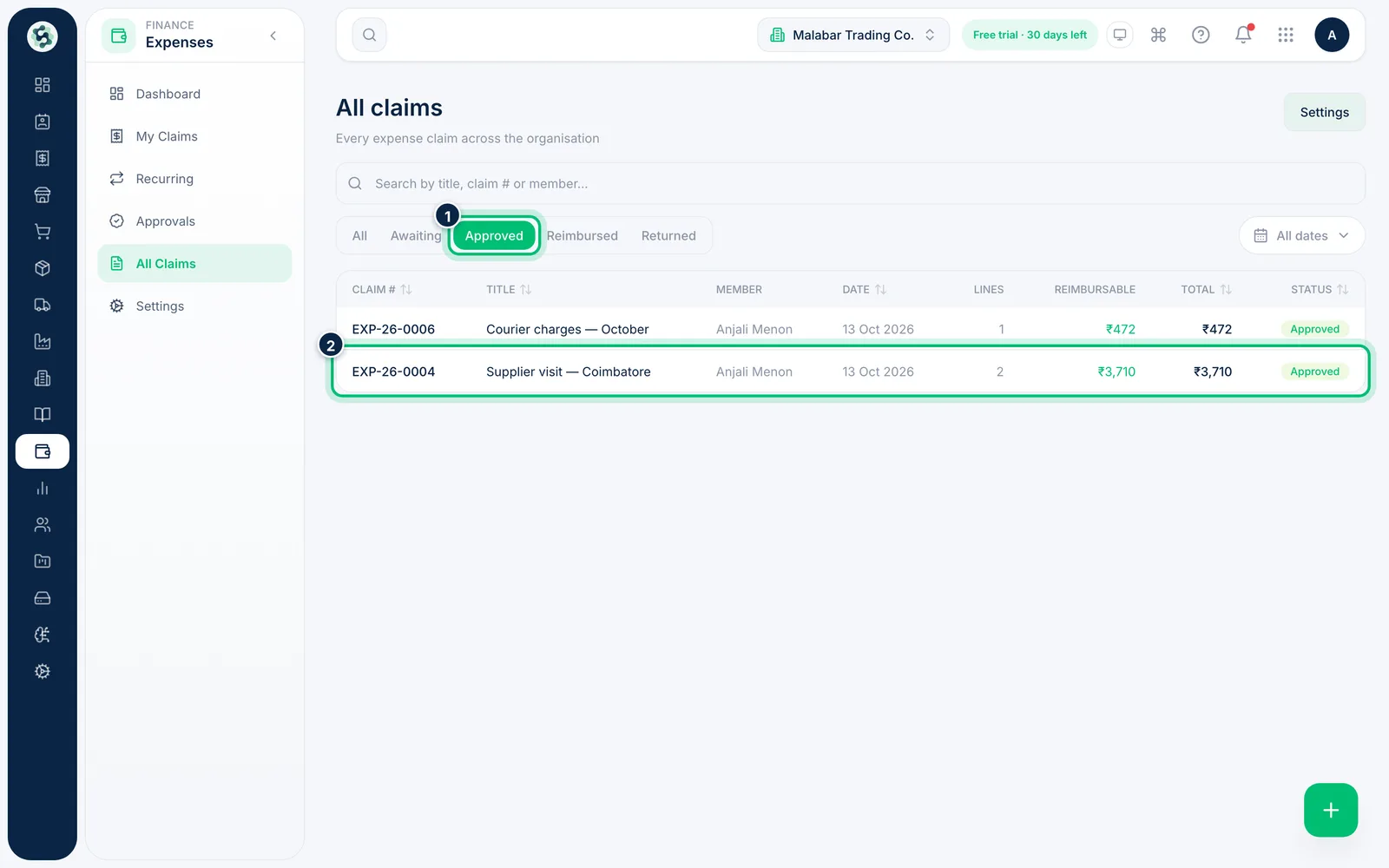
Go to Expenses → All Claims and choose the Approved tab. The Reimbursable column shows how much you owe on each claim.
2Open the claim and choose Mark reimbursed
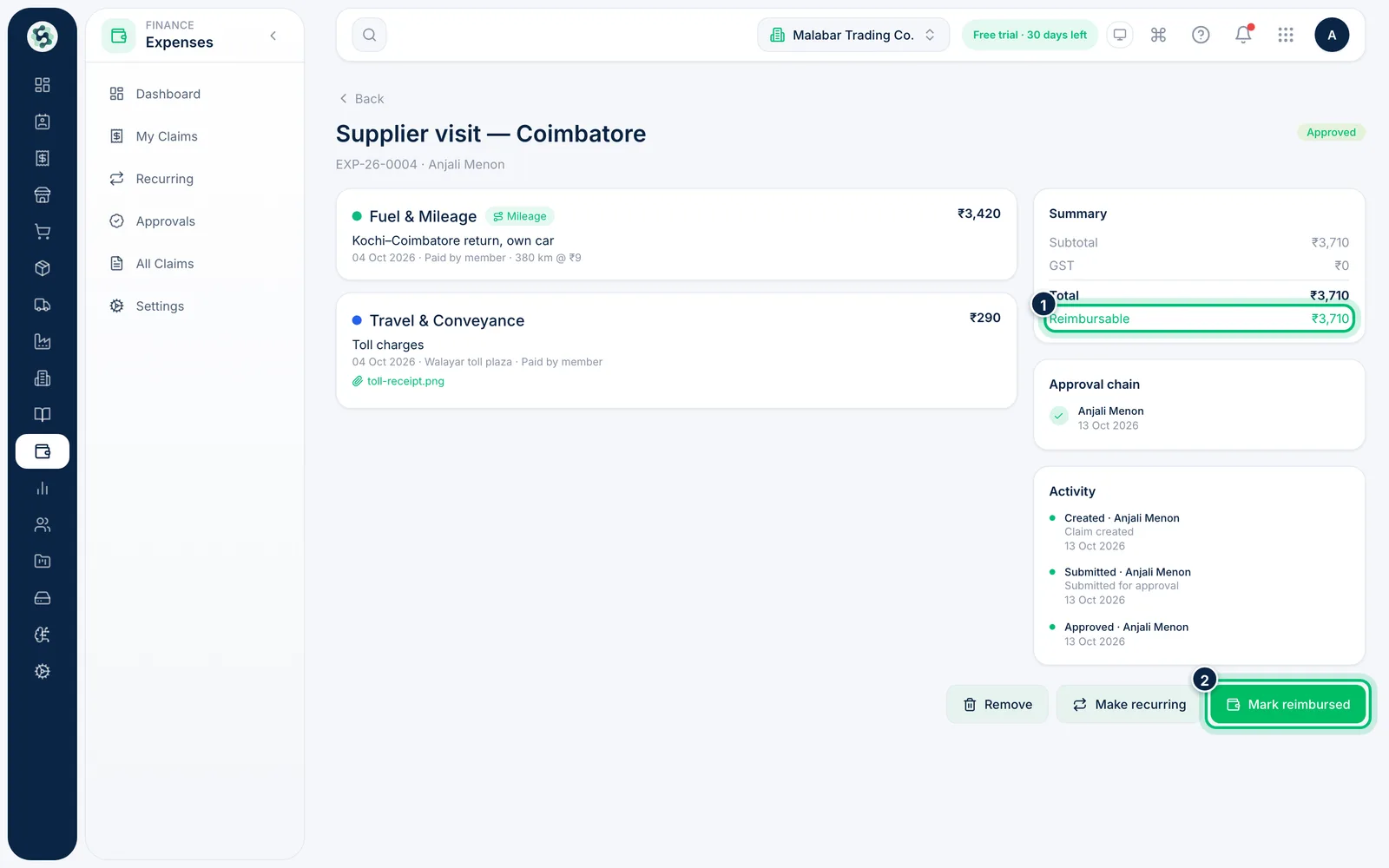
Open the claim and check the Reimbursable amount in the Summary. Then choose Mark reimbursed.
3Record how you paid
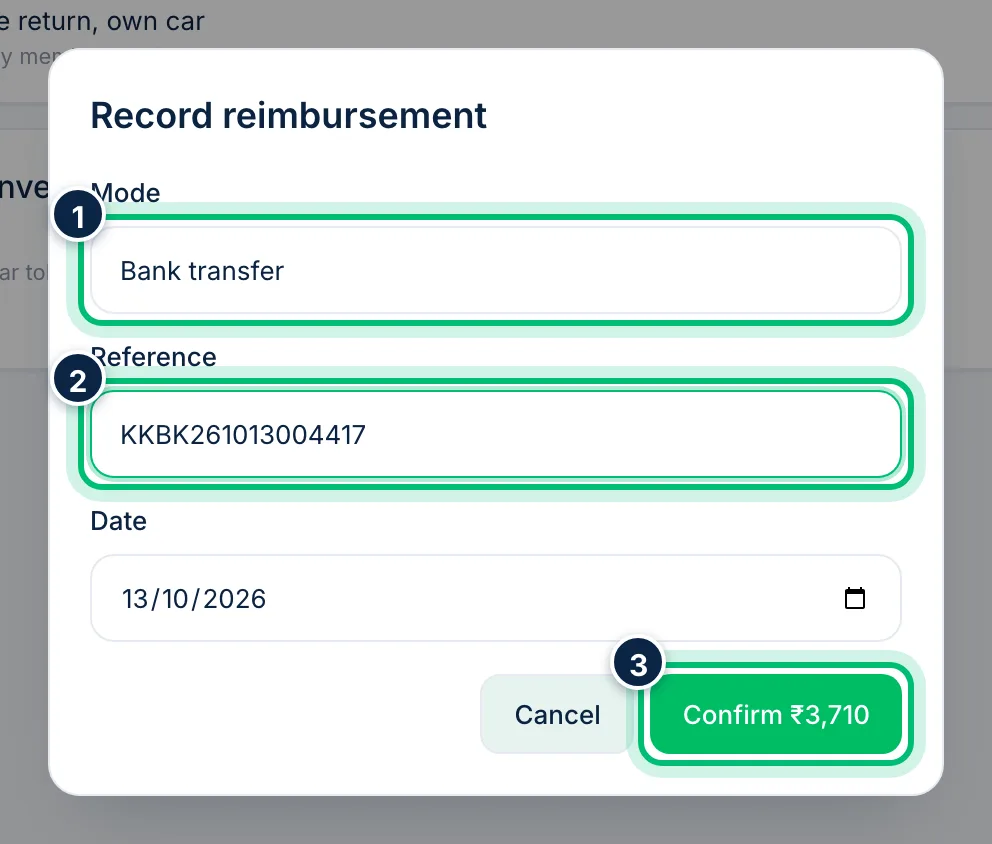
In Record reimbursement, enter the Mode — Bank transfer is filled in for you, or type Cash — the Reference such as the UTR number, and the Date you paid. Choose Confirm to mark the claim Reimbursed.
4Claims paid through payroll
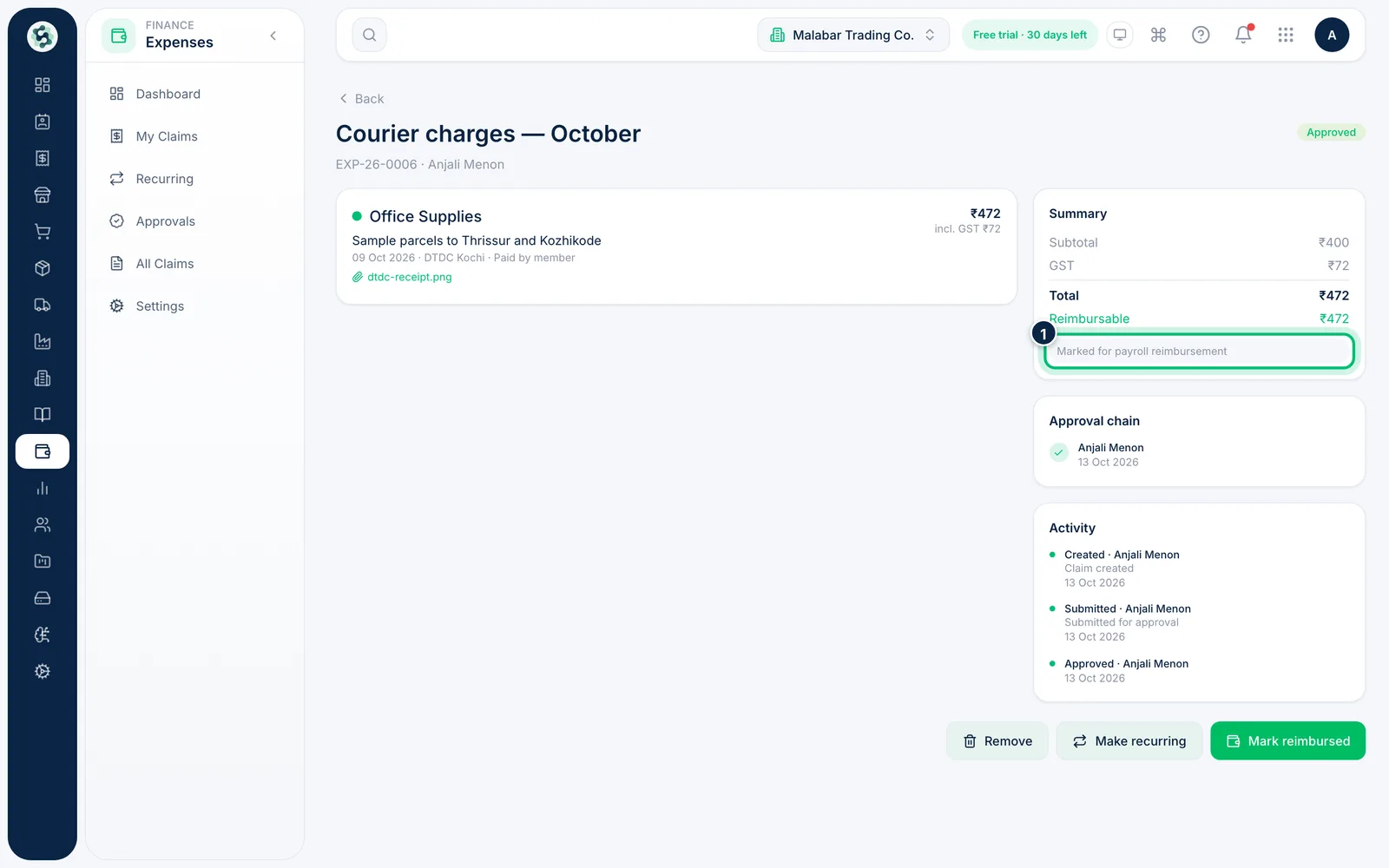
If the member ticked Reimburse via next payroll run, the claim says Marked for payroll reimbursement. Don't mark it reimbursed by hand: the next payroll run adds it to the employee's payslip as a non-taxable Reimb. amount, and when that run is marked Paid the claim becomes Reimbursed (mode Payroll) automatically. While a claim is on a run it can't be reimbursed by hand or cancelled; deleting a draft run releases it.
Related guides
Still stuck? Contact our support team — or start a free trial to try this in your own company.