
Reports · 4 steps
Check stock value and low stock
See what's on hand and what it's worth, spot items to reorder and trace every movement of an item.
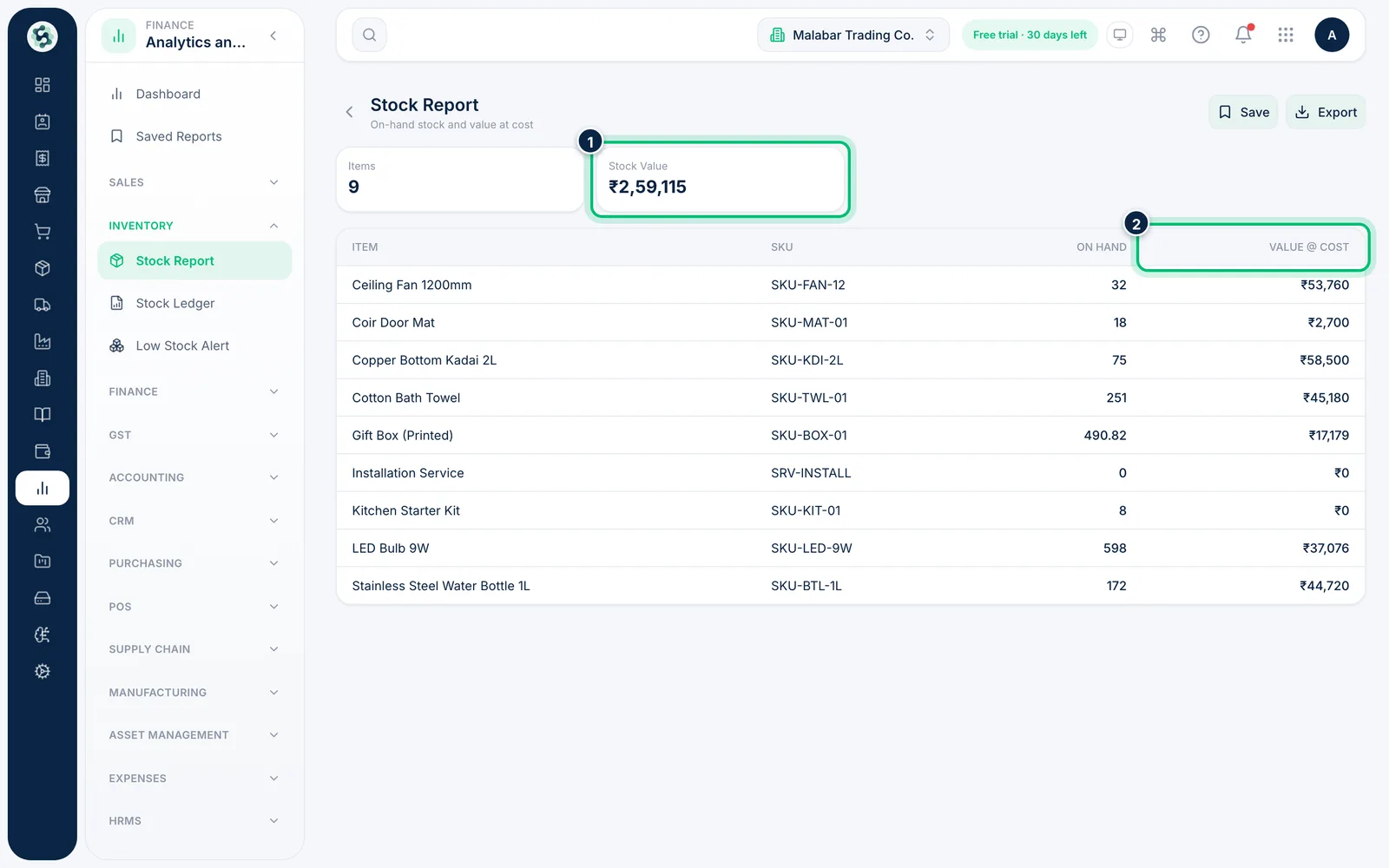
1Open the Stock Report
Open Stock Report from the Inventory group. It shows the current On Hand quantity and Value @ Cost for each item, with the number of Items and the total Stock Value at the top. It always shows today's position, so there's no period to choose.
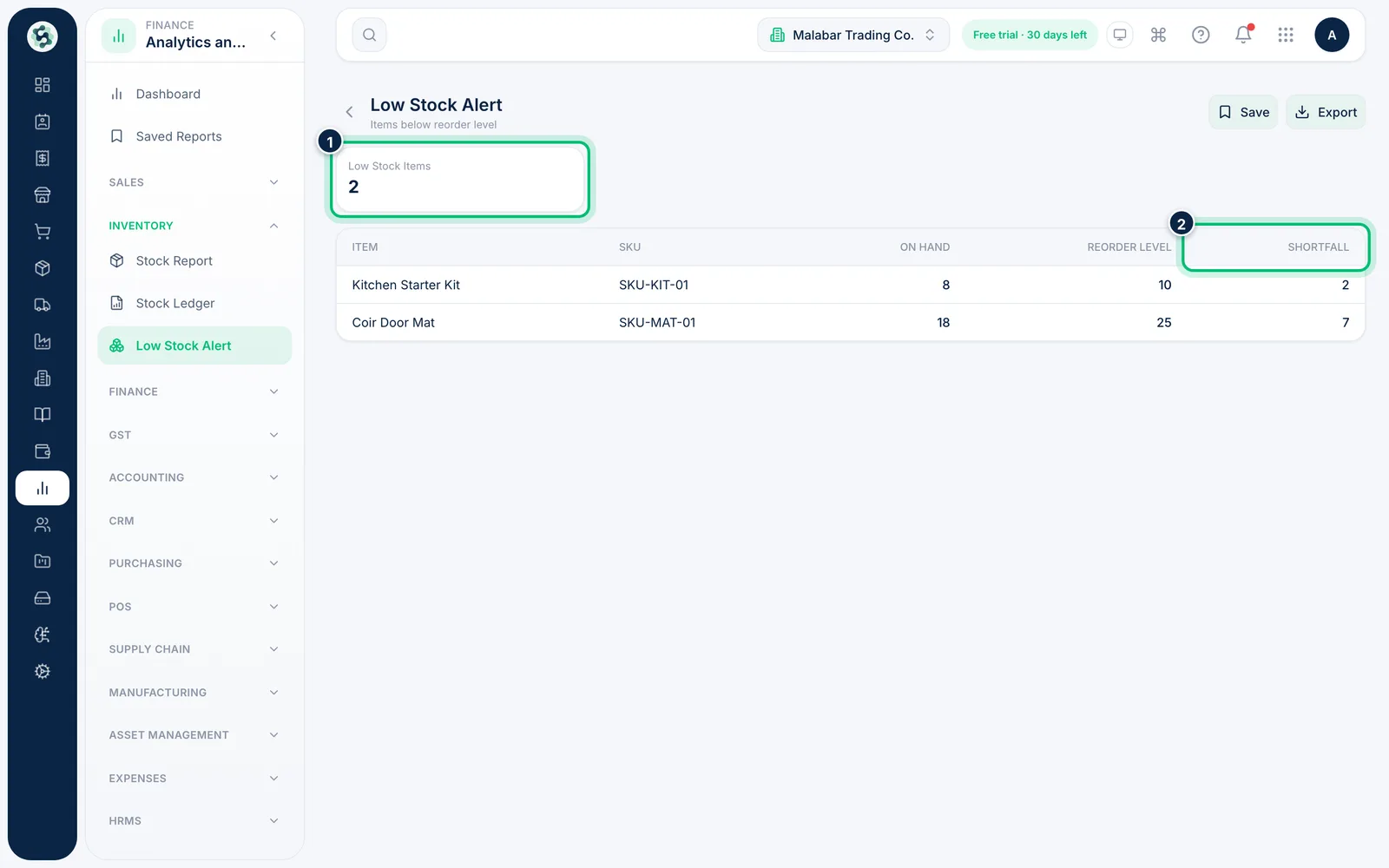
2Find items to reorder
Open Low Stock Alert to list items whose stock has fallen below their reorder level. Shortfall tells you how many you need to get back to the Reorder Level.
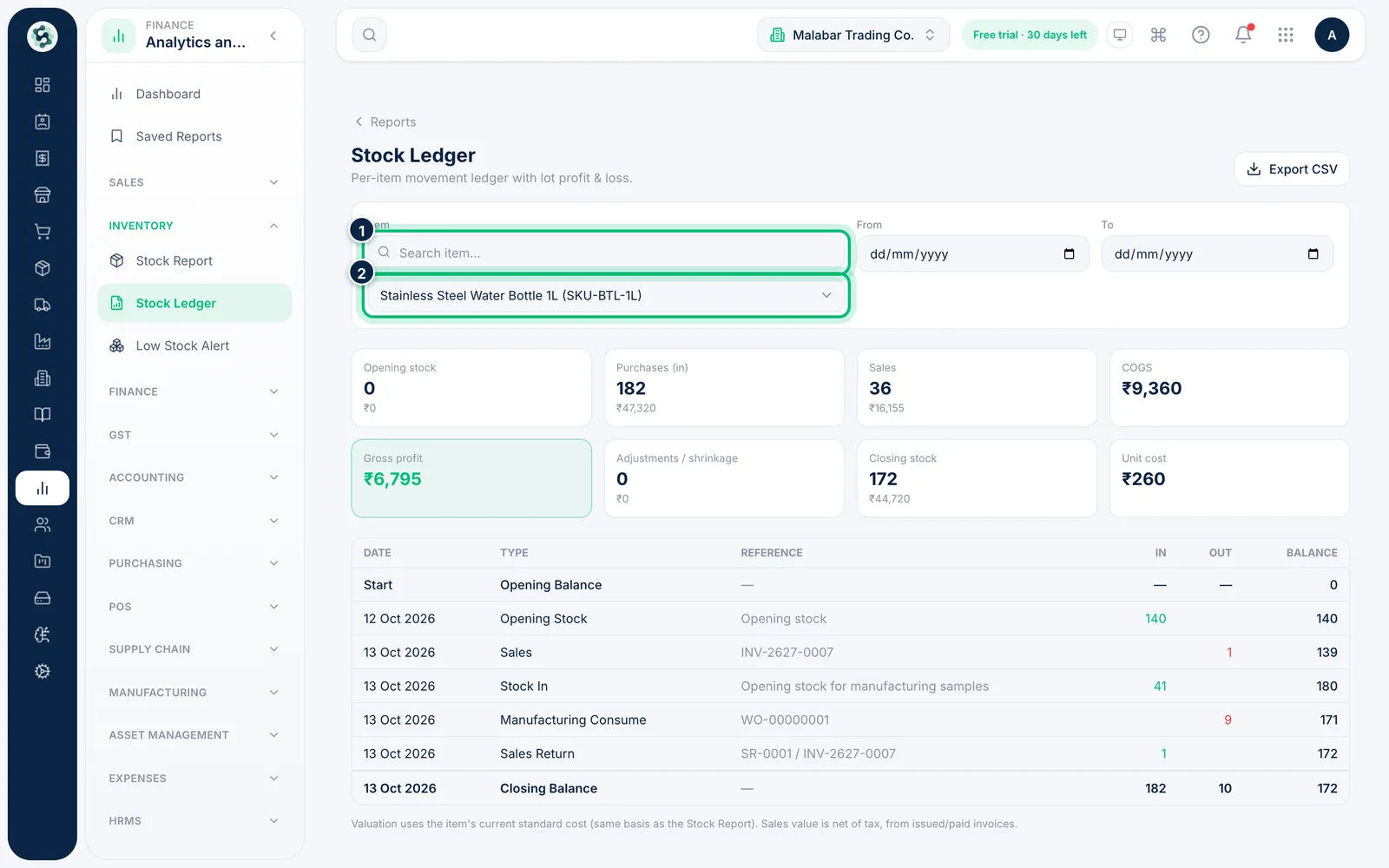
3Trace an item's movements
Open Stock Ledger, search for the item and pick it from Select an item…. Leave From and To empty for all dates , or set them to narrow the range.
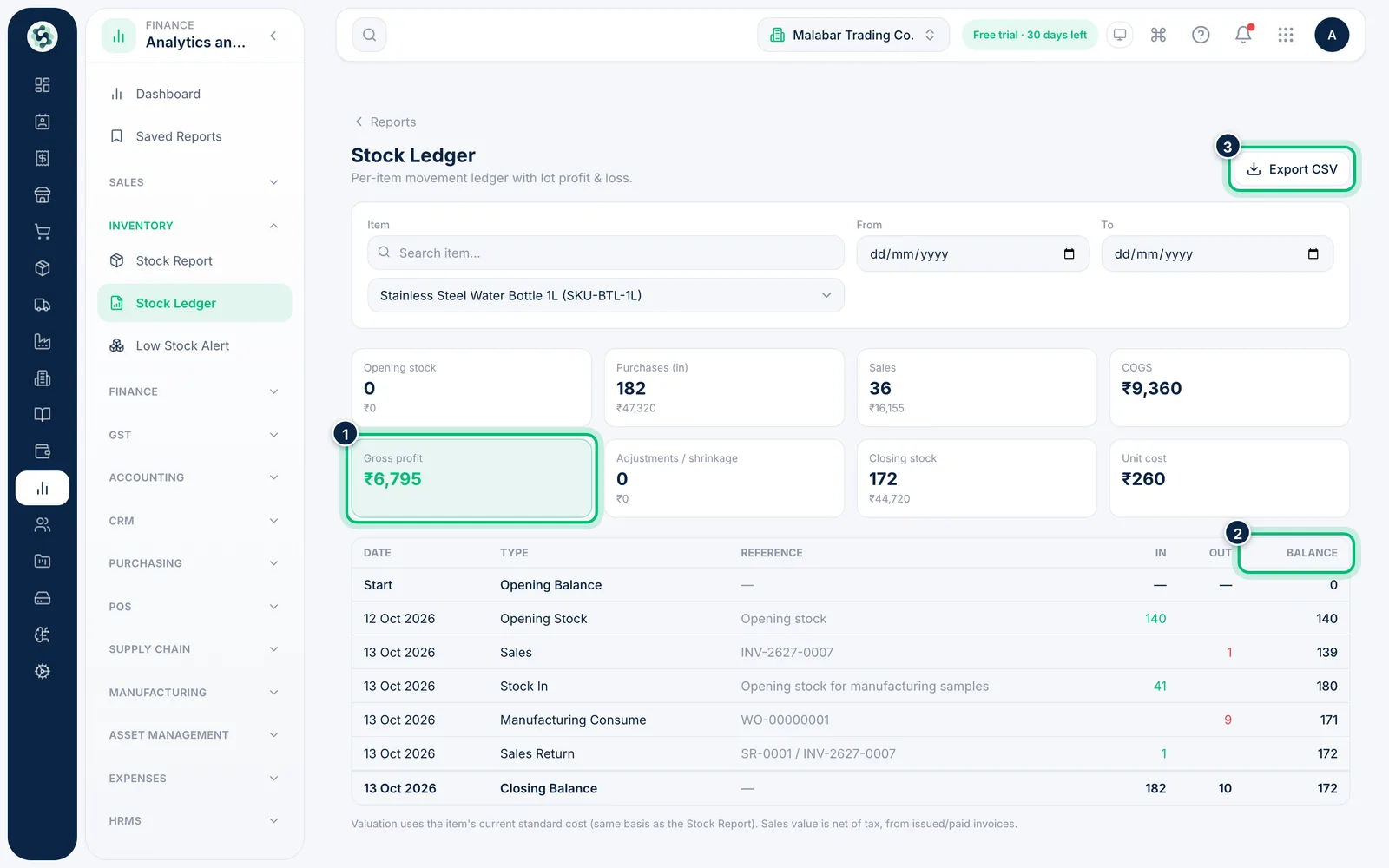
4Read the ledger and profit
The cards show opening stock, purchases, sales, COGS, Gross profit and closing stock for the item. The table lists every receipt, sale and adjustment with a running Balance; with no From date, the opening row reads Start. Use Export CSV to take it into a spreadsheet.
Related guides
Still stuck? Contact our support team — or start a free trial to try this in your own company.