
Manufacturing · 5 steps
Create a bill of materials
Record what a finished product is made from, how many units one run makes and the operations it goes through, with an estimated material cost.
Before you start: The finished good and every component must already be inventory items. Add any workstations first if you want to assign operations to them.
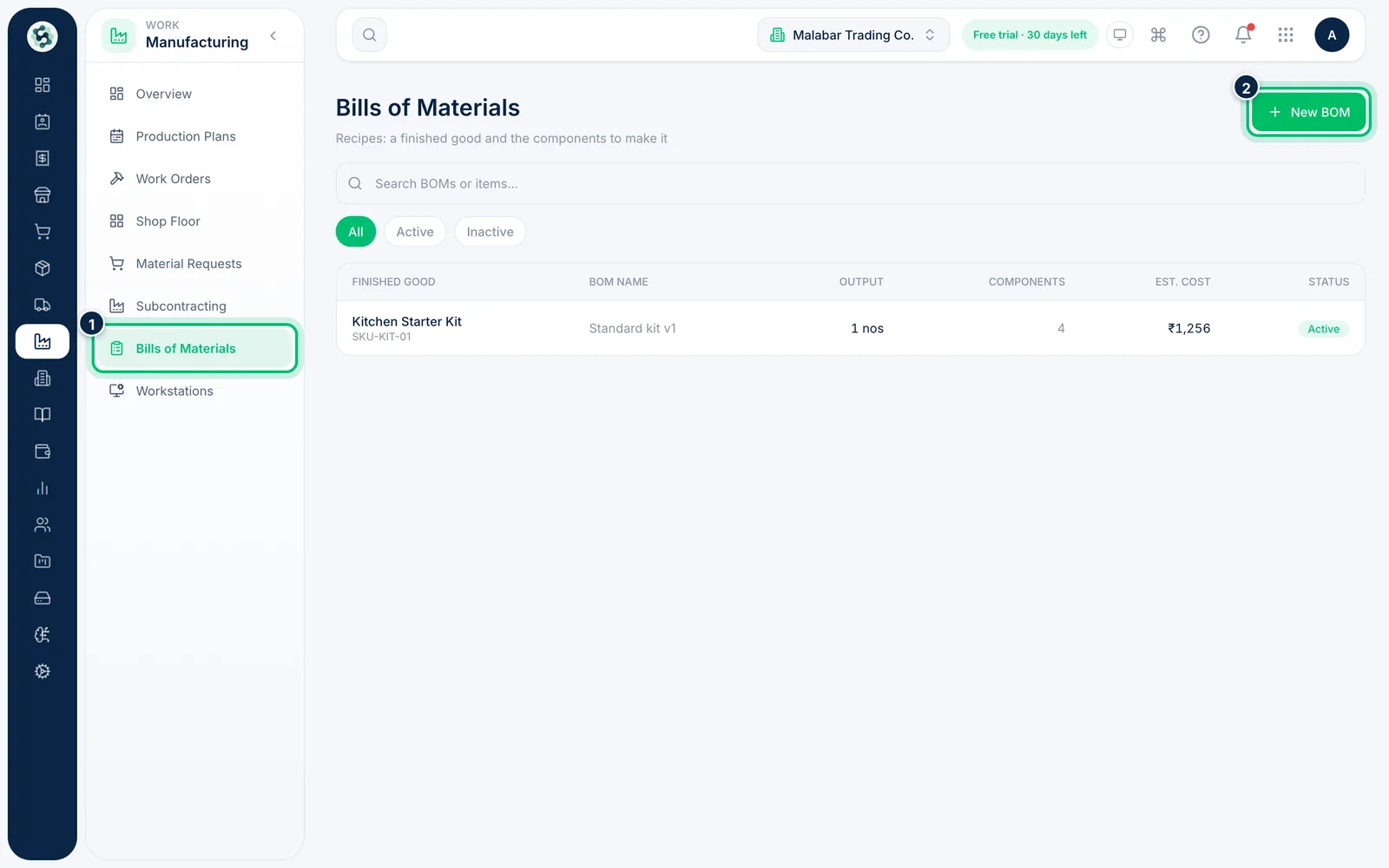
1Open Bills of Materials and start a new one
In the left menu open Manufacturing → Bills of Materials. Each row shows the finished good, its Output, the number of Components, the Est. cost and whether it is Active. Choose New BOM.
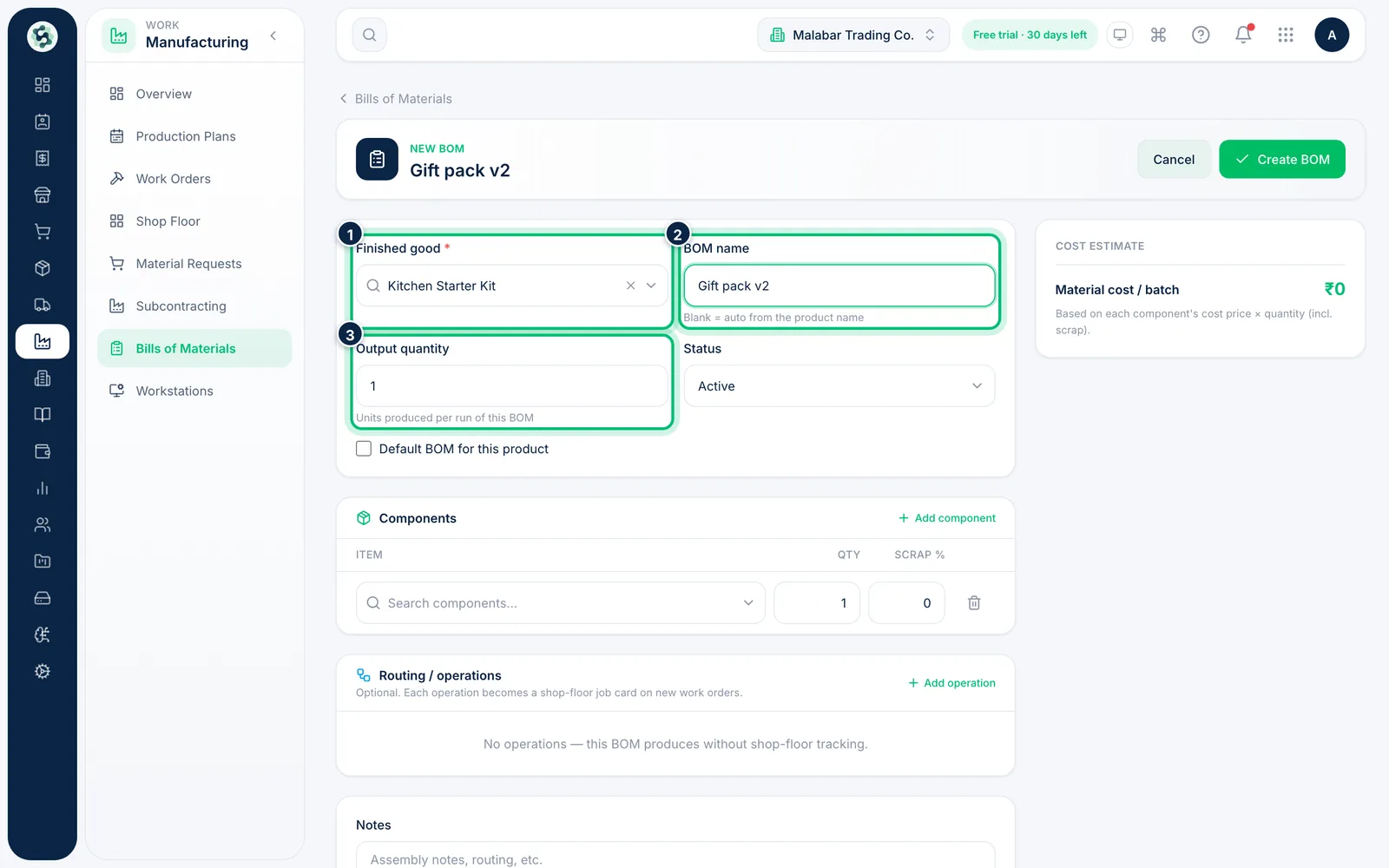
2Choose the finished good
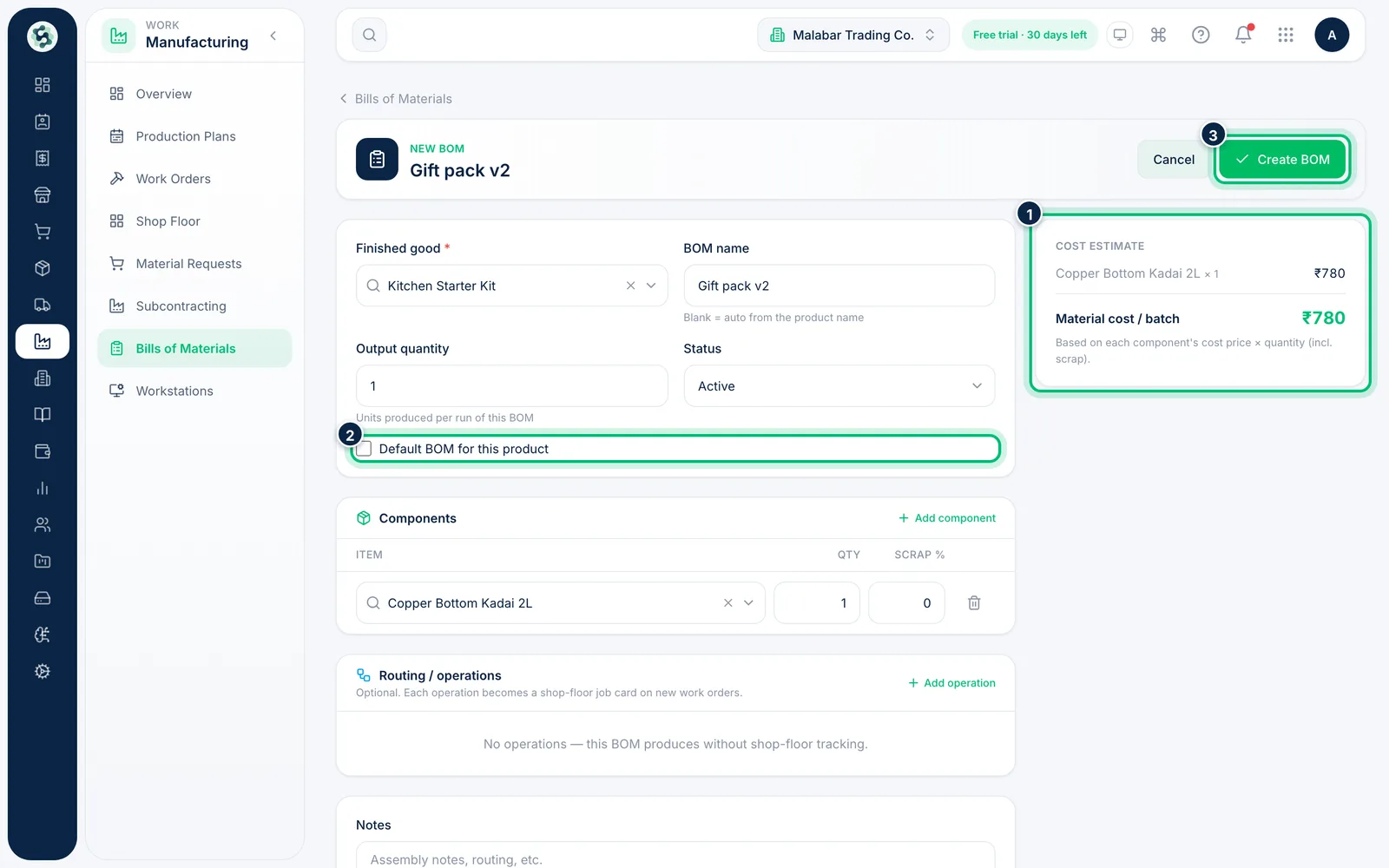
Search for the product under Finished good — it is required. Optionally name the recipe under BOM name (left blank, it is named after the product), set the Output quantity one run produces and the Status.
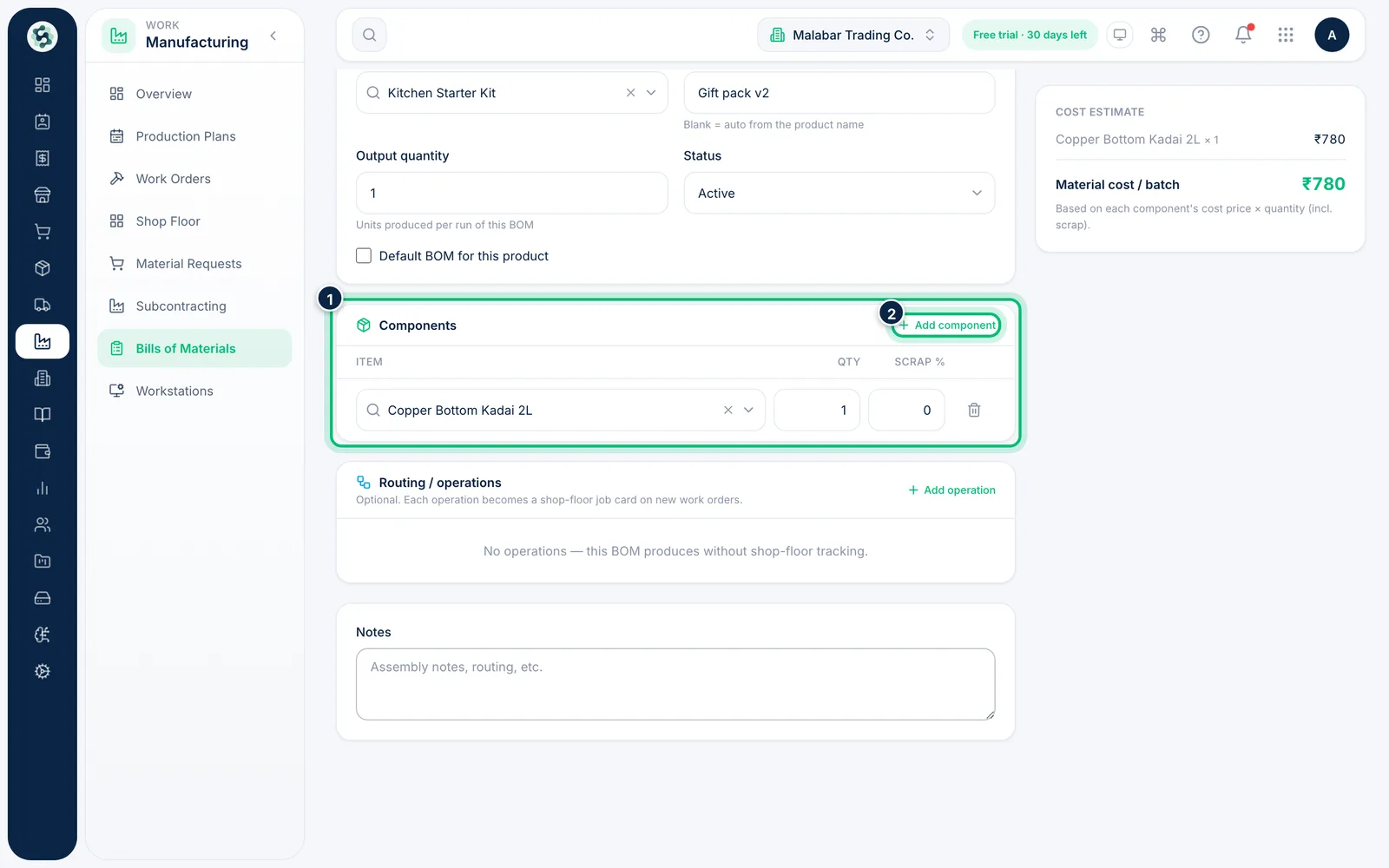
3Add the components
Under Components, search for each item the product is made from and enter its Qty. Add an allowance in Scrap % if some of the material is normally wasted. Choose Add component for another row.
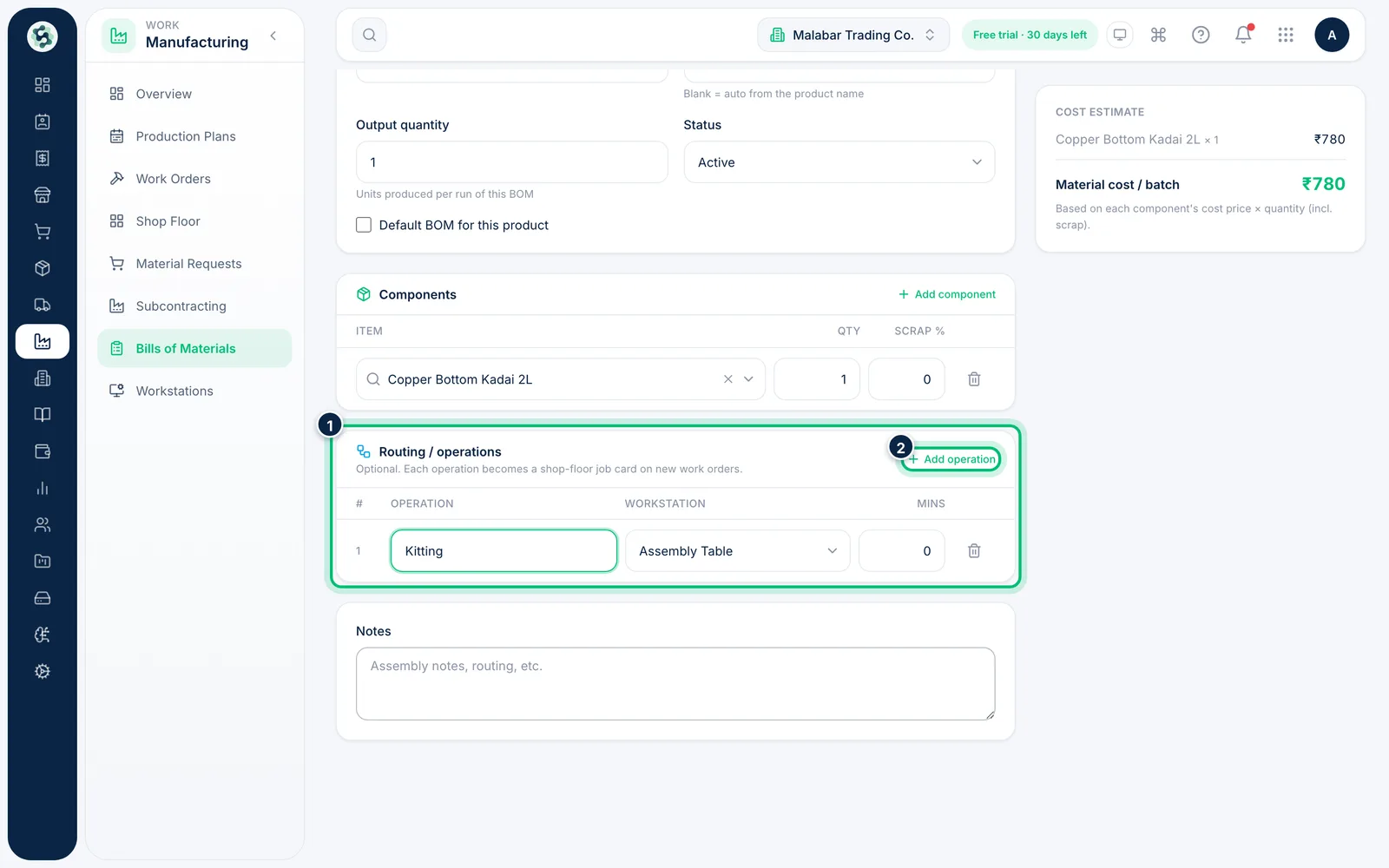
4Add the routing operations
Under Routing / operations, choose Add operation, then enter the operation name, pick its workstation and set the planned Mins. Each operation becomes a job card on the shop floor when you raise a work order.
5Check the cost and create the BOM
The Cost estimate panel adds up each component's cost price, including scrap, as Material cost / batch. Tick Default BOM for this product to use it automatically, then choose Create BOM.
Related guides
Still stuck? Contact our support team — or start a free trial to try this in your own company.