
People & payroll · 5 steps
Generate letters and keep employee documents
Create offer, appointment and experience letters from templates with placeholders, and keep employee documents with their expiry dates.
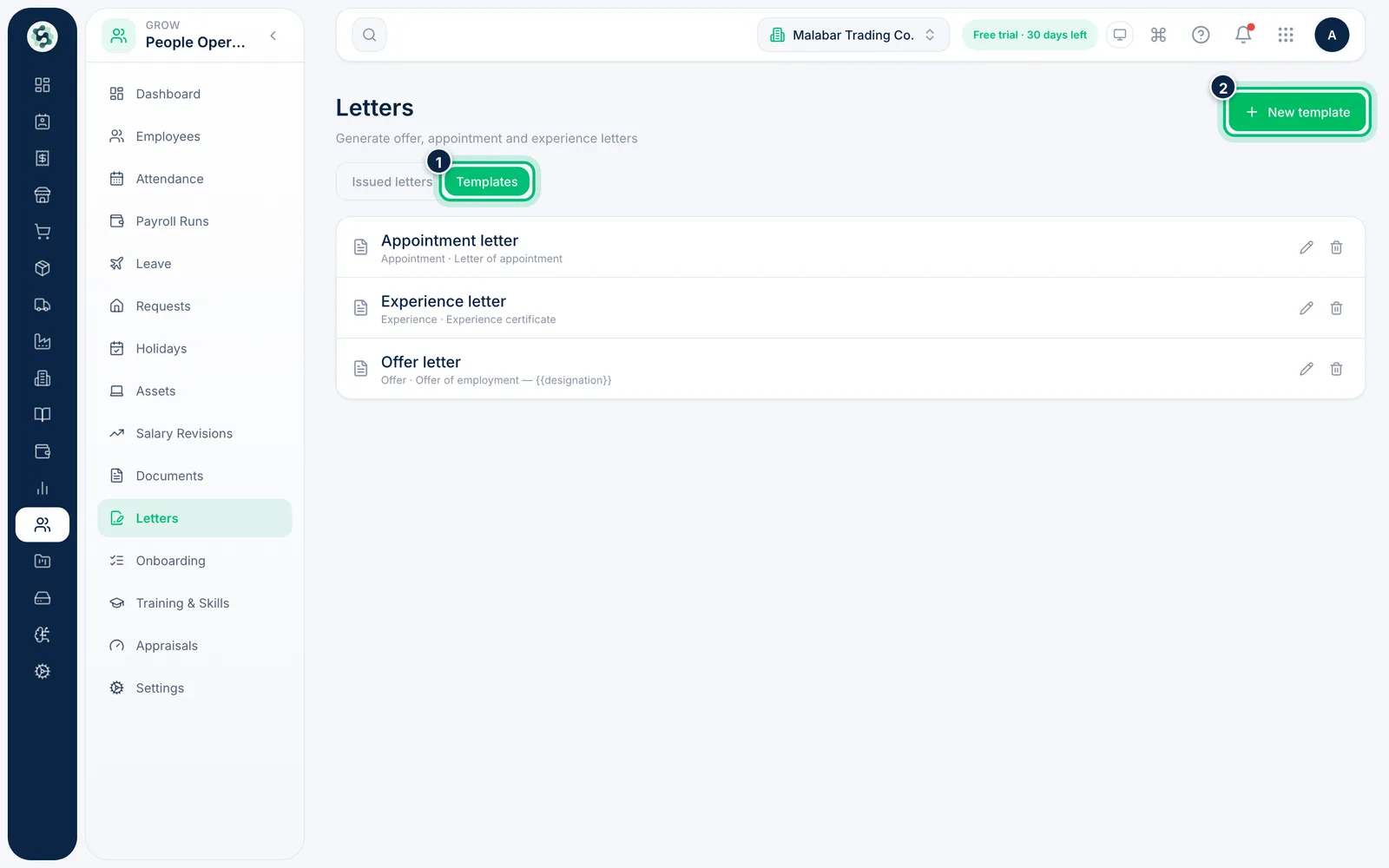
1Set up letter templates
Go to People Operations → Letters and choose Templates. Each template has a type — offer, appointment, confirmation, experience, relieving or custom. Choose New template to add one.
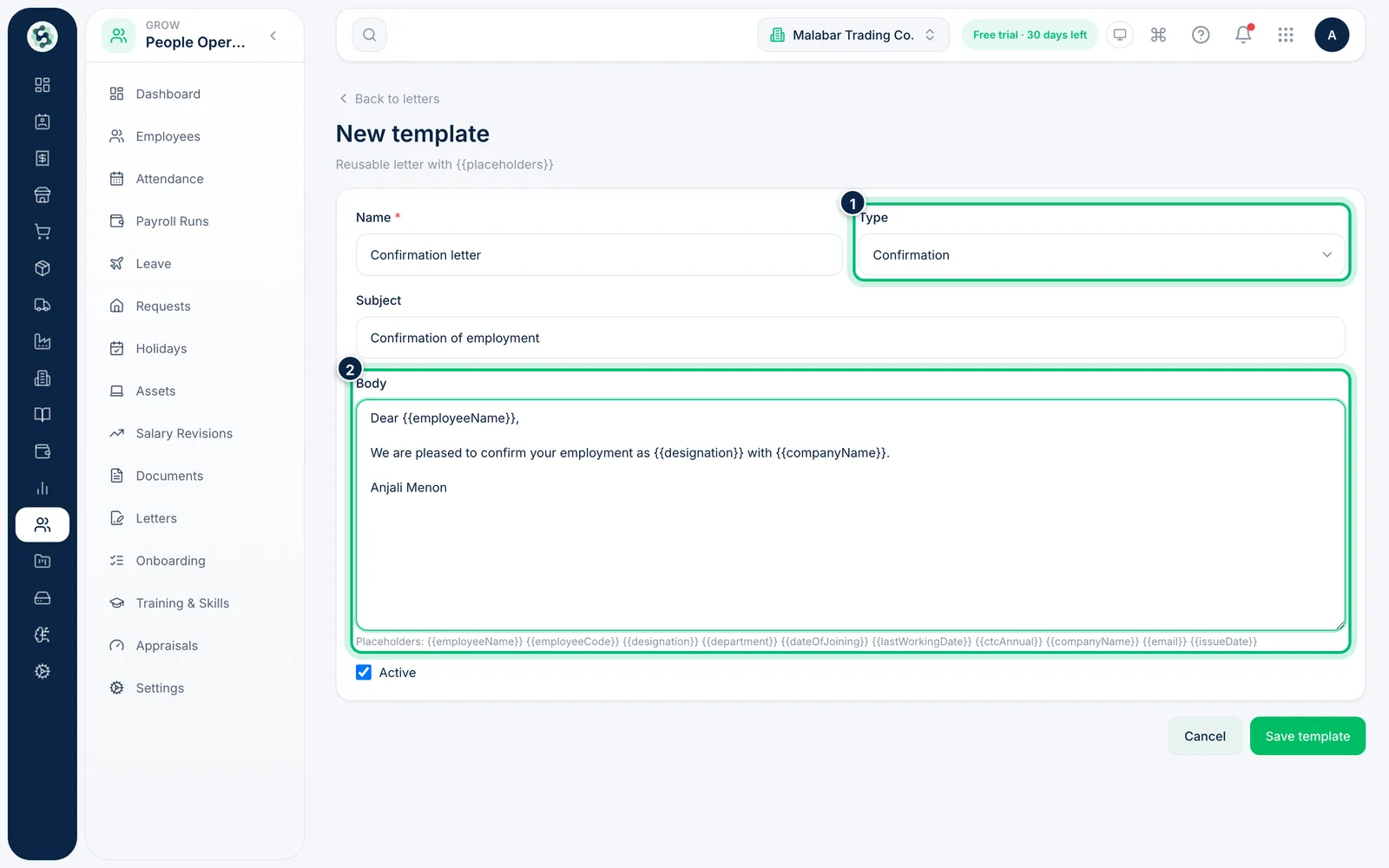
2Write the template with placeholders
Give the template a Name and Type, then write the Subject and Body. Use placeholders such as {{employeeName}}, {{designation}}, {{dateOfJoining}} and {{ctcAnnual}} — they're filled in from the employee's record. Choose Save template.
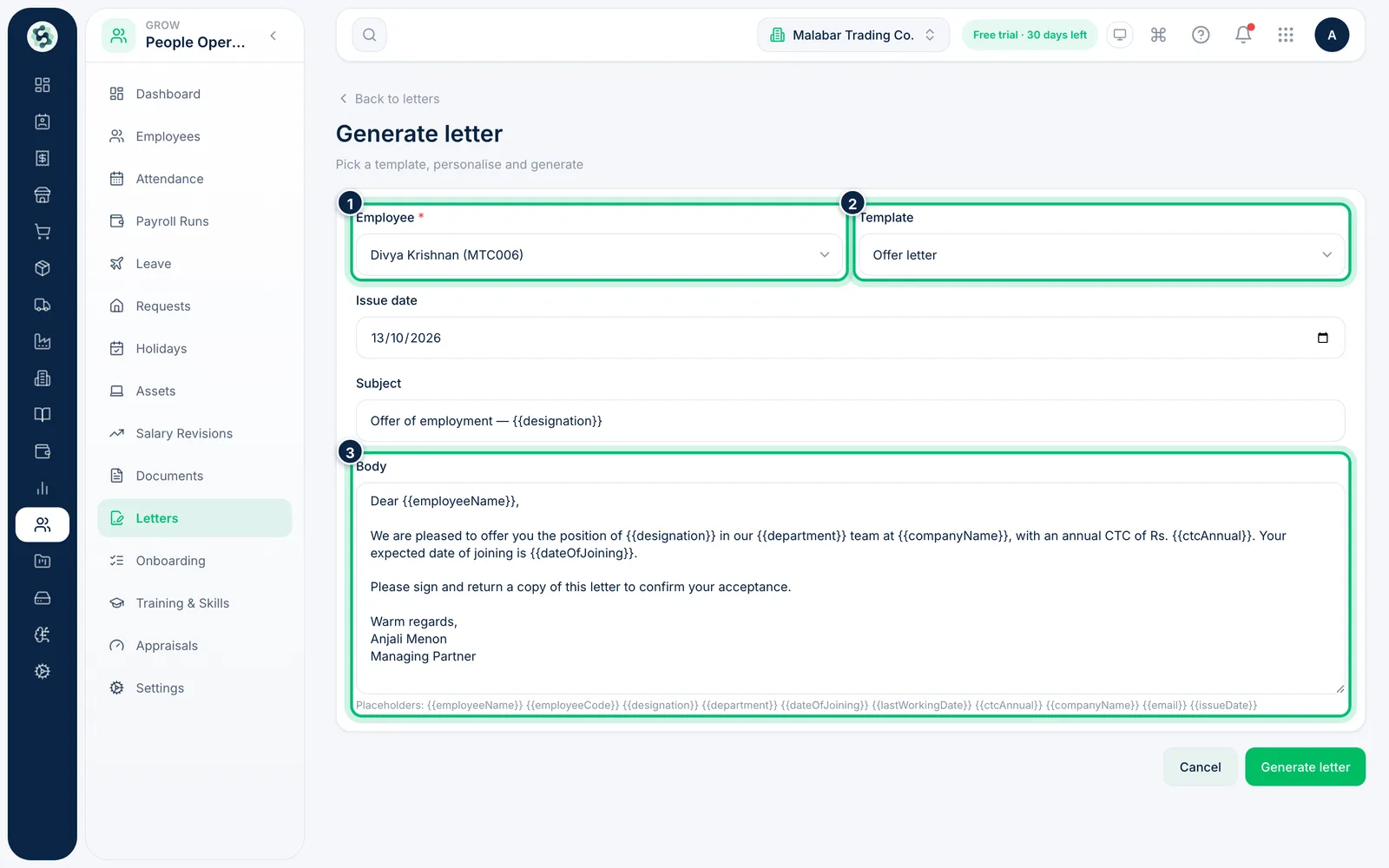
3Generate a letter for an employee
On the Issued letters tab choose Generate letter. Pick the Employee and a Template — its subject and body are copied in for you to adjust. Check the Issue date and choose Generate letter.
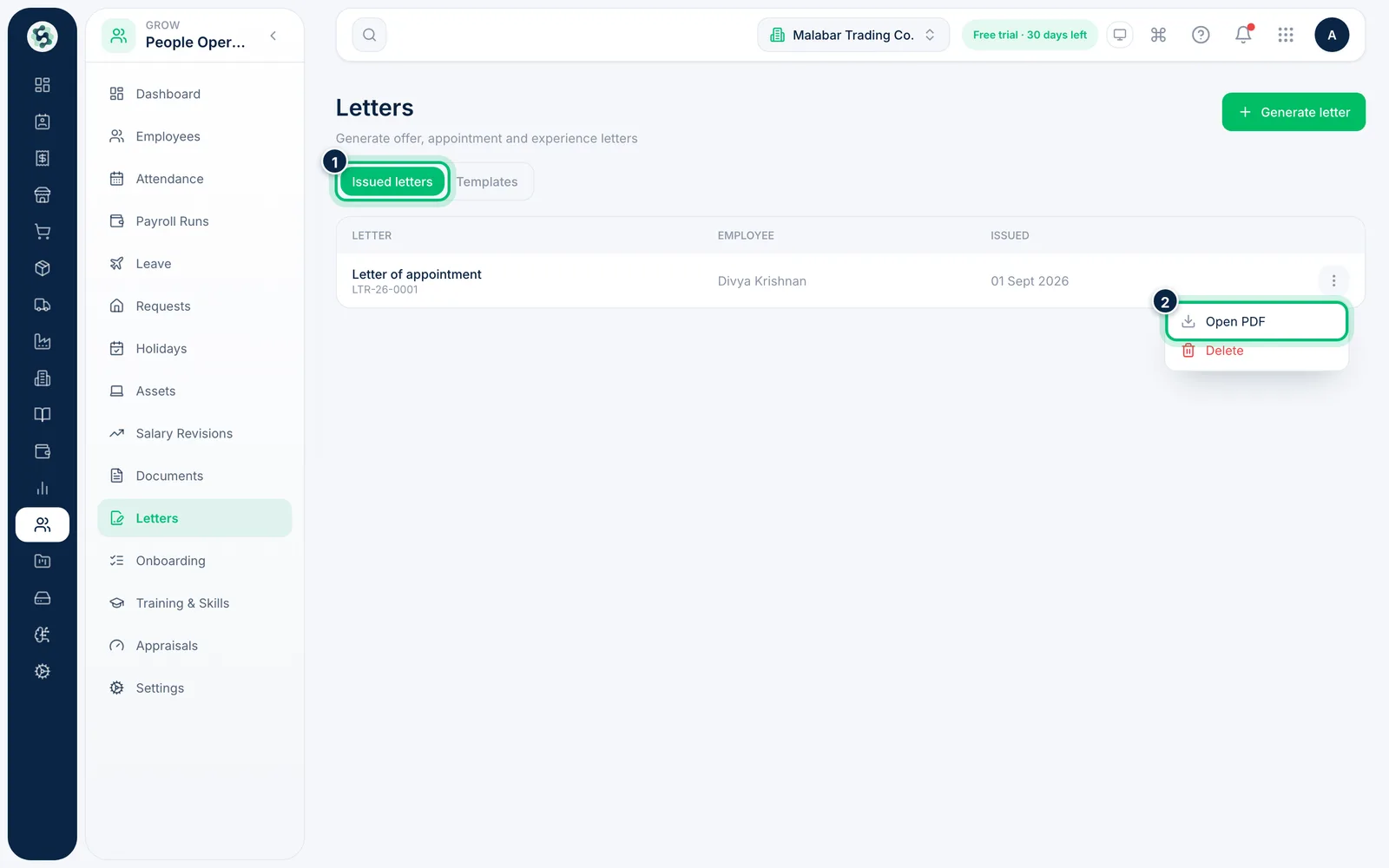
4Open the letter as a PDF
Generated letters appear on the Issued letters tab. Open a letter's actions menu and choose Open PDF to view, download or print it.
5Keep employee documents and watch expiry dates
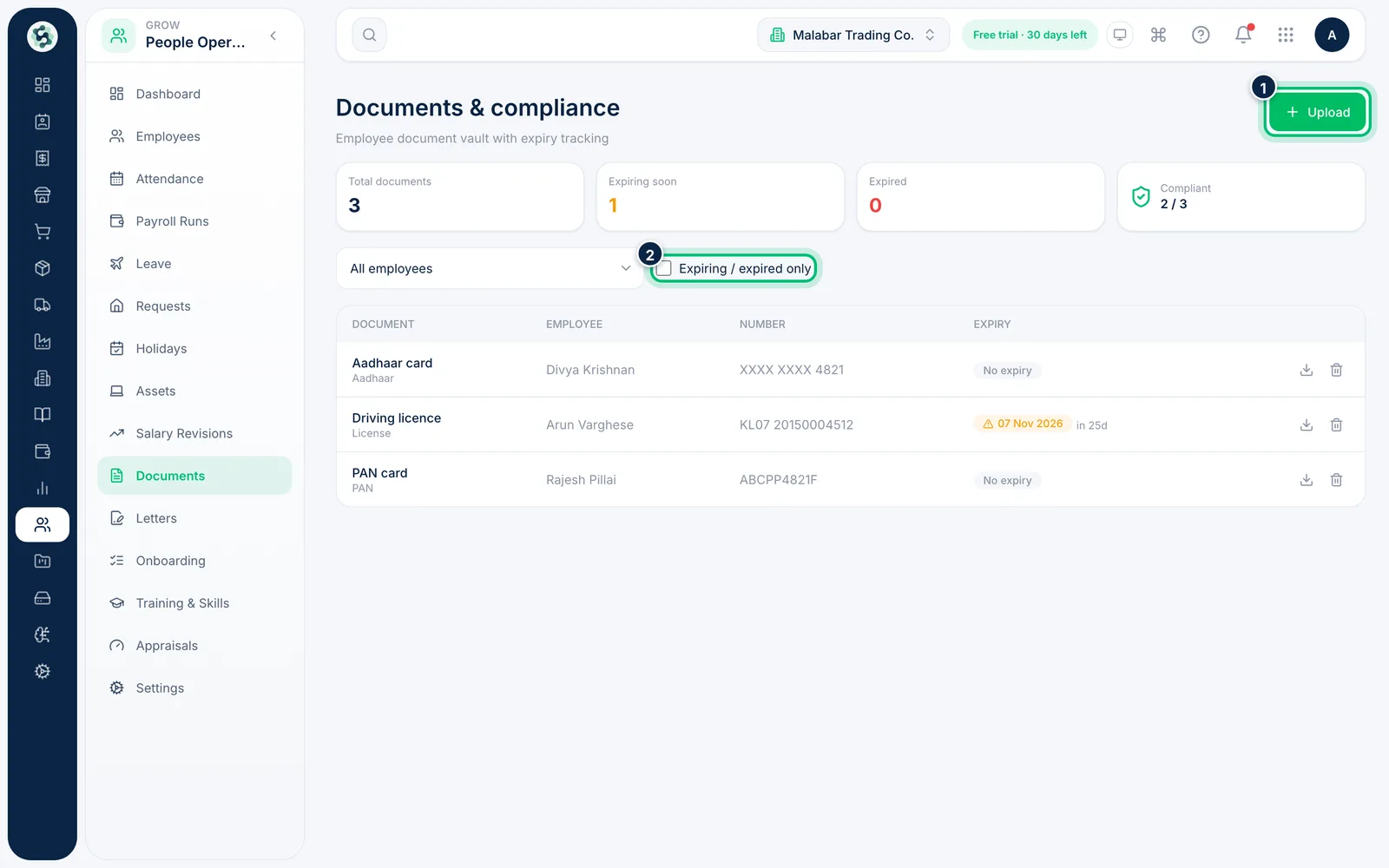
Go to People Operations → Documents to see each employee's PAN, Aadhaar, licences and contracts. The cards at the top count documents Expiring soon and Expired. Tick Expiring / expired only to find documents that need renewing, and choose Upload to add one.
Related guides
Still stuck? Contact our support team — or start a free trial to try this in your own company.