
Inventory · 4 steps
Correct stock with a stock adjustment
Record a stock count, damage, loss or expiry against a warehouse, with a reason, so every correction is auditable.
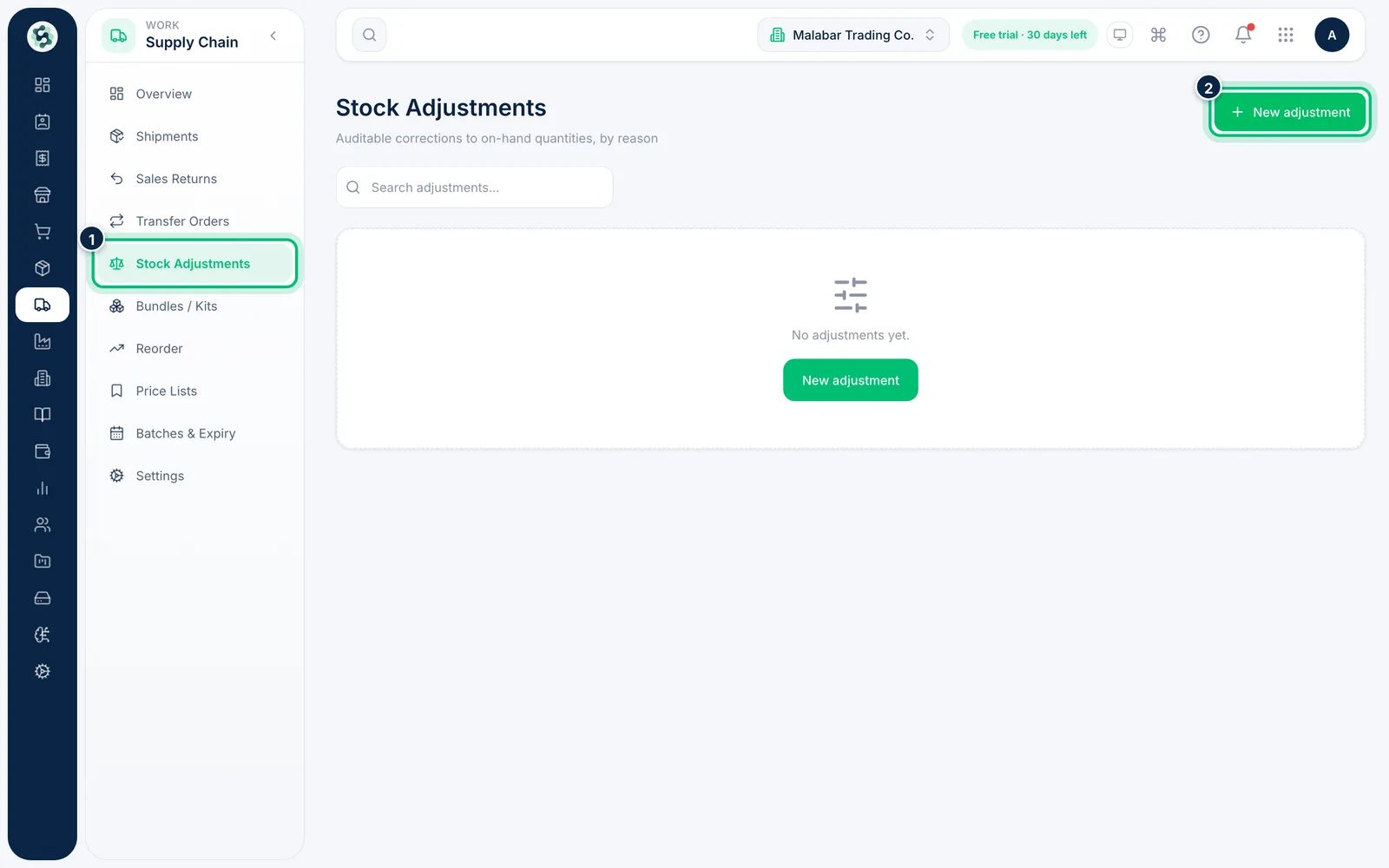
1Start a new adjustment
Open Supply Chain → Stock Adjustments and choose New adjustment.
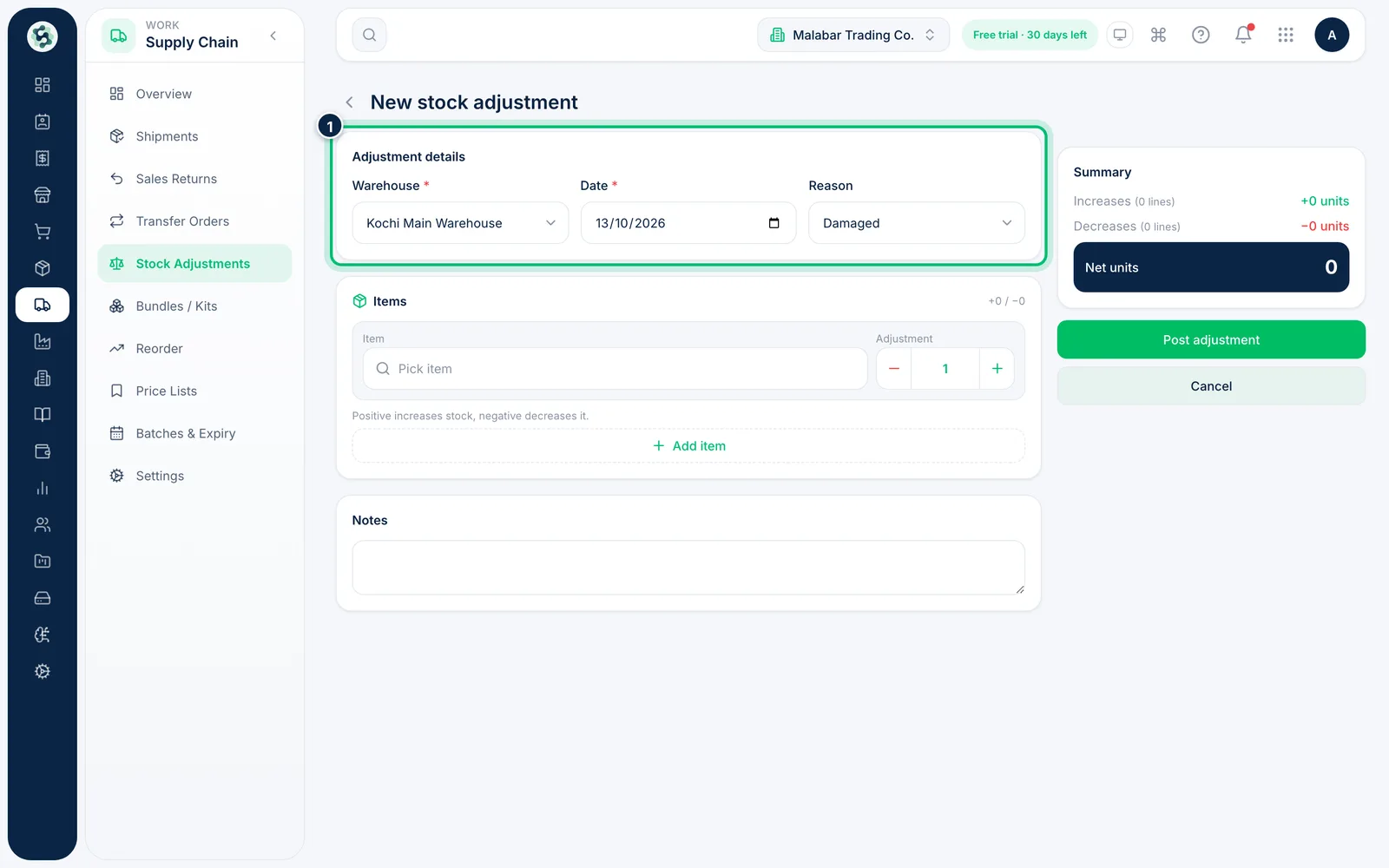
2Choose the warehouse, date and reason
Under Adjustment details, pick the Warehouse, check the Date and choose a Reason — Stock count, Damaged, Lost / theft, Expired, Return to stock, Opening stock or Other.
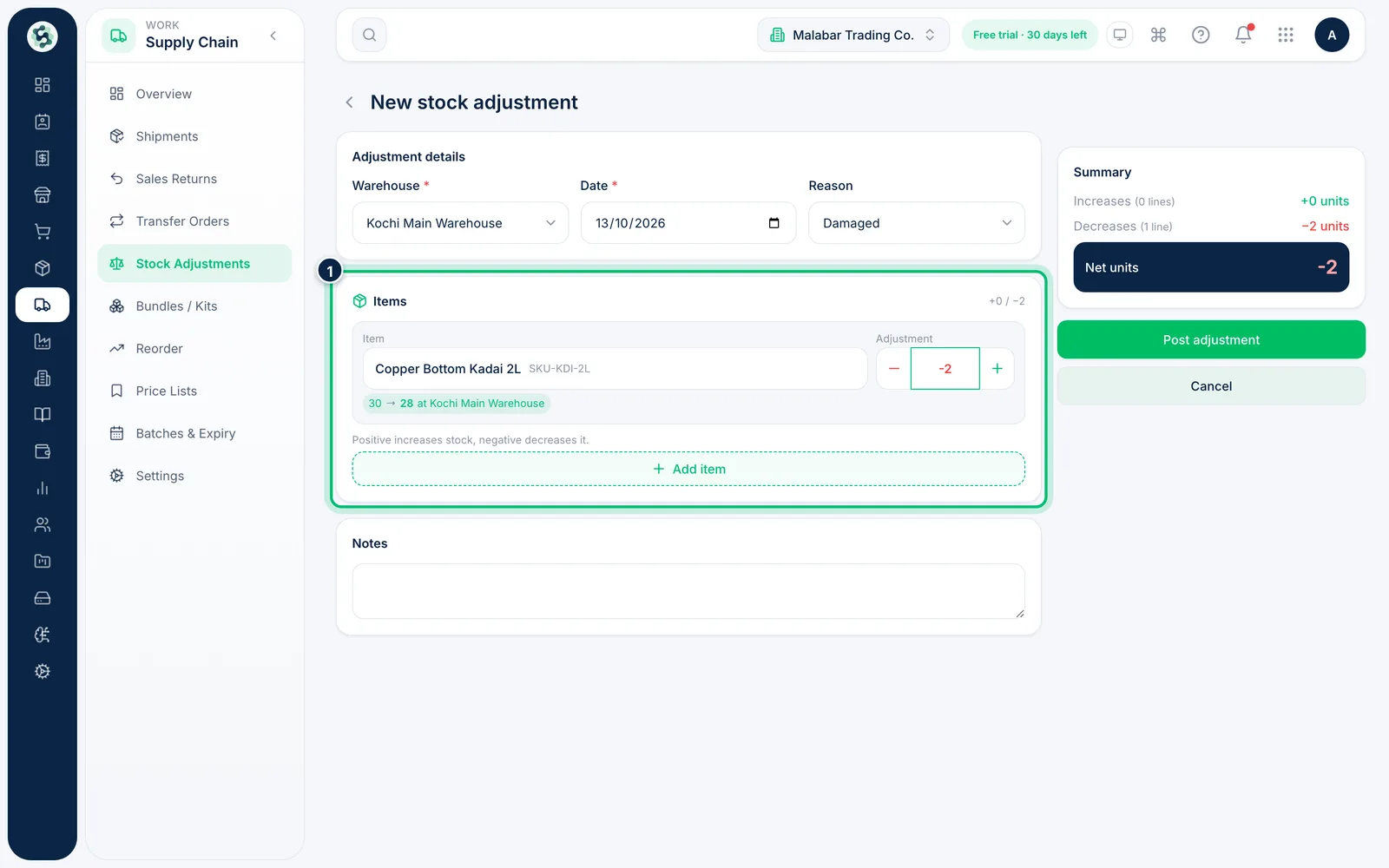
3Add the items and quantities
Click Pick item and choose the item. Enter a positive number to increase stock or a negative one to decrease it — the − and + buttons step it by one. Scalar360 shows the current and new quantity at that warehouse.
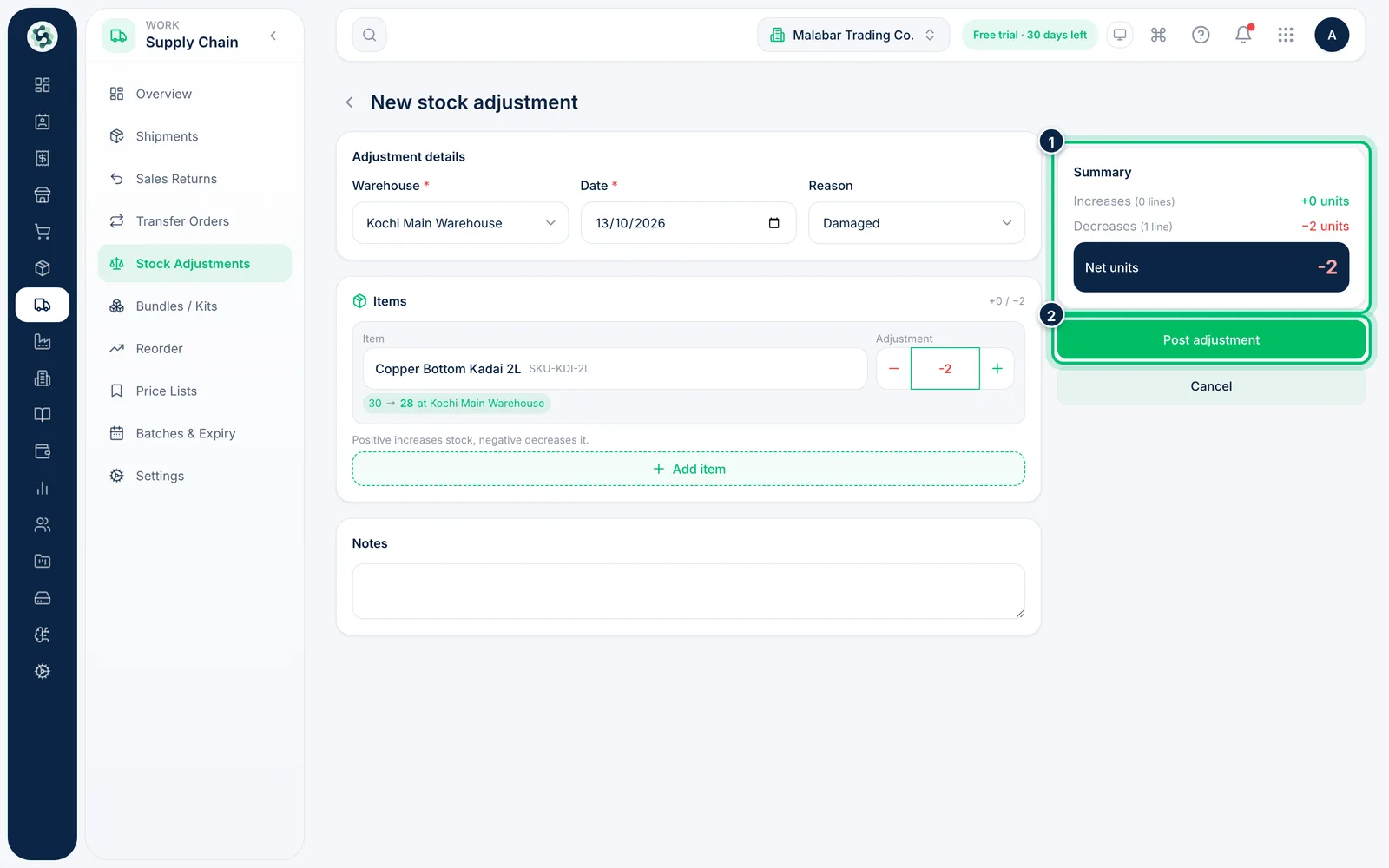
4Post the adjustment
Check the Summary, which shows increases, decreases and the net change in units with the number of lines behind each, for example "Increases (2 lines) +30 units", add Notes if needed, then choose Post adjustment. Stock changes straight away.
Related guides
Still stuck? Contact our support team — or start a free trial to try this in your own company.