
Super Intelligence (AI & API) · 4 steps
Add a self client or server client in the API console
Register your own software with the Developer API to get a Client ID and Client Secret. Every call it makes runs as you.
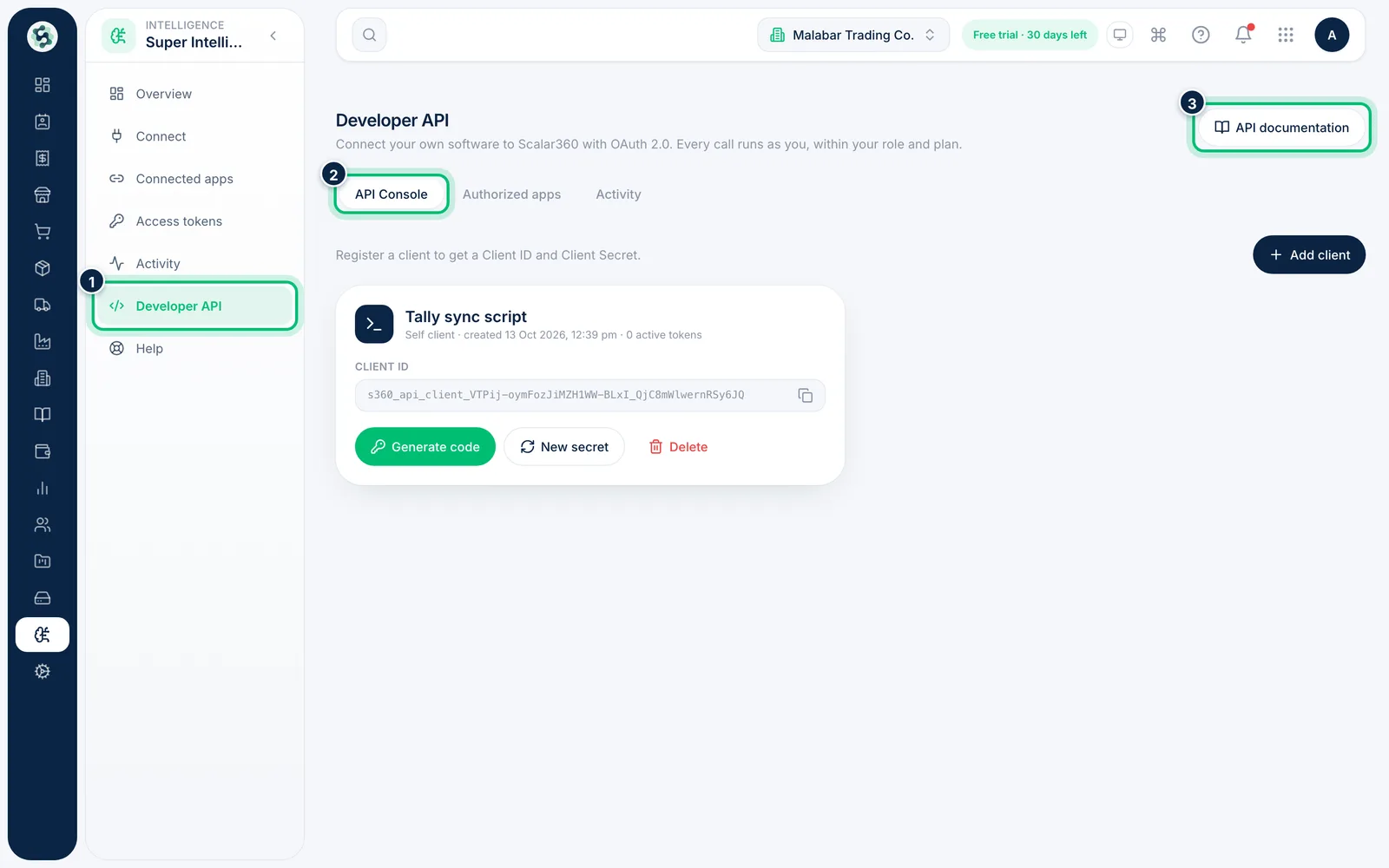
Before you start: The full API reference is at scalar360.com/developers. Choose API documentation on this page to open it.
1Open the Developer API console
In Super Intelligence, choose Developer API. The API Console tab lists your clients, each with its Client ID and type.
2Start a new client
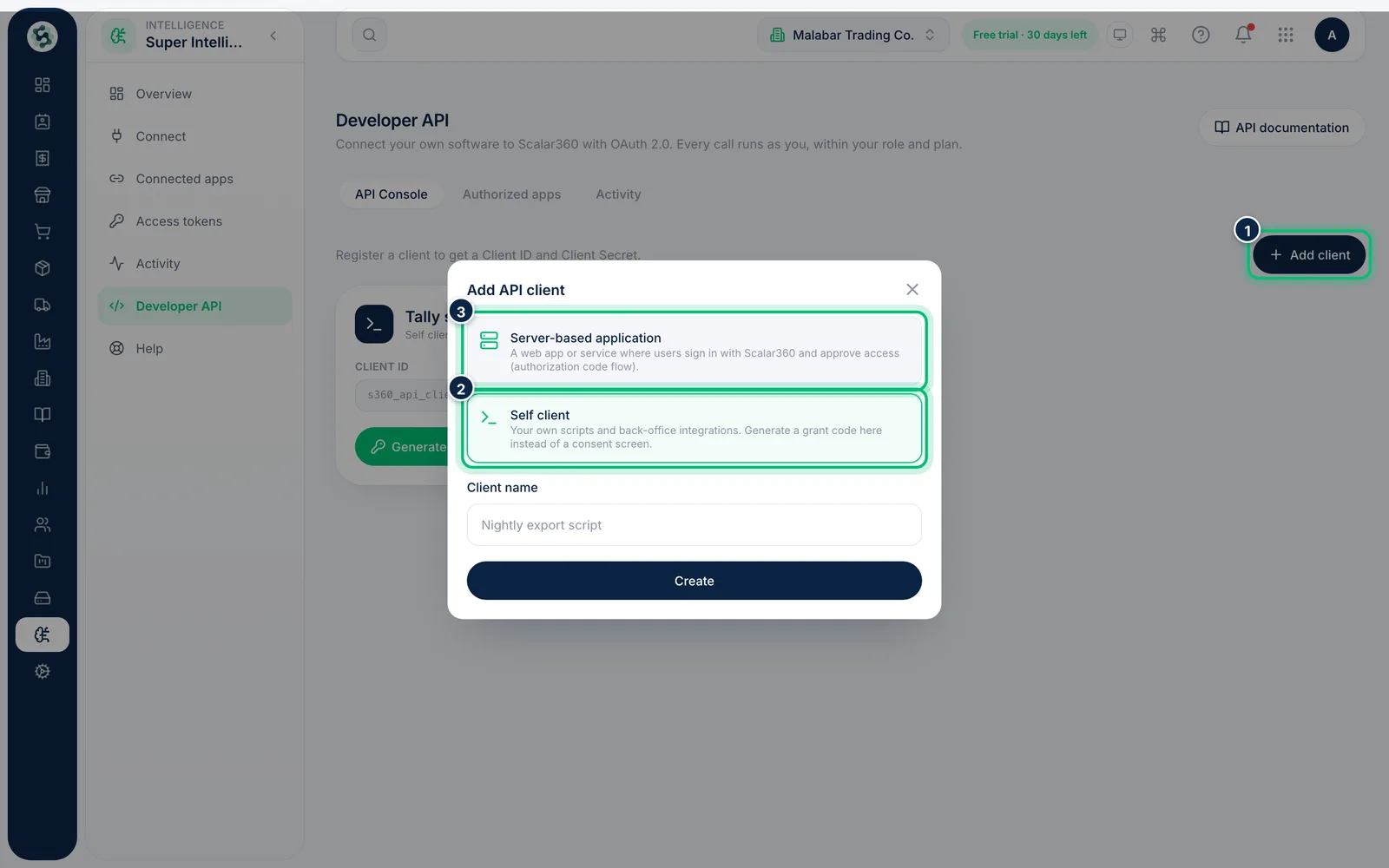
Choose Add client. Pick Server-based application for an app where other people sign in with Scalar360, or Self client for your own scripts and back-office integrations.
3Name the client
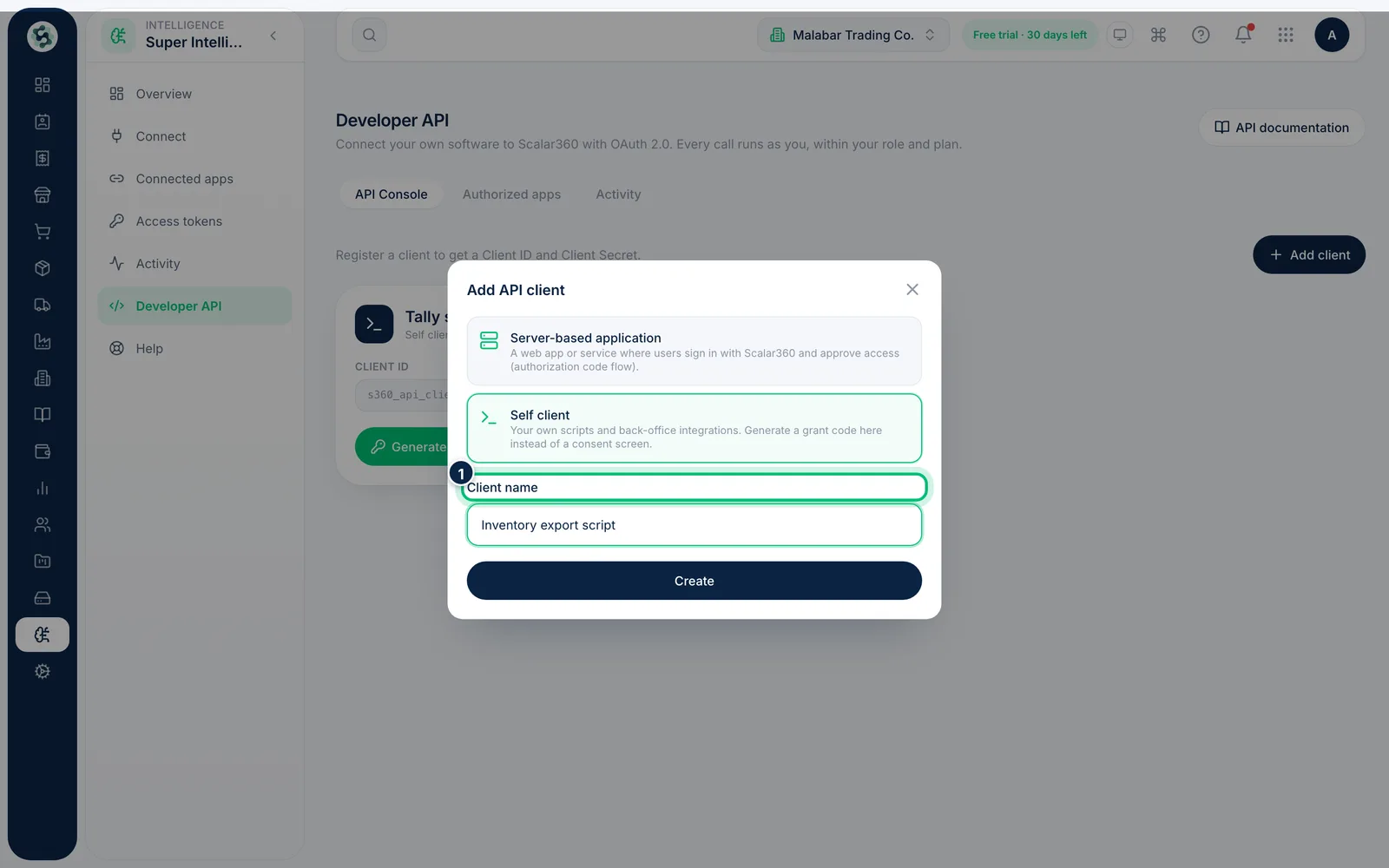
Enter a Client name. For a server-based application also add the Authorized redirect URIs — one per line — where Scalar360 may send people back after they approve.
4Create it and store the secret safely
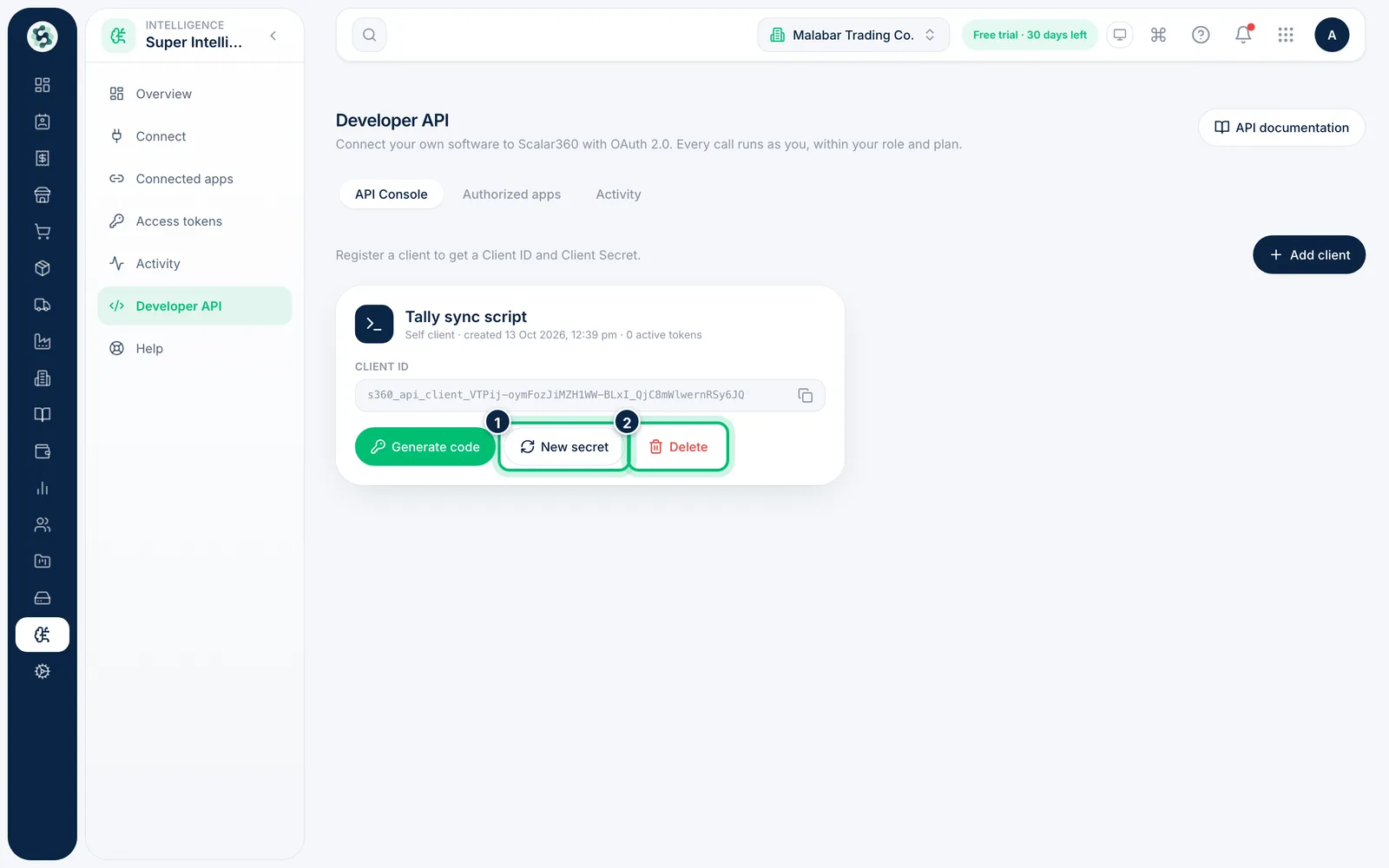
Choose Create. The Client Secret is shown only once, so copy it into your secrets manager and never put it in a browser or mobile app. Later, New secret replaces it and Delete revokes the client's tokens.
Related guides
Still stuck? Contact our support team — or start a free trial to try this in your own company.