
Point of sale · 5 steps
Take payment: cash, card, UPI or split
Apply a bill discount, coupon or loyalty points, take one or more payments and see the change due.
Before you start: Add the items (and the customer, for loyalty points) to the cart first.
1Open the payment screen
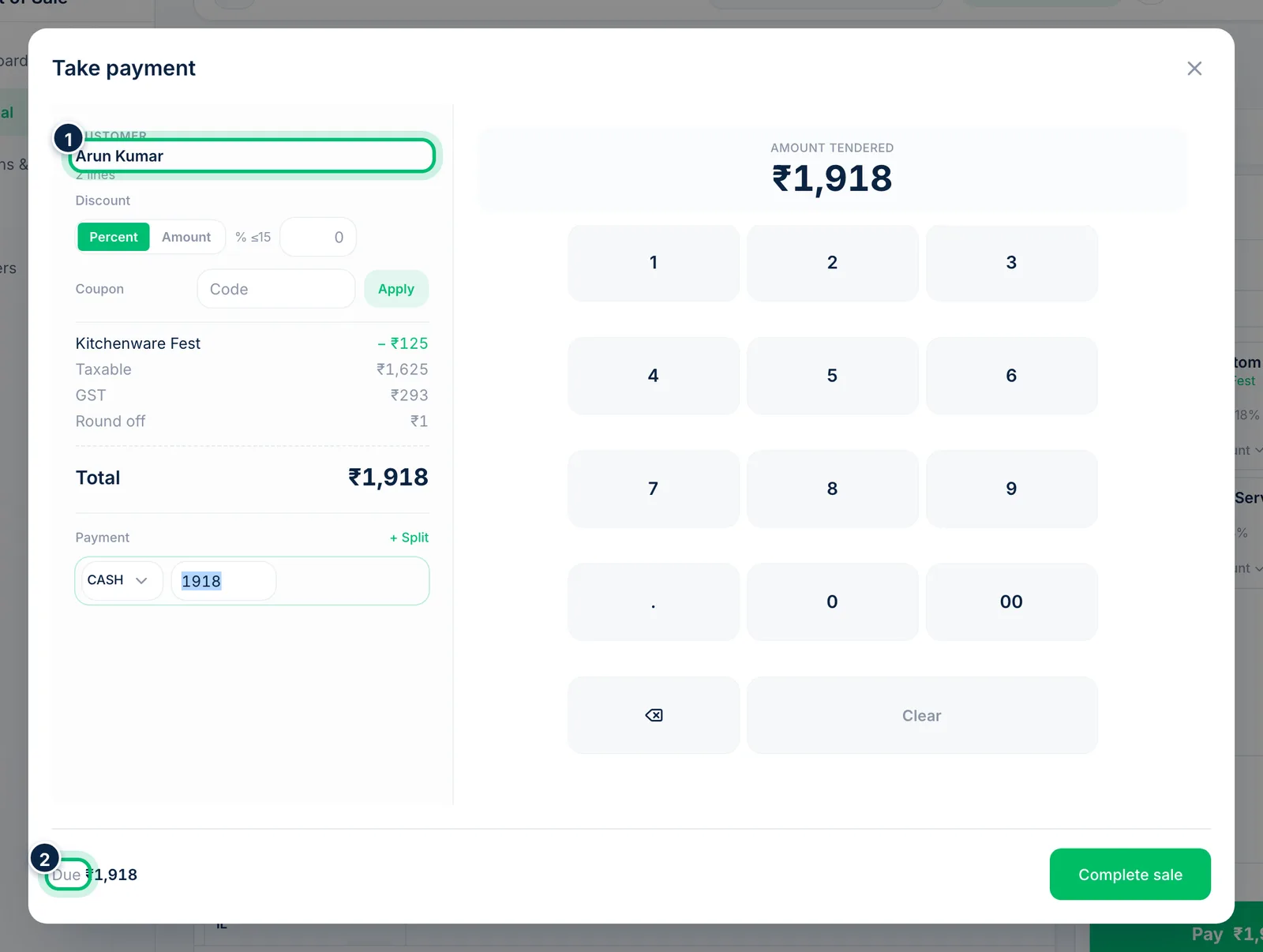
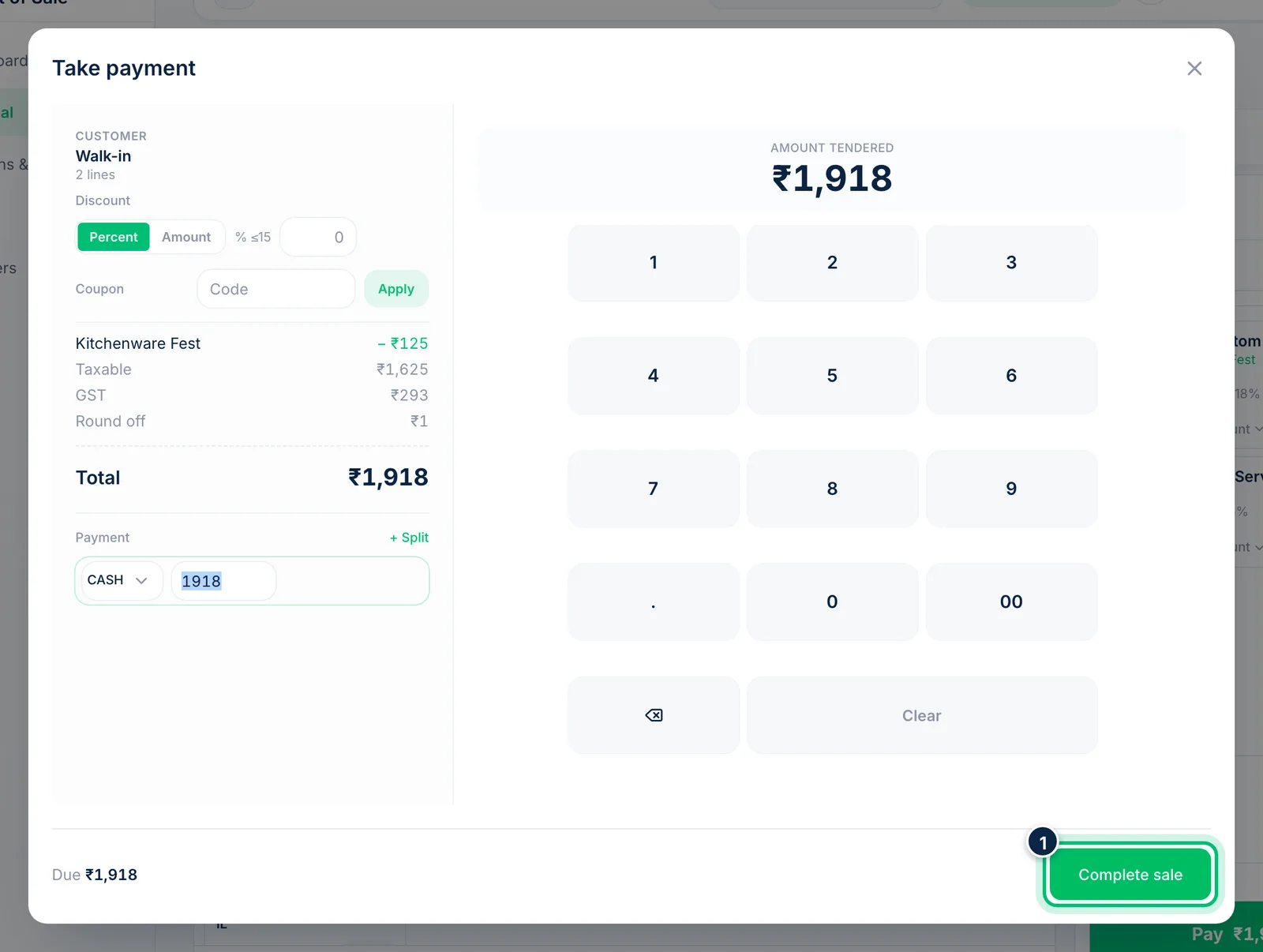
Choose Pay (or press F2). Take payment opens with the customer, the totals and the amount due, filled in with the register's default payment method.
2Apply a discount, coupon or points
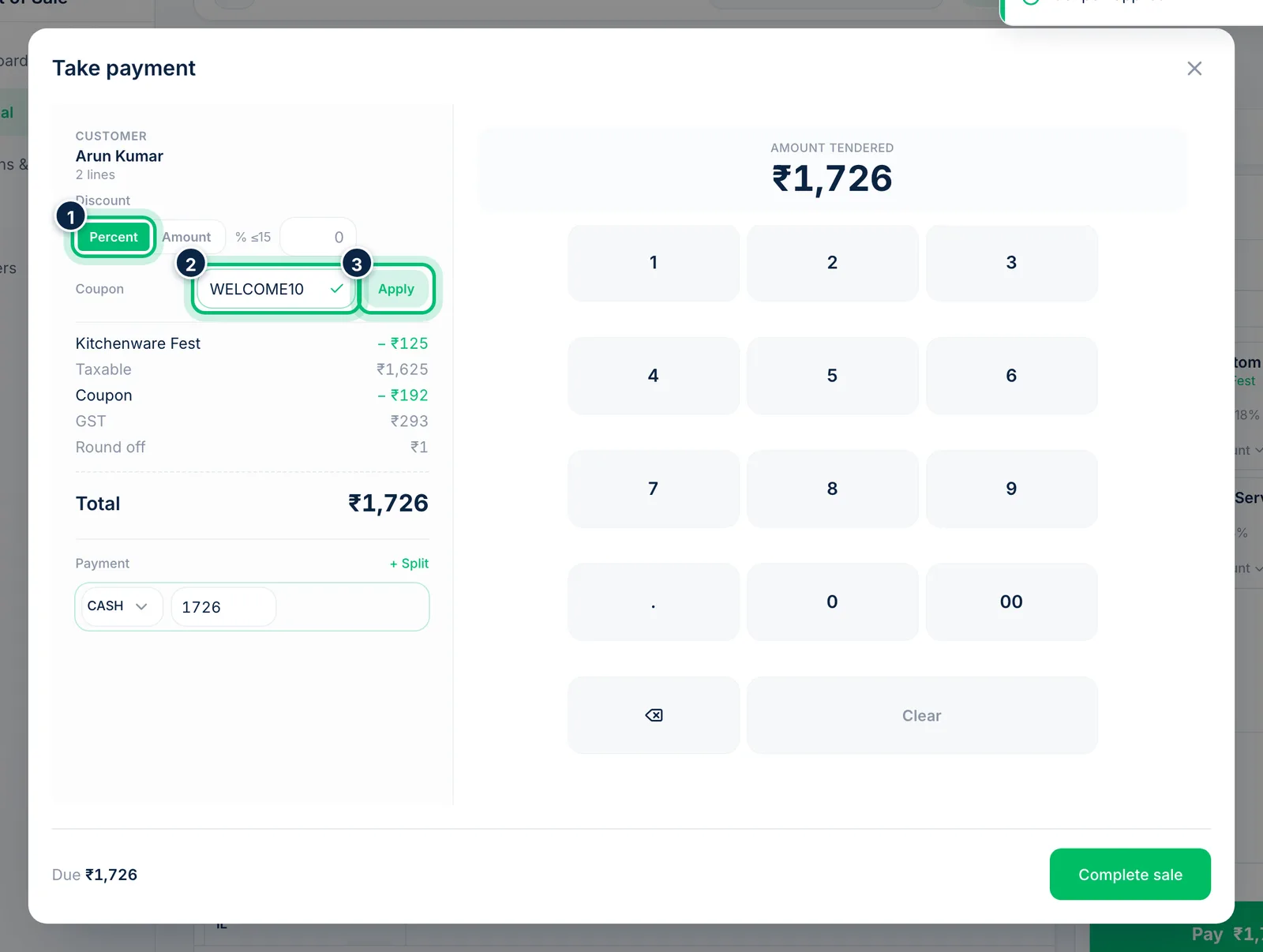
Under Discount, choose Percent or Amount and enter a discount on the whole bill. Type a Coupon code and choose Apply. When the customer has loyalty points, a Points box appears here too — enter how many to redeem.
3Take cash and give change
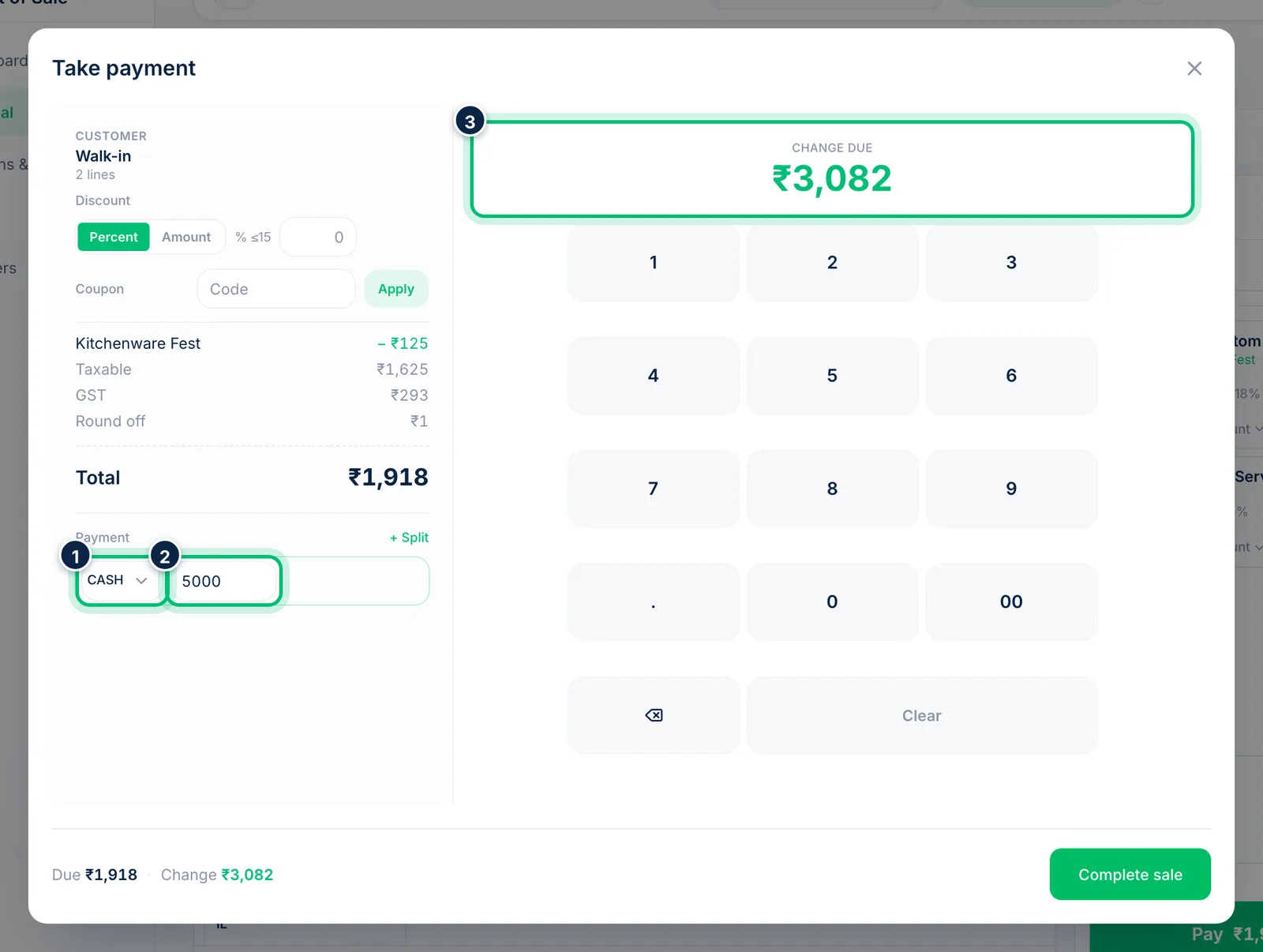
Choose the method — CASH, CARD, UPI, WALLET, BANK or OTHER — and type the amount the customer hands over, or tap it on the keypad. When it's more than the total, Change due shows what to give back.
4Split the payment
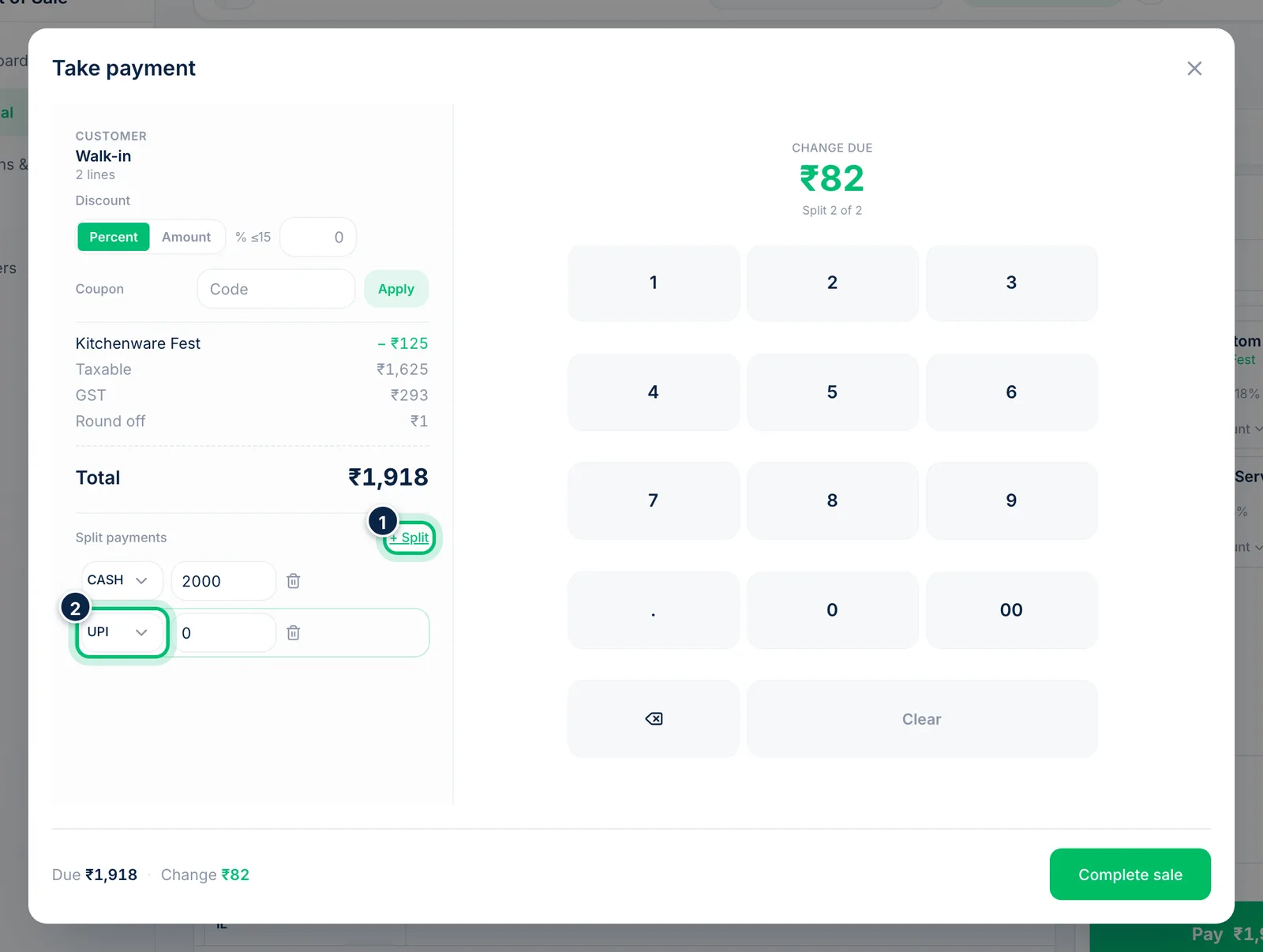
To split, enter the first amount, then choose + Split. A new line is added for the balance — pick its method, such as UPI, and adjust the amount.
5Complete the sale
When the amounts cover the total, choose Complete sale. The sale is saved as a GST invoice that charges each item's GST (the receipt shows CGST and SGST), stock leaves the register's warehouse and, if the register has Auto-print on, the receipt prints.
Related guides
Still stuck? Contact our support team — or start a free trial to try this in your own company.