
People & payroll · 6 steps
Add an employee with salary, PF, ESI and bank details
Create an employee record with their role, monthly salary structure, statutory deductions and bank account, ready for attendance and payroll.
Before you start: Add your departments and designations first under People Operations → Settings, so you can pick them on the form.
1Open Employees and add an employee
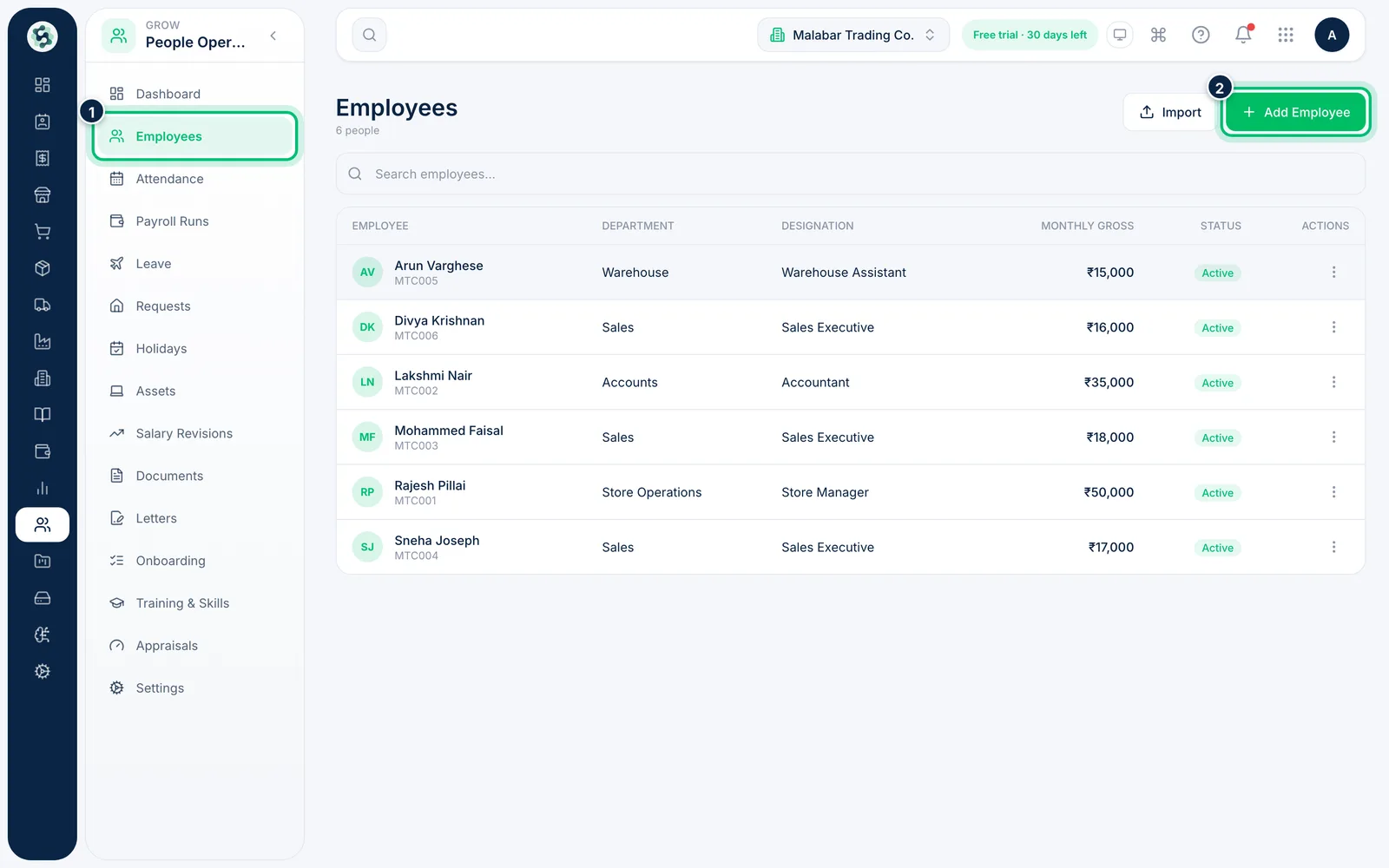
In the left menu open People Operations → Employees. The list shows each person's department, designation and monthly gross. Choose Add Employee.
2Enter personal details
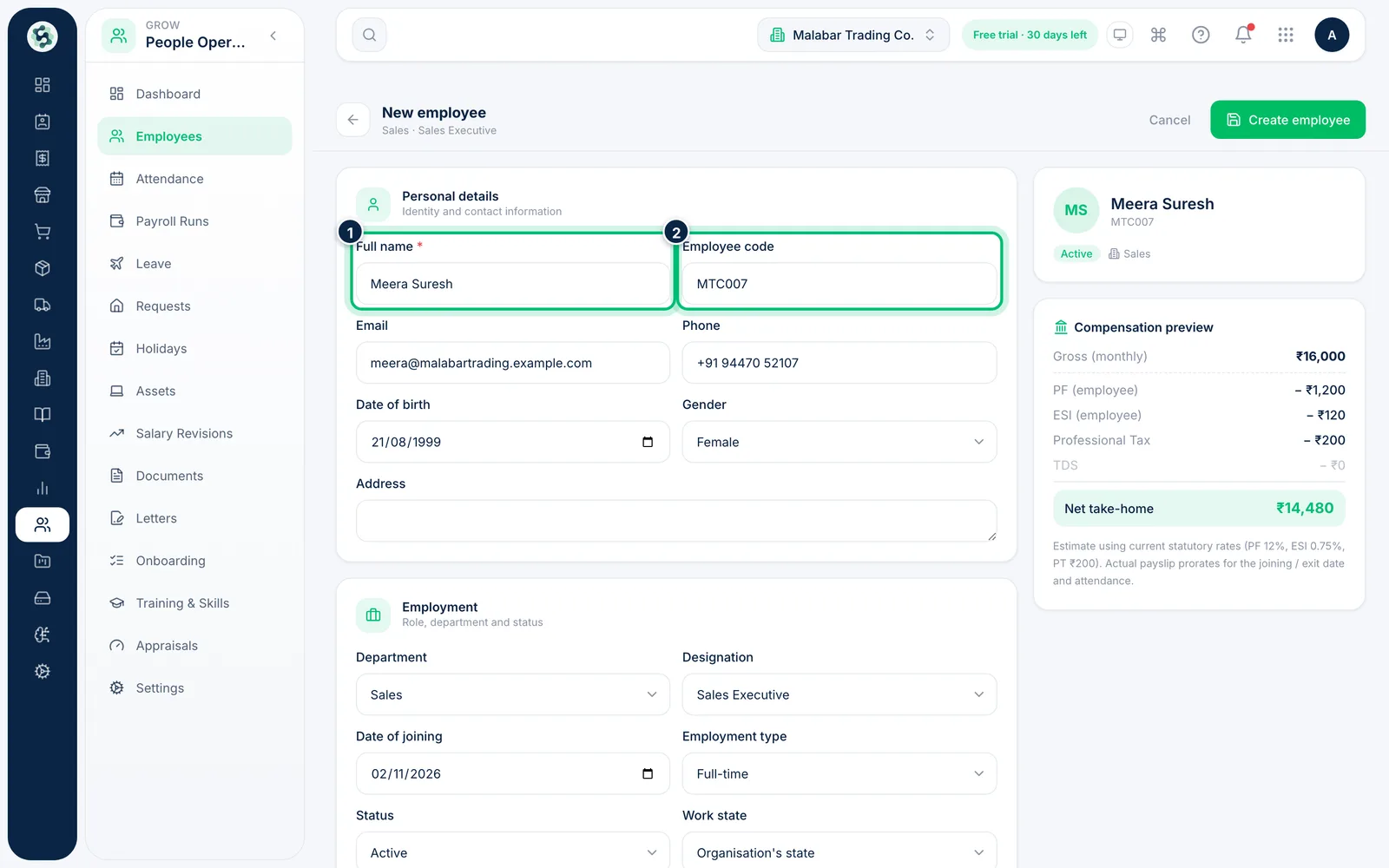
Under Personal details, enter the Full name — the only required field — and an Employee code such as MTC007. Add their email, phone, date of birth, gender and address.
3Fill in the employment details
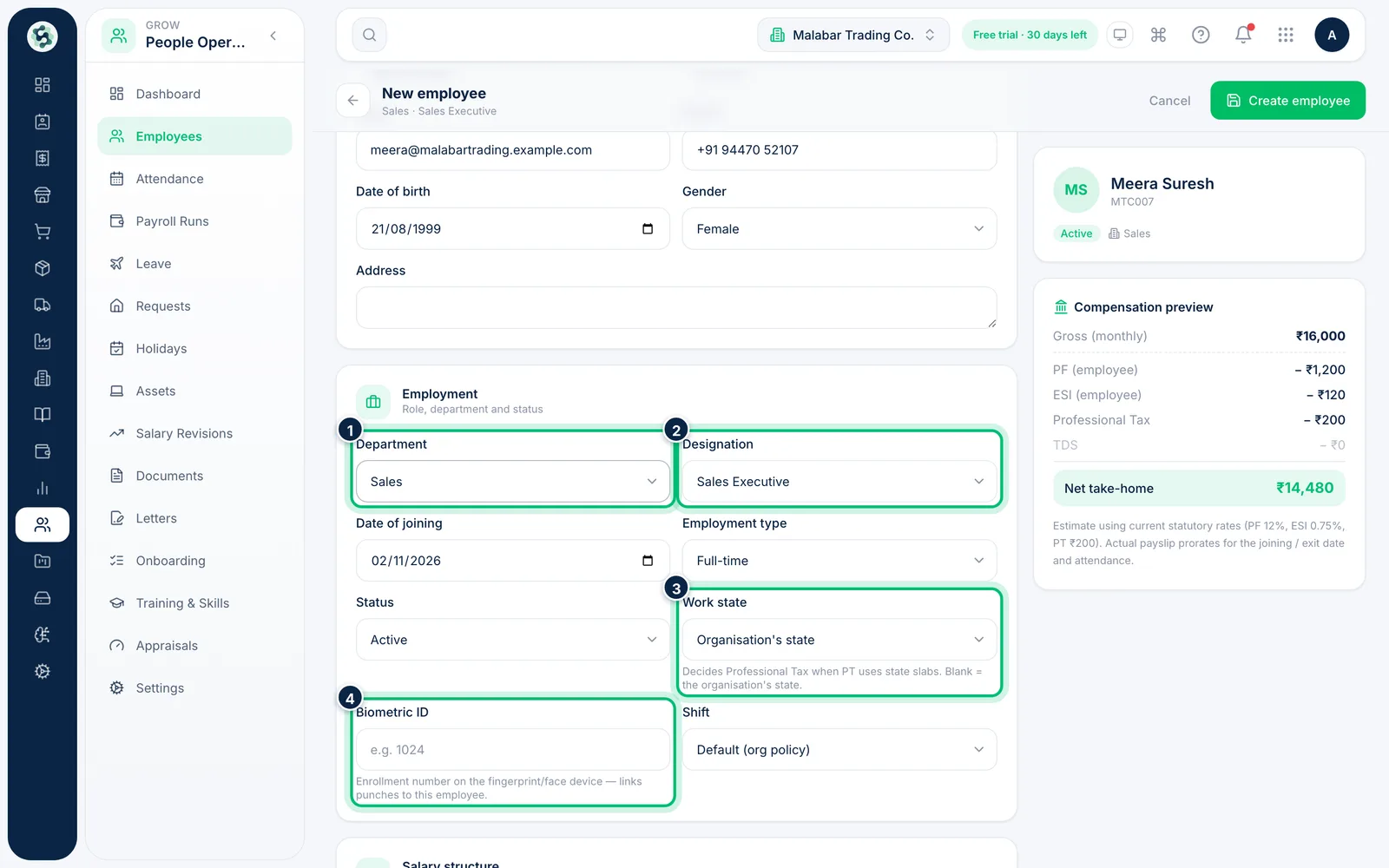
Under Employment, choose the Department and Designation, and enter the Date of joining and Employment type. Choose the Work state where the person works — Professional Tax follows it, and if you leave it as the organisation's state, that state is used. If you use a fingerprint or face device, enter the employee's Biometric ID so their punches are matched to them.
4Set the salary structure and statutory deductions
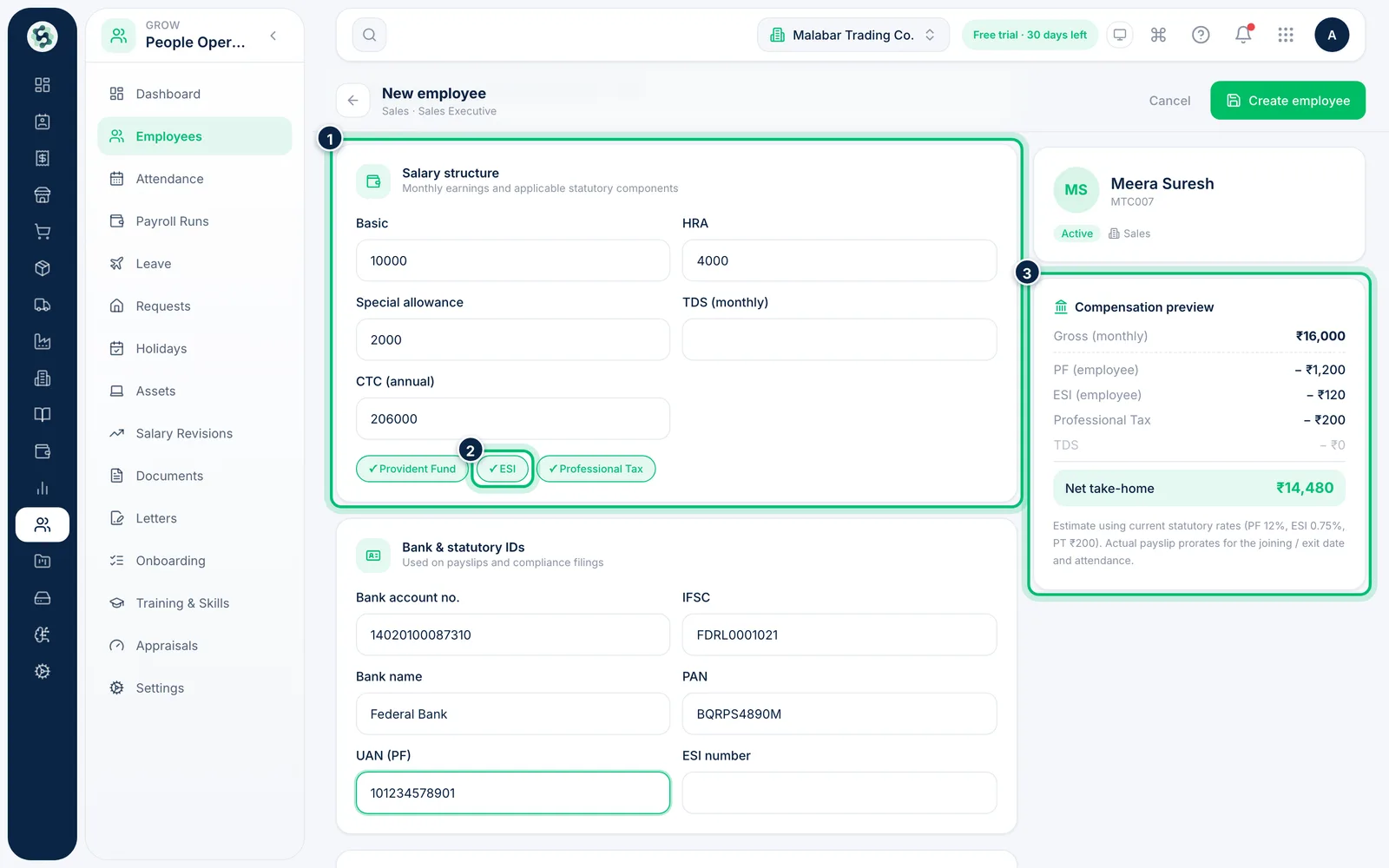
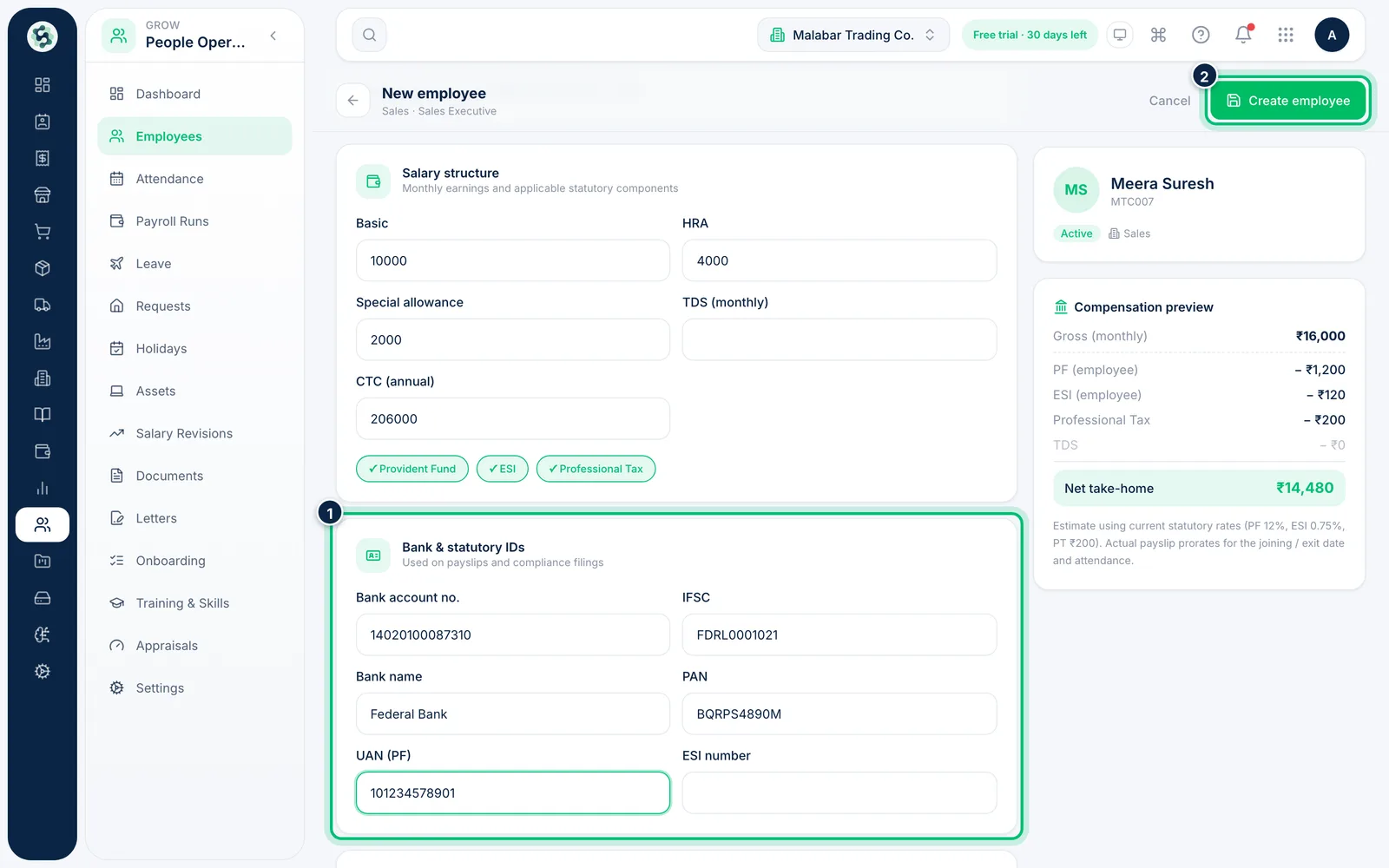
Enter the monthly Basic, HRA and Special allowance, any fixed monthly TDS, and the annual CTC. Provident Fund and Professional Tax are on by default — choose ESI to turn it on for staff earning up to the ESI wage ceiling.
The Compensation preview works out the gross, the employee's PF, ESI and PT, and the net take-home as you type.
5Add bank and statutory IDs, then save
Under Bank & statutory IDs, enter the bank account number, IFSC, bank name, PAN, UAN (PF) and ESI number. These print on payslips. Choose Create employee to save.
6Give the employee access to the Attendance app
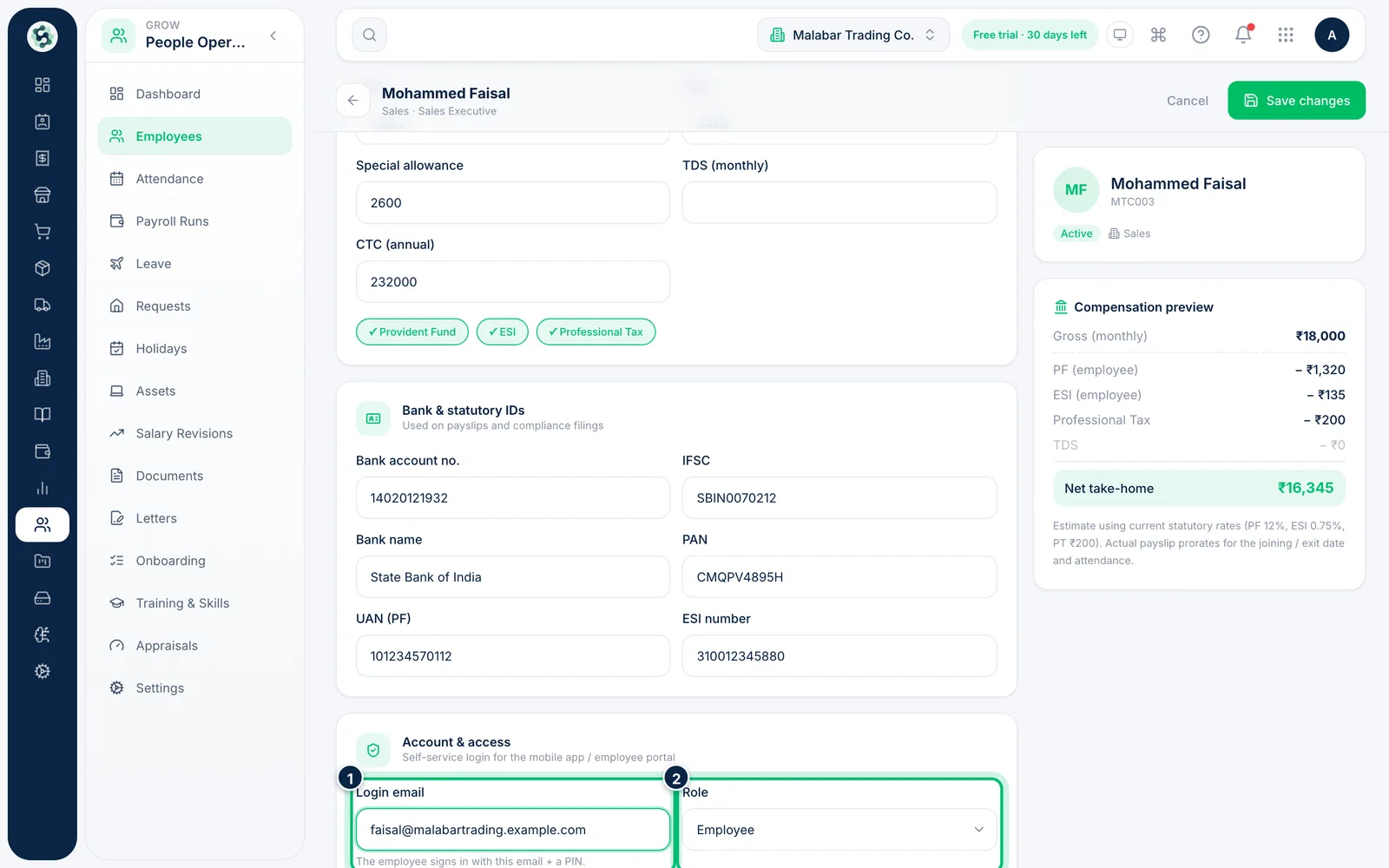
Open the saved employee and scroll to Account & access. Enter a Login email, choose the Role and Reporting manager, and choose Save changes. Then choose Generate login PIN — the PIN is shown only once, so share it with the employee.
Related guides
Still stuck? Contact our support team — or start a free trial to try this in your own company.