
Settings & administration · 4 steps
Add user seats and add-ons
Buy extra user seats or add-ons, and schedule removals for your next renewal.
Before you start: You need a paid plan and permission to manage billing. During the free trial these options are locked — use Plan & Usage to choose a plan first.
1Open Manage Plan
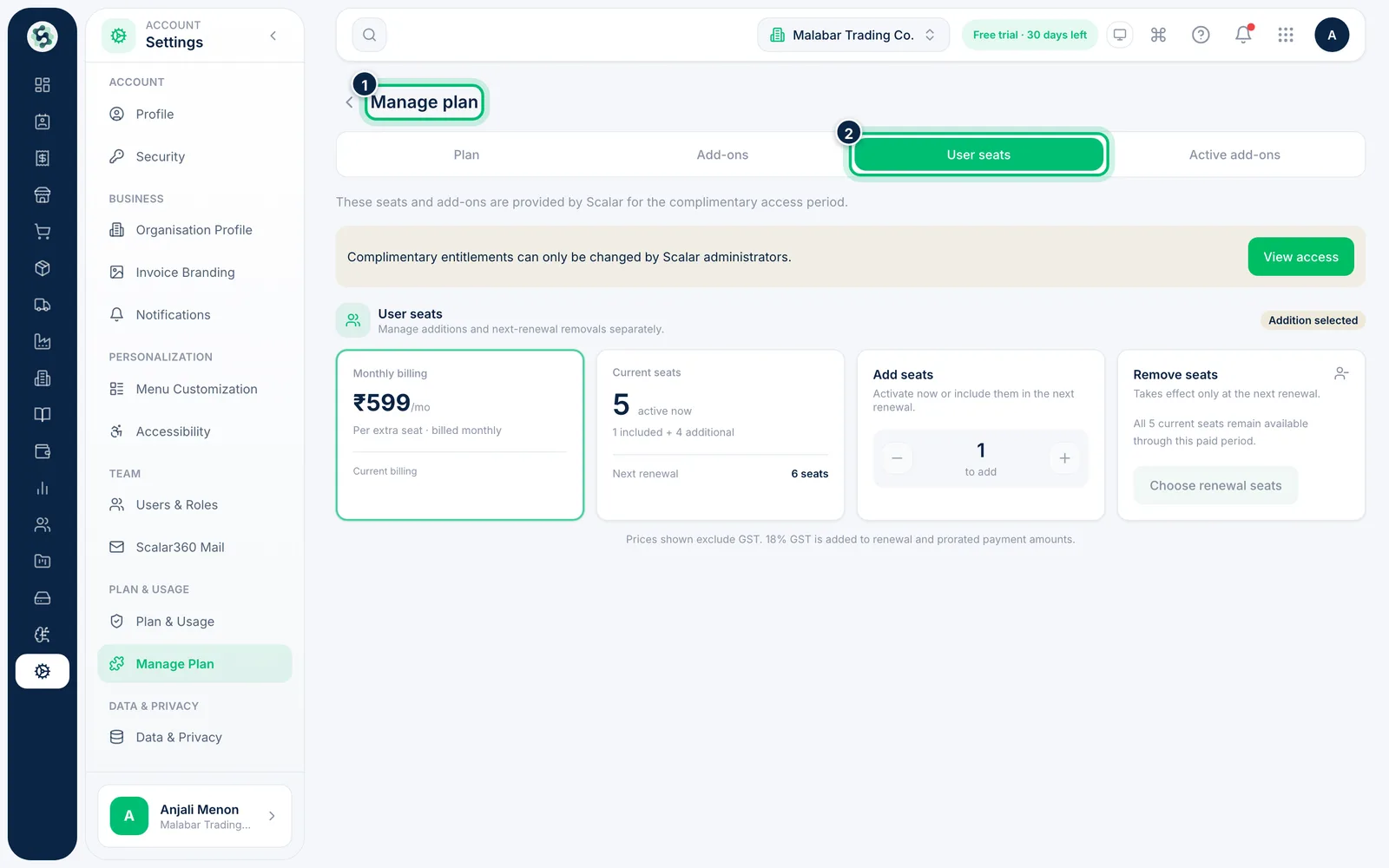
Go to Settings → Manage Plan. The tabs at the top are Plan, Add-ons, User seats and Active add-ons.
2Add user seats
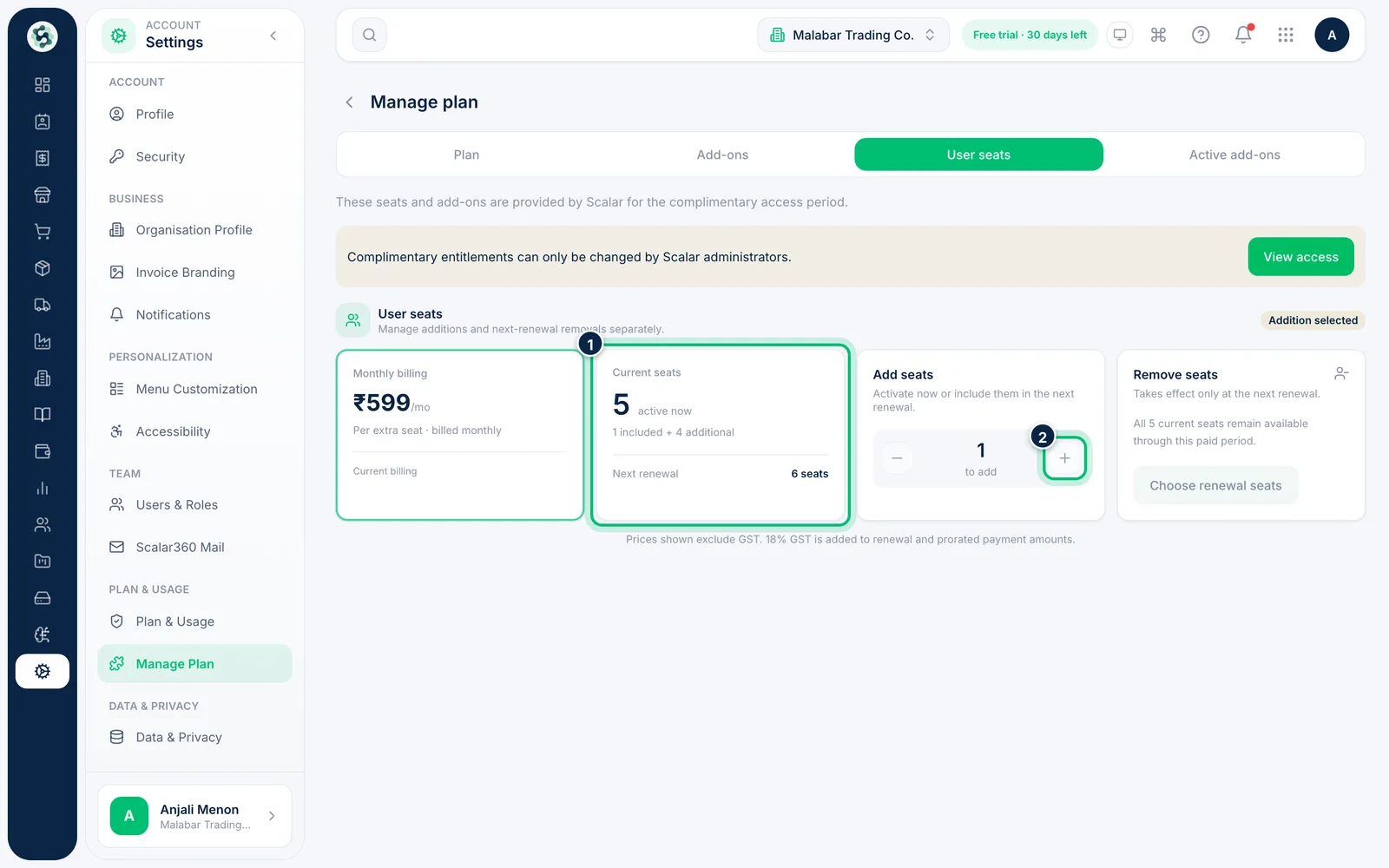
On User seats, check Current seats, then use the + button under Add seats to choose how many to add. Prices are per extra seat and exclude GST.
3Browse add-ons
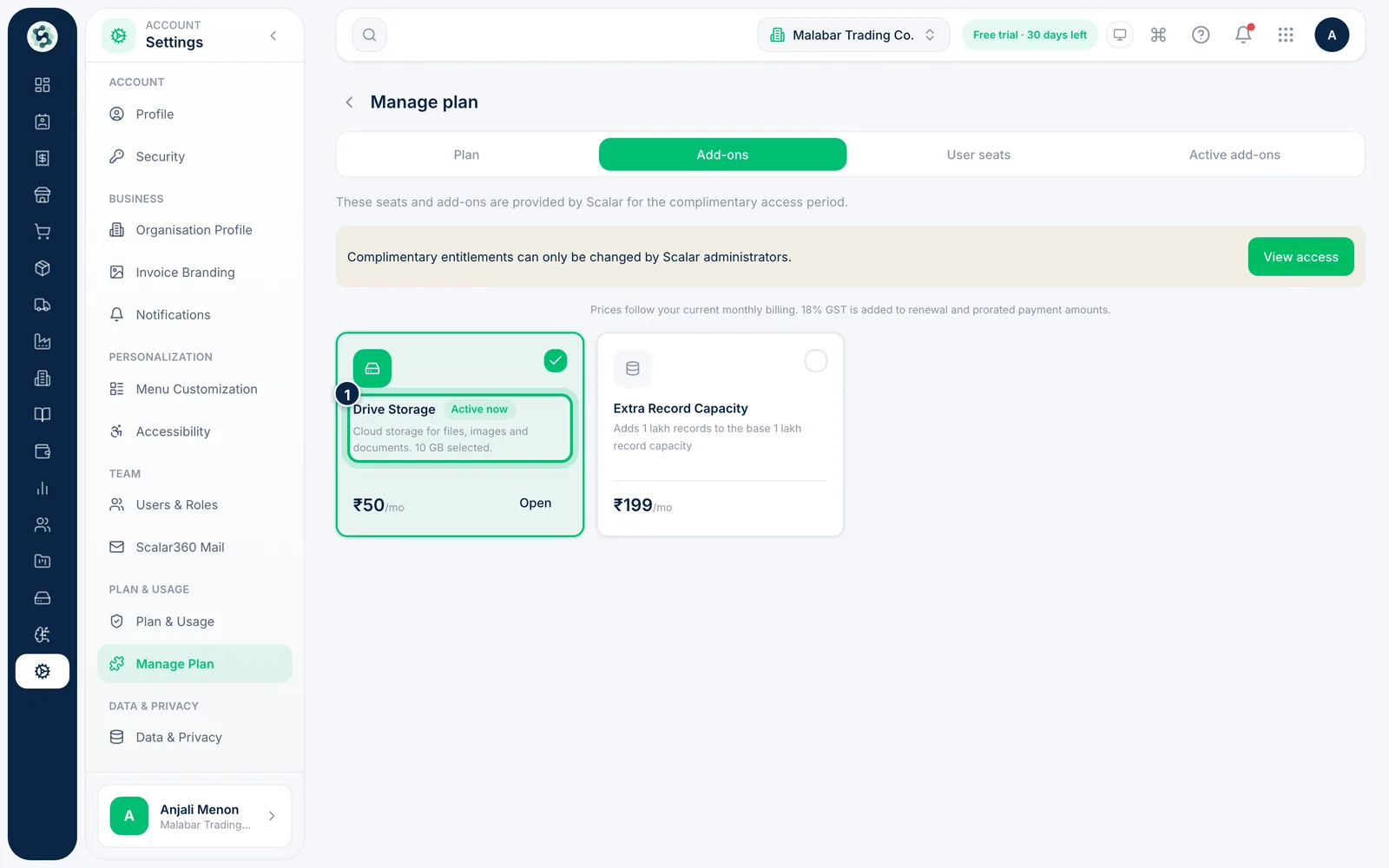
On Add-ons, click a card, such as Drive Storage, to select it. A bar appears where you review the cost and choose Continue — nothing is charged until you confirm.
4Manage active add-ons
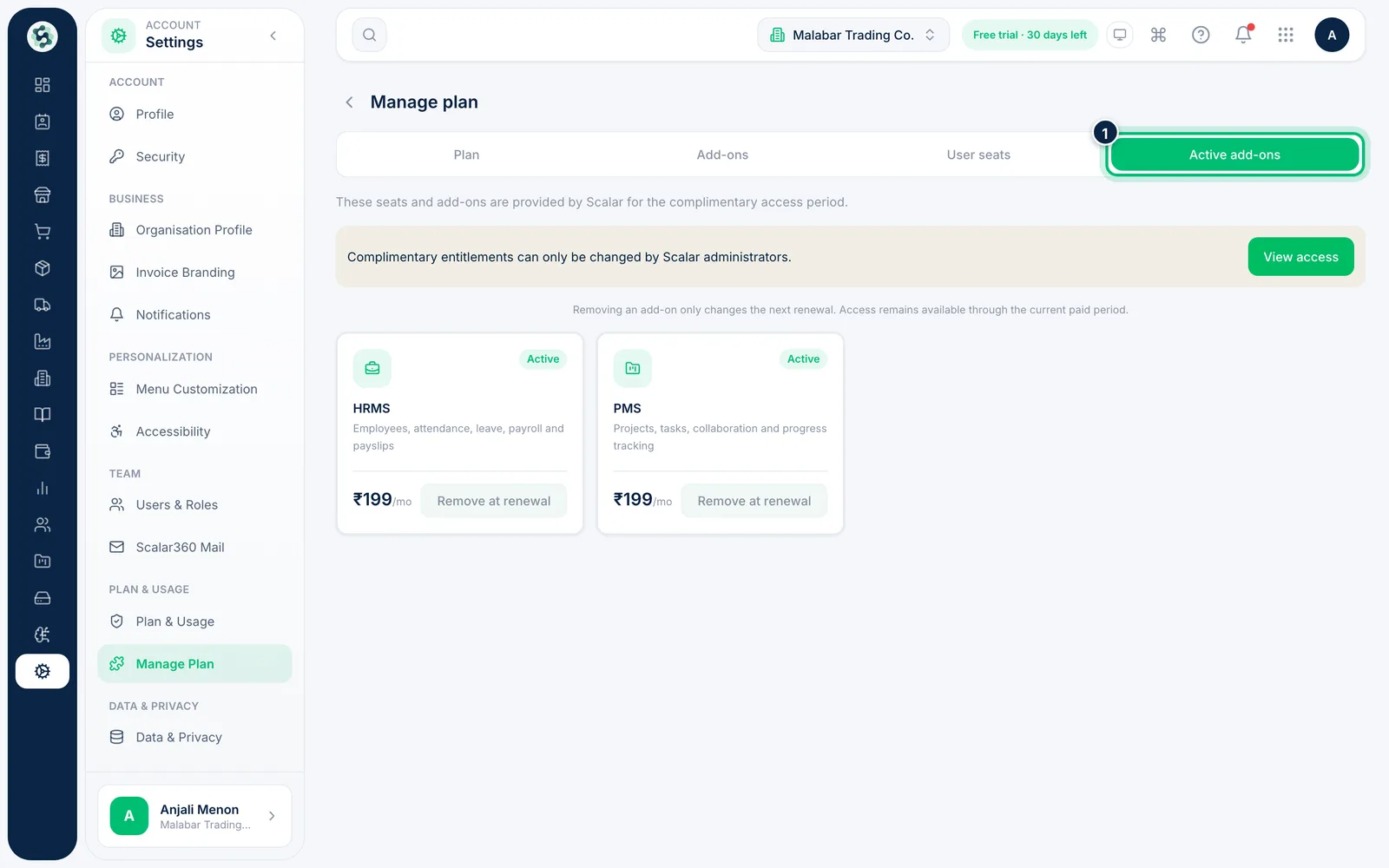
Active add-ons lists what you already use. Choose Remove at renewal on a card to schedule its removal — access stays until the end of the paid period.
Related guides
Still stuck? Contact our support team — or start a free trial to try this in your own company.