
CRM · 5 steps
Add a lead
Record a new enquiry with its deal value, source and follow-up date, so it shows up in your pipeline and reminders.
Before you start: You need permission to create leads. Sources, categories, priorities and pipeline stages come from CRM settings — the defaults work until you change them.
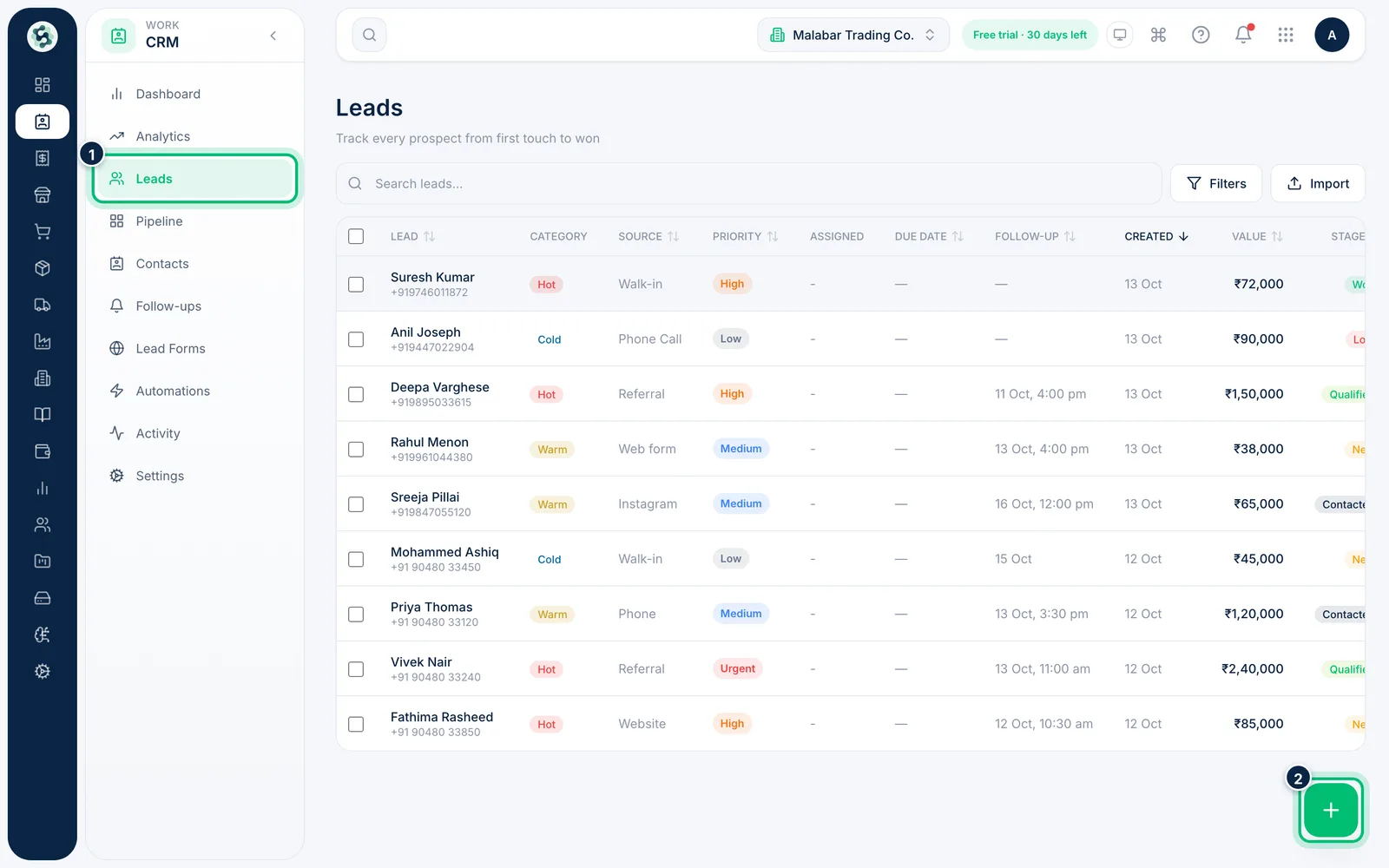
1Open Leads and start a new lead
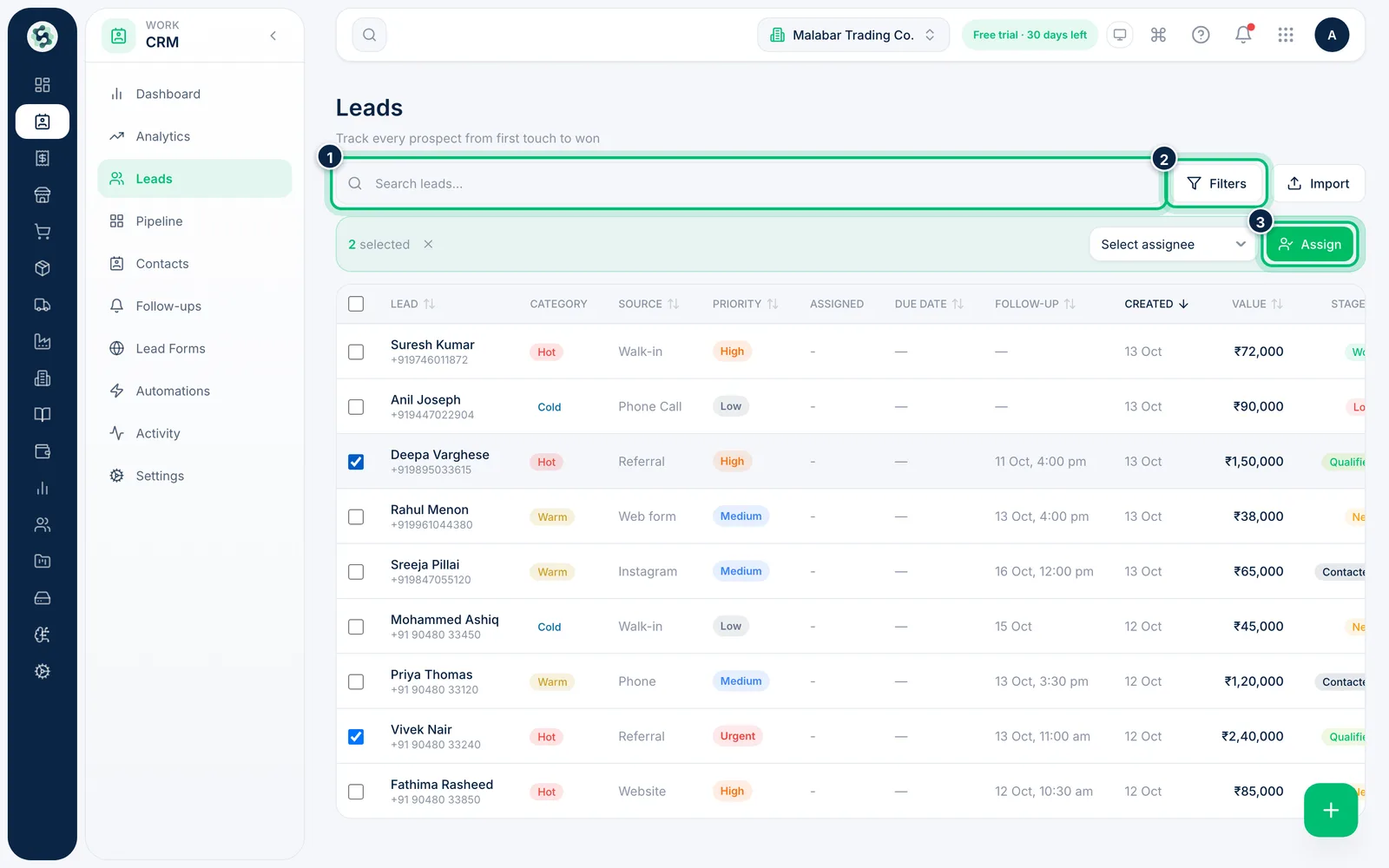
In the left menu open CRM → Leads. The list shows every lead with its source, priority, follow-up date, deal value and stage. Choose the + button at the bottom right to add a lead.
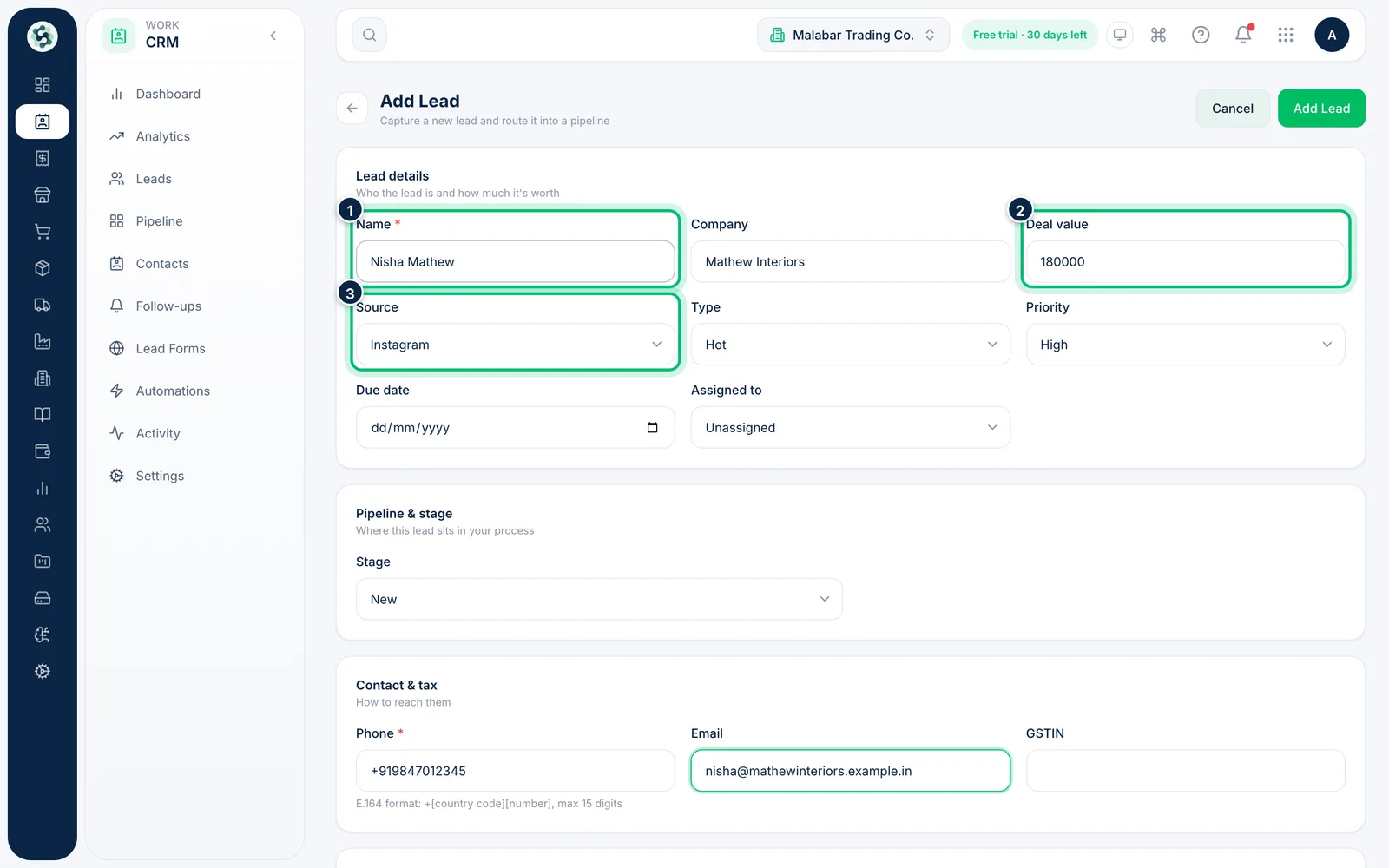
2Enter who the lead is and what it's worth
Under Lead details, only Name is required. Add the Company, the Deal value you expect, where the lead came from in Source, and a Type (such as Hot, Warm or Cold) and Priority if you use them.
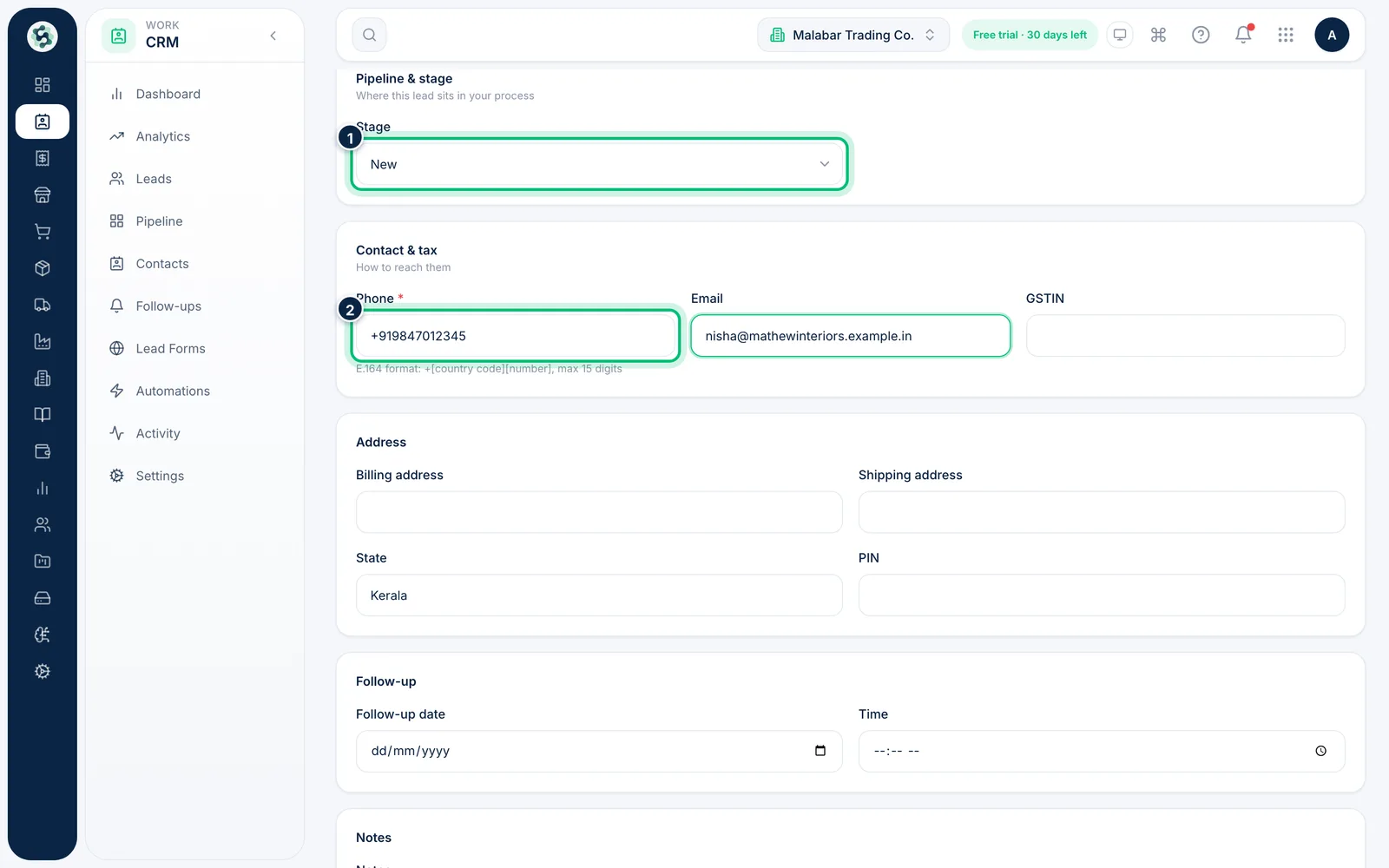
3Choose the stage and add contact details
Under Pipeline & stage, pick the Stage the lead starts in — new leads usually start at New. Under Contact & tax, enter the Phone in international format, for example +919847012345; it's required. Add an Email and GSTIN if you have them.
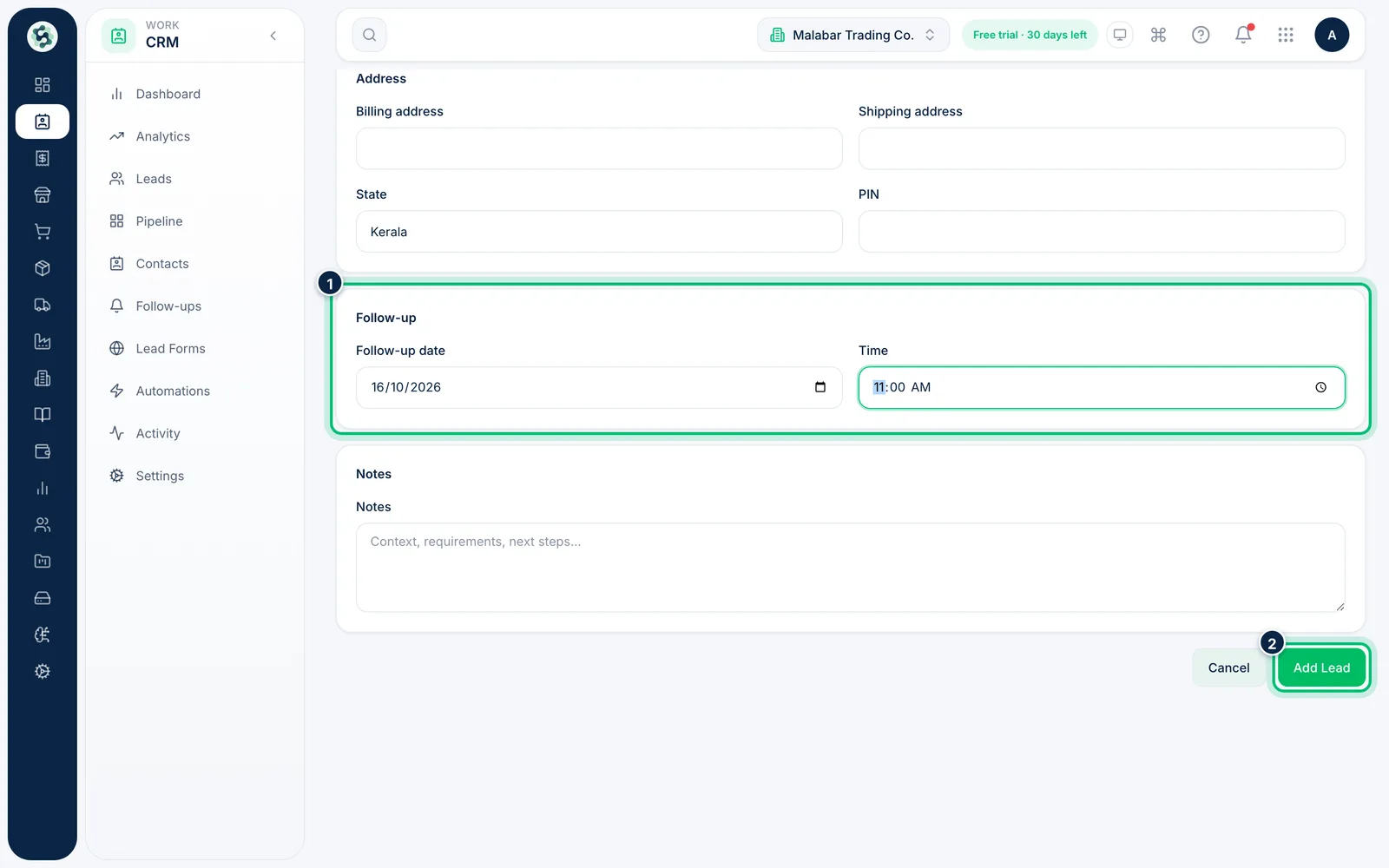
4Set a follow-up and save
Under Follow-up, choose the Follow-up date and Time you plan to get back to them — the lead then appears in Follow-ups on that day. Add any Notes, then choose Add Lead.
5Find, filter and assign leads
Back on Leads, search by name, company, phone or email, or choose Filters to narrow the list by assignee, category, priority, stage, dates or deal value. Tick leads to assign them to a teammate in one go with Assign.
Related guides
Still stuck? Contact our support team — or start a free trial to try this in your own company.