
Getting started · 3 steps
Transfer ownership to another Admin
Hand your organisation, and its billing, to an Admin. You stay on as an Admin with full access.
Before you start: Only the Owner — the person who created the organisation — can do this, and the new Owner must already be an Admin. Transferring ownership takes effect immediately.
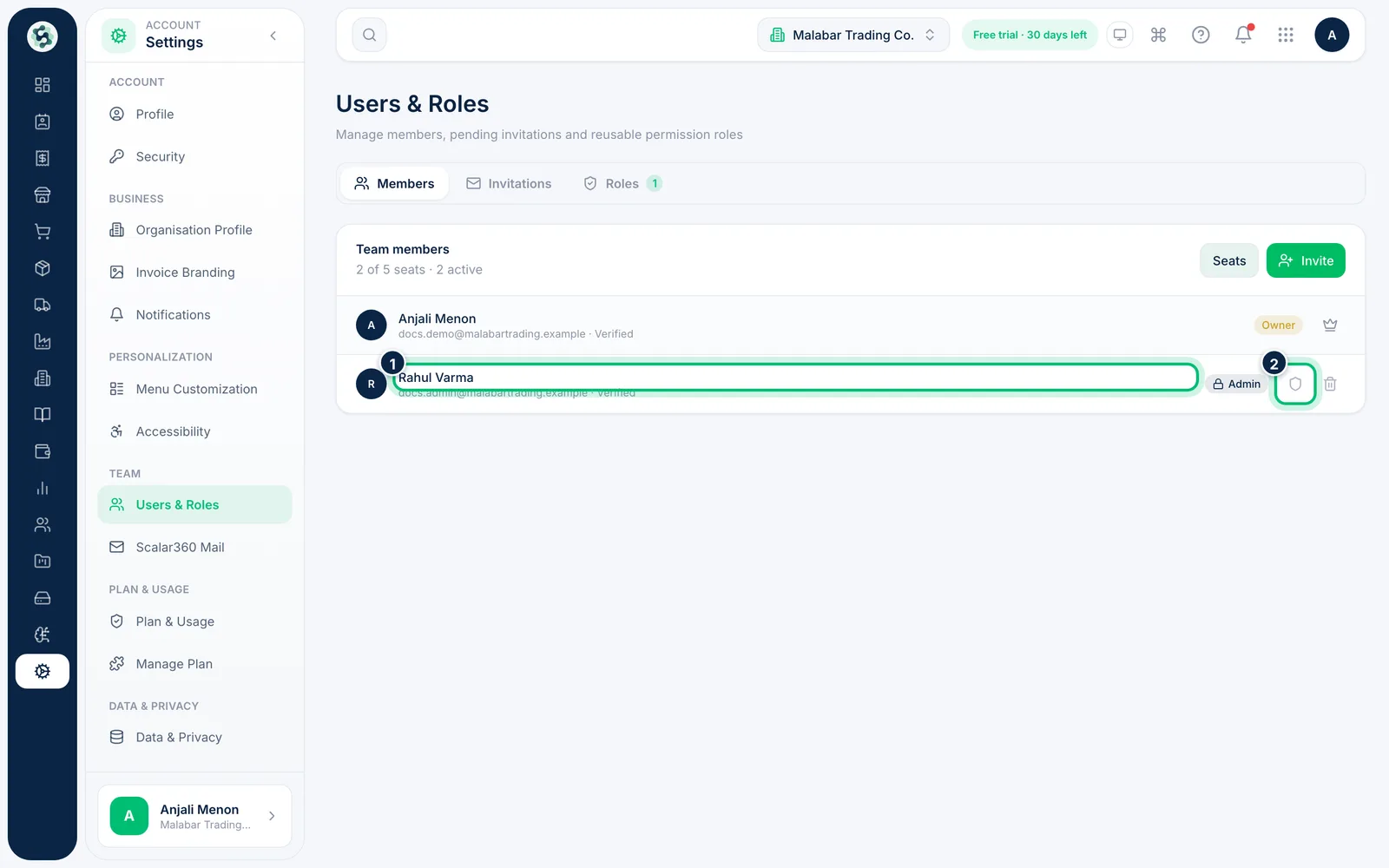
1Make the new Owner an Admin
Ownership can only go to an Admin. If your teammate isn't one yet, invite them with the Admin role, or choose the Edit access icon next to their name on the Members tab and set their Role to Admin.
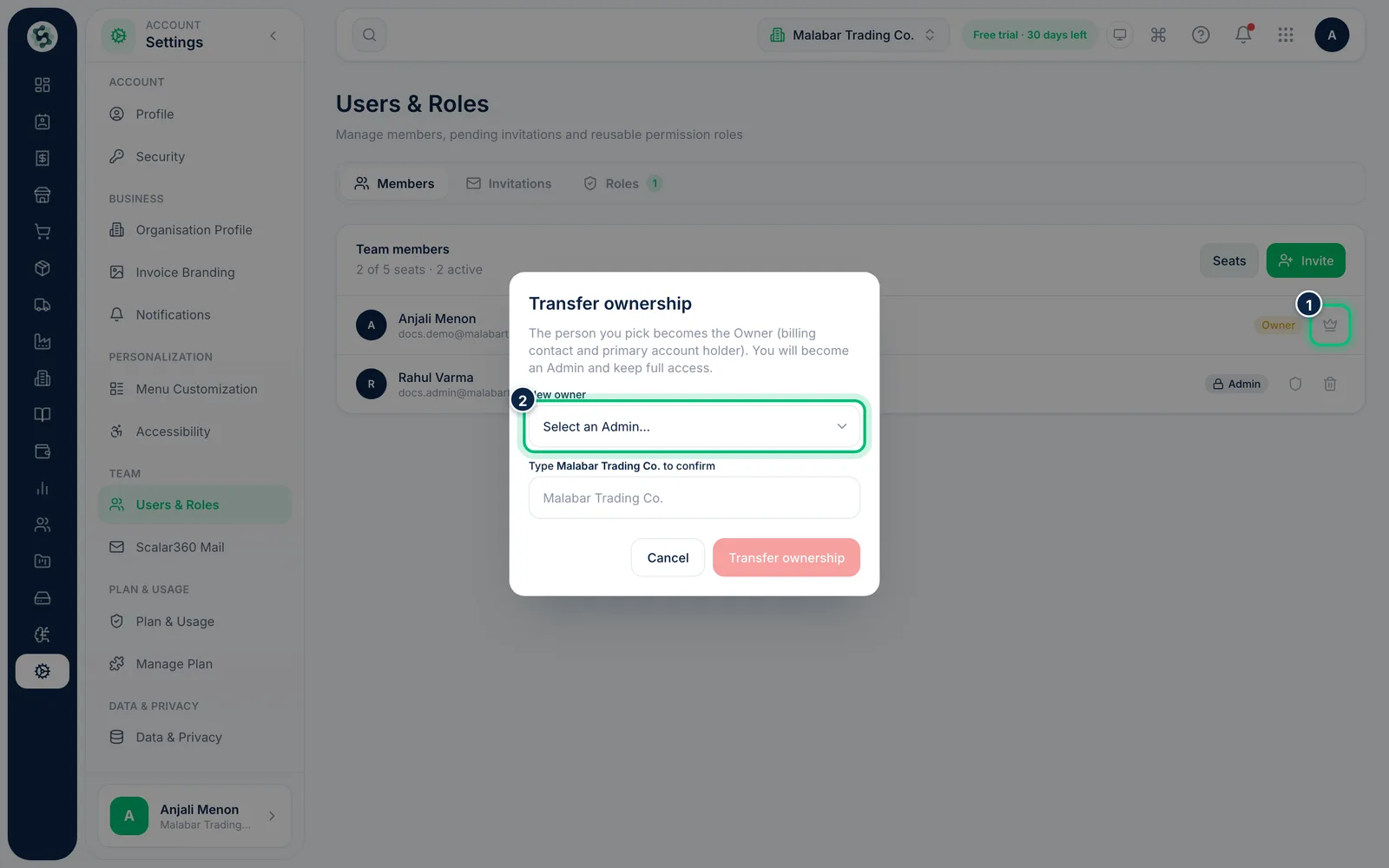
2Choose the crown icon
On the Members tab, find your own row and choose the crown icon, Transfer ownership. The dialog explains what will change. If you have no Admins, it asks you to make someone an Admin first.
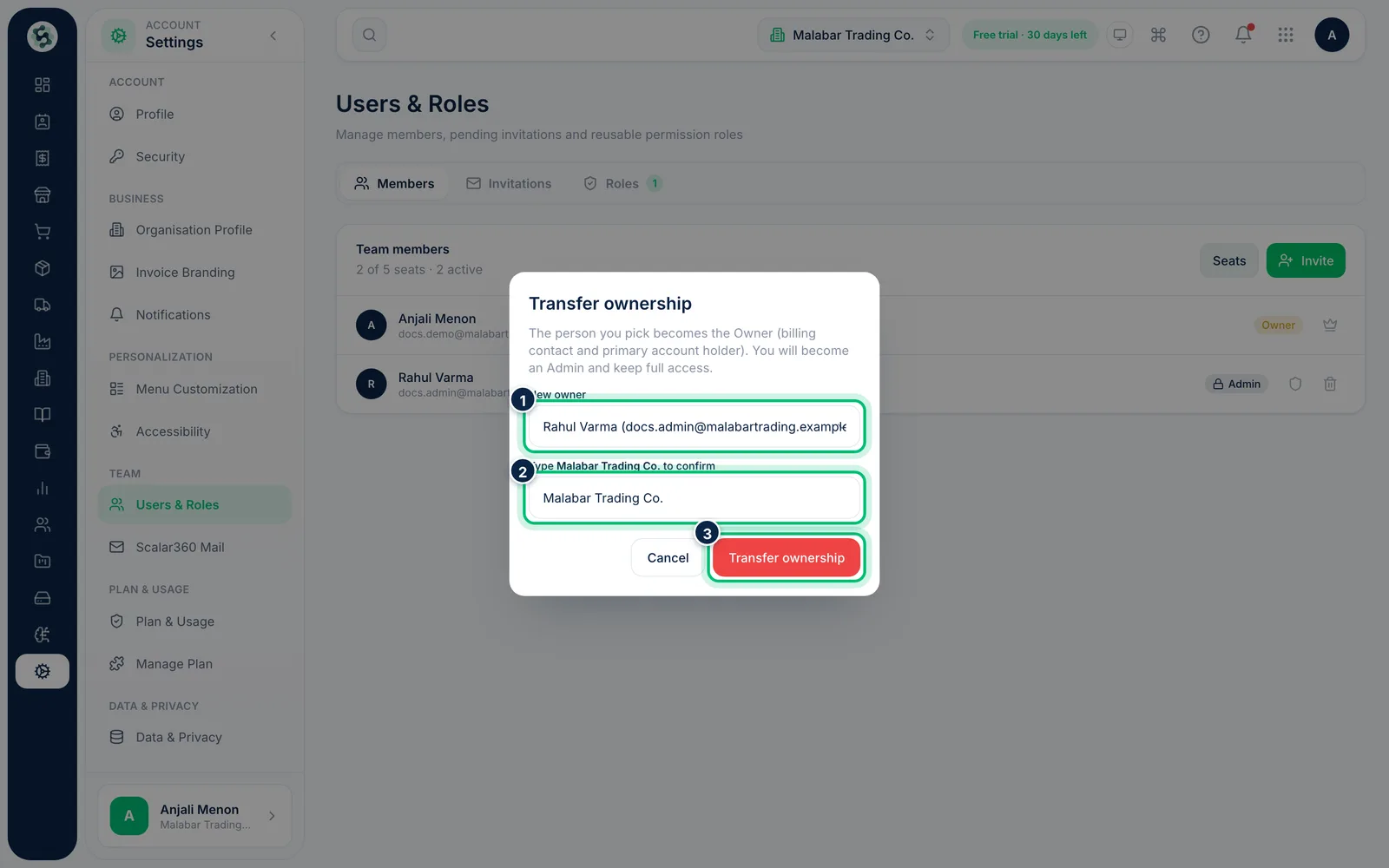
3Pick the Admin and confirm the name
Under New owner, pick the Admin. Then type your organisation's name exactly as shown to confirm, and choose Transfer ownership. They become the Owner and billing moves to them. You become an Admin, both of you get a notification, and the change is recorded in the audit log.
Related guides
Still stuck? Contact our support team — or start a free trial to try this in your own company.