
People & payroll · 3 steps
Track assets issued to employees
Keep a register of company laptops, phones and other equipment, and record who each one is assigned to and when it comes back.
1Open the asset register
Go to People Operations → Assets. Each asset shows its category, serial number, who it's Assigned to and its status. Filter by Available, Assigned, Repair or Retired.
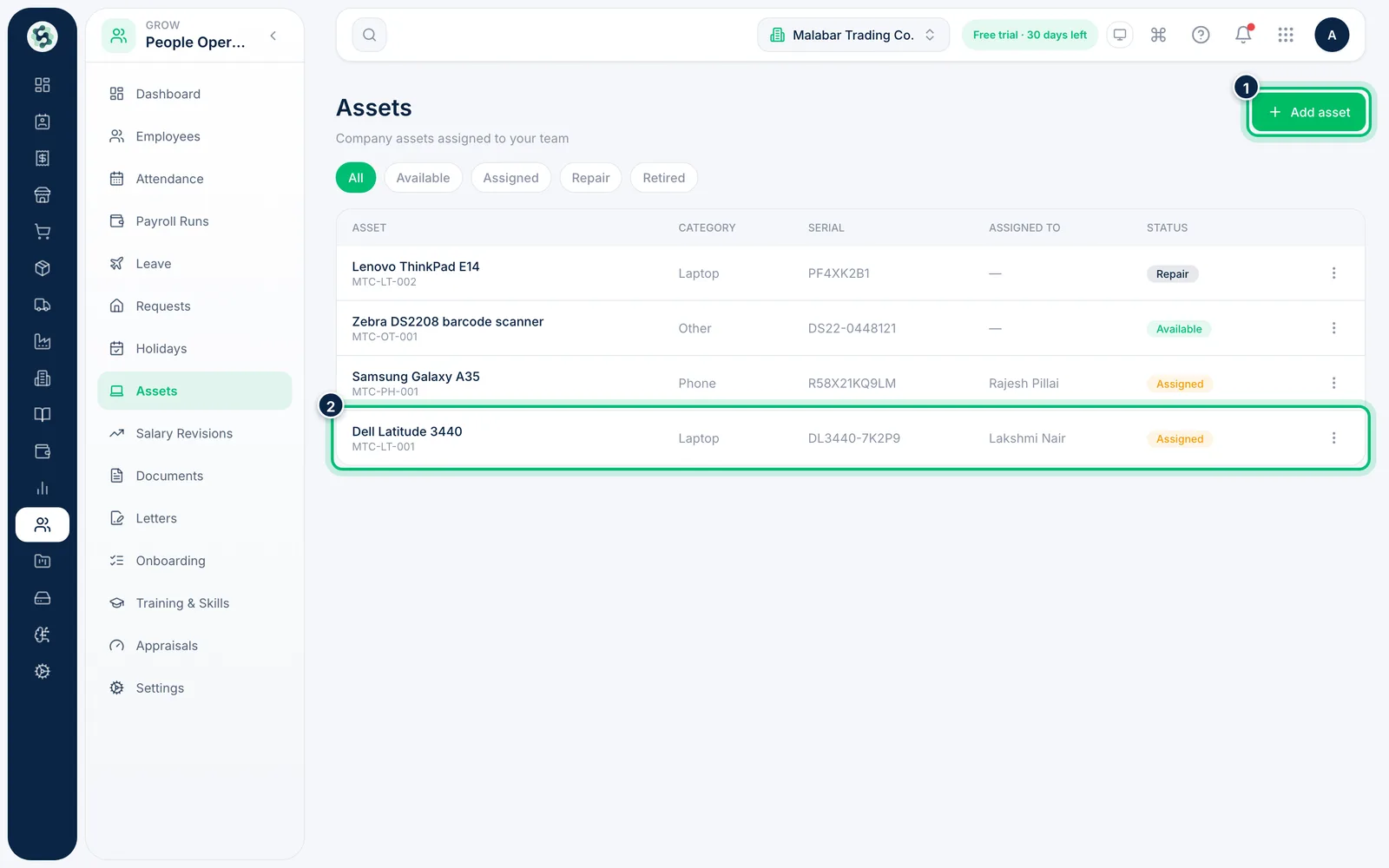
2Add an asset
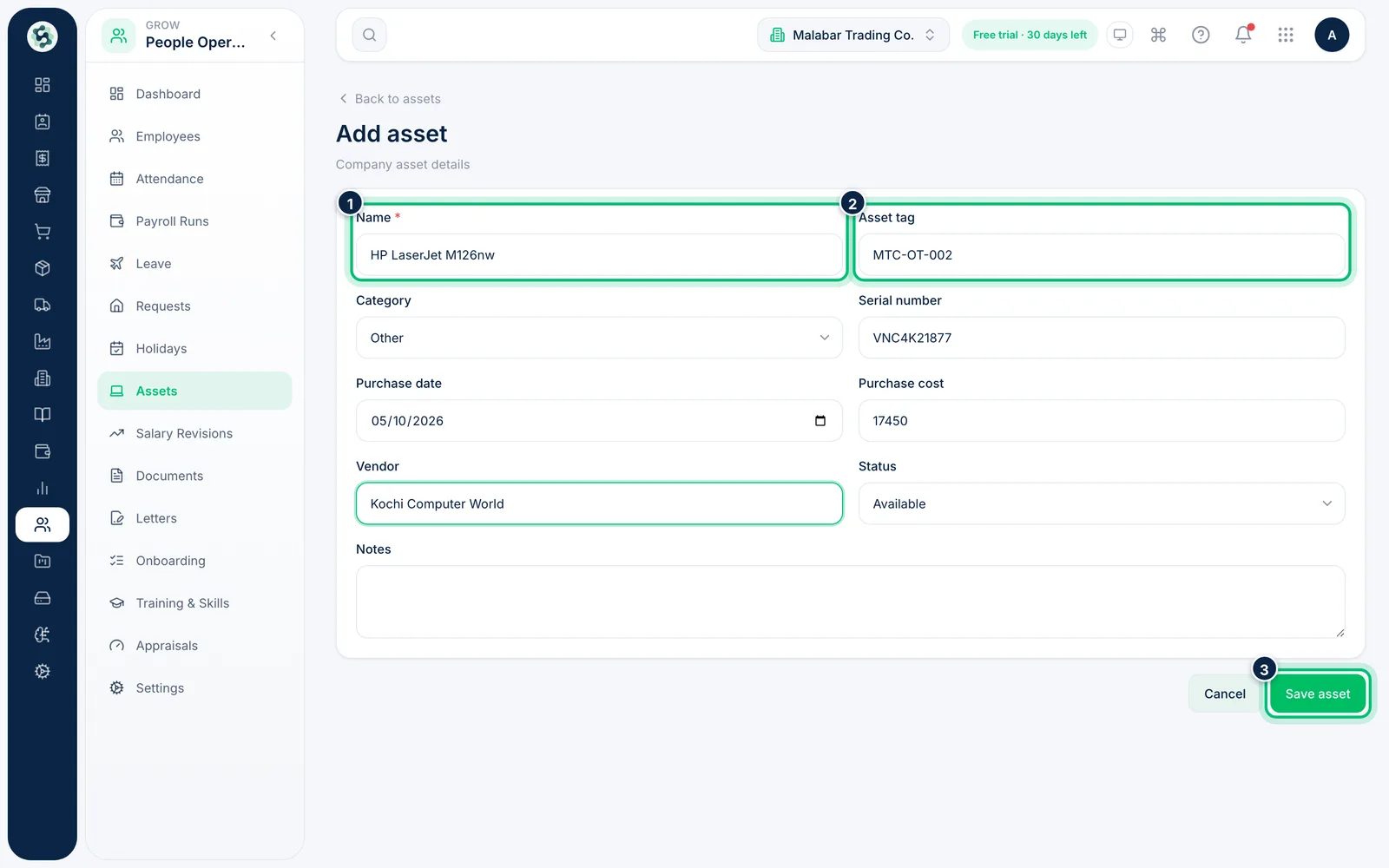
Choose Add asset. Enter the Name and an Asset tag, pick the Category, and add the serial number, purchase date, cost and vendor. Choose Save asset.
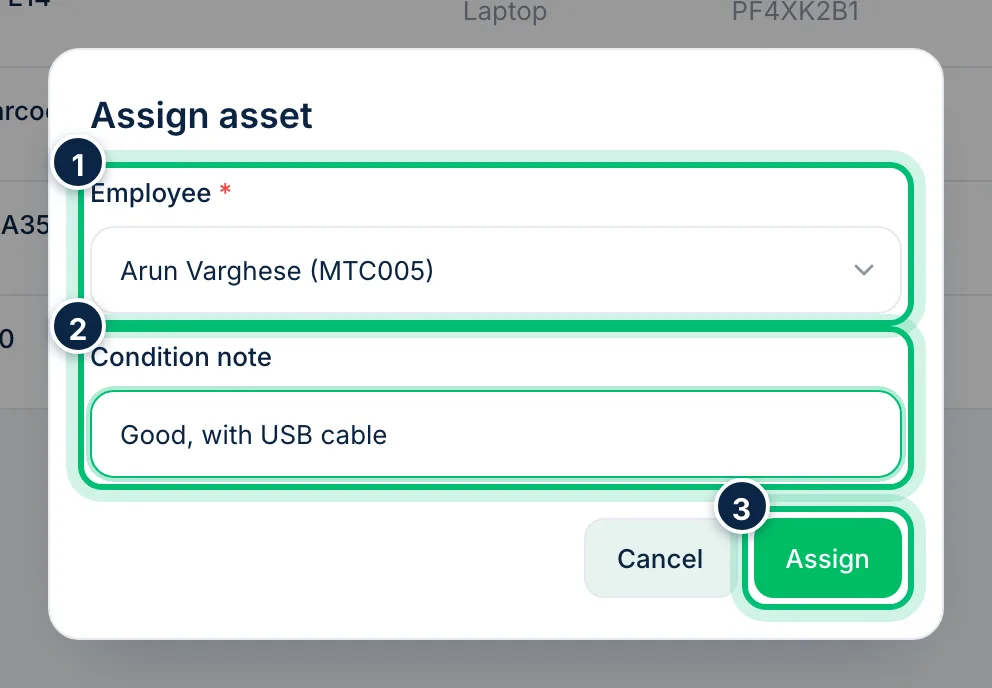
3Assign it to an employee
Open the row's actions menu and choose Assign. Pick the Employee, add a Condition note such as "New, with cable", and choose Assign.
Related guides
Run onboarding and exit checklistsMake a checklist of steps for new joiners or leavers once, then start it for each person and tick off tasks as they're done.Add an employee with salary, PF, ESI and bank detailsCreate an employee record with their role, monthly salary structure, statutory deductions and bank account, ready for attendance and payroll.
Still stuck? Contact our support team — or start a free trial to try this in your own company.