
Accounting & GST · 3 steps
Lock a closed period
Stop anyone posting or changing entries dated on or before a date, once you've closed the books for that period.
Before you start: You need permission to lock periods. Everyone with access to the General Ledger can see the current lock.
1Find the period lock
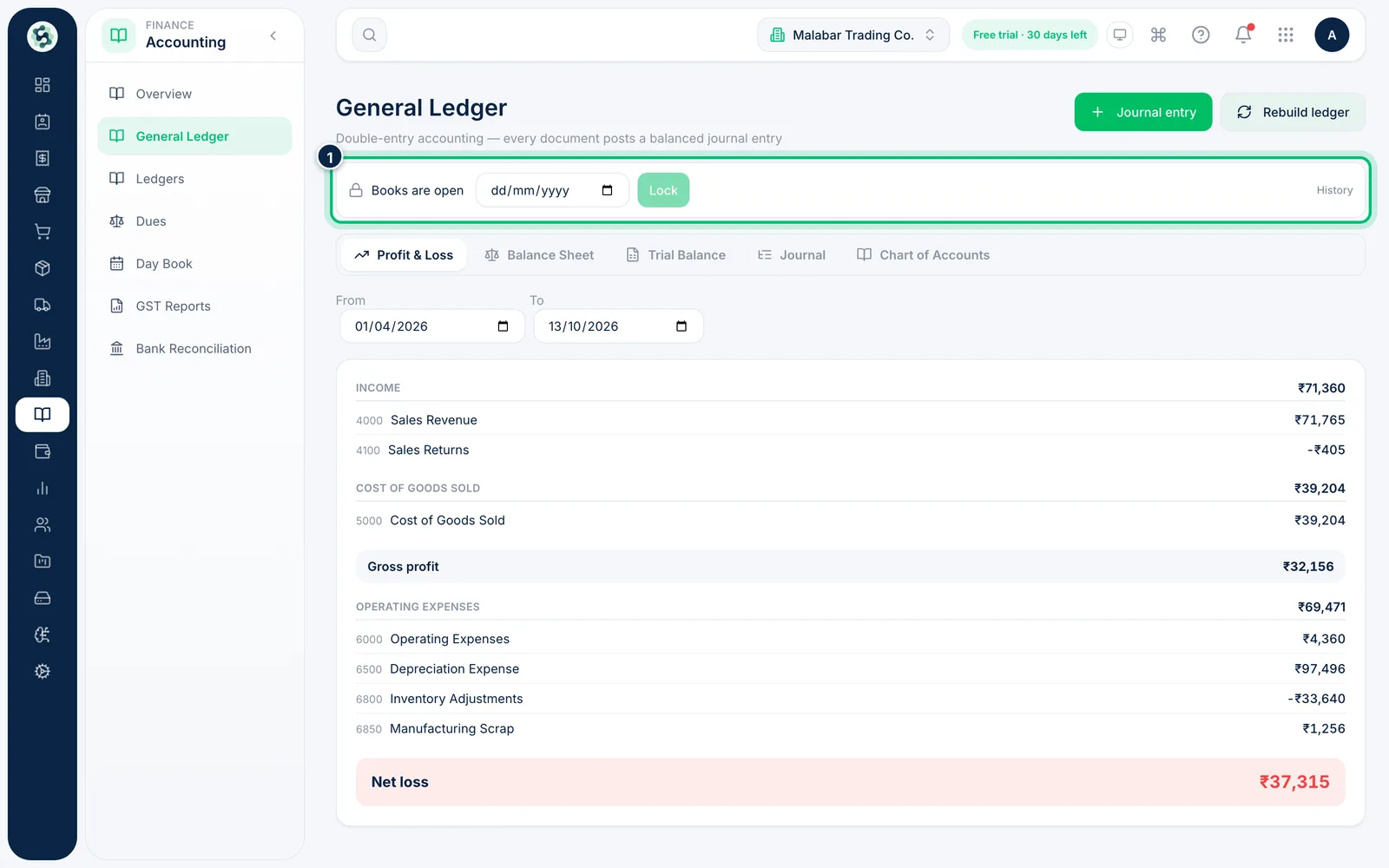
Open Accounting → General Ledger. A compact row under the title shows the status — Books are open, or the date the books are locked up to — with the date box, Lock and History beside it.
2Choose the lock date and lock
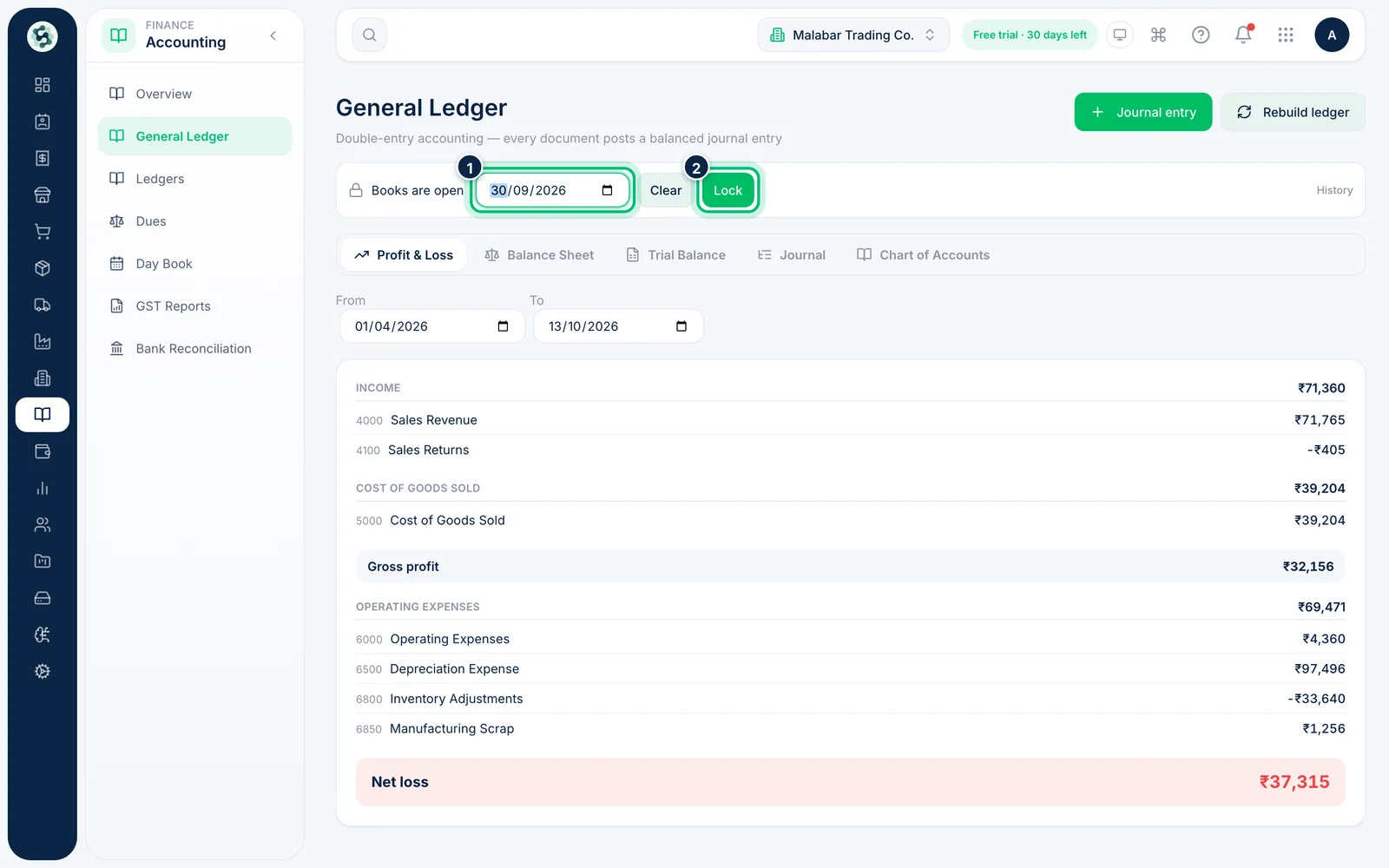
Pick the last day of the closed period in the date box on that row — for example the end of the last quarter you've filed — then choose Lock.
3Re-open a period if you must
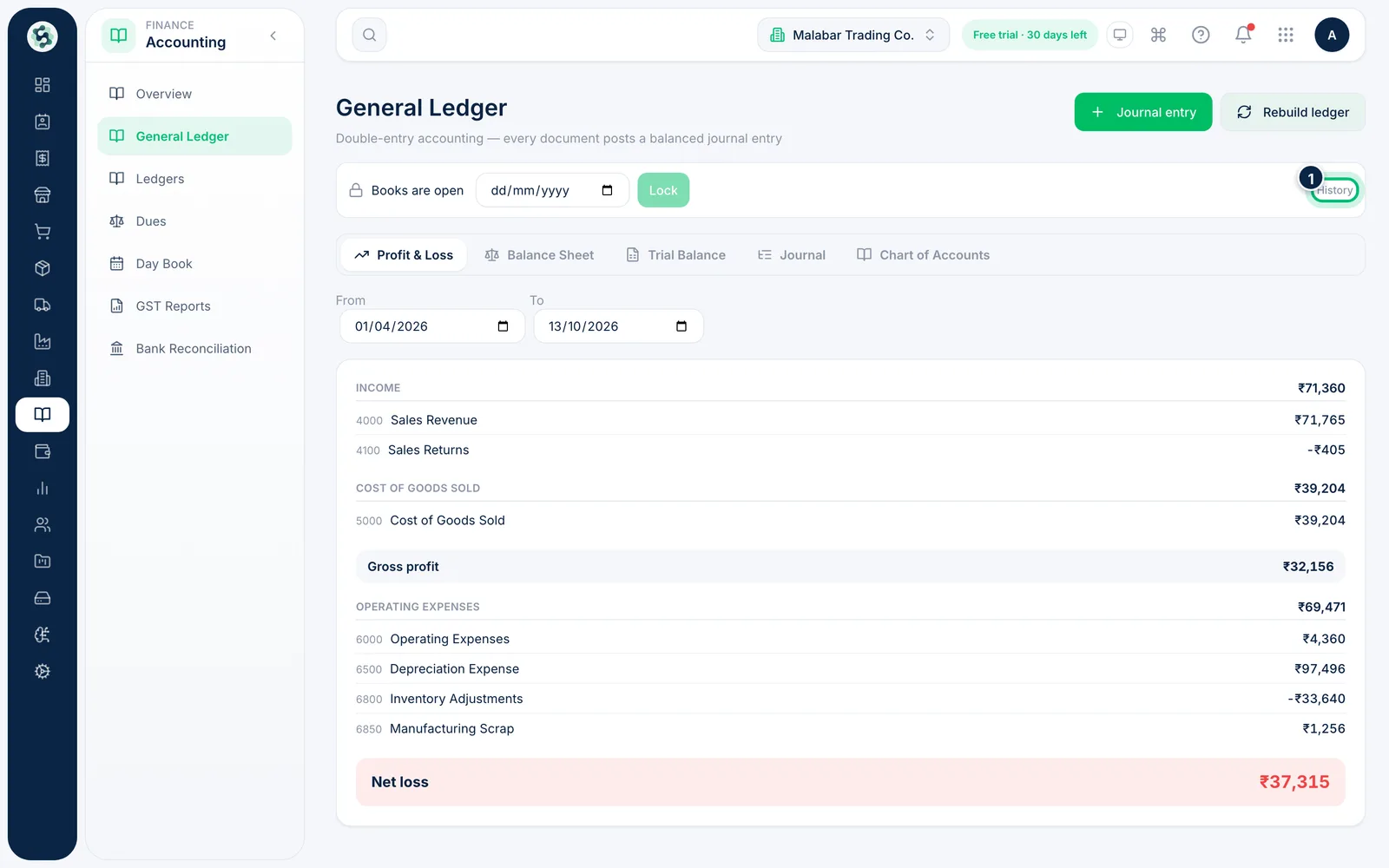
To re-open, choose an earlier date or Clear. You'll need to give a Reason for re-opening, and the button changes to Re-open. History lists every lock change, who made it and why.
Related guides
Still stuck? Contact our support team — or start a free trial to try this in your own company.