
Manufacturing · 4 steps
Subcontract production to a vendor
Send components to a vendor, have them assemble the finished goods, and receive the result back with the full cost.
Before you start: The finished good needs a BOM, and the vendor must exist in your vendor list.
1Open Subcontracting and start an order
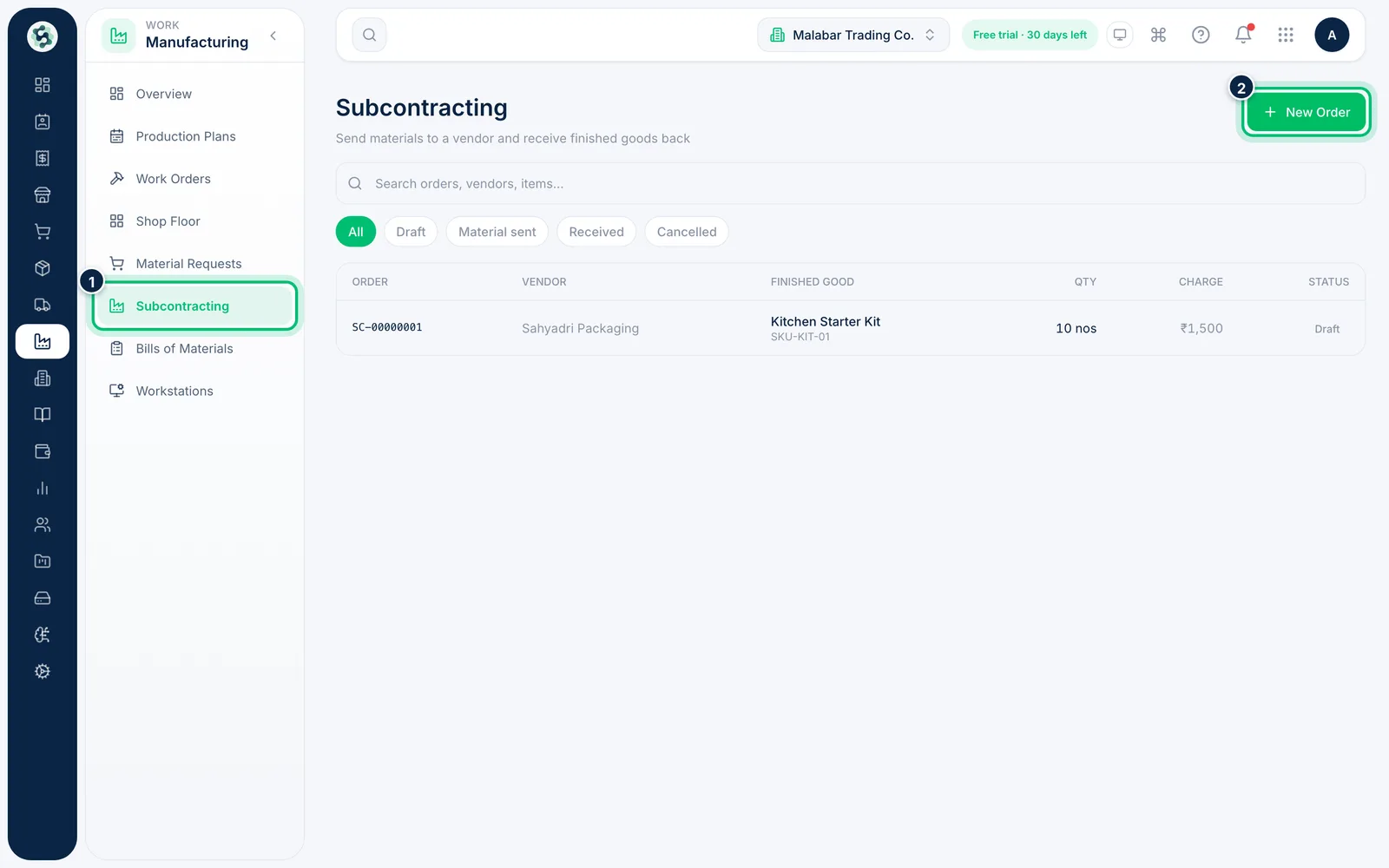
Open Manufacturing → Subcontracting. The list shows each order's Vendor, Finished good, Charge and Status. Choose New Order.
2Enter the vendor, product and charge
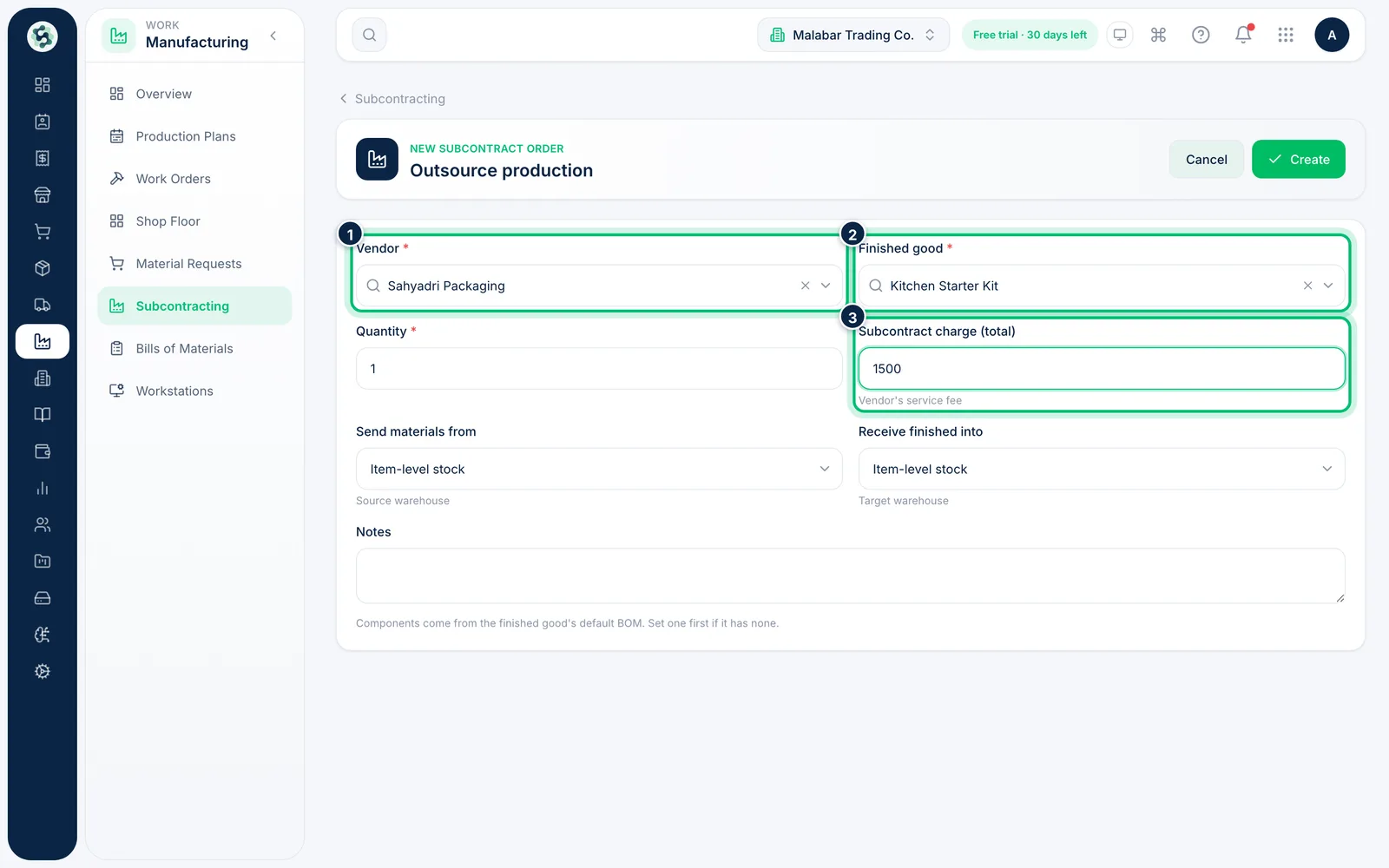
Pick the Vendor and the Finished good, then enter the Quantity and the Subcontract charge (total). Choose the warehouses to Send materials from and Receive finished into.
3Check the components to send
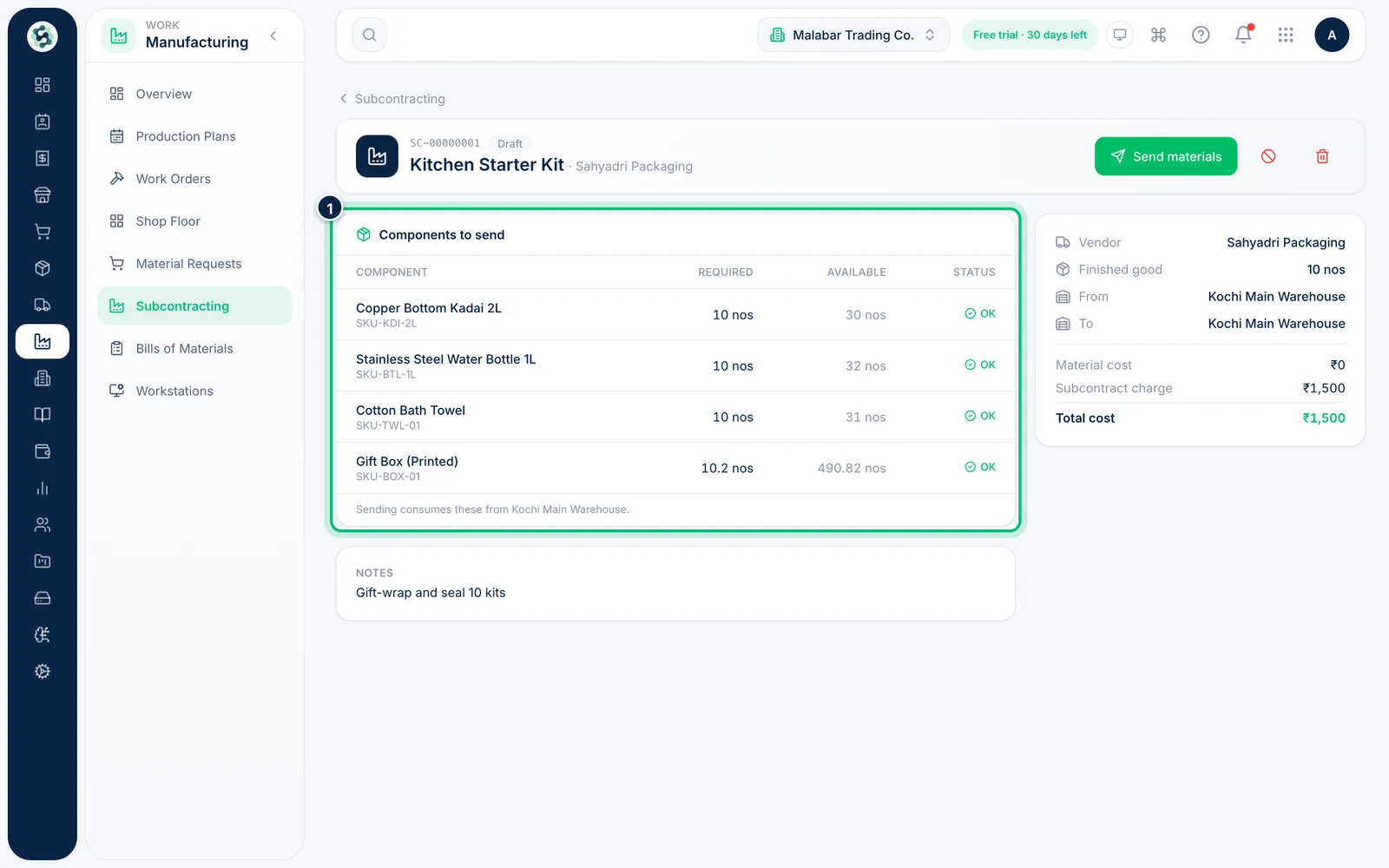
Open an order to see Components to send from the BOM, with what is Required and Available. A Short on stock badge appears if anything can't be sent.
4Send materials and receive the goods
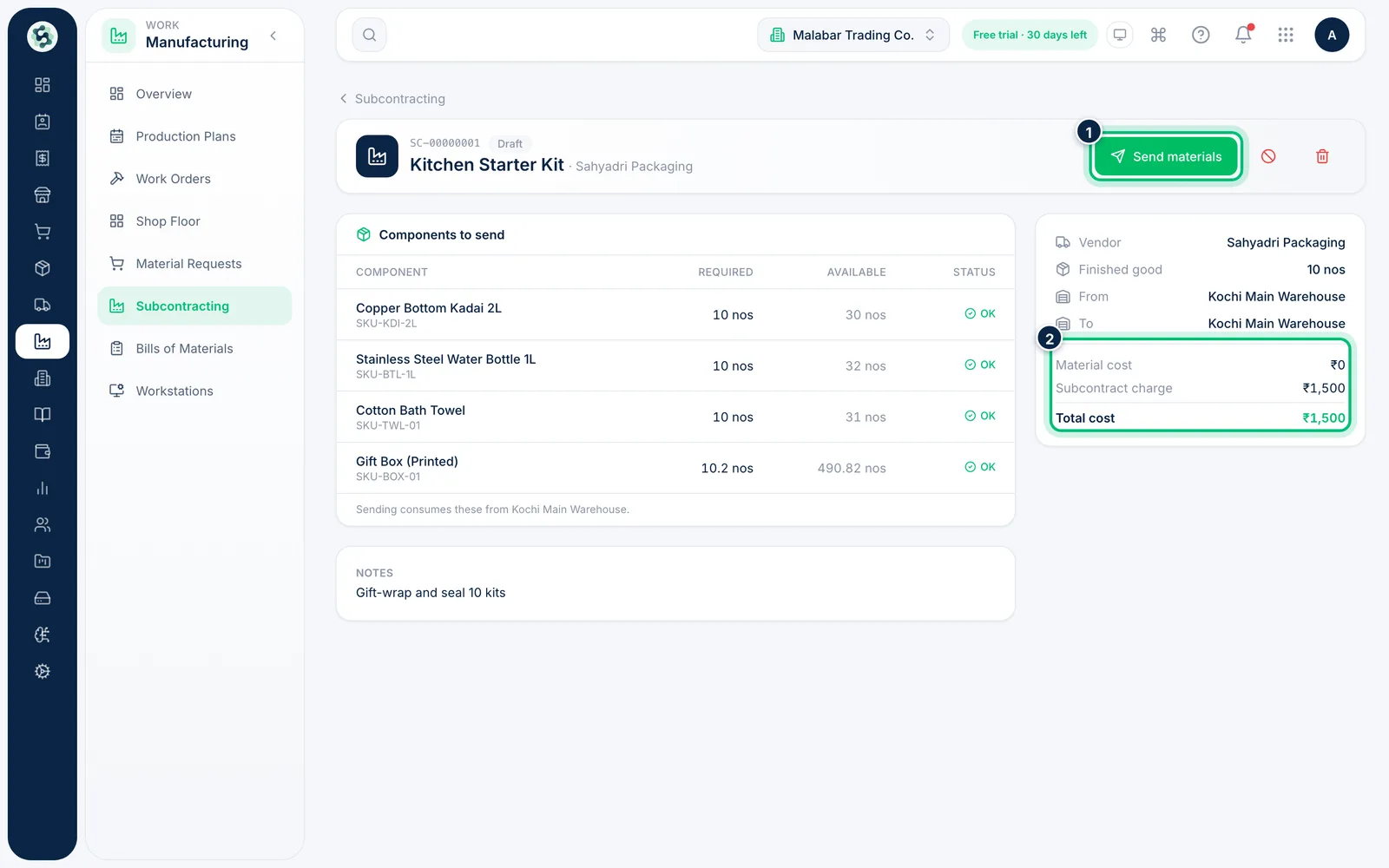
Choose Send materials to consume the components from the warehouse. When the vendor delivers, choose Receive to add the finished goods to stock. The side panel shows Material cost, Subcontract charge and Total cost.
Related guides
Still stuck? Contact our support team — or start a free trial to try this in your own company.